
Quill Rich Text Editor with Custom Toolbar and Character Limit

CodeMirror JSON Editor with Validation Gutter
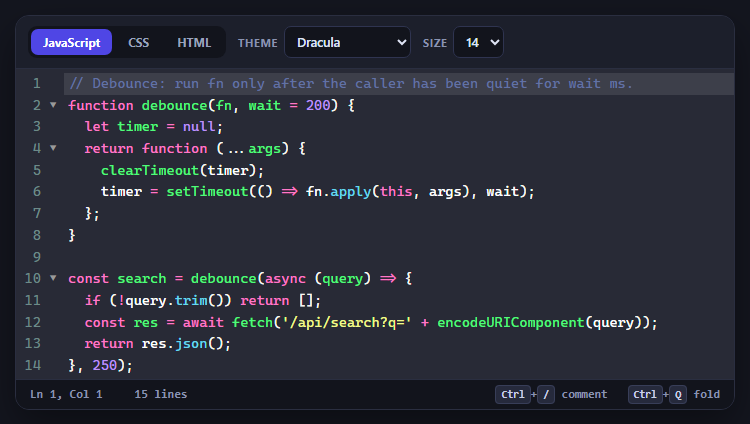
CodeMirror Code Editor with Line Numbers, Folding and Themes

Marked + DOMPurify Live Markdown Preview
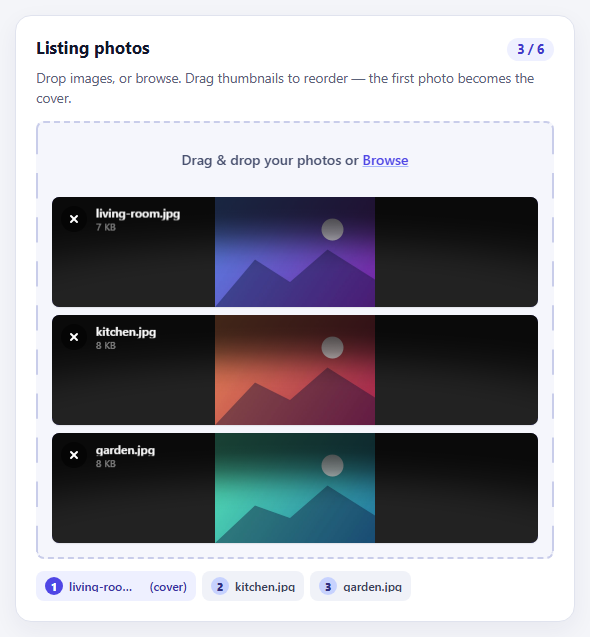
FilePond Image Upload with Preview and Reorder

Cropper.js Aspect-Ratio Presets for Social Posts
API Key Copy Field — Free HTML CSS JS Snippet
API Key Copy Field · Forms · Plain HTML, CSS & JS · Live preview
What's included
Features
About this UI Snippet
API Key Copy Field — Masked Key With Clipboard Copy and Confirm-Gated Regeneration
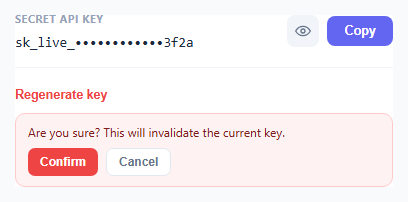
This snippet is a settings-panel row for displaying a secret API key: masked by default, revealable on demand, copyable to the clipboard with visible confirmation, and regenerable behind an explicit confirm step.
Masking and reveal
The key is stored in a fullKey variable. maskKey() keeps the sk_live_ prefix and the last four characters visible, replacing everything in between with bullet characters — showing just enough of the key for identification without exposing it. The eye-icon toggle button flips a revealed boolean and calls renderKey(), which chooses between the masked and full string based on that flag; the button's title/aria-label update between "Show key" and "Hide key" to match.
Copying with navigator.clipboard
The Copy button calls navigator.clipboard.writeText(fullKey) — note that it copies the real fullKey value regardless of whether the key is currently masked on screen, since masking is a display-only concern. On success, the button's label swaps to "Copied!" with a green background via a .ak-copied class. A setTimeout reverts it back to "Copy" after 1.5 seconds, and that timer is captured in copyResetTimer and cleared with clearTimeout at the start of every click — so clicking Copy again quickly restarts the 1.5-second window instead of the label flickering back early from a stale timer.
Confirm-gated regeneration
Clicking "Regenerate key" doesn't regenerate anything immediately — it only reveals a hidden confirmation block (toggled via the hidden attribute) with "Confirm" and "Cancel" buttons. Only clicking Confirm generates a new random key string, resets revealed to false so the freshly generated key isn't accidentally left exposed, and re-renders. Cancel simply hides the confirmation block again with no side effects.
Step by step
How to Use
- 1Load the snippetClick "API Key Copy Field" in the sidebar to load its HTML, CSS, and JS into the editor panels. The preview updates instantly.
- 2Edit the codeModify any panel — HTML, CSS, or JS. The preview refreshes as you type. Use Reset in each panel header to restore the original.
- 3Preview on devicesClick the Mobile (375px), Tablet (768px), or Desktop buttons in the preview header to check responsiveness.
- 4Export in your formatClick "HTML" to download a standalone file, "JSX" for a React component, "Tailwind" for a React + Tailwind CSS component, "Tailwind HTML" for a standalone HTML file with Tailwind CDN, "Vue" for a Vue 3 SFC with <template>/<script setup>/<style scoped>, or "Angular" for a standalone Angular .component.ts file. "Copy all" copies the full code to clipboard.
- 5Save your versionClick "Save as", type a name, and press Enter. Your snippet saves to IndexedDB and appears in the Saved tab.
Real-world uses
Common Use Cases
Got questions?
Frequently Asked Questions
It always copies the real fullKey value via navigator.clipboard.writeText(fullKey), regardless of whether the key is currently shown masked or revealed on screen — masking only affects what is displayed, not what gets copied.
Each click clears the previous copyResetTimer with clearTimeout before starting a new 1.5-second setTimeout, so the "Copied!" label's revert is always measured from the most recent click rather than potentially reverting early from an earlier, still-pending timer.
No — it only shows an inline confirmation block with Confirm and Cancel buttons. The new random key string is only generated when Confirm is explicitly clicked; Cancel dismisses the confirmation with no changes.
The confirm handler resets the revealed flag to false before re-rendering, so a freshly generated key is not left visibly exposed on screen by default — the user has to explicitly click Show again to view it.
Build with AI
Build, Understand, Optimize, and Extend It With AI
Hand this snippet's HTML, CSS, and JavaScript to an AI coding assistant like Claude and ask it to adapt "API Key Copy Field" to your project — restyle it to match your design system, wire it up to real data instead of the static example, or port it to the framework you're building in.
Prompt to recreate it
Copy this into your AI assistant of choice to build the effect from scratch, or as a jumping-off point for your own variant:
Build a forms component called "API Key Copy Field" using plain HTML, CSS, and vanilla JavaScript — no framework, no build step.

Requirements:
- Match the structure and behavior of the "API Key Copy Field" snippet from the UI Snippets Library.
- Keep the markup semantic and the styling self-contained (no external dependencies beyond what the original snippet uses).
- Keep the JavaScript vanilla, with no framework runtime required.
- Make it easy to restyle via CSS custom properties or class overrides so it can be dropped into a real project.
Want to tighten it up first? Run this prompt through the AI Prompt Studio to score it across 8 quality dimensions, catch anti-patterns, and tune the wording for Claude, ChatGPT, or Gemini before you paste it in.
Source Code
<div class="ak-wrap">
  <div class="ak-row">
    <div class="ak-label-block">
      <span class="ak-label">Secret API Key</span>
      <span class="ak-key" id="akKey">sk_live_\u2022\u2022\u2022\u2022\u2022\u2022\u2022\u2022\u2022\u2022\u2022\u20223f2a</span>
    </div>
    <div class="ak-actions">
      <button class="ak-icon-btn" id="akToggle" aria-label="Show key" title="Show key">
        <svg width="16" height="16" viewBox="0 0 24 24" fill="none" stroke="currentColor" stroke-width="2" stroke-linecap="round" stroke-linejoin="round"><path d="M1 12s4-7 11-7 11 7 11 7-4 7-11 7-11-7-11-7z"/><circle cx="12" cy="12" r="3"/></svg>
      </button>
      <button class="ak-copy-btn" id="akCopy">Copy</button>
    </div>
  </div>
  <div class="ak-regen-block">
    <button class="ak-regen-btn" id="akRegenBtn">Regenerate key</button>
    <div class="ak-confirm" id="akConfirm" hidden>
      <span>Are you sure? This will invalidate the current key.</span>
      <div class="ak-confirm-actions">
        <button class="ak-confirm-btn" id="akConfirmYes">Confirm</button>
        <button class="ak-confirm-btn ak-confirm-cancel" id="akConfirmNo">Cancel</button>
      </div>
    </div>
  </div>
</div>
* { box-sizing: border-box; margin: 0; padding: 0; }
body { font-family: system-ui, -apple-system, sans-serif; background: #f8fafc; min-height: 100vh; display: flex; align-items: center; justify-content: center; padding: 24px; }
.ak-wrap { width: 100%; max-width: 420px; background: #fff; border: 1px solid #e2e8f0; border-radius: 14px; padding: 18px 20px; box-shadow: 0 4px 16px rgba(15,23,42,0.05); }
.ak-row { display: flex; align-items: center; justify-content: space-between; gap: 12px; }
.ak-label-block { min-width: 0; }
.ak-label { display: block; font-size: 11px; font-weight: 700; color: #94a3b8; text-transform: uppercase; letter-spacing: 0.04em; margin-bottom: 4px; }
.ak-key { font-family: ui-monospace, "SF Mono", monospace; font-size: 13.5px; color: #1e293b; word-break: break-all; }
.ak-actions { display: flex; align-items: center; gap: 8px; flex-shrink: 0; }
.ak-icon-btn {
background: #f1f5f9; border: none; border-radius: 8px; width: 32px; height: 32px; display: flex;
align-items: center; justify-content: center; color: #64748b; cursor: pointer;
}
.ak-icon-btn:hover { background: #e2e8f0; color: #1e293b; }
.ak-copy-btn {
background: #6366f1; color: #fff; border: none; border-radius: 8px; padding: 8px 14px;
font-size: 12.5px; font-weight: 700; cursor: pointer; min-width: 66px; transition: background 0.15s;
}
.ak-copy-btn:hover { background: #4f46e5; }
.ak-copy-btn.ak-copied { background: #16a34a; }
.ak-regen-block { margin-top: 16px; padding-top: 14px; border-top: 1px solid #f1f5f9; }
.ak-regen-btn { background: none; border: none; color: #ef4444; font-size: 12.5px; font-weight: 700; cursor: pointer; padding: 0; }
.ak-regen-btn:hover { text-decoration: underline; }
.ak-confirm {
margin-top: 10px; background: #fef2f2; border: 1px solid #fecaca; border-radius: 10px;
padding: 10px 12px; font-size: 12px; color: #7f1d1d; display: flex; flex-direction: column; gap: 8px;
}
.ak-confirm-actions { display: flex; gap: 8px; }
.ak-confirm-btn {
border: none; border-radius: 7px; padding: 6px 12px; font-size: 12px; font-weight: 700; cursor: pointer;
}
#akConfirmYes { background: #ef4444; color: #fff; }
#akConfirmYes:hover { background: #dc2626; }
.ak-confirm-cancel { background: #fff; color: #64748b; border: 1px solid #e2e8f0; }
.ak-confirm-cancel:hover { background: #f8fafc; }const keyEl = document.getElementById('akKey');
const toggleBtn = document.getElementById('akToggle');
const copyBtn = document.getElementById('akCopy');
const regenBtn = document.getElementById('akRegenBtn');
const confirmBlock = document.getElementById('akConfirm');
const confirmYes = document.getElementById('akConfirmYes');
const confirmNo = document.getElementById('akConfirmNo');
let fullKey = 'sk_live_49af82d10c7be3f2a';
let revealed = false;
let copyResetTimer = null;
function maskKey(key) {
const last4 = key.slice(-4);
return 'sk_live_' + '\u2022'.repeat(12) + last4;
}
function renderKey() {
keyEl.textContent = revealed ? fullKey : maskKey(fullKey);
}
toggleBtn.addEventListener('click', () => {
revealed = !revealed;
toggleBtn.setAttribute('title', revealed ? 'Hide key' : 'Show key');
toggleBtn.setAttribute('aria-label', revealed ? 'Hide key' : 'Show key');
renderKey();
});
copyBtn.addEventListener('click', () => {
navigator.clipboard.writeText(fullKey).then(() => {
copyBtn.textContent = 'Copied!';
copyBtn.classList.add('ak-copied');
clearTimeout(copyResetTimer);
copyResetTimer = setTimeout(() => {
copyBtn.textContent = 'Copy';
copyBtn.classList.remove('ak-copied');
}, 1500);
});
});
regenBtn.addEventListener('click', () => {
confirmBlock.hidden = false;
});
confirmNo.addEventListener('click', () => {
confirmBlock.hidden = true;
});
confirmYes.addEventListener('click', () => {
const randomPart = Array.from({ length: 18 }, () =>
'abcdefghijklmnopqrstuvwxyz0123456789'[Math.floor(Math.random() * 36)]
).join('');
fullKey = 'sk_live_' + randomPart;
revealed = false;
renderKey();
confirmBlock.hidden = true;
});
renderKey();