
Quill Rich Text Editor with Custom Toolbar and Character Limit

CodeMirror JSON Editor with Validation Gutter
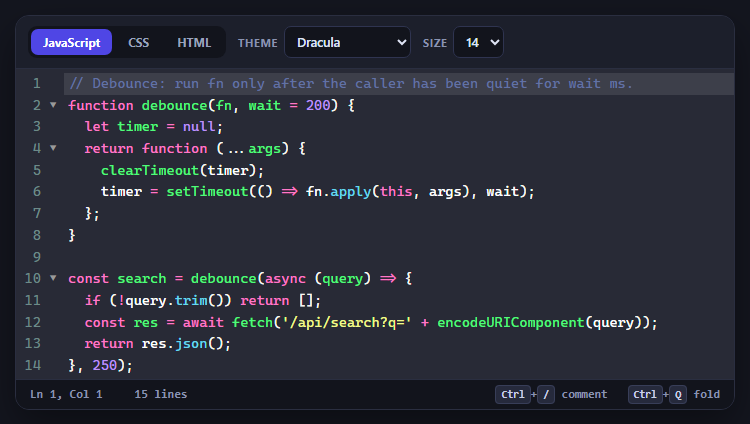
CodeMirror Code Editor with Line Numbers, Folding and Themes

Marked + DOMPurify Live Markdown Preview
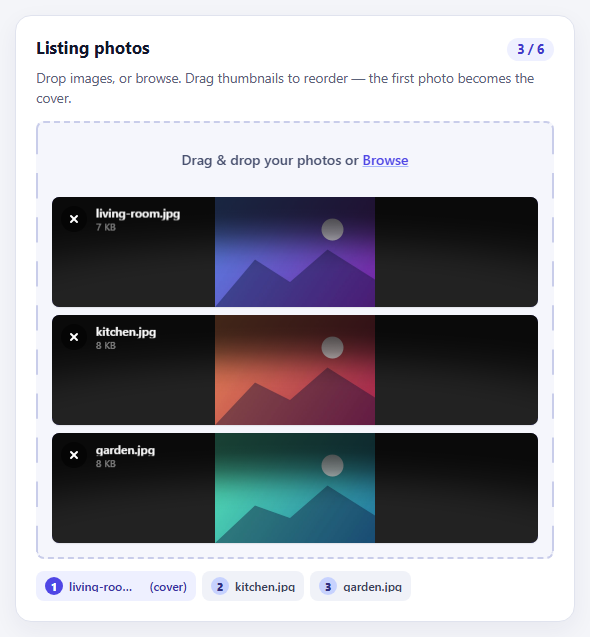
FilePond Image Upload with Preview and Reorder

Cropper.js Aspect-Ratio Presets for Social Posts
Bootstrap Signup Form with Password Strength Meter — Free Snippet
Bootstrap Signup Form with Password Strength Meter · Forms · Plain HTML, CSS & JS · Live preview
What's included
Features
About this UI Snippet
Bootstrap Signup Form with Password Strength Meter — HTML, CSS & JavaScript
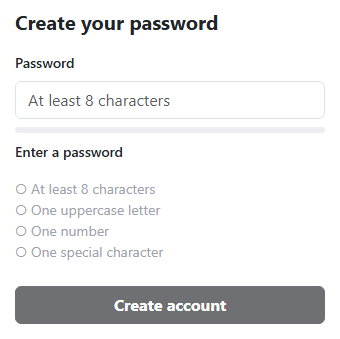
Rather than a vague "your password is weak" message after submission, this snippet checks four password rules — length, an uppercase letter, a number, a special character — live, on every keystroke, against a real Bootstrap form-control password field. Each rule is a small { test, el } object; a shared input listener runs every test against the current value, toggles a ✓/○ marker and a green "met" color per rule, and derives an overall strength percentage from how many of the four currently pass.
The submit button stays genuinely disabled until all four rules pass — not just visually discouraged, but functionally unclickable — which is the detail that actually prevents a weak password from being submitted, rather than merely suggesting a stronger one.
Step by step
How to Use
- 1Load the snippetClick the snippet in the sidebar Library tab. The preview loads an empty password field and a disabled submit button.
- 2Type a short passwordThe meter fills partially, the label reads "Weak" or "Fair", and only some rules show a green checkmark.
- 3Type a password meeting all four rulesE.g. "Secure#2026" — the meter fills to 100% green, the label reads "Strong", and the submit button becomes enabled.
- 4Delete a characterRemove the special character — that rule reverts to unmet and the submit button disables again immediately.
Real-world uses
Common Use Cases
Got questions?
Frequently Asked Questions
Genuinely disabled — its disabled property is set to true/false based on whether all four rules pass, so it's functionally unclickable (and correctly skipped in tab order) until the password meets every requirement.
At least 8 characters, one uppercase letter, one number, and one special (non-alphanumeric) character — each checked with its own regular expression against the current input value.
It's simply how many of the four rules currently pass, divided by four — 1 of 4 rules met fills the meter to 25%, 4 of 4 fills it to 100% and turns it green.
Yes — add a new entry to the rules object with its own test function and a matching <li> element in the HTML, and update the LEVELS array and the met < 4 check to account for five total rules.
No — this is a front-end demo. Wire the submit button's click handler to a real signup API call once the password (and any other required fields) pass validation.
Build with AI
Build, Understand, Optimize, and Extend It With AI
Hand this snippet's HTML, CSS, and JS to an AI coding assistant like Claude and ask it to add a "show password" toggle button (matching the pattern from the Bootstrap Login Form snippet), or to add a check against a list of common leaked passwords instead of just character-class rules. It's also a good exercise to ask the assistant to add a confirm-password field that must match before the submit button enables.
Prompt to recreate it
Copy this into your AI assistant of choice to build the effect from scratch, or as a jumping-off point for your own variant:
Build a Bootstrap 5.3 signup password field with a live strength meter, using the real Bootstrap CDN framework (bootstrap.min.css and bootstrap.bundle.min.js), not custom CSS made to resemble Bootstrap.

Requirements:
- A real Bootstrap form-control password input, a visual strength meter bar below it, a text label describing the current strength (e.g. Weak/Fair/Good/Strong), and a checklist of at least four password rules (length, uppercase letter, number, special character) each with its own visible met/unmet indicator.
- Every rule must be re-evaluated on every keystroke (the input event) against the current password value using independent test functions, not a single combined regex.
- The strength meter's fill percentage and color, and the strength label, must be derived from how many of the rules currently pass.
- A submit button must start disabled and only become enabled once all rules pass, and must re-disable immediately if the password is edited to no longer satisfy any rule.
Want to tighten it up first? Run this prompt through the AI Prompt Studio to score it across 8 quality dimensions, catch anti-patterns, and tune the wording for Claude, ChatGPT, or Gemini before you paste it in.
Source Code
<div class="container py-5 d-flex justify-content-center">
  <div class="card bspw-card">
    <div class="card-body p-4">
      <h5 class="fw-bold mb-3">Create your password</h5>
      <label class="form-label small fw-semibold">Password</label>
      <input type="password" class="form-control mb-2" id="bspwInput" placeholder="At least 8 characters">

      <div class="bspw-meter mb-2"><div class="bspw-meter-bar" id="bspwBar"></div></div>
      <p class="small fw-semibold mb-3" id="bspwLabel">Enter a password</p>

      <ul class="list-unstyled bspw-rules small">
        <li id="bspwRuleLen">○ At least 8 characters</li>
        <li id="bspwRuleUpper">○ One uppercase letter</li>
        <li id="bspwRuleNum">○ One number</li>
        <li id="bspwRuleSpecial">○ One special character</li>
      </ul>
      <button class="btn btn-dark w-100 fw-bold mt-2" id="bspwSubmit" disabled>Create account</button>
    </div>
  </div>
</div>
.bspw-card { width: 360px; border: 1px solid #eceef1; border-radius: 14px; }
.bspw-meter { height: 6px; background: #eceef1; border-radius: 4px; overflow: hidden; }
.bspw-meter-bar { height: 100%; width: 0%; background: #dc2626; transition: width .2s ease, background .2s ease; }
.bspw-rules li { color: #9ca3af; transition: color .15s; }
.bspw-rules li.bspw-met { color: #16a34a; }const input = document.getElementById('bspwInput');
const bar = document.getElementById('bspwBar');
const label = document.getElementById('bspwLabel');
const submit = document.getElementById('bspwSubmit');
const rules = {
len: { test: v => v.length >= 8, el: document.getElementById('bspwRuleLen') },
upper: { test: v => /[A-Z]/.test(v), el: document.getElementById('bspwRuleUpper') },
num: { test: v => /[0-9]/.test(v), el: document.getElementById('bspwRuleNum') },
special: { test: v => /[^A-Za-z0-9]/.test(v), el: document.getElementById('bspwRuleSpecial') },
};
const LEVELS = [
{ pct: 0, color: '#dc2626', text: 'Enter a password' },
{ pct: 25, color: '#dc2626', text: 'Weak' },
{ pct: 50, color: '#f59e0b', text: 'Fair' },
{ pct: 75, color: '#eab308', text: 'Good' },
{ pct: 100, color: '#16a34a', text: 'Strong' },
];
input.addEventListener('input', () => {
const v = input.value;
let met = 0;
Object.values(rules).forEach(rule => {
const ok = rule.test(v);
rule.el.classList.toggle('bspw-met', ok);
rule.el.textContent = (ok ? '✓ ' : '○ ') + rule.el.textContent.slice(2);
if (ok) met++;
});
const level = v ? LEVELS[met] : LEVELS[0];
bar.style.width = (v ? met / 4 * 100 : 0) + '%';
bar.style.background = level.color;
label.textContent = level.text;
label.style.color = level.color;
submit.disabled = met < 4;
});