Email Templates
37 free responsive HTML email templates (onboarding, account, receipts, abandoned cart, shipping, newsletters, sales, webinars and holiday emails) that work in Gmail, Outlook and Apple Mail, with dark mode built in. Edit them in your browser, then copy the HTML, download a ZIP or fork it into My Code.
All Templates
37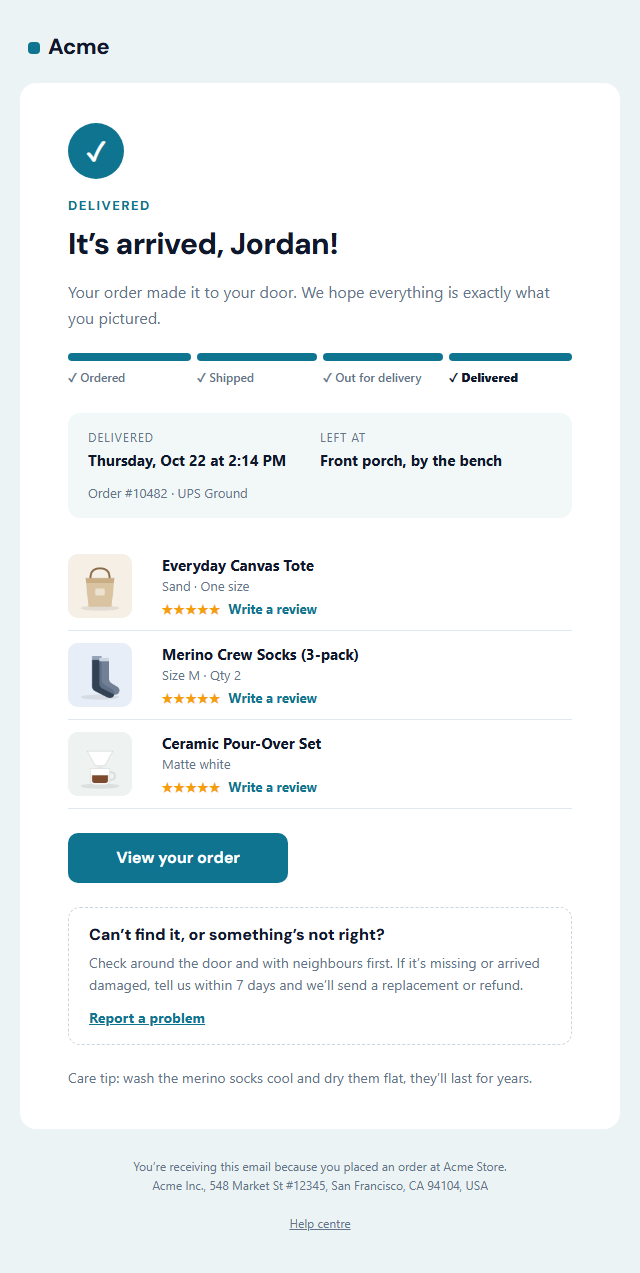
HTML Email Templates — Free, Responsive, Outlook-Safe
Gmail · Outlook · Apple Mail · Dark mode · Merge tags · Extra sections · Export HTML
What's included
Features
Browse by category
Email Templates for Every Stage of the Customer Journey
Onboarding & Lifecycle email templates: Welcome, getting-started checklist, team invitation, trial-ending, birthday, win-back, NPS survey and cancellation emails that turn sign-ups into loyal customers. Includes Welcome Email, Getting Started Checklist Email, Team Invitation Email, Trial Ending Email, Re-engagement Email (We Miss You), Birthday Email, NPS Survey Email, Subscription Cancellation Email.
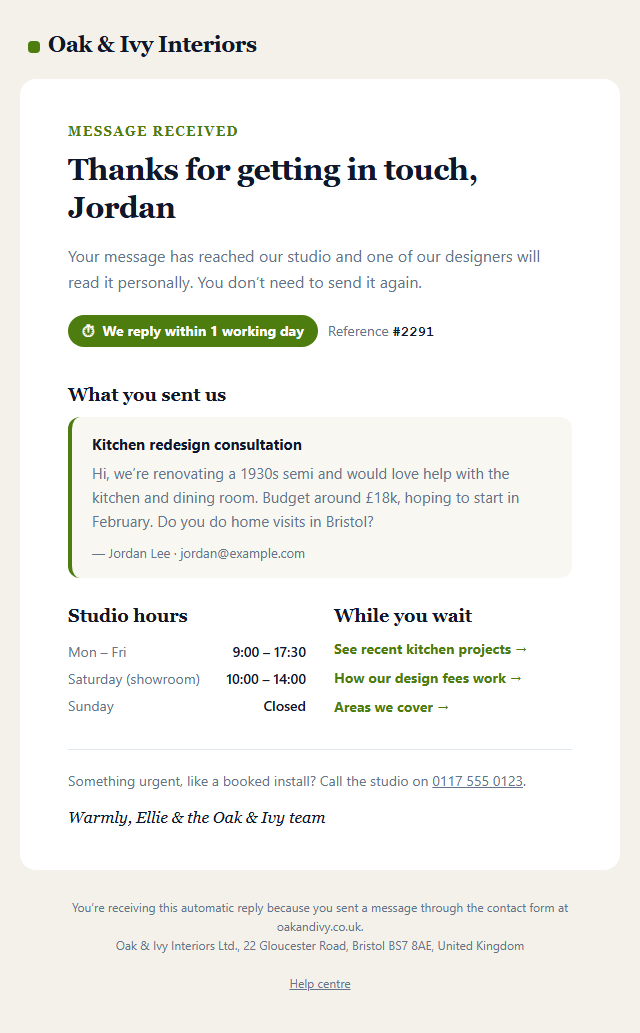
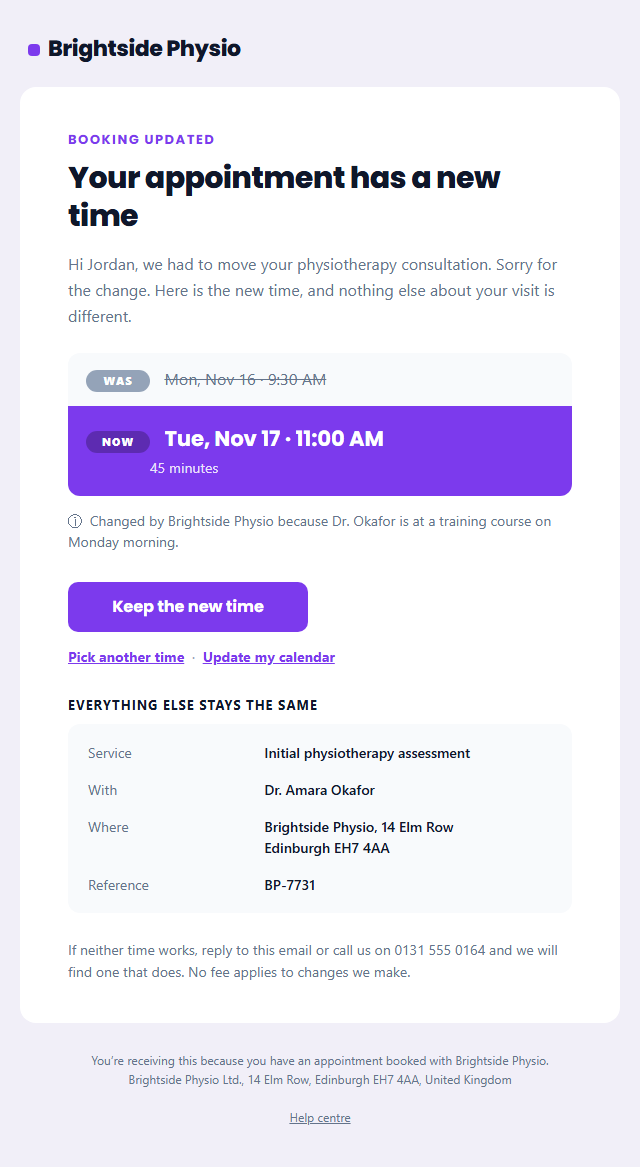
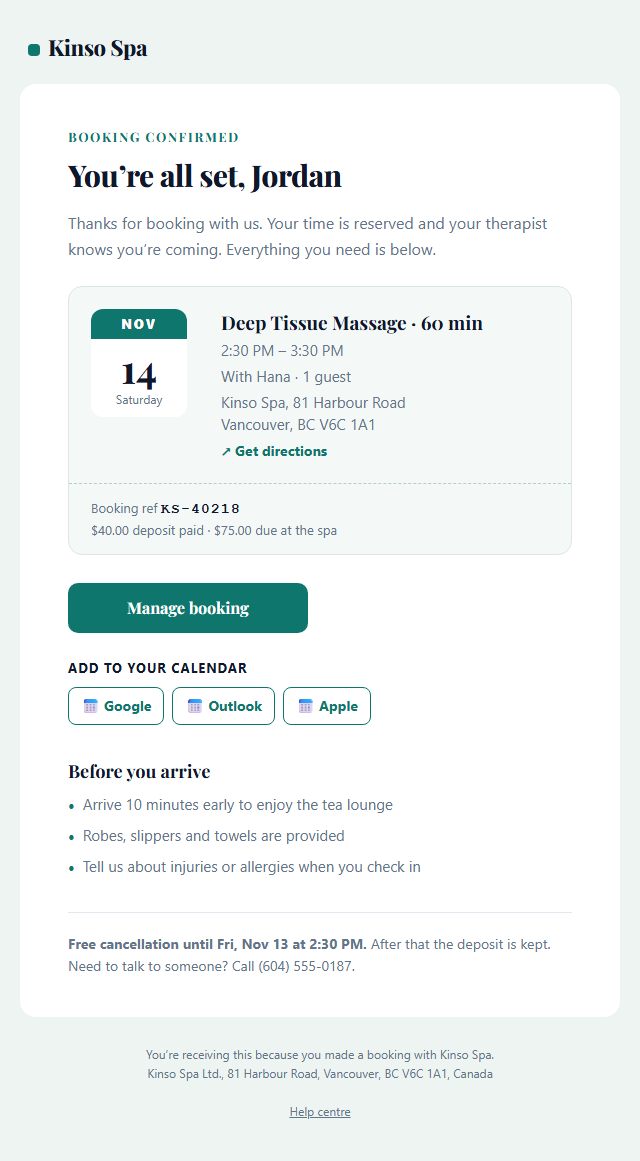
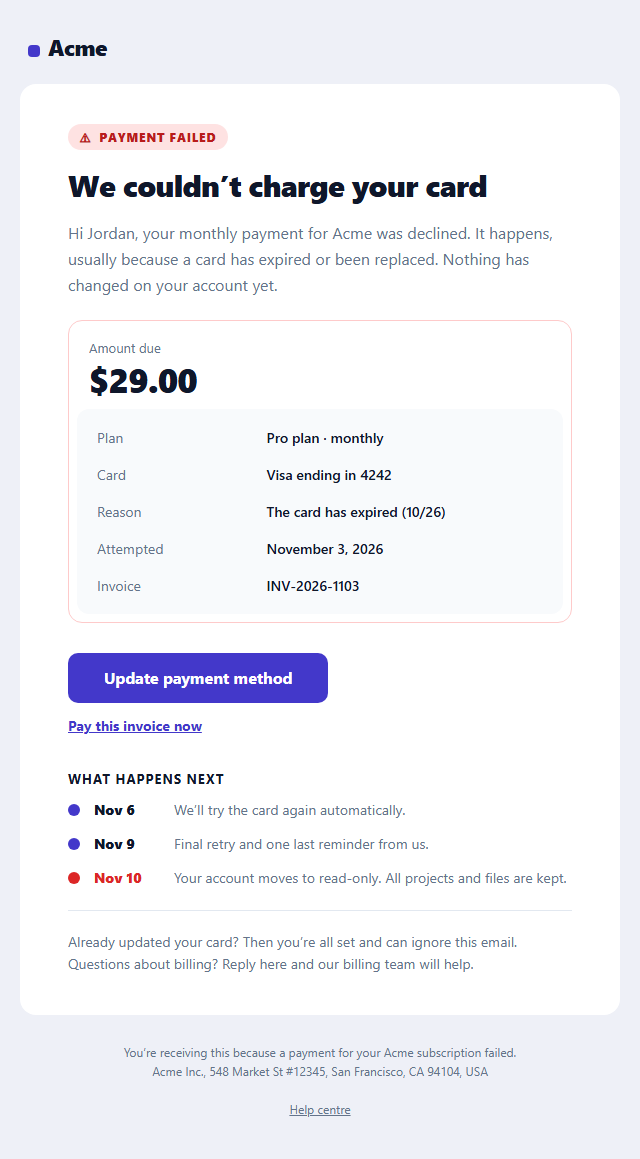
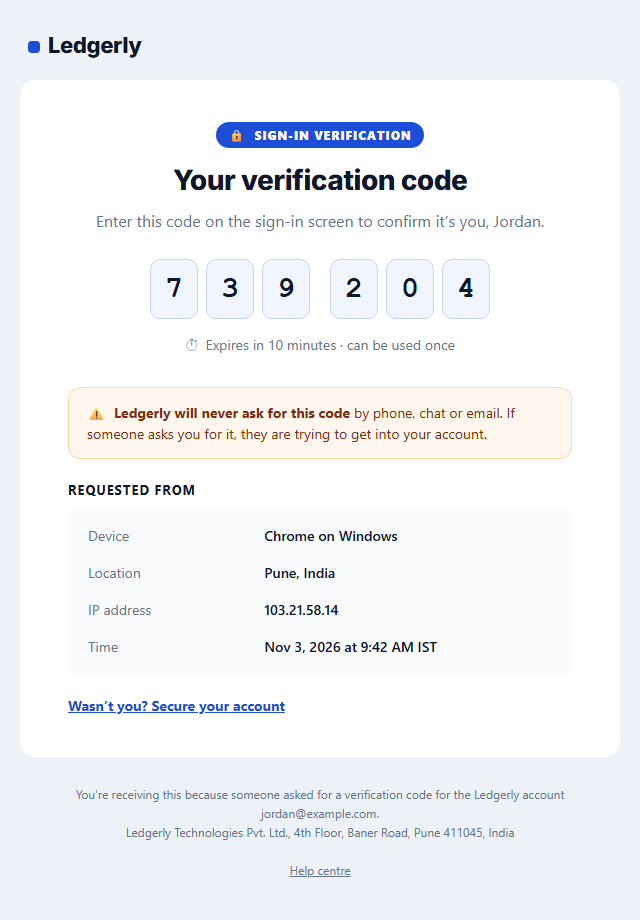
Transactional email templates: Account, billing and booking emails people wait for: verification, one-time codes, password reset, magic links, security alerts, receipts, failed payments, booking confirmations and contact-form replies. Includes Verify Email Address, One-Time Passcode (2FA) Email, Password Reset Email, Magic Link Sign-in Email, New Sign-in Security Alert, Payment Receipt Email, Payment Reminder Email, Failed Payment Email, Booking Confirmation Email, Appointment Reminder Email, Booking Rescheduled Email, Contact Form Auto-Reply Email.
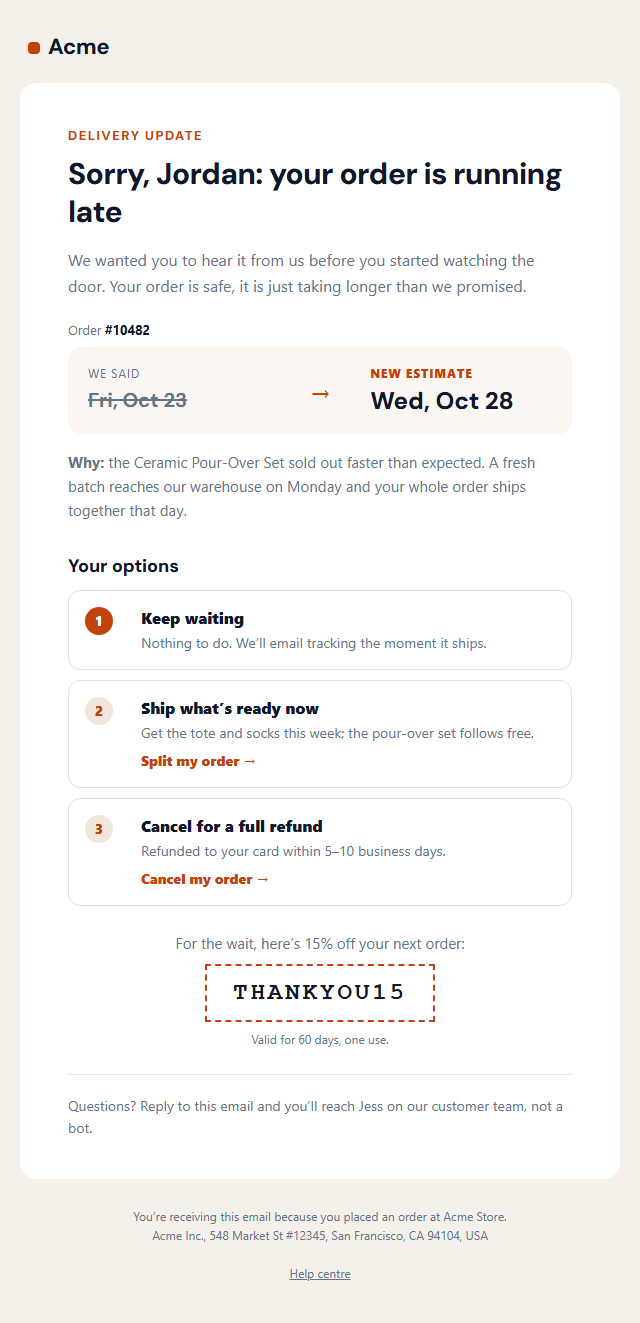
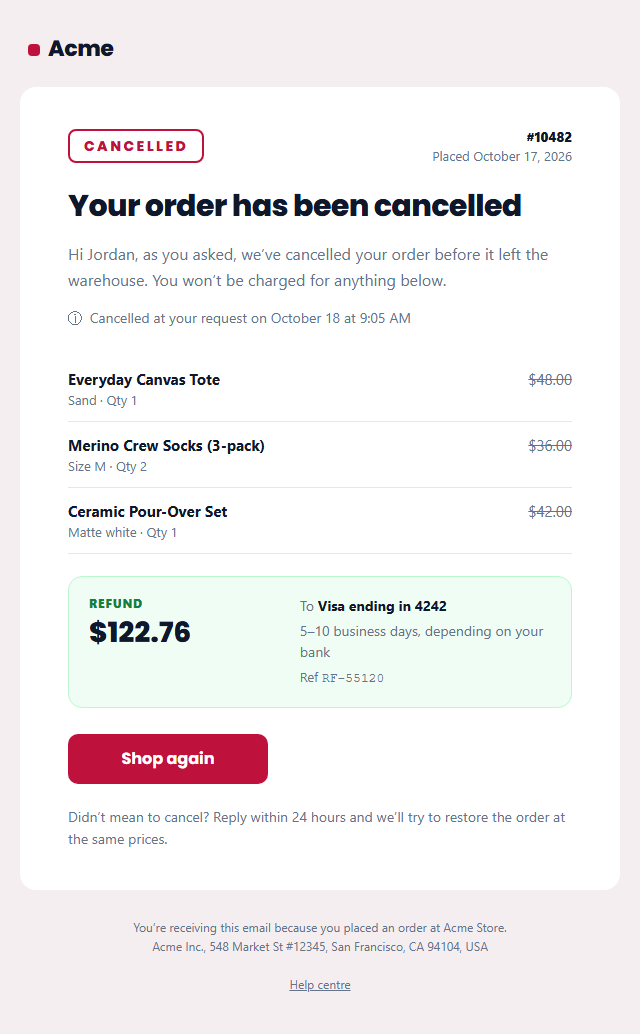
E-commerce email templates: Store emails from cart to doorstep: abandoned cart, back in stock, order confirmation and cancellation, shipping, delays, delivery, refunds and review requests. Includes Abandoned Cart Email, Back in Stock Email, Order Confirmation Email, Order Cancellation Email, Shipping Confirmation Email, Shipping Delay Email, Order Delivered Email, Refund Confirmation Email, Review Request Email.
Marketing email templates: Newsletters, product updates, sales, last-chance reminders, webinar invitations and referral emails. Includes Newsletter Email, Product Update Email, Webinar Invitation Email, Refer a Friend Email, Black Friday Sale Email, Last Chance Sale Email.
Holidays & Seasonal email templates: Holiday gift guides and season’s greetings for Christmas, the holidays and the New Year. Includes Holiday Gift Guide Email, Holiday Greetings Email.
About these templates
Free HTML Email Templates That Work in Real Inboxes
Most "free email templates" look great in a browser and break in Outlook. These are built the hard way, the way email actually requires: nested tables, inline styles, role="presentation" on layout tables, a fixed 600 px container wrapped in Outlook-only conditional comments, VML buttons for Outlook on Windows, and media queries for phones and dark mode.
One library for every email you send. Start with a welcome email for new sign-ups, a getting started checklist that shows each user their next setup step, a team invitation for adding colleagues and a trial ending reminder before the trial expires, then keep customers close with a birthday email, an NPS survey a re-engagement email for anyone who drifts away, and a graceful cancellation email when someone leaves. Send email verification, one-time passcode (2FA), password reset, magic link sign-in and new sign-in security alert emails from your app, a payment receipt after every charge, a failed payment email when a card is declined and a payment reminder for unpaid invoices. Service businesses can send a booking confirmation with add-to-calendar links, cut no-shows with an appointment reminder, handle changes with a booking rescheduled notice and answer every enquiry with a contact form auto-reply. Online stores can win back shoppers with an abandoned cart email, alert waitlists with back in stock emails, then send an order confirmation, a shipping confirmation, a shipping delay apology when a date slips, an order delivered email, an order cancellation when an order won't ship, a refund confirmation and a review request. Keep customers engaged with a newsletter, a product update a webinar invitation and a refer a friend email, run sales with the Black Friday and last chance emails, and celebrate the season with a holiday gift guide and holiday greetings. They share the same structure, so your emails look consistent.
Edit without touching code. Every template exposes its content as fields: headline, copy, button text and link, images, line items, social links and footer. Click any text in the preview to jump to its field, select words to make them bold, italic, underlined or a link, and switch whole sections on and off. Change the brand colour, the light and dark palettes, and the heading and body fonts, chosen from the full Google Fonts library with safe fallbacks.
Make it yours. Add extra sections (headings, text, buttons, images, two-column blocks, dividers and spacing) and place them between any of the template's own sections, or drag them in the preview. Upload your logo and images: they stay in your browser and export as a ZIP with an images folder, or point to your own image host. An optional inbox preview text sets the grey line that follows the subject in most inboxes.
Ready for your email platform. Pick Mailchimp, Klaviyo, HubSpot or Brevo and first names, emails and the unsubscribe and preferences links are written in that platform's merge-tag syntax. Keep the plain tokens if you send from your own code.
Check before you send. The editor shows desktop, mobile and dark-mode previews. Live checks warn about Gmail's 102 KB clipping limit, images that aren't hosted online, missing alt text, placeholder links, and, for marketing emails, the unsubscribe link and postal address required by US CAN-SPAM.
Save, back up and reuse. Save designs under a name, make copies with Save as, and find them again in the My designs tab or live at the top of this gallery. They are kept in your browser's IndexedDB, and the Import / Export tab downloads a backup with your images and brand kit that you can restore anywhere.
Take the code anywhere. From the Export menu, copy the HTML into Mailchimp, Klaviyo, HubSpot, Brevo, Campaign Monitor or your own sending code, download a .html file or a ZIP, copy the plain-text version, or fork it into My Code to keep editing the markup. Designing social images too? Try Social Post Templates.
How it’s different
How These Email Templates Are Different
Step by step
How to Use
- 1Pick a template and platformOpen a template from the gallery and choose your email platform under Merge tags. Your edits autosave in your browser as you go.
- 2Write the emailFill in the headline, copy and button, or click text in the preview. Select words to format them, switch sections on or off, and add extra sections where you need them.
- 3Style itUpload your logo and images, set the brand colour and the light and dark palettes, choose fonts, or apply your brand kit.
- 4Preview and checkSwitch between desktop, mobile and dark mode, and fix anything the pre-send checks flag.
- 5Save and exportSave it to My designs, then use Export to copy the HTML or plain text, download a .html file or ZIP, or fork it into My Code.
- 6Read the full guideWant a deeper walkthrough of editing responsive, dark-mode emails and pasting the code into Gmail, Outlook and Apple Mail? Read the free HTML email templates guide.
Got questions?
Frequently Asked Questions
Email clients render HTML very differently from browsers. Outlook for Windows uses Microsoft Word's engine and ignores flexbox, grid and most modern CSS, and Gmail removes many styles. Reliable email HTML uses nested tables for layout, inline styles, absolute image URLs and Outlook-only fixes. Every template here is built that way.
Yes. They use a table layout, inline styles, a 600 px container with Outlook conditional comments, a VML "bulletproof" button for Outlook and an Arial override so Outlook doesn't fall back to Times New Roman. They are also kept well under Gmail's 102 KB clipping limit, and the editor warns you if you go over.
Pick your platform under Merge tags first. First names, last names, emails and the unsubscribe and preferences links are then written in that platform's syntax, for example *|FNAME|* for Mailchimp or {{ contact.firstname }} for HubSpot. Then open Export in the toolbar, copy the HTML and paste it into your platform's custom-HTML or "code your own" editor. To send it from your own code (Nodemailer, Resend, SendGrid, Amazon SES), keep the plain {{first_name}} tokens and use the plain-text version as the text part.
Yes. Under Extra sections you can add headings, text, buttons, images, two-column blocks, dividers and spacing. Drop them between any of the template's own sections from the Position menu, or drag them in the preview. Image sections take a URL or an upload. Extra sections are saved with your design and included in the HTML, the plain-text version and every export.
Yes. Select text in a field and a small toolbar offers bold, italic, underline and links, with a button to remove a link. You can also type simple inline HTML (b, strong, i, em, u, br and a href). Anything else is stripped and unclosed tags are closed, so the email stays valid in every client.
Yes. Save keeps your design under a name in My designs, Save as makes a copy, and the My designs tab lets you search, reopen, rename and delete them. Saved designs also appear live at the top of this gallery. Everything is stored in your browser's IndexedDB, and the Import / Export tab downloads a backup file you can restore on another browser or computer, including uploaded images and your brand kit.
Yes. Each template has editable light and dark palettes. Apple Mail, iOS Mail and Outlook.com use your dark colours, and the editor has a dark-mode preview so you can check contrast before sending.
It saves an editable copy of the email in My Code, the UI Snippets code editor, with the markup in the HTML panel and the email's CSS in the CSS panel. Uploaded images are embedded so the copy works on its own. Use it to customise the code further and keep your own versions.
Yes, for personal and commercial use, with no account and no watermark. Everything runs in your browser: your edits, designs and uploaded images stay on your device.