Click any text to edit it right here · click an image or link to jump to its setting
- Replace the placeholder links: Header link, "Wasn’t you?" link, Help centre link.
One-Time Passcode (2FA) Email
Responsive · Dark mode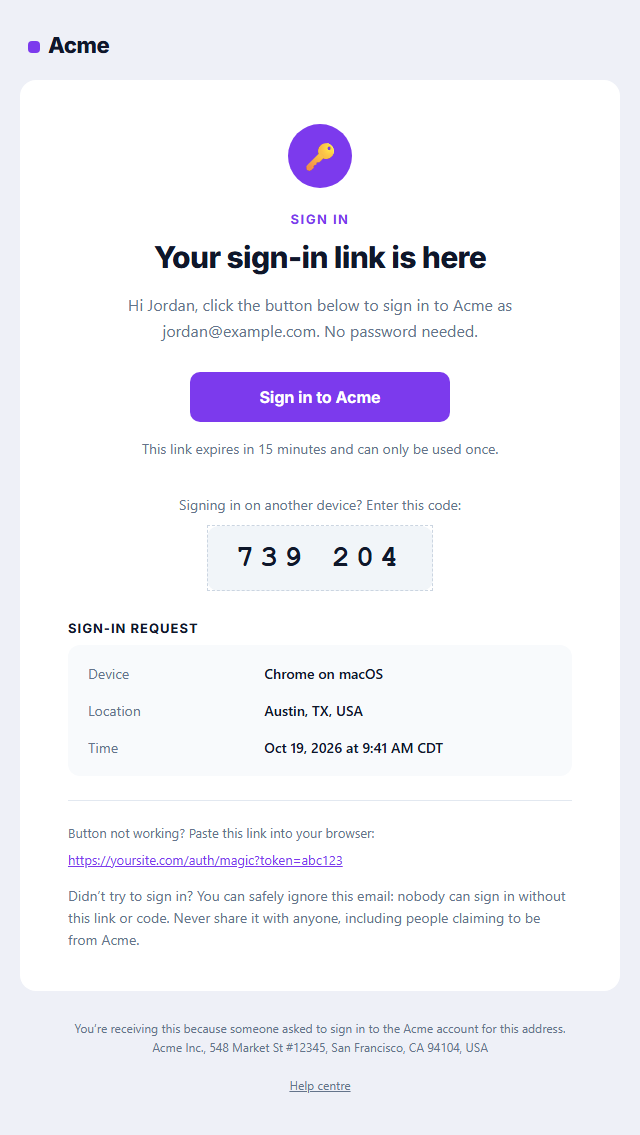
Magic Link Sign-in Email
Responsive · Dark mode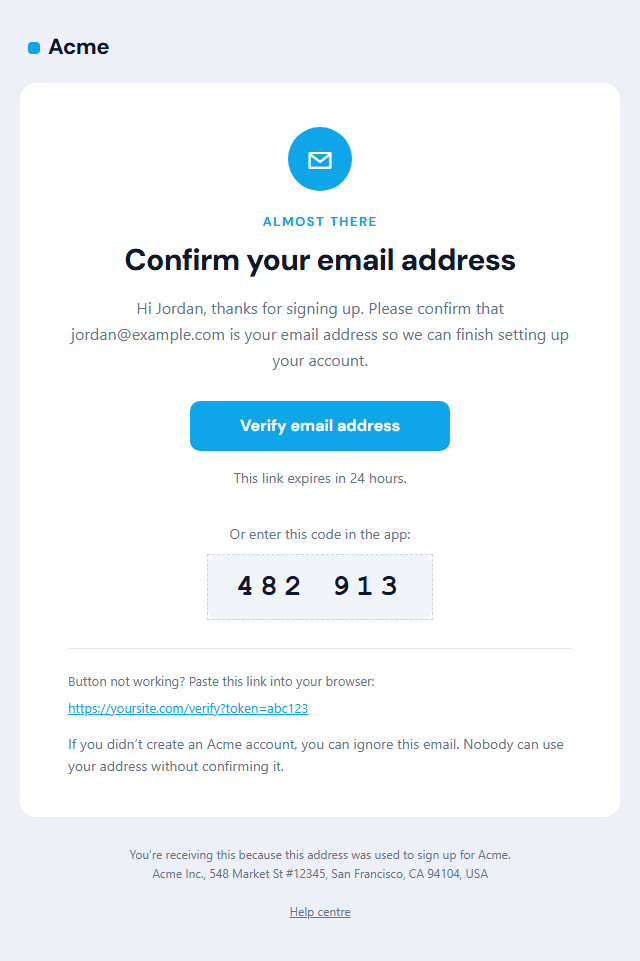
Verify Email Address
Responsive · Dark mode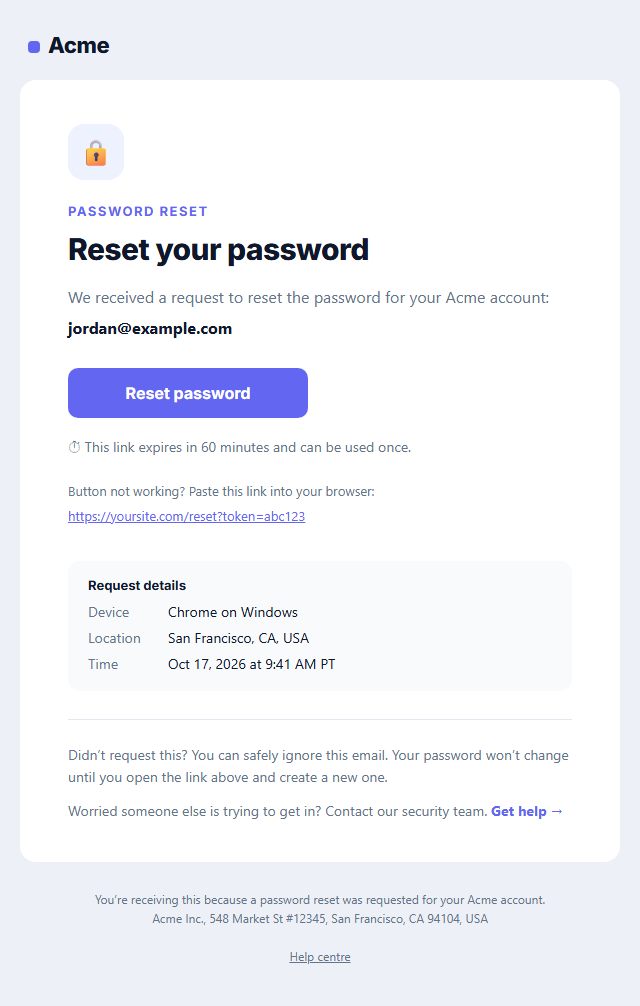
Password Reset Email
Responsive · Dark mode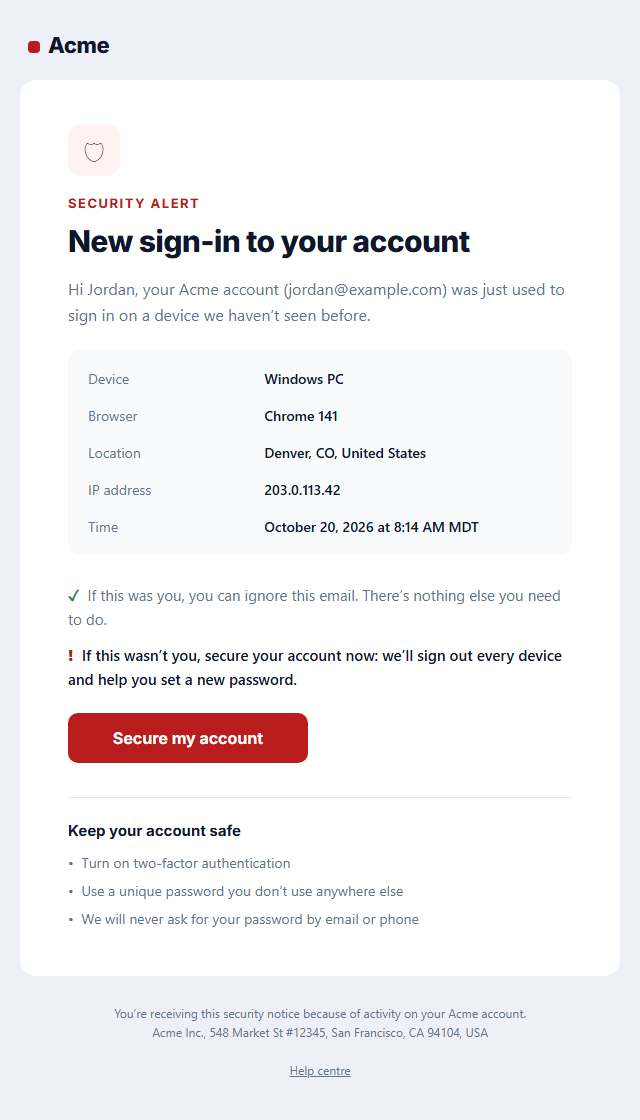
New Sign-in Security Alert
Responsive · Dark mode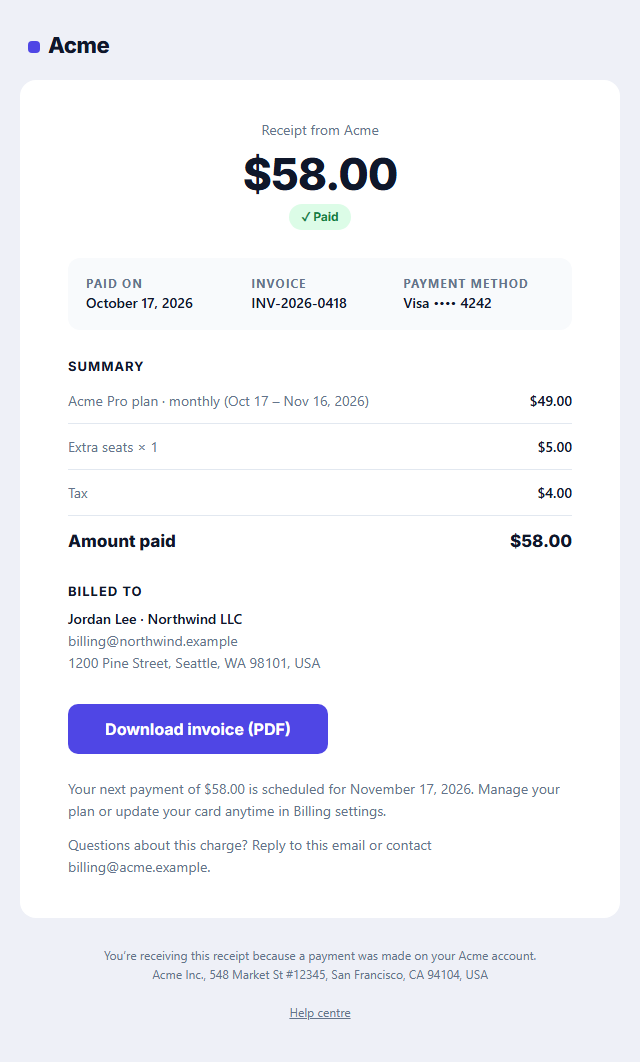
Payment Receipt Email
Responsive · Dark modeOne-Time Passcode (2FA) Email — Free Responsive HTML Email Template
Transactional · v1.0.0 · Updated 2026-11-03 · Gmail, Outlook & Apple Mail · Dark mode
What's included
Features
About this template
One-Time Passcode (OTP) Email — Free 2FA Verification Code Template
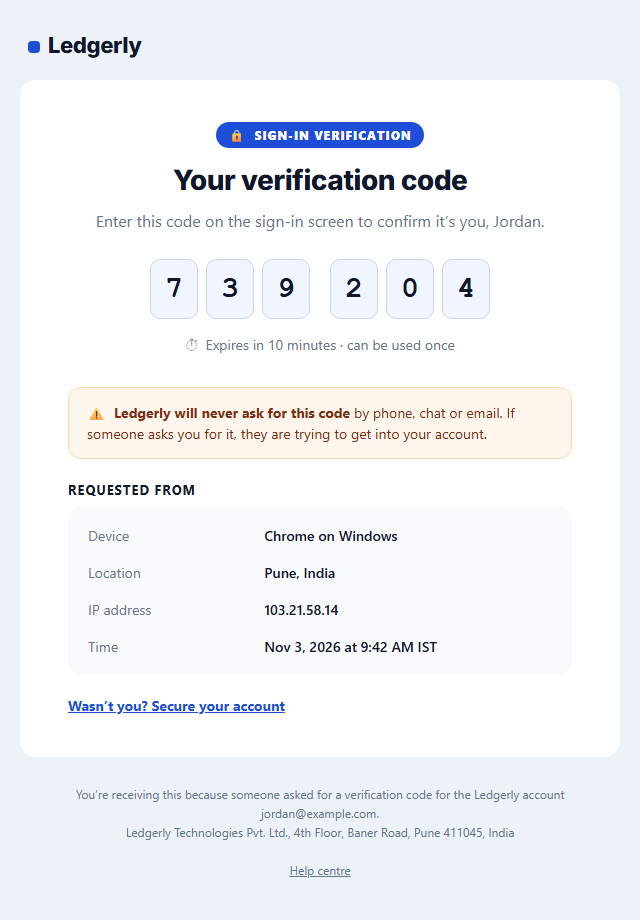
One-Time Passcode (2FA) Email delivers a short code for two-factor sign-in, approving a payment, confirming a withdrawal or changing an email address. It has one job: get the right digits in front of the right person quickly, and make it as hard as possible for anyone to talk them out of it.
Each digit in its own box
The code is shown character by character in separate boxes, set in a monospace font so a zero never looks like an O, with a small gap in the middle of six- and eight-digit codes, the way people read them aloud ("739 204"). On phones the boxes shrink so up to eight characters still fit on one line. If you put a merge variable such as {{ code }} in the field, it is kept whole in one box instead.
Purpose first, and in the subject
A pill above the headline says what the code is for, such as "Sign-in verification" or "Approve payment". The sample subject starts with the code itself ("739 204 is your Ledgerly verification code"), which lets people read it straight from the notification and lets iOS and Android suggest it as a one-tap autofill.
Short expiry and a clear warning
A line under the code states how long it lasts and that it works once. An amber box then says, in bold, that your company will never ask for the code by phone, chat or email, which targets the most common way 2FA codes are stolen: a scammer pretending to be support.
Where the request came from
An optional details box lists the device, approximate location, IP address and time, so a person who did not ask for a code knows something is wrong. A "Wasn't you? Secure your account" link sits below. There is no button to click for the code itself, deliberately.
Send it from your auth provider or code (Auth0, Clerk, Supabase, Firebase, Cognito or a custom flow) through a fast transactional sender. For link-based sign-in use Magic Link, and for account confirmation after sign-up use Verify Email.
Extend with AI
Take This Email Further With AI
Give this prompt to an AI assistant to write your own version of the One-Time Passcode (2FA) Email email: draft ten subject lines and preheaders, adapt the copy for a customer segment, translate it, convert it to MJML or React Email, or write the plain-text version. Then paste the result back into the editor above to check it in desktop, mobile and dark mode.
Prompt to recreate it
Copy this into your AI assistant of choice to build the effect from scratch, or as a jumping-off point for your own variant:
Create a responsive HTML email: “One-Time Passcode (2FA) Email”, a transactional email.

Purpose: A one-time passcode email for two-factor sign-in, payment approval or account changes: the purpose in the subject and first line, each digit of the code in its own large box so it is easy to read and type, a 10-minute expiry, a never-share warning, the device, location and time of the request, and a "wasn’t you?" link to secure the account. No button and no links to click for the code itself.

Inbox text:
- Subject line: “739 204 is your Ledgerly verification code”
- Preheader (hidden preview text): “Use it to finish signing in. It expires in 10 minutes. Never share it with anyone.”

Content, top to bottom:
- Code & message
- Request details

Headline: “Your verification code”.
Put the key facts first (order or account details, amounts, dates) in a clear summary, with no marketing clutter.

Build it like a professional email developer:
- Table-based layout, 600px wide on desktop and fluid on mobile (width 100%, max-width 600px).
- Inline CSS on every element, with one small style block only for media queries and dark mode (prefers-color-scheme).
- A bulletproof, Outlook-safe call-to-action button (padded table cell with a VML fallback), never an image.
- Colours: brand and button #1d4ed8, button text #ffffff, page background #edf1f8. Web-safe font stack with a fallback after the brand font.
- Every image has alt text and explicit width and height. Use PNG icons, never SVG, because Gmail and Outlook drop them.
- Hidden preheader text, a plain-text version, and a legal footer with the postal address, the reason the person is receiving it and a working unsubscribe link.

Finish with a short checklist of what to test in Gmail, Outlook for Windows, Apple Mail, mobile and dark mode.
Want to tighten it up first? Run this prompt through the AI Prompt Studio to score it across 8 quality dimensions, catch anti-patterns, and tune the wording for Claude, ChatGPT, or Gemini before you paste it in.
Why use it
Why Use the One-Time Passcode (2FA) Email Template
How it’s different
How It’s Different From Other Free Email Templates
Step by step
How to Use
- 1Pick your email platformChoose Mailchimp, Klaviyo, HubSpot or Brevo under Merge tags so first names and unsubscribe links export in its syntax, or keep plain {{first_name}} tokens.
- 2Edit the contentFill in the code & message and request details, or click any text in the preview to jump to its field. Switch the request details on or off.
- 3Add your brandUpload or paste your logo, set the brand colour and the light and dark palettes, pick fonts, or apply your saved brand kit.
- 4Preview and checkSwitch between desktop, mobile and dark mode, and fix anything the pre-send checks flag, such as placeholder links or missing alt text.
- 5Export or forkCopy the HTML into Postmark, SendGrid, Amazon SES, Resend or your own code, copy the plain-text version, download a ZIP with images, or fork it into My Code.
Real-world uses
Common Use Cases
Got questions?
Frequently Asked Questions
The code in large, easy-to-read type, what it is for, how long it lasts, a warning never to share it, details of the request (device, location, time) and a link to secure the account if it was not them. Keep marketing out.
Many services do this so people can read the code from the notification and phones can autofill it. If your security policy prefers otherwise, keep the purpose in the subject and the code only in the body.
Five to fifteen minutes is typical for sign-in codes, and the code should work only once. Shorter is safer but frustrates people with slow email. State the exact expiry in the email so nobody tries an old code.
Put your sending tool’s variable in the Code field, for example {{ code }} in Postmark or Resend, or build the HTML in your backend with the digits filled in. A variable is shown whole in one box; real digits get one box each.
Verify Email confirms that an address belongs to a new user, with a button and an optional code. This template is for repeated security codes, such as 2FA and payment approval, with the code as the hero and no button to click.
It saves an editable copy of your One-Time Passcode (2FA) Email in My Code, the UI Snippets code editor: the email markup goes in the HTML panel and its CSS (mobile and dark-mode rules plus fonts) in the CSS panel, so you can keep refining the code and save your own versions.
Yes. It is free for personal and commercial email, with no sign-up and no watermark. Everything runs in your browser, and your edits are saved locally.