Click any text to edit it right here · click an image or link to jump to its setting
- Replace the placeholder links: Header link, Step 1 link, Step 2 link, Step 3 link, Step 4 link, Step 5 link, Tip link, Unsubscribe link, Email preferences link.
Getting Started Checklist Email
Responsive · Dark mode
Welcome Email
Responsive · Dark mode
Team Invitation Email
Responsive · Dark mode
Trial Ending Email
Responsive · Dark mode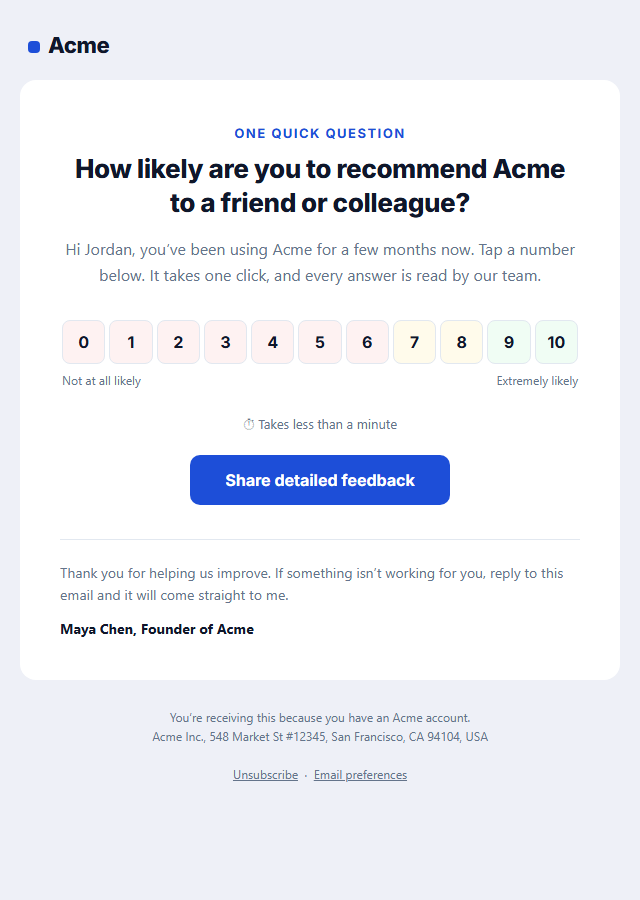
NPS Survey Email
Responsive · Dark mode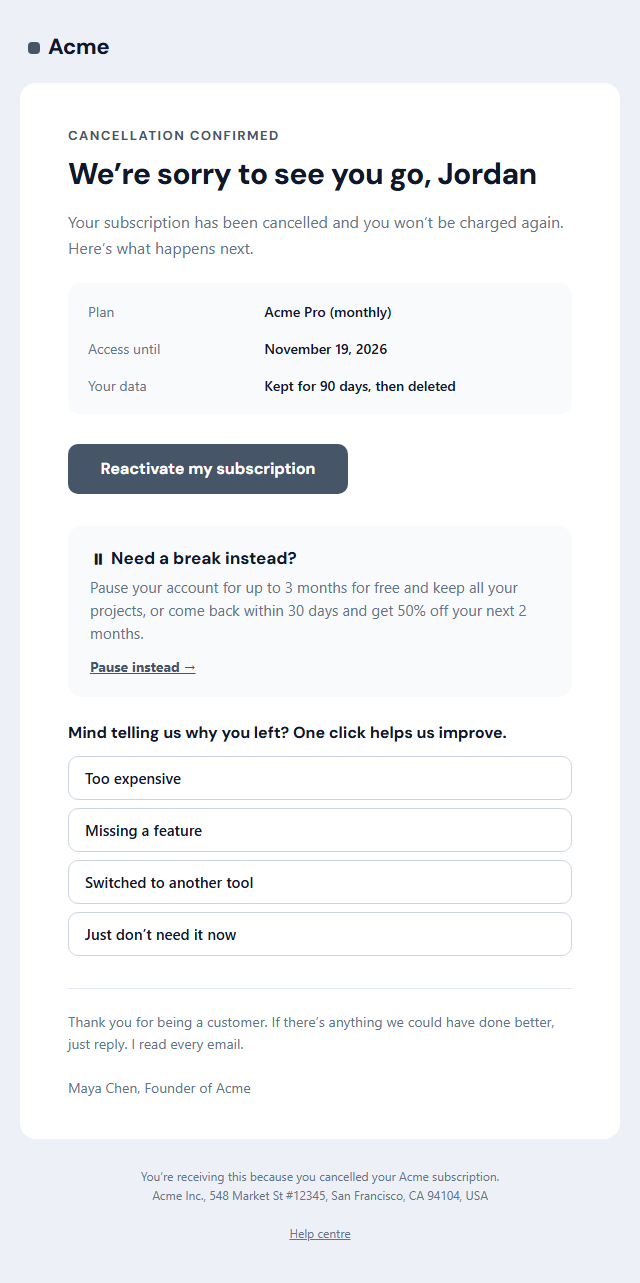
Subscription Cancellation Email
Responsive · Dark modeGetting Started Checklist Email — Free Responsive HTML Email Template
Onboarding & Lifecycle · v1.0.0 · Updated 2026-11-03 · Gmail, Outlook & Apple Mail · Dark mode
What's included
Features
About this template
Getting Started Checklist Email — Free Onboarding Progress Template
Getting Started Checklist Email is the onboarding email that sits between the welcome and the trial-ending reminder, when a new user has started setting up but stopped halfway. Instead of another generic "here are some tips", it shows them exactly where they are, how little is left and what to do next, which is the most reliable way to move people from signed-up to activated.
A progress bar that does the motivating
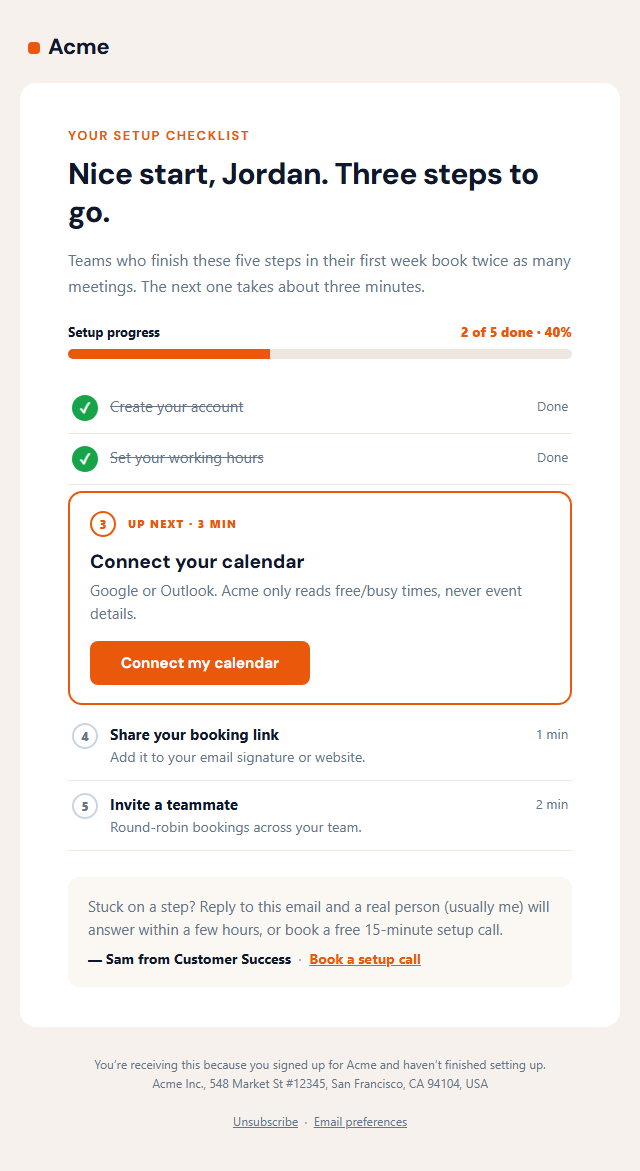
The top of the email states the goal in a line ("Teams who finish these five steps book twice as many meetings"), then shows a progress bar with the count and percentage: "2 of 5 done · 40%". People are far more likely to finish something they have already started, and the bar makes that visible.
Done, next and later, each looking different
Up to five steps sit below. Finished steps get a green tick and are struck through. The next step is lifted into its own bordered card with an "Up next · 3 min" label, a one-line explanation and its own button, so the email has exactly one obvious action. The remaining steps are listed with the time each takes and a link, for people who prefer to jump ahead. When every step is done, the list shows an "All done" line instead.
Driven by one number
Set "Steps already done" from your product data for each person, and the bar, ticks and highlighted card all follow. That makes it easy to send from an automation in Customer.io, Loops, Intercom, Braze or your own code, with the step count as a property.
A real person at the end
An optional tip box signs off from a named person on the team and offers a reply or a setup call, the safety net for anyone who is stuck rather than busy. Because it encourages product use, treat it as marketing and keep the unsubscribe link in the footer. Send it after the Welcome Email and before the Trial Ending reminder.
Extend with AI
Take This Email Further With AI
Give this prompt to an AI assistant to write your own version of the Getting Started Checklist Email email: draft ten subject lines and preheaders, adapt the copy for a customer segment, translate it, convert it to MJML or React Email, or write the plain-text version. Then paste the result back into the editor above to check it in desktop, mobile and dark mode.
Prompt to recreate it
Copy this into your AI assistant of choice to build the effect from scratch, or as a jumping-off point for your own variant:
Create a responsive HTML email: “Getting Started Checklist Email”, an onboarding email.

Purpose: The onboarding email that sits between the welcome and the trial-ending reminder: a "2 of 5 done" progress bar, finished steps ticked and greyed out, the next step highlighted in a card with its own button, the remaining steps with how long each takes, and a short tip from a real person on the team.

Inbox text:
- Subject line: “You’re 2 steps in. Here’s the next one (3 minutes)”
- Preheader (hidden preview text): “Connect your calendar and Acme starts booking meetings for you. Three steps left.”

Content, top to bottom:
- Message
- Progress
- Steps (leave a title empty to hide it)
- Tip from the team

Headline: “Nice start, {{first_name}}. Three steps to go.”.
One primary action only, with short body text, so a new user knows exactly what to do next.

Build it like a professional email developer:
- Table-based layout, 600px wide on desktop and fluid on mobile (width 100%, max-width 600px).
- Inline CSS on every element, with one small style block only for media queries and dark mode (prefers-color-scheme).
- A bulletproof, Outlook-safe call-to-action button (padded table cell with a VML fallback), never an image.
- Colours: brand and button #ea580c, button text #ffffff, page background #f6f1ec. Web-safe font stack with a fallback after the brand font.
- Every image has alt text and explicit width and height. Use PNG icons, never SVG, because Gmail and Outlook drop them.
- Hidden preheader text, a plain-text version, and a legal footer with the postal address, the reason the person is receiving it and a working unsubscribe link.

Finish with a short checklist of what to test in Gmail, Outlook for Windows, Apple Mail, mobile and dark mode.
Want to tighten it up first? Run this prompt through the AI Prompt Studio to score it across 8 quality dimensions, catch anti-patterns, and tune the wording for Claude, ChatGPT, or Gemini before you paste it in.
Why use it
Why Use the Getting Started Checklist Email Template
How it’s different
How It’s Different From Other Free Email Templates
Step by step
How to Use
- 1Pick your email platformChoose Mailchimp, Klaviyo, HubSpot or Brevo under Merge tags so first names and unsubscribe links export in its syntax, or keep plain {{first_name}} tokens.
- 2Edit the contentFill in the message, progress, steps and tip from the team, or click any text in the preview to jump to its field. Switch the tip from the team on or off.
- 3Add your brandUpload or paste your logo, set the brand colour and the light and dark palettes, pick fonts, or apply your saved brand kit.
- 4Preview and checkSwitch between desktop, mobile and dark mode, and fix anything the pre-send checks flag, such as placeholder links or missing alt text.
- 5Export or forkCopy the HTML into Mailchimp, Klaviyo, HubSpot, Brevo or your own code, copy the plain-text version, download a ZIP with images, or fork it into My Code.
Real-world uses
Common Use Cases
Got questions?
Frequently Asked Questions
A day or two after sign-up for users who have started but not finished setup, and again a few days later if they are still stuck. Stop sending it as soon as all steps are done, and skip it for users who finished on day one.
Set the "Steps already done" field to a merge variable from your platform, such as a completed-steps count on the user profile. The progress bar, ticks and the highlighted next step all follow that one number.
The template assumes steps are done in order, which suits most setup flows. If yours are independent, order the steps by importance and count only the leading completed ones, or build a version per stage in your email tool.
Because it encourages people to use your product rather than confirming a transaction, it is usually treated as marketing. Keep the unsubscribe and preferences links in the footer, which this template includes.
Three to five. Fewer feels trivial, more feels like work. Pick the actions that best predict long-term use, write each as a short verb phrase and give an honest time estimate.
It saves an editable copy of your Getting Started Checklist Email in My Code, the UI Snippets code editor: the email markup goes in the HTML panel and its CSS (mobile and dark-mode rules plus fonts) in the CSS panel, so you can keep refining the code and save your own versions.
Yes. It is free for personal and commercial email, with no sign-up and no watermark. Everything runs in your browser, and your edits are saved locally.