

HTML email is the part of web development that time forgot. Outlook on Windows renders email with Microsoft Word, Gmail ignores a lot of modern CSS, dark mode flips your colours without asking, and a message over 102 KB gets clipped. So most people either fight their email platform’s drag-and-drop builder, or hand-code tables and inline styles and test for hours.
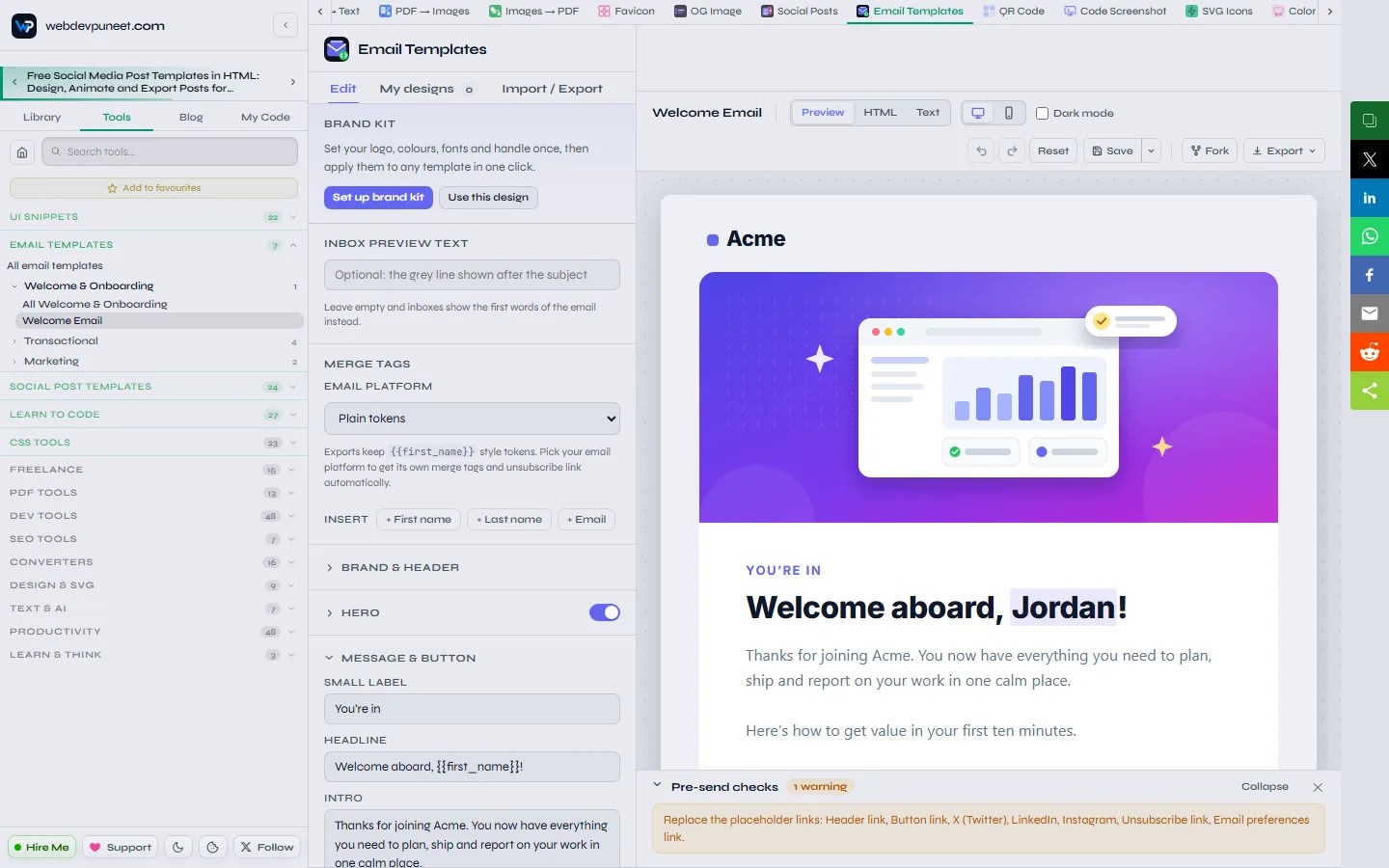
The free Email Templates tool on webdevpuneet.com gives you a head start. You get professionally built HTML email templates for welcome emails, sign-up verification, password resets, order confirmations, receipts, newsletters and Black Friday sales. Each one is already responsive, dark-mode ready and Outlook-safe. You edit it in your browser by clicking on the text, add your logo, colours and fonts, then copy the HTML into Mailchimp, Klaviyo, HubSpot, Brevo, Shopify or your own code. There’s no account, no watermark, and nothing is uploaded.
This guide walks through every template and every feature: editing, extra sections, merge tags, dark mode, the pre-send checks, saving and backups, and how to get the finished email into your email service.
The short version
- What it is: a free, browser-based editor for responsive HTML email templates.
- Templates: 7 templates in 3 categories: Welcome & Onboarding, Transactional, and Marketing, with more on the way.
- Works in: Gmail, Outlook (including Outlook on Windows), Apple Mail, iOS Mail and Outlook.com, on desktop and mobile.
- Built in: dark mode with its own colours, an Outlook-safe “bulletproof” button, a plain-text version, a hidden preheader and a legally compliant footer.
- Exports: copy the HTML, download a ZIP (HTML, plain text and your images), download a single .html file, copy the plain text, or fork it into a code editor.
- Email platforms: merge tags and unsubscribe links converted automatically for Mailchimp, Klaviyo, HubSpot and Brevo.
- Privacy: everything runs in your browser. Text, images and designs are never uploaded.
Quick start: your first email in five minutes
- Open the Email Templates gallery and pick a template, or open a category first.
- Optionally write the Inbox preview text, the grey line shown after the subject in the inbox. You set the subject line and sender name in your email platform when you send.
- Click any text in the preview and type over it. Click an image or link to jump straight to its setting.
- Add your logo, pick a brand colour and fonts, and switch on the mobile and dark mode previews to check the result.
- Choose your email platform under Merge tags, fix anything the Pre-send checks flag, then open Export and click Copy HTML. Press Ctrl+S to keep the design in My designs.
Why HTML email is hard (and what these templates handle for you)
A web page only has to work in a handful of modern browsers. An email has to work in dozens of email clients, some of which are decades behind. Every template in the tool is built around those limits, so you don’t have to learn them the hard way:
- Table layouts and inline styles. Outlook on Windows ignores flexbox, grid and most modern CSS, so the layout is built with tables in a 600 px container and every style is written inline.
- Bulletproof buttons. Each button has two versions: a styled link for most clients and a VML rounded rectangle for Outlook on Windows, so it stays a real, clickable, rounded button everywhere.
- Mobile layout. On screens under 620 px the padding shrinks, headlines get smaller, buttons go full width and two-column sections stack.
- Real dark mode. The templates declare light and dark colour schemes and ship a dark palette that Apple Mail, iOS Mail and Outlook.com use, instead of letting the client invert your colours.
- Safe fonts. Web fonts load where they’re supported, and every font has a fallback, with Outlook forced to Arial instead of Times New Roman.
- Inbox details. A hidden preheader controls the preview line, a plain-text version is generated for multipart sending, and the footer includes what the law asks for.
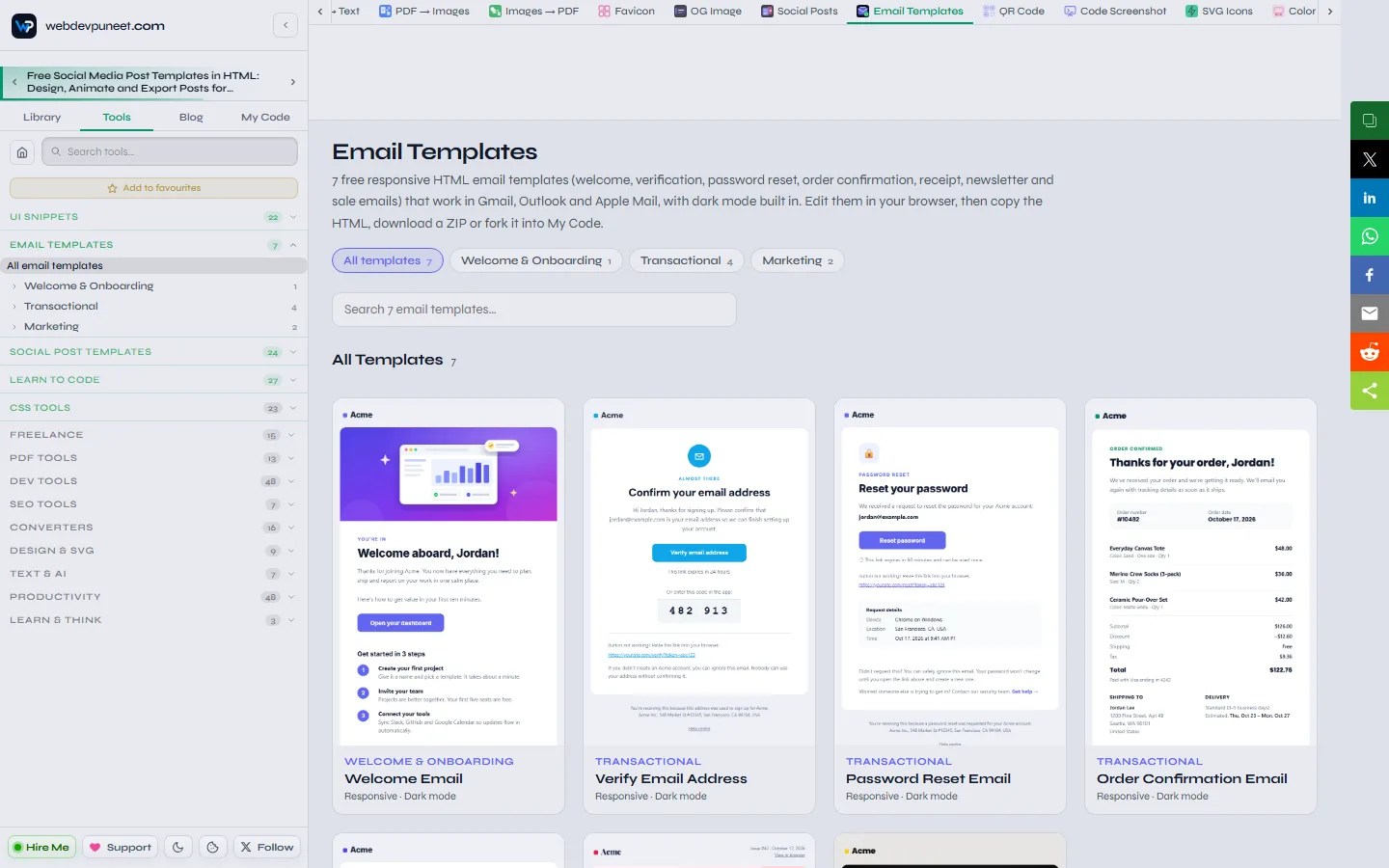
All the email templates, by category
Each category has its own page. Click a template name to open it straight in the editor.
1. Welcome & Onboarding
The first email a new user gets is usually the most-opened one you’ll ever send. The Welcome Email has a logo header, a hero image, a warm headline with the person’s first name, a short intro, one clear call-to-action button, three numbered getting-started steps, a personal note from the founder, social links and a footer. Turn the hero, the steps, the note or the social links off with one switch. See all Welcome & Onboarding templates.

2. Transactional
The emails people actually wait for. They’re triggered by something the user just did, and they’re opened almost every time, so they need to look trustworthy and put the important detail first. Every transactional template keeps marketing out and prints a fallback link for clients that block buttons. See all Transactional templates.
- Verify Email Address: an envelope badge, a “Confirm your email” headline, a verify button, an optional one-time code in a large monospace box, an expiry note and a fallback link. Works with Supabase, Firebase and Auth0 custom emails.
- Password Reset Email: a lock badge, the account it’s for, a reset button, link expiry, a copyable fallback link, optional request details (device, location and time) and a “didn’t request this?” note.
- Order Confirmation Email: order number and date, up to three line items with quantity and price, subtotal, shipping, tax and total, the shipping address, estimated delivery and a “View order” button. Prices are right-aligned table cells that line up in Outlook too.
- Payment Receipt Email: a large amount-paid header with a “Paid” badge, date and invoice number, the card used, itemised lines with tax and total, billing details and a “Download invoice” button. A good fit for Stripe webhooks such as
invoice.paid.


3. Marketing
Marketing emails compete with dozens of others in the same inbox, so they need a clear hierarchy and one main call to action. Both templates include an unsubscribe link, a preferences link and a postal address, as US CAN-SPAM and the Gmail and Yahoo bulk-sender rules require. See all Marketing templates.
- Newsletter Email: a masthead with issue number and date, an editor’s intro, a featured story with image and button, three article summaries, a highlighted tip box and social links. Ideal for weekly digests, product updates and creator letters in Mailchimp, Kit or Beehiiv.
- Black Friday Sale Email: a bold dark card with a hero image, a big discount headline, a dashed promo-code box, an “ends” deadline, a shop button, two product picks with was/now prices and the fine print. Black Friday 2026 is November 27 and Cyber Monday is November 30, but it works just as well for any flash sale.


See the real emails
Screenshots only tell half the story. Below is the actual Welcome Email HTML the tool exports, running live. Scroll inside it, or open it in a new tab and make the window narrow to see the mobile layout.
Open each template’s exported HTML on its own: Welcome, Verify Email, Password Reset, Order Confirmation, Receipt, Newsletter and Black Friday Sale. Or download all seven as a ZIP (29 KB): each comes with its HTML and plain-text version, with {{first_name}} merge tags ready to replace.
More are in the making. New templates are added regularly. Upcoming ideas include shipping updates, abandoned cart reminders, event invitations, product launches, trial-ending and re-engagement emails. The gallery always shows the current set, so bookmark it and check back.
Editing your email
Click to edit, right in the preview
Click any text in the email and type. Every piece of text also has a field in the panel on the left, grouped into sections such as Brand & header, Hero, Message & button and Footer, and clicking an image or a link in the preview opens its setting. Select text and a small toolbar appears with bold, italic, underline, add a link and remove formatting. Pasted text is cleaned to plain text, so nothing from Word or Google Docs can break the layout.
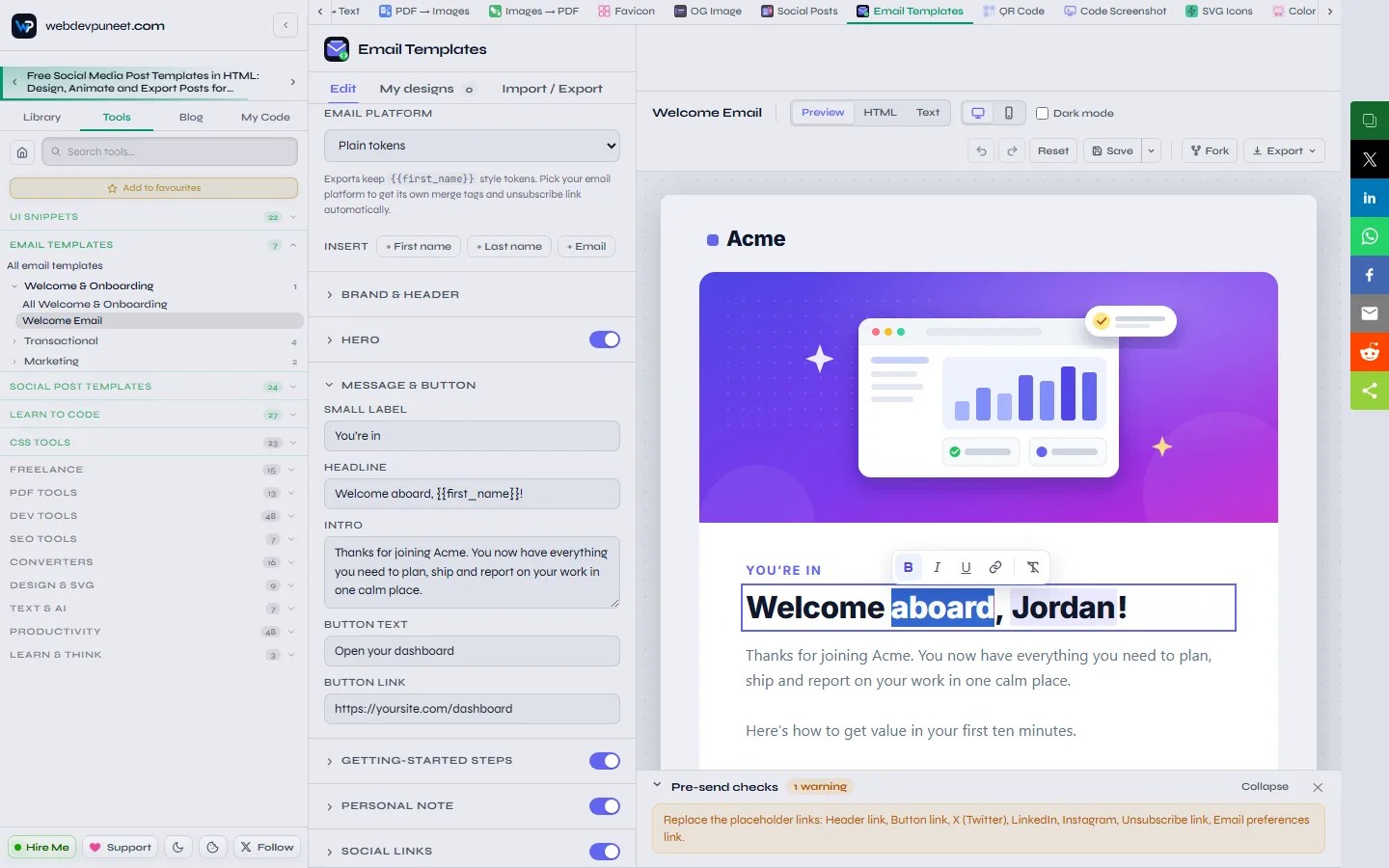
Optional parts of a template, like the Welcome email’s getting-started steps, the password reset’s request details or the newsletter’s tip box, have an on/off switch next to their section heading. In lists such as order items or newsletter stories, leave a name empty to hide that row.
Preview on desktop, mobile and in dark mode
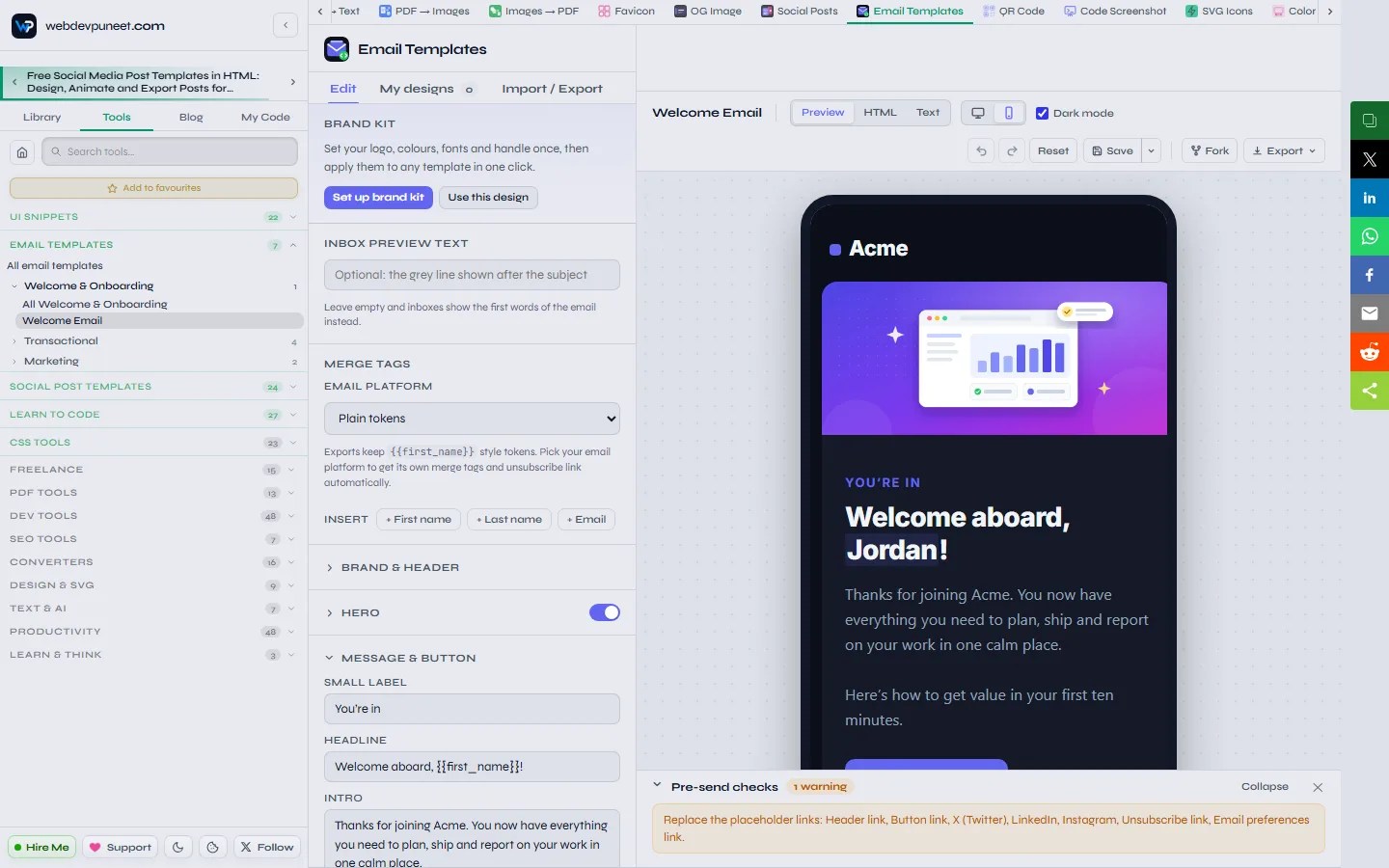
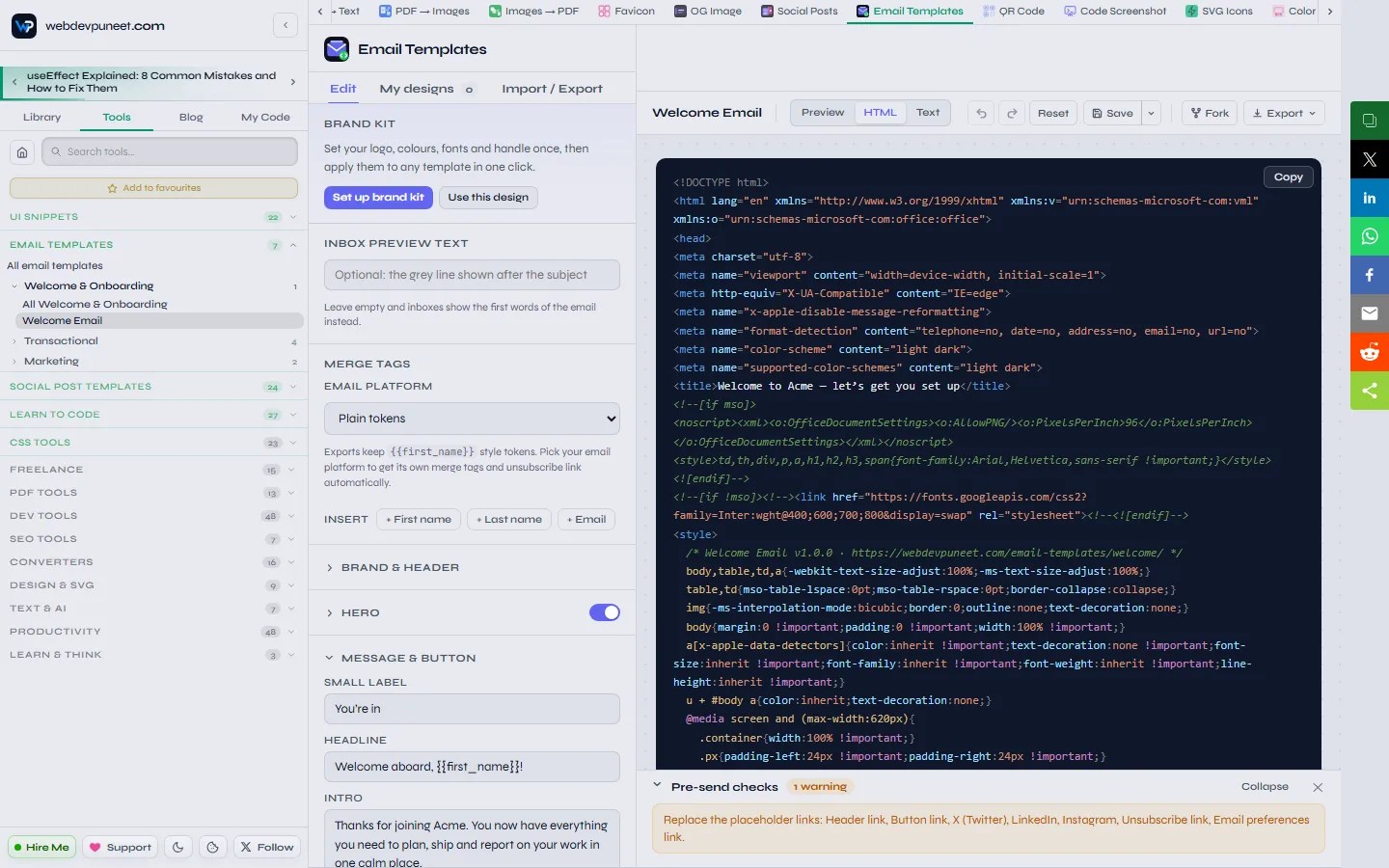
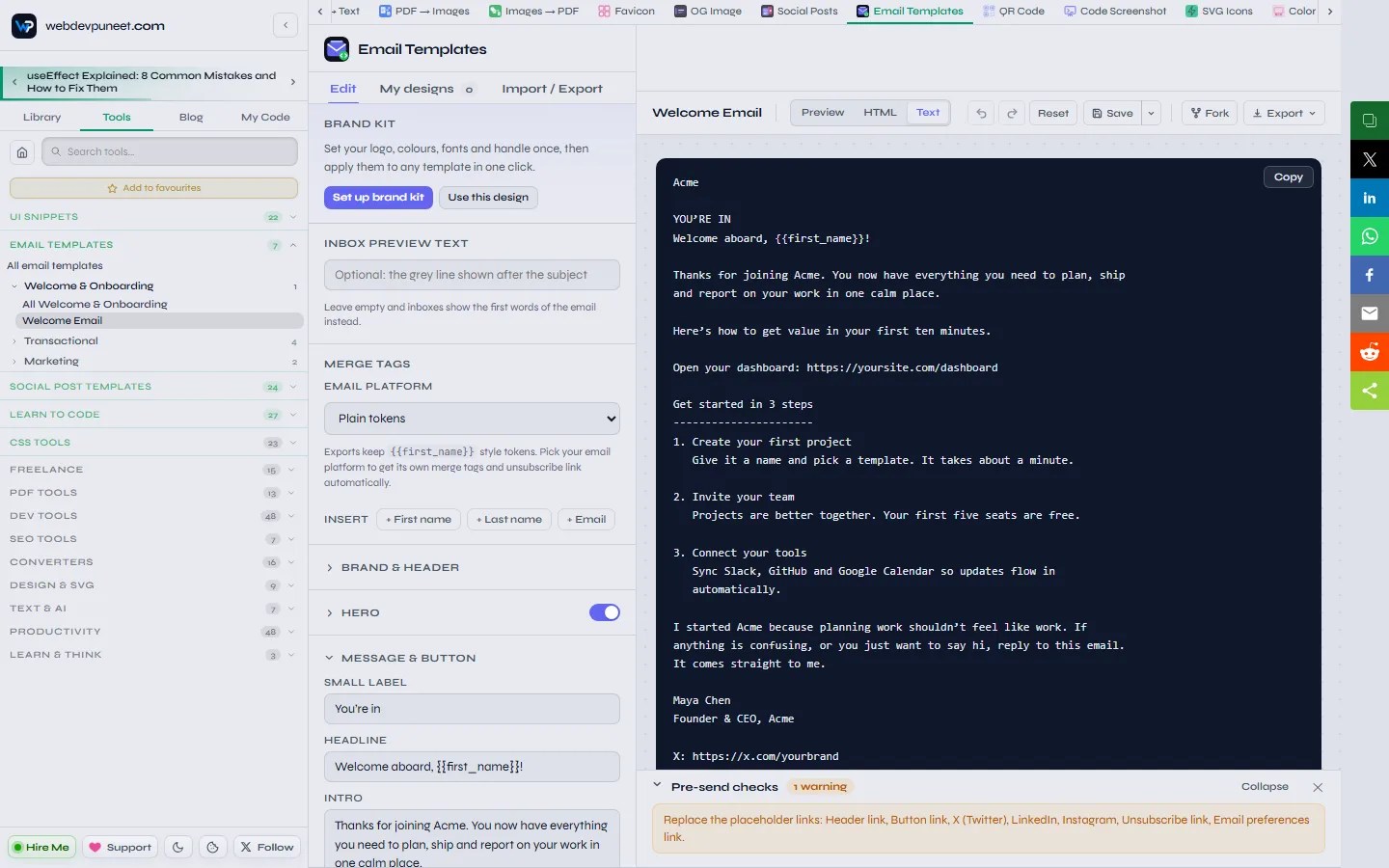
The toolbar above the email switches between a desktop preview and a 390 px mobile preview, and the Dark mode checkbox shows the email with its dark palette, in any browser. Next to Preview, the HTML tab shows the full email code with syntax highlighting, and the Text tab shows the plain-text version, each with a Copy button.
Images: paste a URL or upload
Logos, hero images and featured images can be a hosted URL or a file you upload. Uploads are resized in your browser (a hero image to 1,200 px wide, which stays sharp on retina screens at 600 px) and stored on your device. Animated GIFs are kept as they are, so the animation survives.
One thing to know: email images must be hosted online. Most email clients block images embedded in the HTML. If you upload images, either use Download ZIP, which puts them in an images folder next to the email, or upload them to your website or CDN and enter that address as the Image base URL. The exported HTML then points to https://your-cdn.com/email/your-image.png.
Extra sections: add blocks anywhere
Need something the template doesn’t have? The Extra sections panel adds email-safe blocks to any template:
- Heading and Text, with bold, italic and links
- Button, aligned left or centre, with the same Outlook-safe code as the template’s own button
- Image, from a URL or an upload, with alt text and an optional link
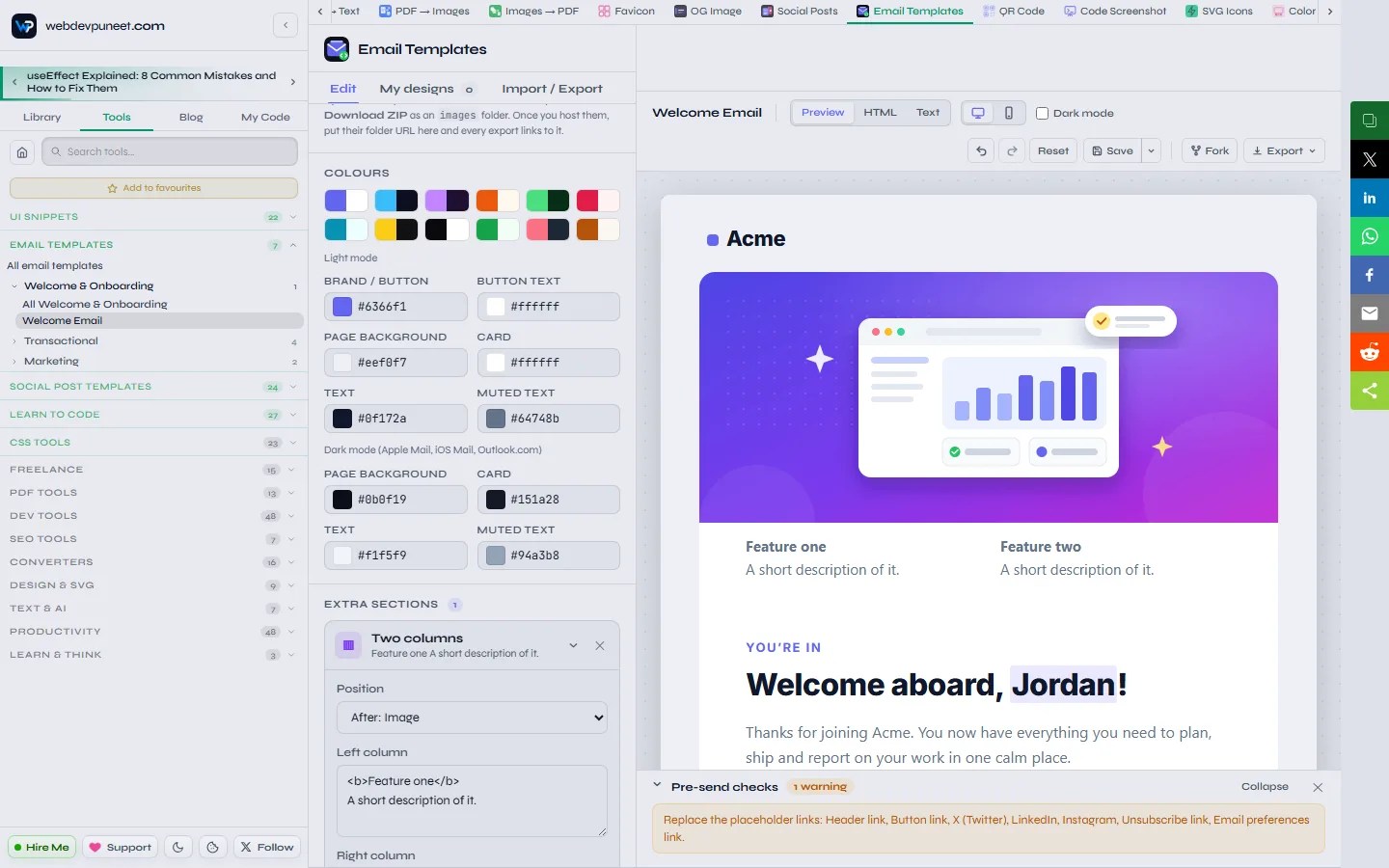
- Two columns, which stack on phones
- Divider and Spacer
Choose where each one goes from the Position menu (top of the email, after any of the template’s own sections, or the bottom), or just drag it in the preview. Extra sections are saved with your design, included in the plain-text version and in every export.
Colours, dark mode and fonts
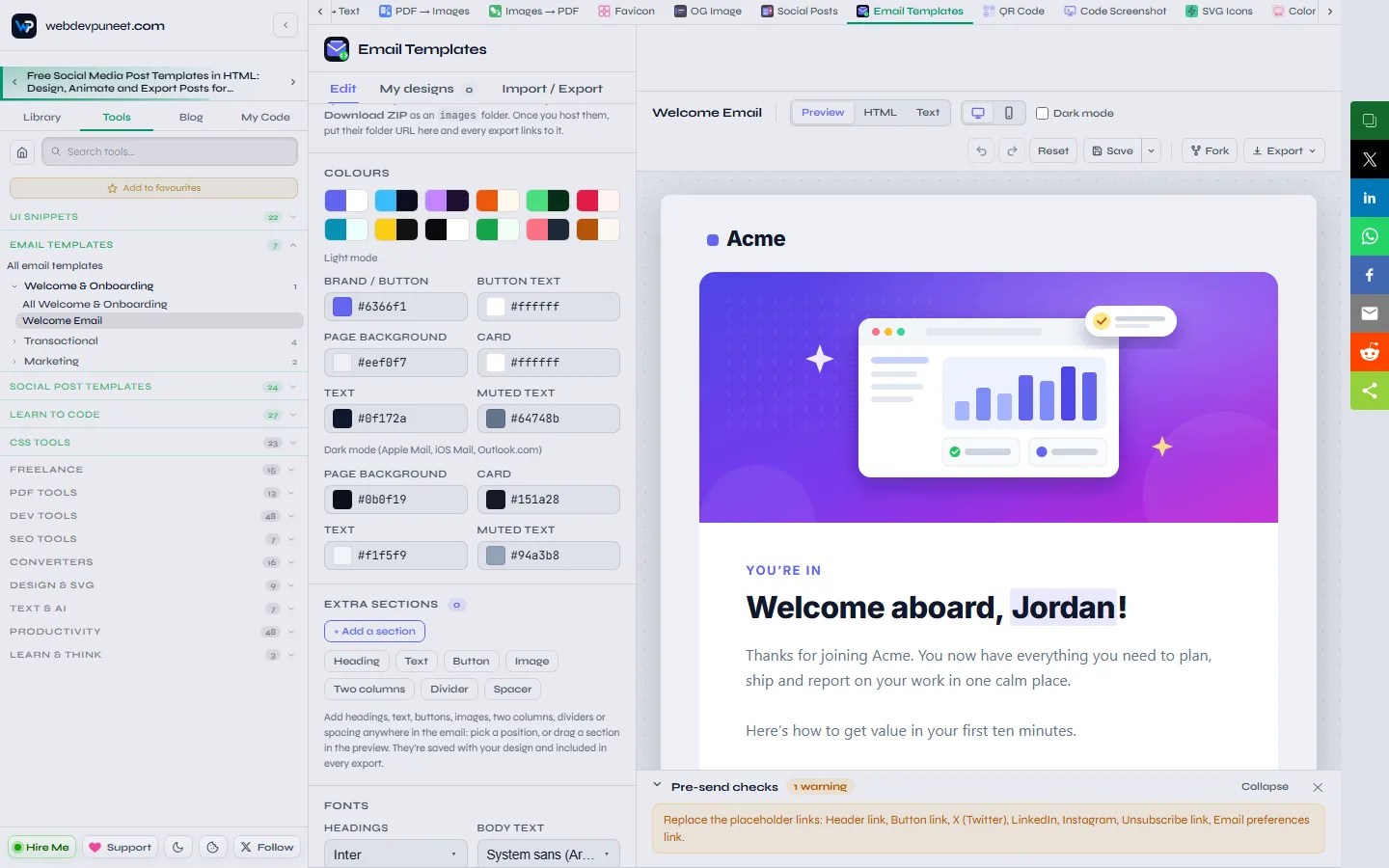
The Colours section has two sets. Light mode covers the brand and button colour, the button text, the page background, the card, the text and the muted text. Dark mode has its own page background, card, text and muted text, which Apple Mail, iOS Mail and Outlook.com use when the reader has dark mode on. Twelve one-click accent colours restyle the buttons and highlights at once, and the button text colour is picked automatically for contrast.
The heading and body font pickers search the whole Google Fonts library. Be realistic about email fonts, though: web fonts only show in Apple Mail and iOS Mail. Gmail and Outlook use the fallback, so a sans-serif font falls back to Arial, a serif font to Georgia, and a monospace font to Courier. If you don’t want a download at all, choose System sans or Georgia.
Brand kit: shared with Social Post Templates
The Brand kit at the top of the Edit tab stores your brand name, website, a hosted logo URL, your brand colour and your heading and body fonts. It’s the same kit used by Social Post Templates, so your emails and social posts match without setting anything up twice. Click Apply to this design to use it on the email you’re editing (Undo takes it back), or Use this design to fill the kit from the current email. The kit is never applied automatically.
Merge tags for Mailchimp, Klaviyo, HubSpot and Brevo
Personalisation in email uses merge tags, and every platform writes them differently. The templates use simple tokens, {{first_name}}, {{last_name}} and {{email}}, which the preview shows as sample values (“Jordan”) in a soft highlight. Click + First name, + Last name or + Email to insert one where your cursor is.
Pick your platform in the Email platform menu, and Copy HTML and every download convert the tokens and the placeholder unsubscribe and preferences links for you:
| Platform | First name becomes | Unsubscribe link becomes |
|---|---|---|
| Plain tokens | {{first_name}} | Your own link |
| Mailchimp | *|FNAME|* | *|UNSUB|* |
| Klaviyo | {{ first_name|default:'there' }} | {% unsubscribe_url %} |
| HubSpot | {{ contact.firstname }} | {{ unsubscribe_link_all }} |
| Brevo | {{ contact.FIRSTNAME }} | {{ unsubscribe }} |
Plain tokens are the right choice when you send from your own code with Postmark, SendGrid, Amazon SES, Resend or Nodemailer: replace them with your template engine.

Pre-send checks: catch problems before you send
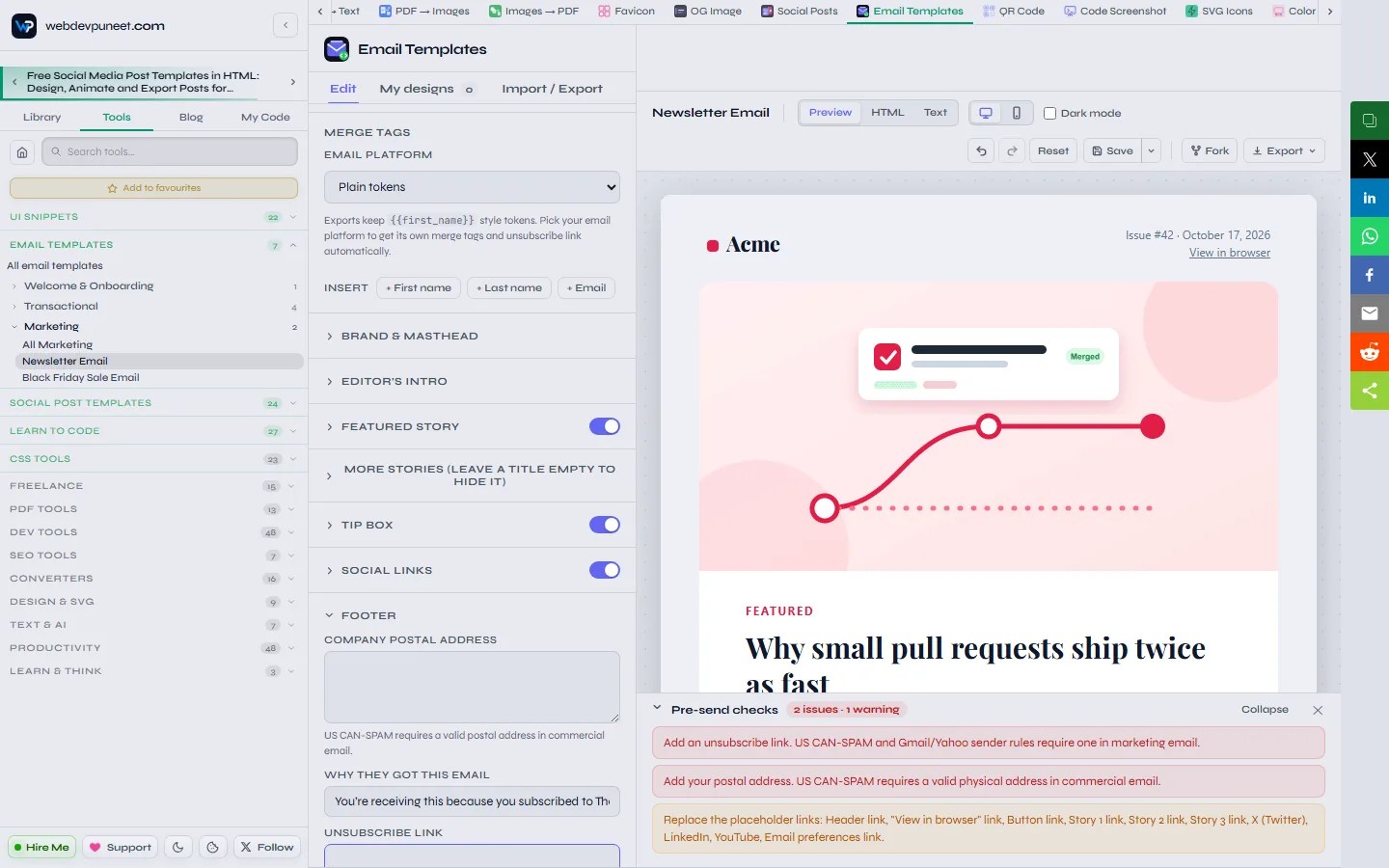
A Pre-send checks bar under the preview checks your email as you edit and shows either “Ready to send” or how many issues and warnings to look at. It catches the mistakes that are easy to miss in email:
- Gmail clipping: Gmail cuts off messages over 102 KB and hides the rest, including your unsubscribe link. You get a warning from 80 KB.
- Image URLs: images that aren’t full
https://URLs, and uploaded images with no hosting plan. - Missing alt text: many people read email with images turned off.
- Preview text length: 40 to 130 characters fills the inbox preview line without being cut off.
- Legal footer: a missing unsubscribe link in marketing email, or a missing postal address.
- Leftovers: placeholder links such as
yoursite.comthat you forgot to replace.
Saving your work: autosave and My designs
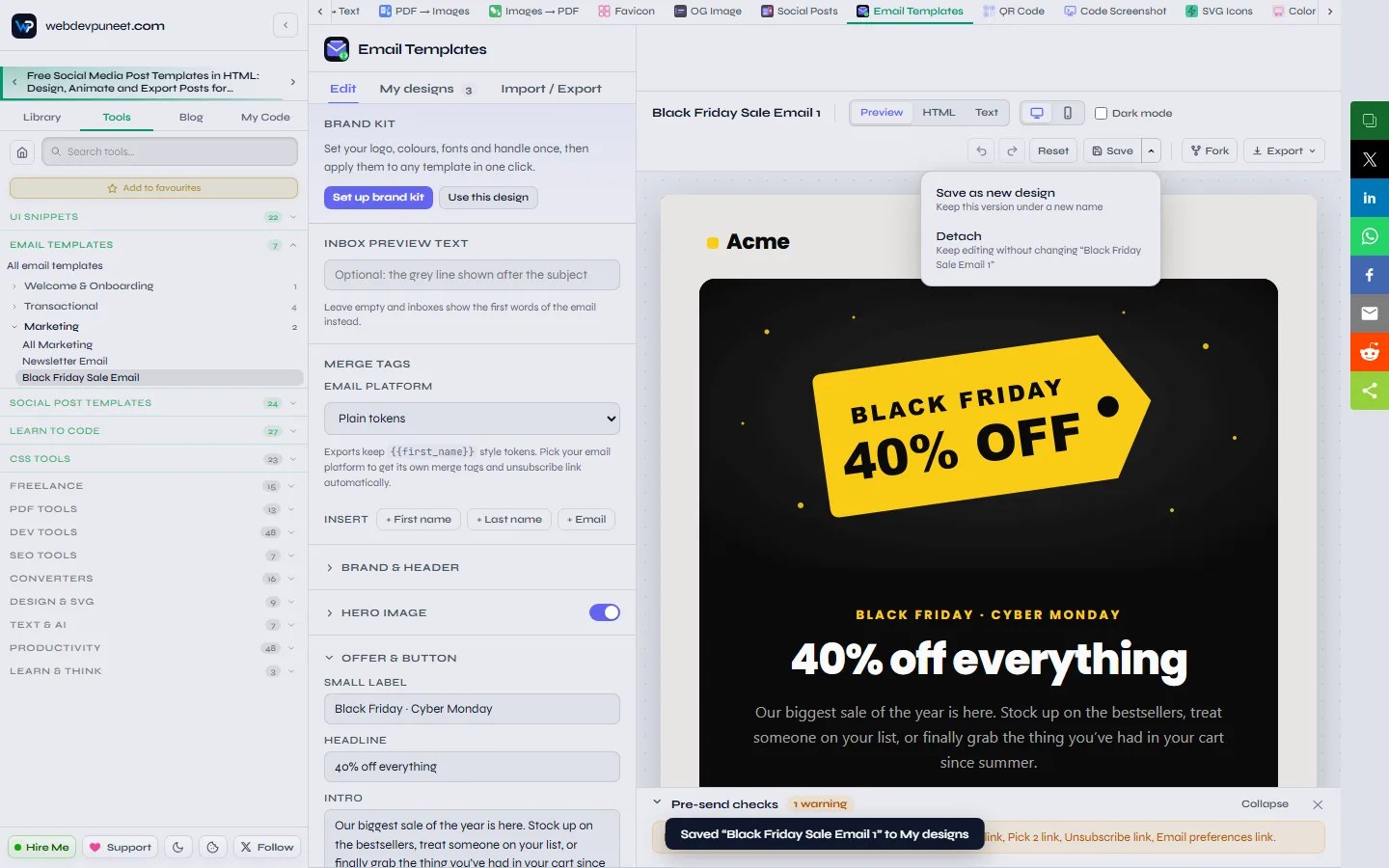
Every template remembers your latest edits, so you can close the tab and pick up where you left off. To keep a version on purpose, click Save in the toolbar or press Ctrl+S. The design goes into My designs under a name, together with its uploaded images, and a dot shows when you have unsaved changes. The arrow next to Save offers Save as new design for variations (a light and a dark version, or one per brand) and Detach to keep editing without changing the saved copy. Undo, Redo and Reset sit next to it.
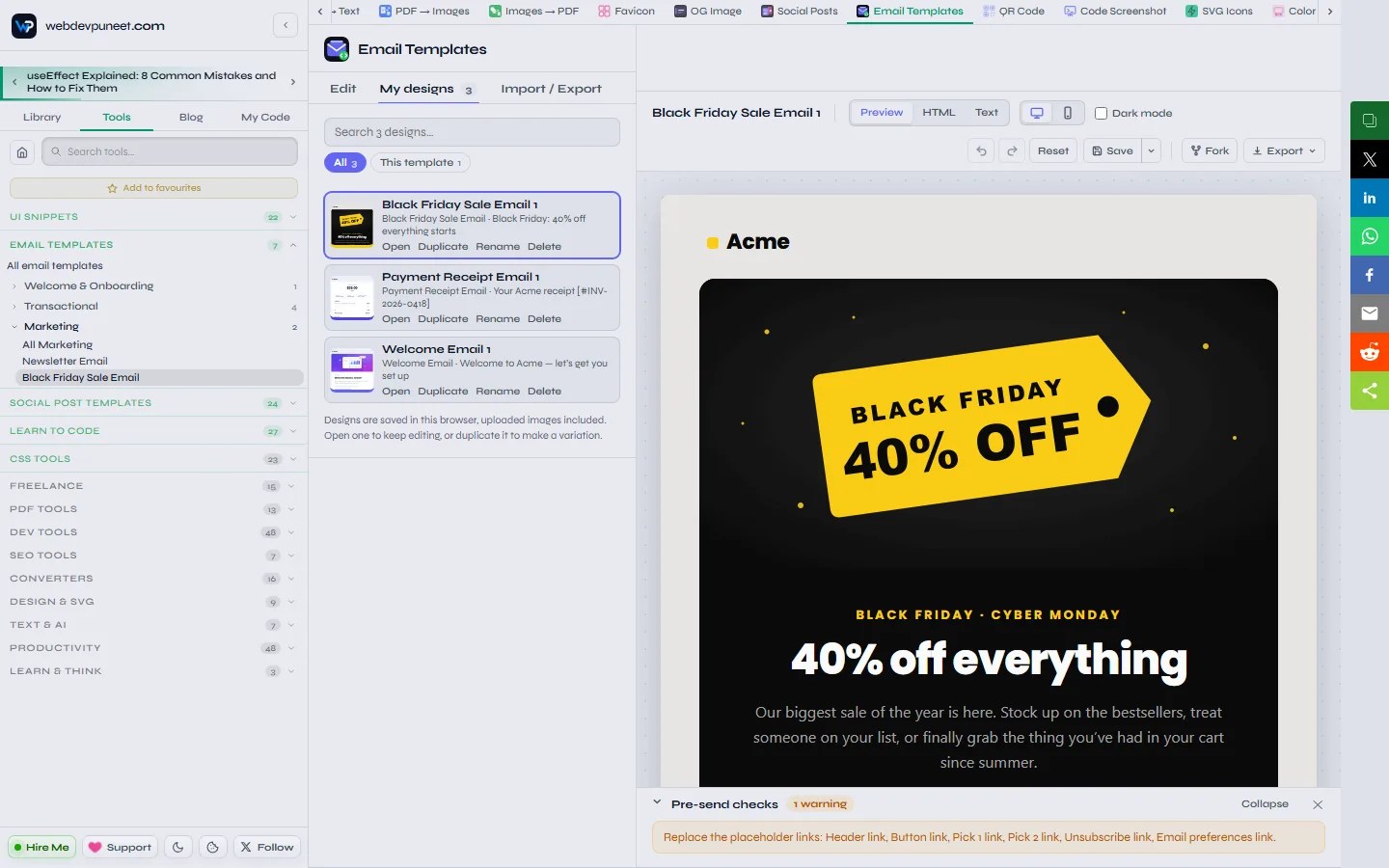
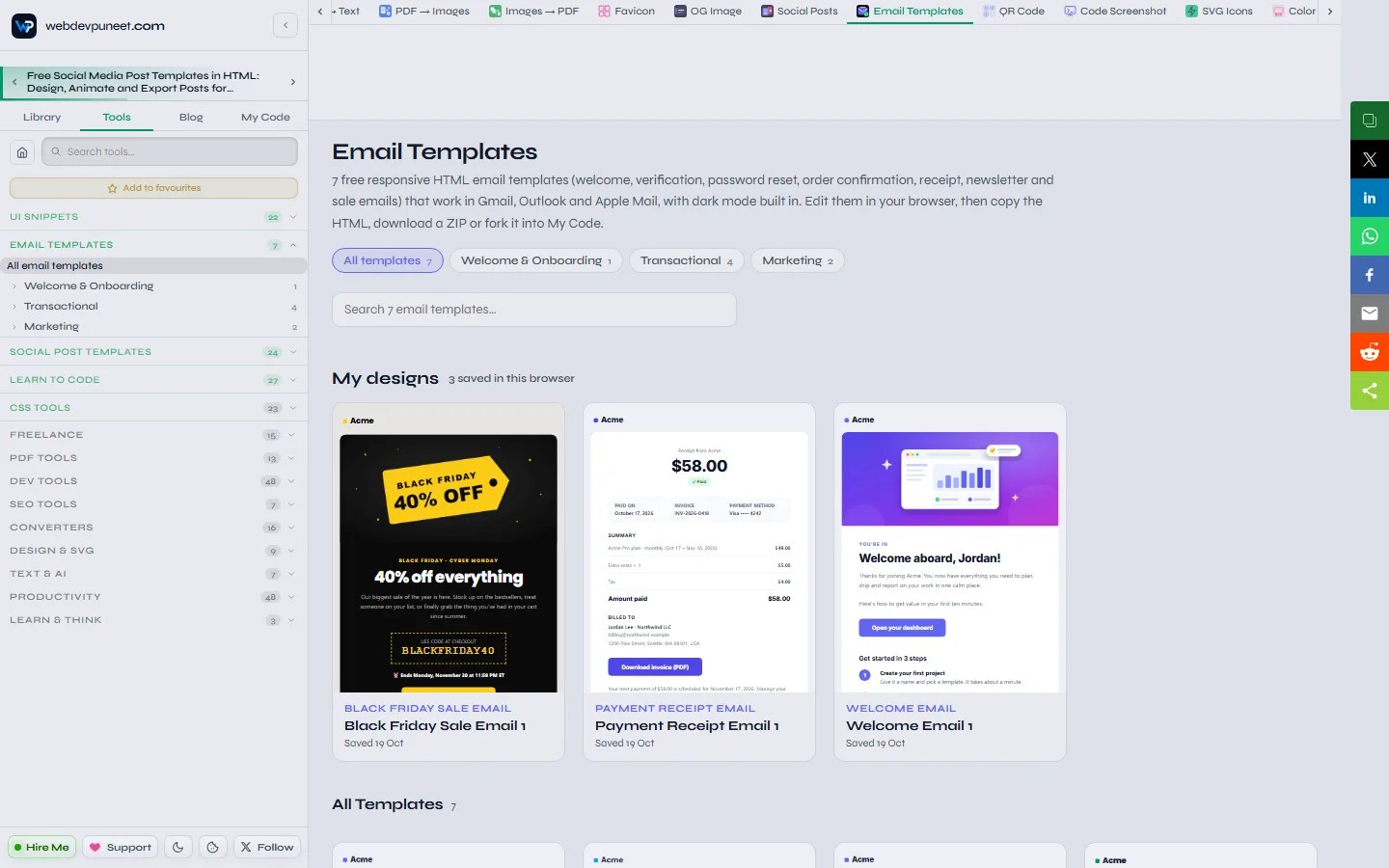
The My designs tab lists everything you’ve saved, with search, a filter for All designs or This template, and Open, Duplicate, Rename and Delete on each one. Saved designs also appear at the top of the gallery page, rendered live from their HTML.
Import and export: back up and move your designs
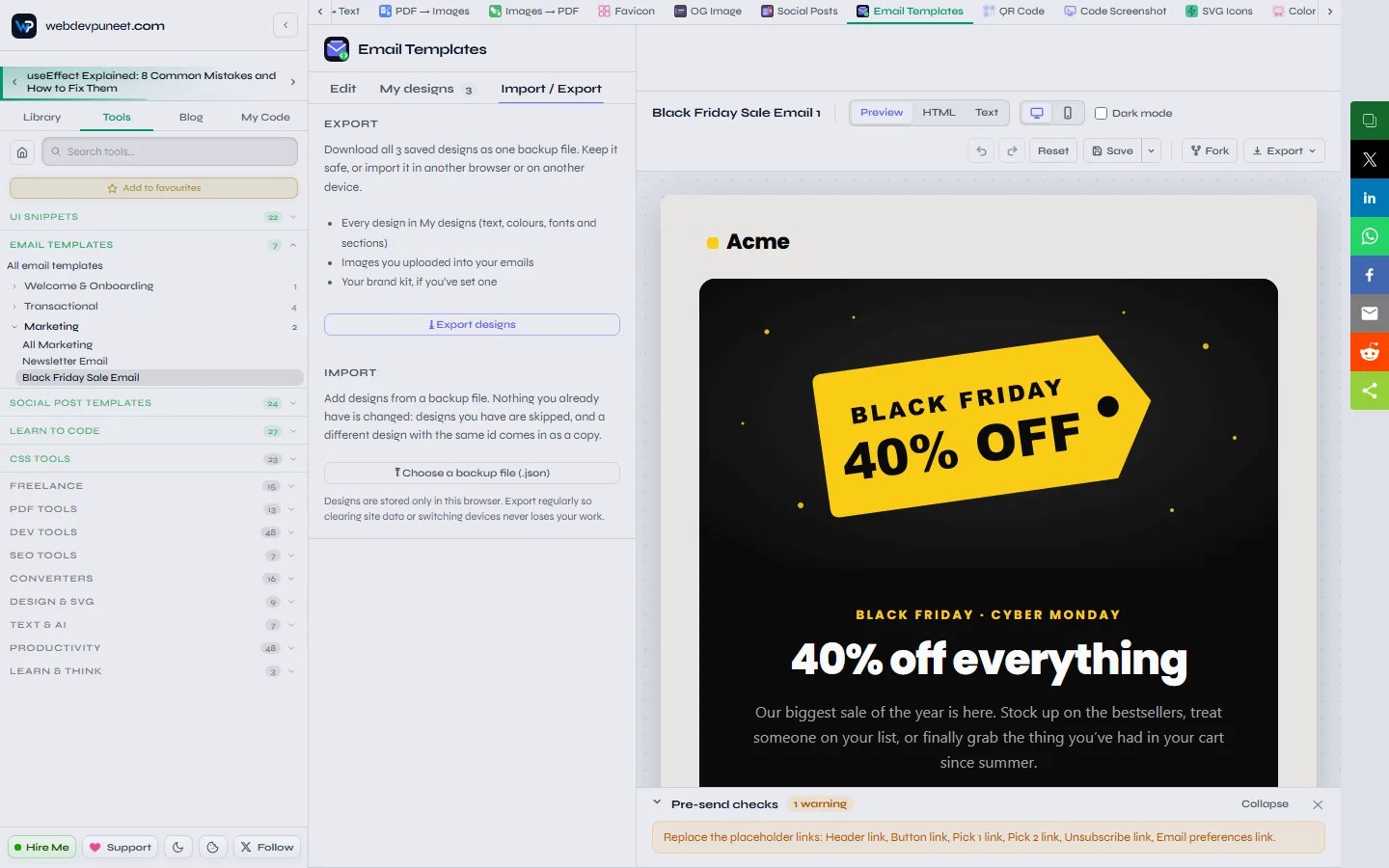
Designs are stored only in your browser, so clearing site data or switching computers would lose them. The Import / Export tab fixes that with one backup file. Export downloads every design in My designs (text, colours, fonts and sections), the images you uploaded, and your brand kit. Import adds them in any browser, on any computer, without changing what’s already there: designs you have are skipped, and a different design with the same ID comes in as a copy. It’s also an easy way to hand a set of emails to a teammate or a client. Try it with this sample backup file of three designs.
Every export option
All downloads live in the Export menu in the toolbar.
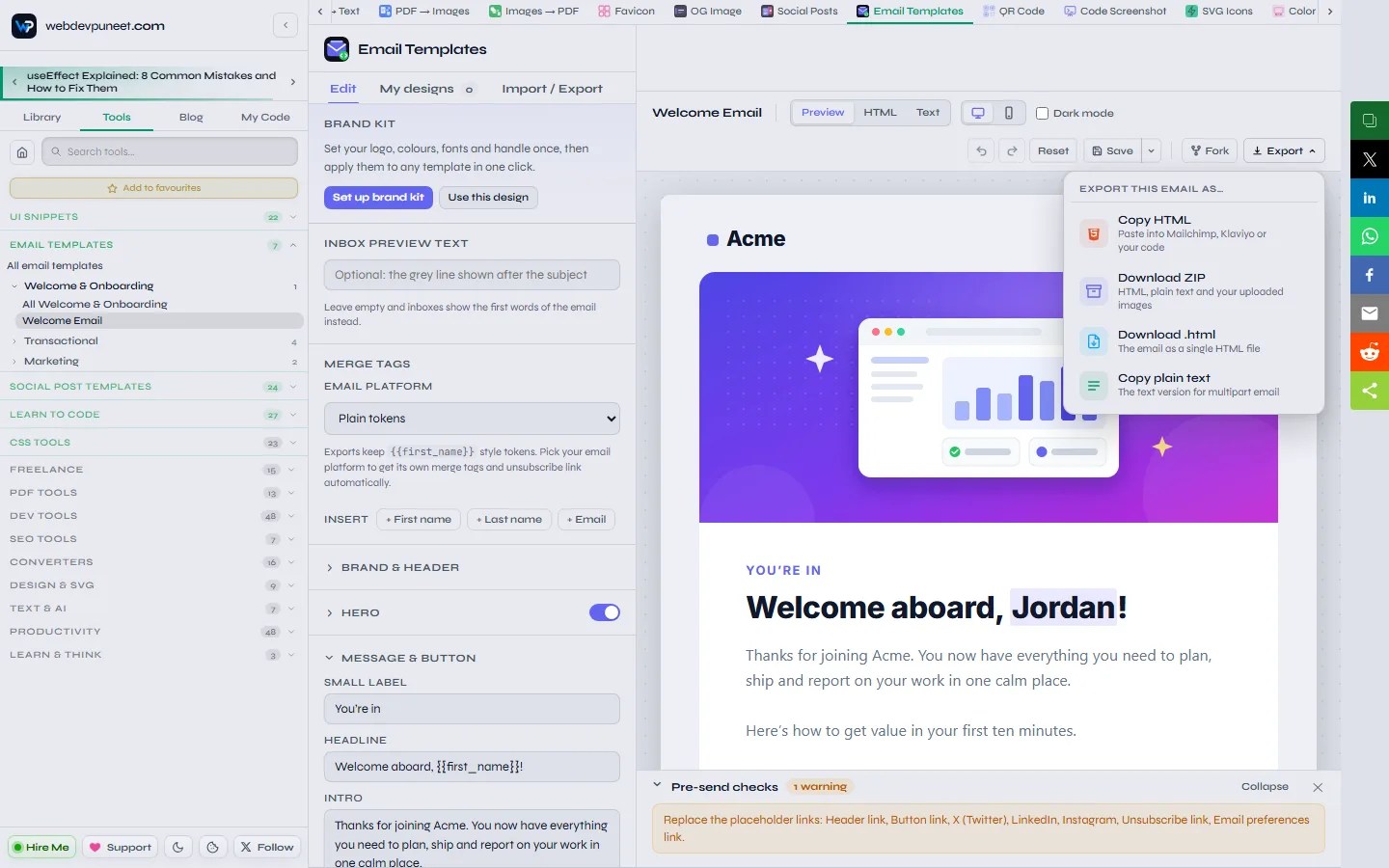
| Option | What you get | Use it for |
|---|---|---|
| Copy HTML | The full email HTML on your clipboard, with your platform’s merge tags | Pasting into Mailchimp, Klaviyo, HubSpot, Brevo or your code |
| Download ZIP | The HTML, the plain-text version, an images folder with your uploads and a README | Handing off to a developer, hosting your own images |
| Download .html | The email as a single HTML file | Testing, archiving, version control |
| Copy plain text | The text-only version of the email | The text part of a multipart email |
| Fork | The email as an editable snippet in My Code | Changing anything the fields don’t cover |
Why the plain-text version matters: sending a text part alongside the HTML (a “multipart” email) helps deliverability and gives a readable version to people whose email app shows text only. Most email services have a separate box for it.
Fork to My Code
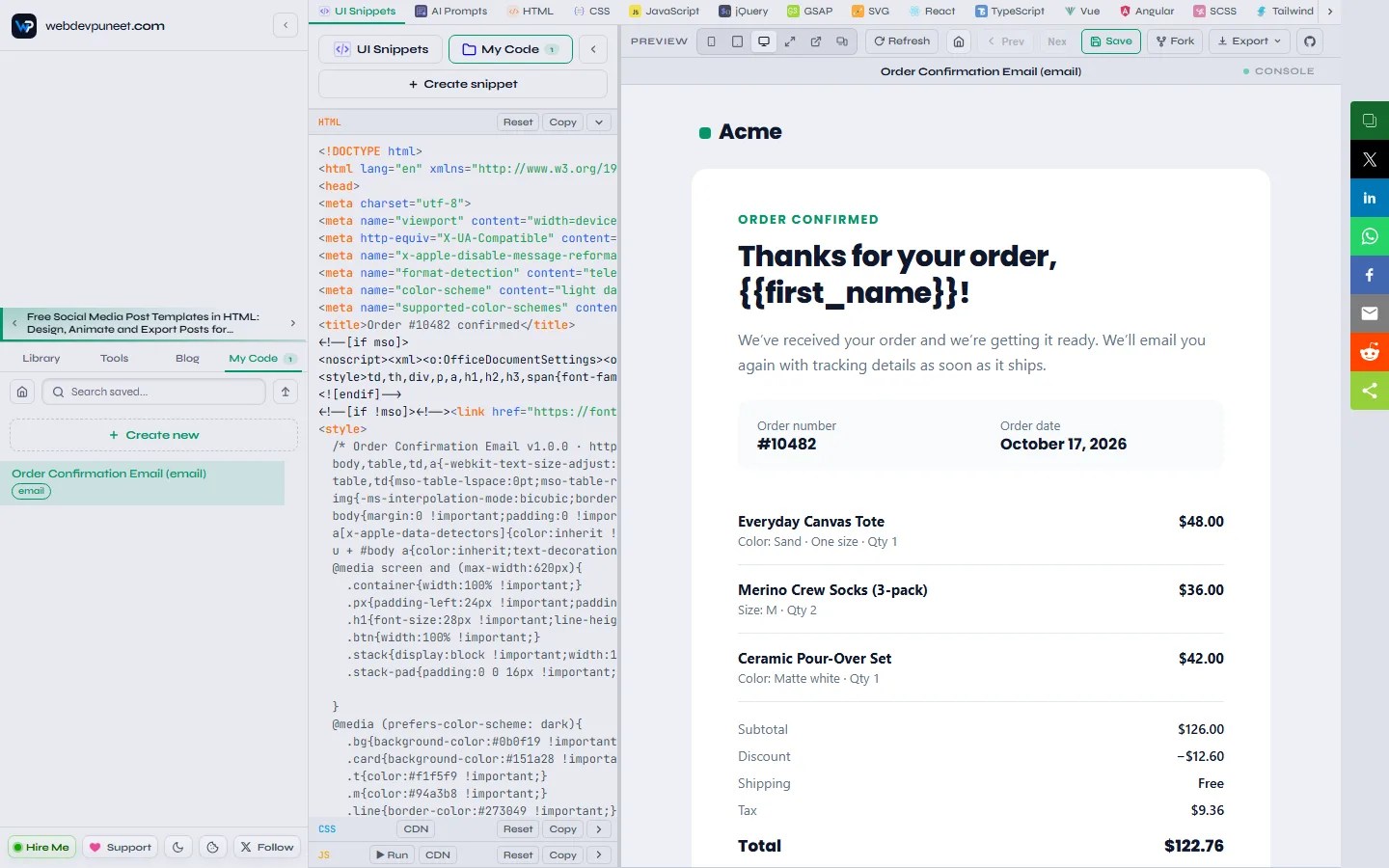
Fork in the toolbar saves the exact HTML you would send, Outlook conditional comments and all, as a snippet in My Code, the free in-browser HTML, CSS and JavaScript editor on webdevpuneet.com, and opens it in a new tab. Use it to repeat an order line in a loop, add a section the template doesn’t offer, keep versions, or sync the code to a GitHub Gist.
How to use the HTML in your email service
- Mailchimp: create a campaign or template, choose “Code your own”, then “Paste in code”, and paste the HTML.
- Klaviyo: create a template with the HTML editor and paste the code.
- HubSpot and Brevo: create a custom-coded or HTML template and paste the code.
- Shopify: for order emails, go to Settings, then Notifications, then Order confirmation, replace the code and swap the sample values for Shopify’s Liquid variables.
- Your own app: load the HTML and text versions into your template engine, replace the
{{tokens}}, and send with Postmark, SendGrid, Amazon SES, Mailgun or Resend. Supabase, Firebase and Auth0 also accept custom HTML for their verification and password reset emails.
Before a real send, always send yourself a test and open it in the email apps your audience uses most.
Works on your phone
On a phone the email preview fills the screen and the editing panel opens as a bottom sheet. Tap text in the preview to edit it in place, open the panel for colours and settings, and copy the HTML straight from your phone.
Privacy: nothing leaves your browser
There’s no upload step. Images are resized locally, designs and images are stored in IndexedDB on your device, and the HTML, text and ZIP files are all made in your browser. The only outside requests are for the Google Fonts you choose. That makes the tool safe for unreleased launches and client work, and it’s why there’s no sign-up.
For developers: how the templates are built
Each template is a small JavaScript module with its fields, sections, colours and two functions: one that builds the HTML and one that builds the plain text. They share a document shell that adds the Outlook fixes (MSO conditional comments, o:OfficeDocumentSettings for 96 DPI, and an Arial override), the mobile media query, the dark-mode rules for prefers-color-scheme and Outlook.com’s [data-ogsc], the color-scheme meta tags and the hidden preheader with filler characters so the inbox doesn’t pull body text into the preview line.
Text you type can contain a little inline HTML (<b>, <i>, <u>, <br> and <a href>). Everything else is escaped, unclosed tags are closed, and links are limited to https, mailto and tel, so nothing you type can break the email or slip in unsafe code. The preview runs in an iframe, so your email’s CSS never touches the editor.
Tips for emails that get opened and clicked
- Write the inbox preview text. It’s the second thing people read in the inbox, right after the subject. Use it to add information, not to repeat the subject.
- One email, one main button. Every template is built around a single call to action. Add more with Extra sections only when you really need them.
- Put the important part in text, not in an image. Discounts, codes and headlines should be real text, so they still show when images are off.
- Keep transactional emails transactional. Adding promotions to a receipt or a password reset can make it count as marketing email legally.
- Check dark mode and mobile. Most email is read on phones, and a lot of it in dark mode. Both previews are one click away.
- Back up monthly. Export your designs from the Import / Export tab so a browser clean-up never costs you your work.
Frequently asked questions
Are these HTML email templates really free?
Yes. Every template and every feature, including the ZIP download, merge tags and Fork to My Code, is free for personal and commercial use, with no sign-up and no watermark or “made with” badge in your email.
Will the templates work in Outlook?
Yes. The layout uses tables and inline styles, the 600 px container and the buttons have Outlook-only versions, and Outlook is set to Arial so it never falls back to Times New Roman. Web fonts and rounded corners on some elements don’t show in Outlook on Windows, but the email stays clean and readable.
Do the templates support dark mode?
Yes. Apple Mail, iOS Mail and Outlook.com use the dark colours you set in the Colours section. Gmail’s apps apply their own automatic colour changes, which the templates are designed to survive. Tick Dark mode in the toolbar to preview it.
How do I use a template in Mailchimp or Klaviyo?
Pick Mailchimp or Klaviyo in the Email platform menu, then use Export, then Copy HTML. In Mailchimp choose “Code your own” and paste; in Klaviyo create an HTML template and paste. The first-name tags and unsubscribe link are already converted to the platform’s own syntax.
Why do my images need a URL?
Most email clients block or strip images embedded inside the email, so images have to be hosted online. Upload them to your website, a CDN or your email service, then paste the URLs or set the Image base URL. Download ZIP gives you the images in a folder, ready to upload.
Do transactional emails need an unsubscribe link?
No. Under US CAN-SPAM, emails whose main purpose is transactional, such as password resets, verifications, order confirmations and receipts, don’t need one. Marketing emails like newsletters and sales do, along with your postal address, and the marketing templates include both.
Can I add my own sections?
Yes. Extra sections add headings, text, buttons, images, two columns, dividers and spacers to any template, anywhere in the email. For bigger changes, Fork the email to My Code and edit the HTML directly.
Where are my designs saved?
In your browser’s IndexedDB storage on the device you used, uploaded images included. They aren’t uploaded anywhere. To move them or keep a copy, use Export in the Import / Export tab and import the file elsewhere.
Start building your email
Open the Email Templates gallery, pick a template and have a tested, responsive email ready to paste in a few minutes. Need matching social posts for the same launch or sale? Social Post Templates uses the same brand kit, and UI Snippets has more than 2,000 free HTML and CSS components for your website.
Discover more from WebDevPuneet
Subscribe to get the latest posts sent to your email.


