
Posting on social media every week means making a lot of images: a quote on Monday, a product launch on Wednesday, a webinar reminder on Friday, and a Story for each one. Design apps make this easy but lock your work inside their editor, add watermarks to free plans, or ask you to sign up before you can download anything. Hand-coding each post in HTML and CSS gives you full control but takes far too long.
The free Social Post Templates tool on webdevpuneet.com sits in between. You get 24 ready-made templates in 8 categories that you edit by clicking on them. Every design is real HTML and CSS, so one template works in six post sizes for Instagram, Facebook, X, LinkedIn and Pinterest. When you’re done you can download a PNG or JPEG, a ZIP of every size, a PDF carousel for LinkedIn, a short animated MP4 for Reels and Stories, or the HTML itself. There’s no account and no watermark, and your photos never leave your browser.
This guide walks through every feature with screenshots and real exports: the categories, sizes, fonts, brand kit, saving and backups, video, carousels, bulk creation from a spreadsheet, and forking a design into your own code.
The short version
- What it is: a free, browser-based editor for social media post templates built in HTML and CSS.
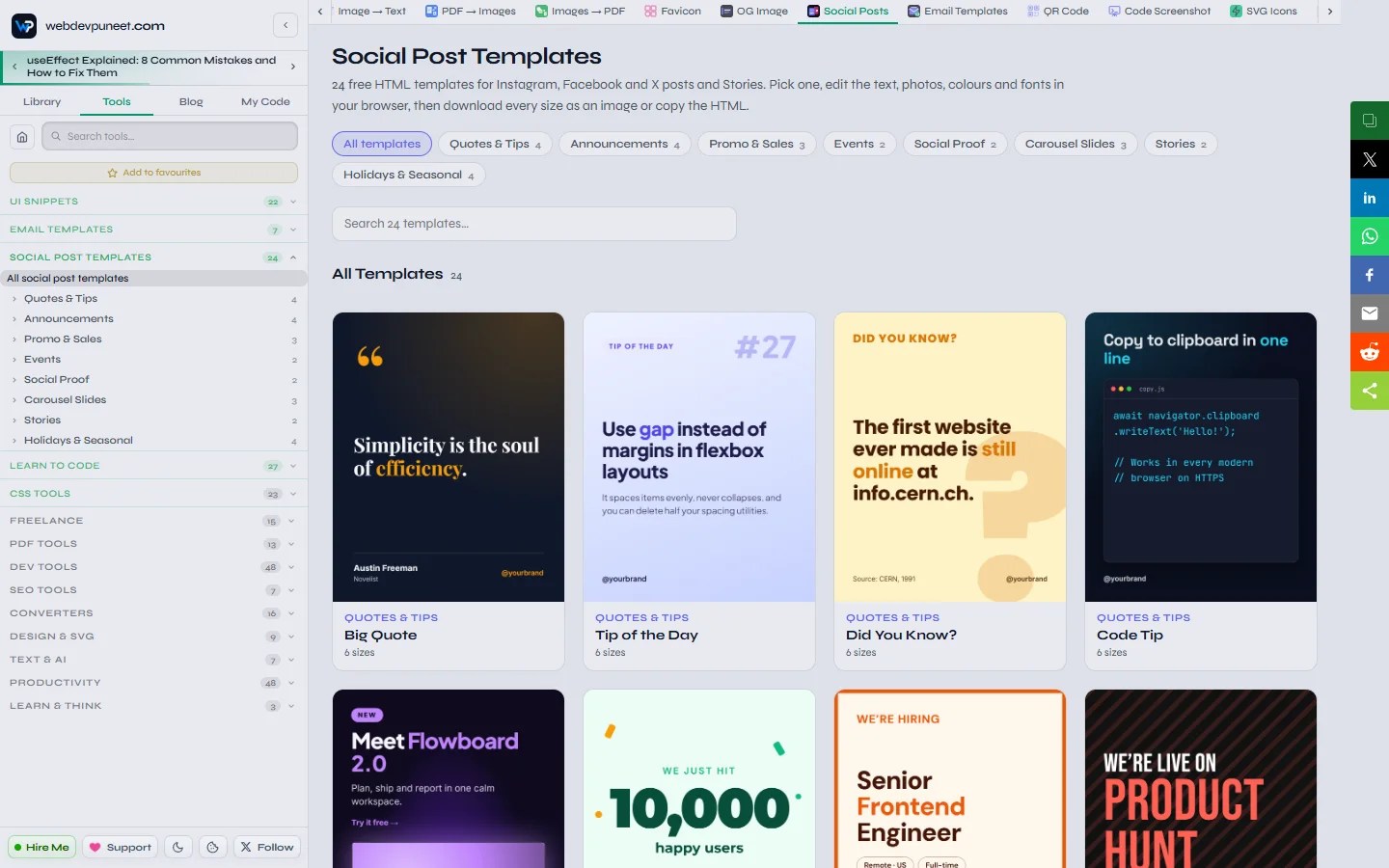
- Templates: 24 designs in 8 categories (Quotes & Tips, Announcements, Promo & Sales, Events, Social Proof, Carousel Slides, Stories, and Holidays & Seasonal), with more on the way.
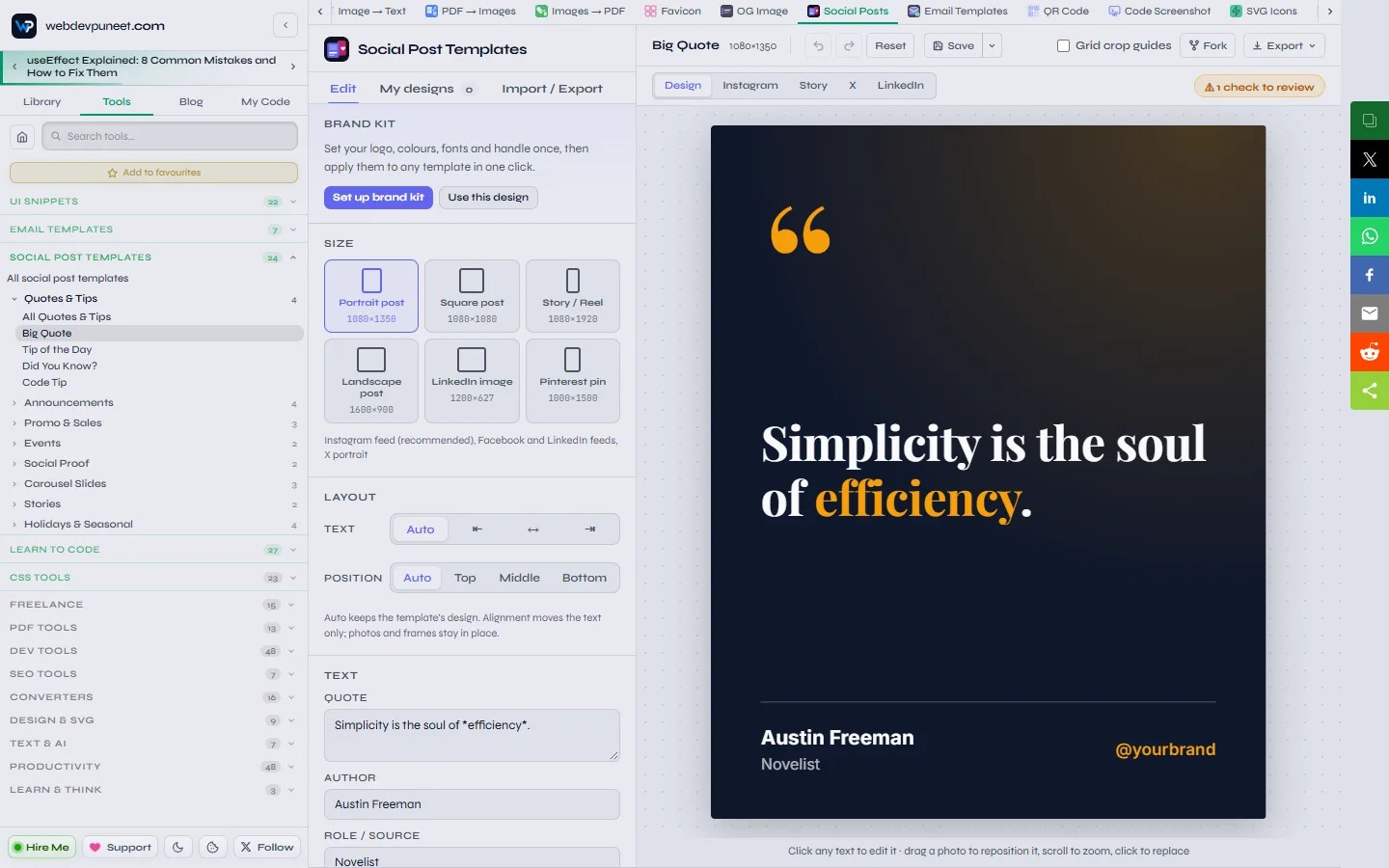
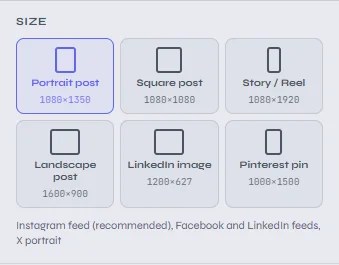
- Sizes: Instagram portrait 1080×1350, square 1080×1080, Story/Reel 1080×1920, landscape 1600×900, LinkedIn 1200×627 and Pinterest pin 1000×1500.
- Exports: PNG, JPEG, every size as a ZIP, PDF (including multi-page LinkedIn carousels), animated MP4 video (WebM in browsers that can’t record MP4), and self-contained HTML.
- Branding: 1,949 Google Fonts, your own uploaded font files, 12 palettes plus exact colours, and a reusable brand kit.
- Your work: autosave, named designs with Save and Save as, search, and a backup file you can import on any computer.
- Privacy: everything runs in your browser. Photos, text and designs are never uploaded.
Quick start: your first post in two minutes
- Open the Social Post Templates gallery and pick a design, or filter by category first.
- Choose a post size under Size. Portrait 4:5 is the default because it takes up the most room in the Instagram feed.
- Click any text in the preview and type over it. Click a photo area to upload your own image.
- Pick a palette or set exact colours, and choose your heading and body fonts.
- Open Export in the toolbar and download a PNG, or choose Animated video for a Reel. Press Ctrl+S to keep the design in My designs.
Why HTML templates instead of image templates?
Most template sites hand you a picture inside their editor. These templates are web pages: each one is a small block of HTML with CSS that uses relative units and CSS variables for colours and fonts. That one decision explains most of what the tool can do.
- One design, every size. The layout is measured relative to the post, so switching from a square to a Story re-flows the design instead of stretching or cropping it.
- Text always fits. Long headlines shrink step by step until they fit their box, so nothing overflows when you paste in your own copy.
- You own the code. Copy the HTML, download it as a file, or fork it into an editor and reuse the design on a website, in a CMS or in your own image pipeline.
- It’s private. The preview and the export are both drawn in your browser, so there’s nothing to upload and no account to create.
All 8 template categories
Each category has its own page with every template in it. Click a template name to open it straight in the editor.
1. Quotes & Tips
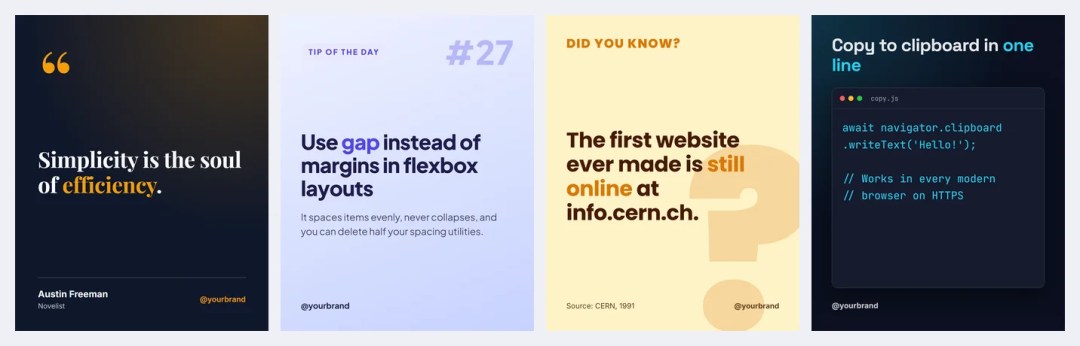
Posts people save and share: quote cards, daily tips and fact posts. Includes Big Quote, Tip of the Day, Did You Know? and Code Tip, which shows a code snippet in an editor window, ideal for developer accounts. See all Quotes & Tips templates.
2. Announcements
For news worth celebrating: Product Launch, Milestone, We’re Hiring and We’re Live. See all Announcement templates.

3. Promo & Sales
Discounts and products, front and centre: Discount Badge, Black Friday Sale and Product Spotlight with a photo of your product. See all Promo & Sales templates.

4. Events
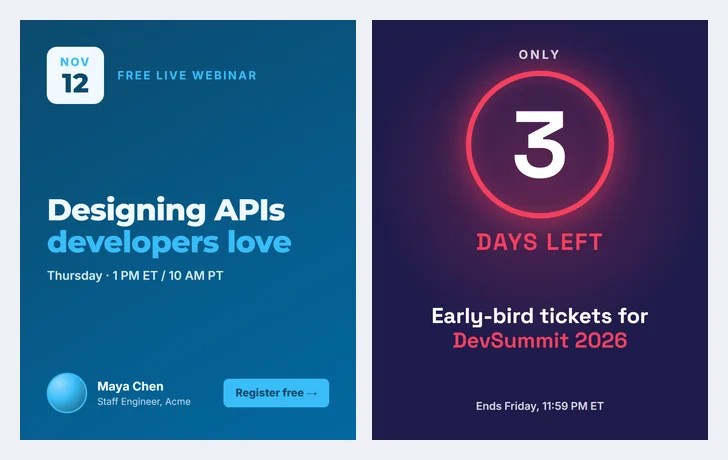
Posts with a clear date and a reason to sign up: Webinar Event with a speaker photo, and Countdown for “3 days left” reminders. See all Event templates.
5. Social Proof
Let customers do the selling: Customer Testimonial with a star rating and photo, and Before & After for results. See all Social Proof templates.

6. Carousel Slides
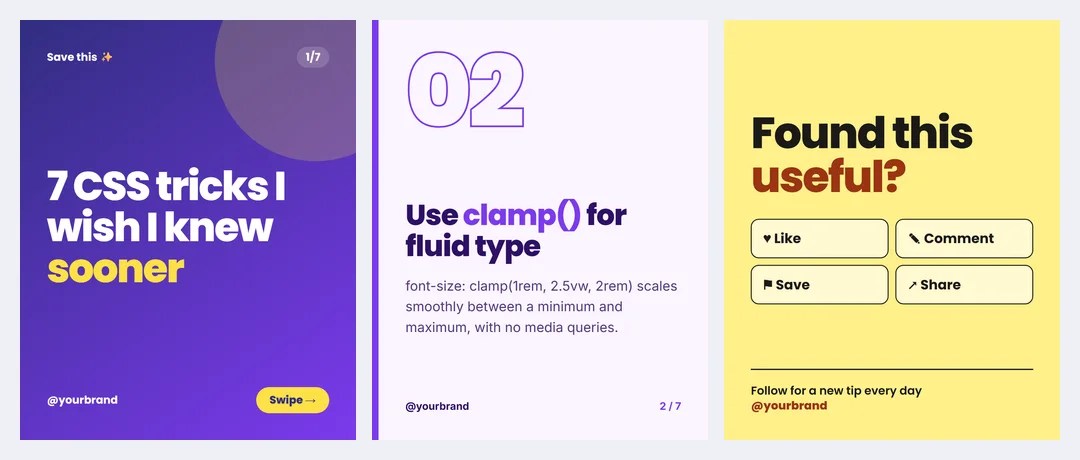
A cover, numbered step slides and a final “save this” slide that open together in the Carousel Builder (more on that below): Carousel Cover Slide, Carousel Step Slide and Carousel Final Slide. See all Carousel templates.
7. Stories
Designed Story-first, with room left for Instagram’s buttons: This or That Poll and New Post Link in Bio. See all Story templates.

8. Holidays & Seasonal
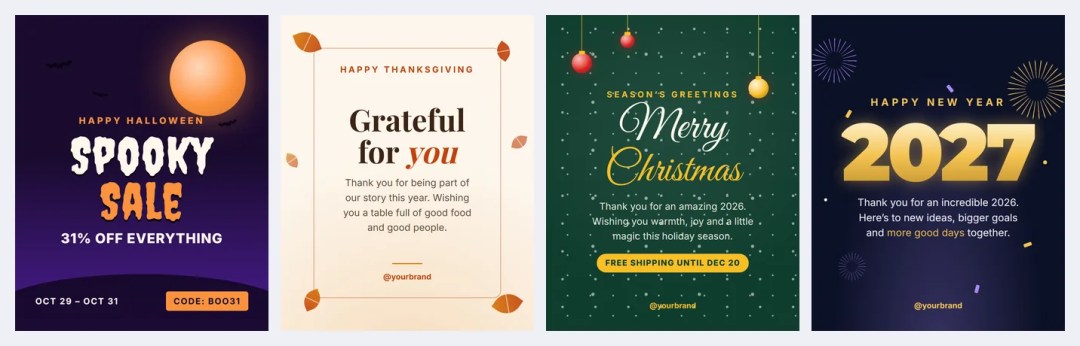
Ready for the end of the year: Halloween Sale, Thanksgiving Thank You, Christmas Greeting and Happy New Year. See all Holiday templates.
More are in the making. New templates and categories are added regularly. Upcoming ideas include more seasonal posts, event recaps, FAQ and myth-busting cards, pricing and comparison posts, and more carousel layouts. The gallery always shows the current set, so bookmark it and check back.
Six post sizes from one design
Pick a size in the Size section and the layout adapts. Each size is exported at its full pixel size, not scaled up from the preview.
| Size | Pixels | Ratio | Best for |
|---|---|---|---|
| Portrait post | 1080×1350 | 4:5 | Instagram feed (recommended), Facebook and LinkedIn feeds, X portrait |
| Square post | 1080×1080 | 1:1 | Instagram, Facebook, LinkedIn and X feeds |
| Story / Reel | 1080×1920 | 9:16 | Instagram and Facebook Stories, Reel covers |
| Landscape post | 1600×900 | 16:9 | X feed images, Facebook landscape |
| LinkedIn image | 1200×627 | 1.91:1 | LinkedIn shared images and link posts, Facebook link images |
| Pinterest pin | 1000×1500 | 2:3 | Standard Pinterest pins |
Two guides help with Instagram’s cropping. For Stories, Story safe zones shades the top and bottom areas covered by the profile bar and the reply field, and the templates already keep text out of them. For portrait posts, Grid crop guides show how your post is cropped on your profile grid, at 3:4 and 1:1.

Editing text, photos and layout
Click to edit, right in the preview
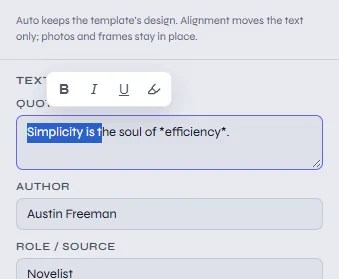
Click any text in the post and type. Every text element also has a field in the Text section on the left, and clicking text in the preview scrolls to its field. To colour a word with the accent colour, wrap it in asterisks: *efficiency*. Select text in a field and a small toolbar appears with bold, italic, underline and highlight.
Photos with drag-to-crop
Click a photo area in the preview, or Upload in the Images section, to add your own picture or logo. Photos are resized in your browser and never uploaded. Drag a photo in the preview to reposition it, scroll over it to zoom, or use the zoom slider (100% to 400%). Reset centres it again.
Layout options
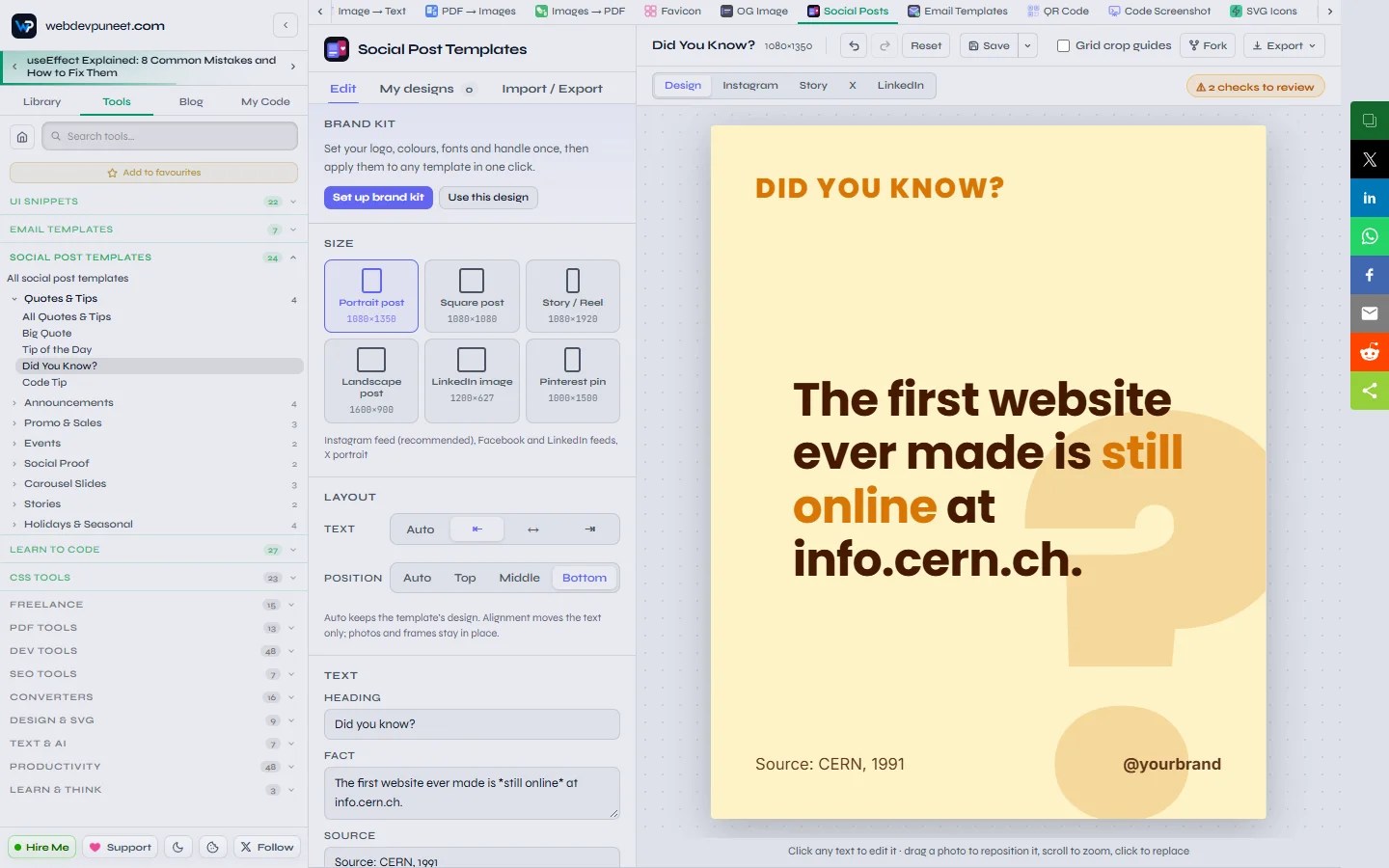
The Layout section moves the text without touching photos or frames. Align text left, centre or right, and move it to the top, middle or bottom. Auto keeps the template’s own design.
Colours and palettes
Each template lists its colours (background, text, accent, plus extras like a frame or decorations) with a colour picker and a hex field. Twelve one-click palettes restyle the whole post at once, and you can fine-tune from there.
Fonts: every Google Font, plus your own
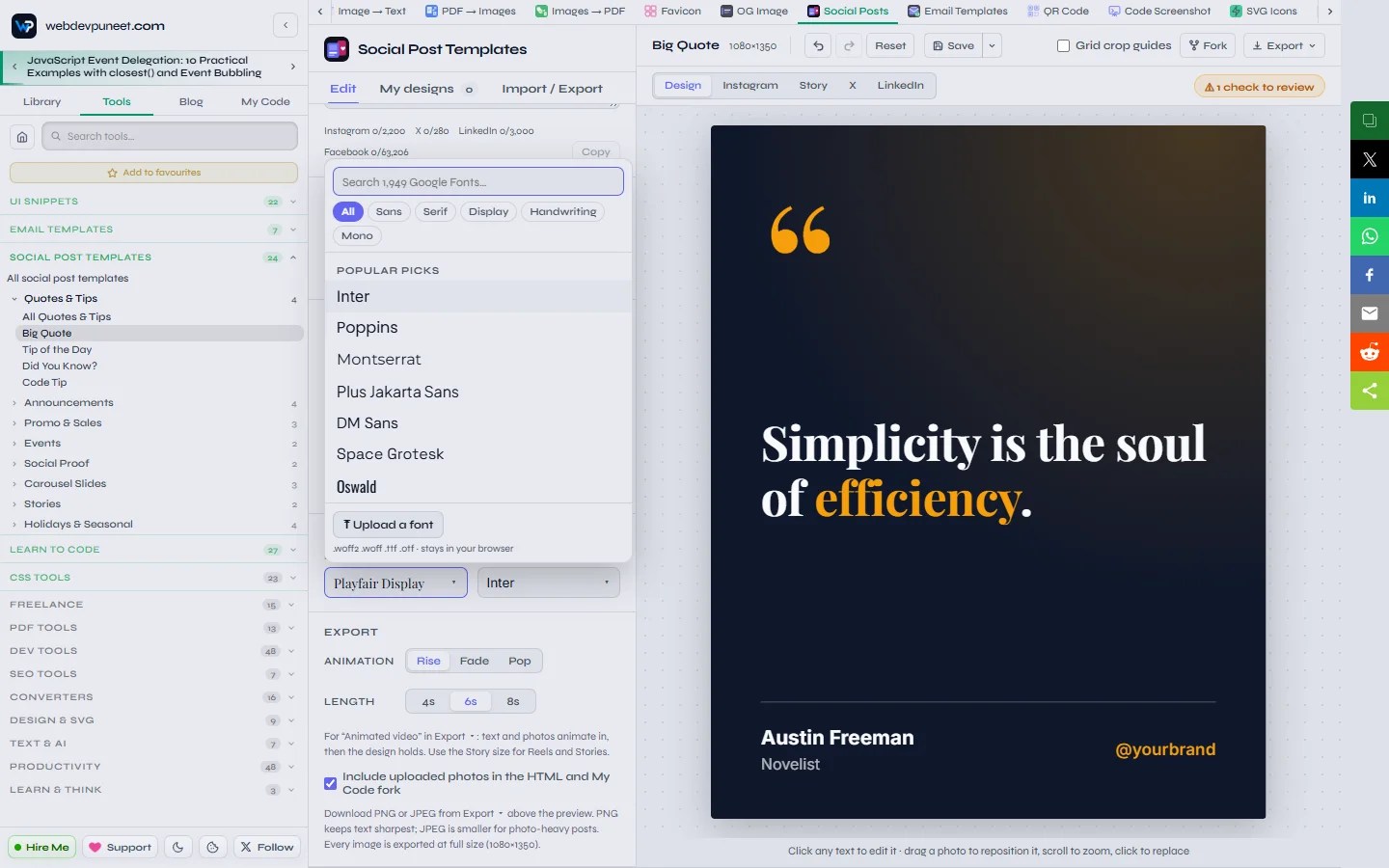
The heading and body font pickers search the full Google Fonts library of 1,949 families by name, and you can filter by category: Sans, Serif, Display, Handwriting or Mono. A font only loads when you pick it, so the editor stays fast.
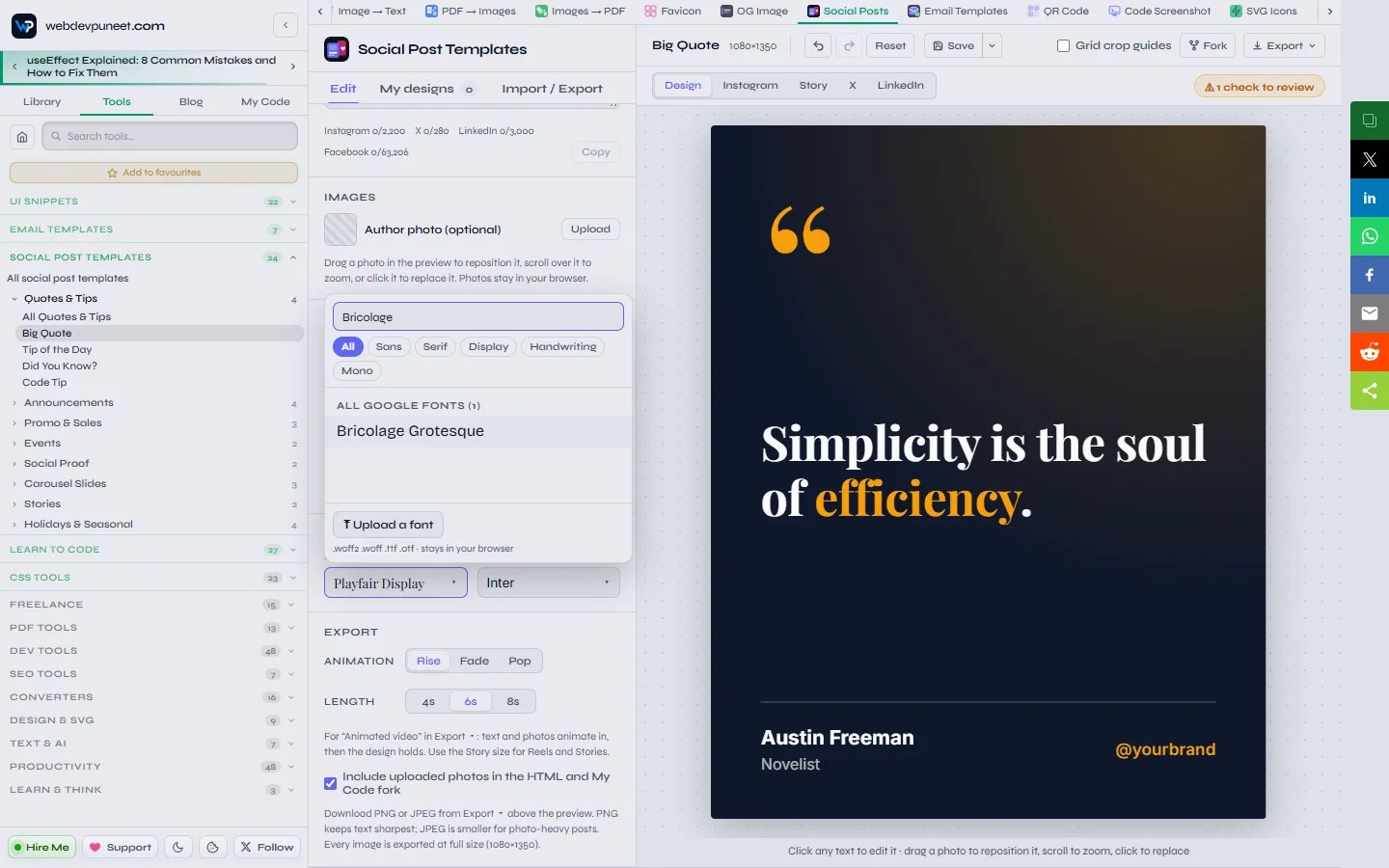
Need a brand font that isn’t on Google Fonts? Click Upload a font at the bottom of the picker and add a WOFF2, WOFF, TTF or OTF file. Uploaded fonts are stored in your browser, appear under “Your uploaded fonts” in every template, and are embedded in your PNG, JPEG, PDF and video exports, so the result looks right everywhere.
A note on licences: Google Fonts are free for commercial use. For fonts you upload, check that your licence allows embedding them in images.
Brand kit: set it once, apply it anywhere
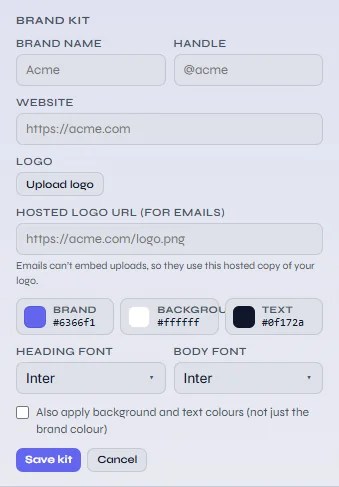
The Brand kit at the top of the Edit tab stores your brand in one place:
- Brand name, social handle and website
- Your logo (uploaded) and an optional hosted logo URL for emails
- Brand, background and text colours
- Heading and body fonts
Click Set up brand kit to fill it in, or Use this design to copy the colours and fonts from the post you’re editing. The kit is never applied automatically: when you want it, click Apply to this design, and Undo takes it back. Tick “Also apply background and text colours” if you want more than the accent colour changed. Your brand name and handle also appear in the platform mock-ups, and the same kit is available in the Email Templates editor.
Preview it where it will be posted
The Preview as bar above the post switches between the plain design and realistic mock-ups of an Instagram feed post, an Instagram Story, an X post and a LinkedIn post. Seeing the post at real size, next to the like buttons and your caption, is the quickest way to tell whether a headline is big enough. If the mock-up usually shows a different size, a hint offers to switch to it.
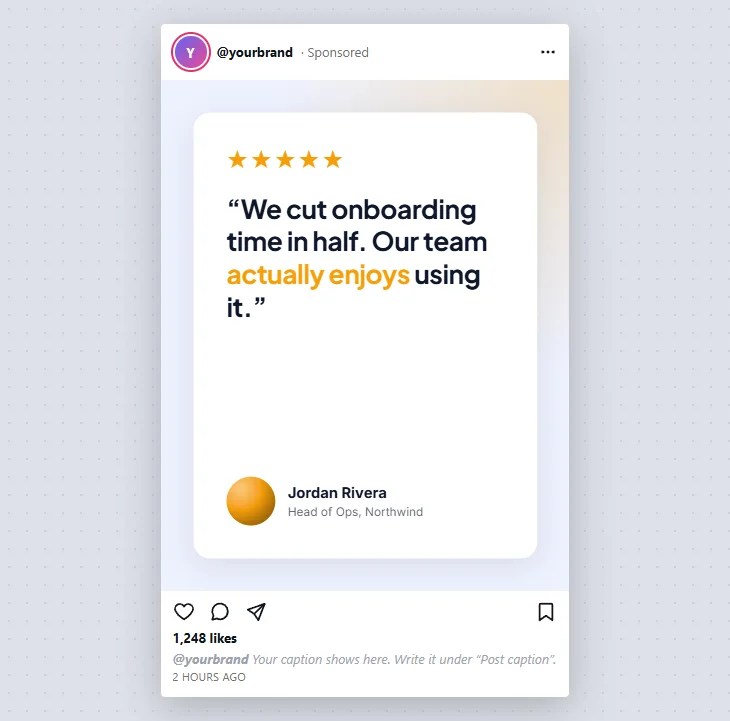
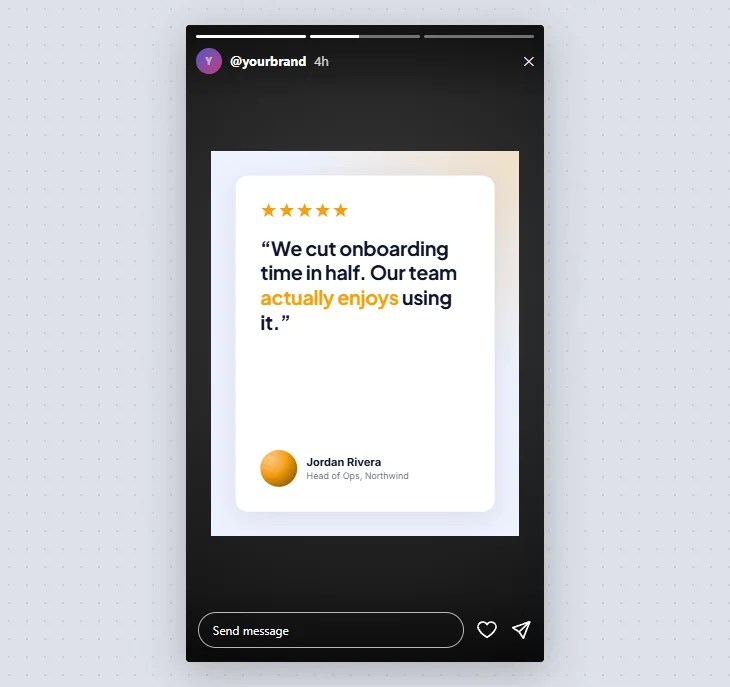
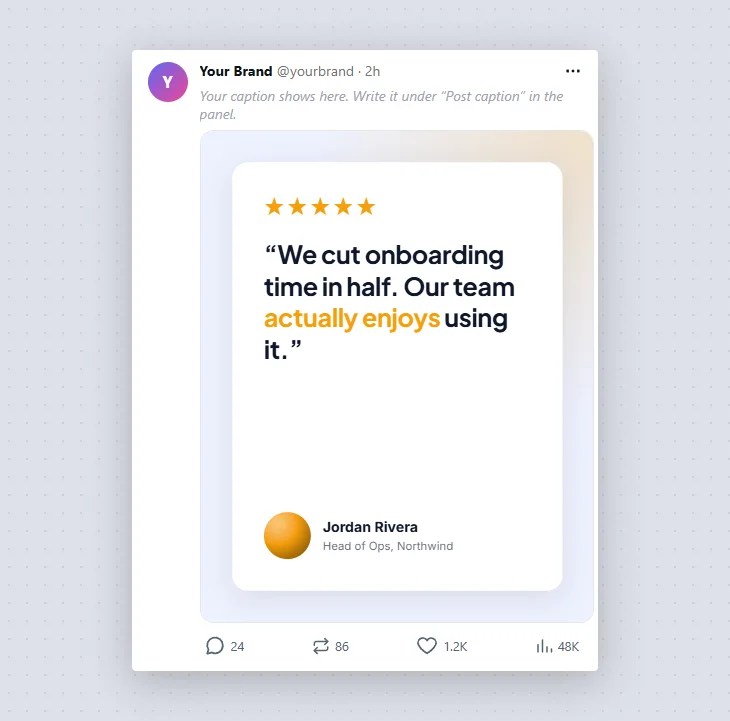
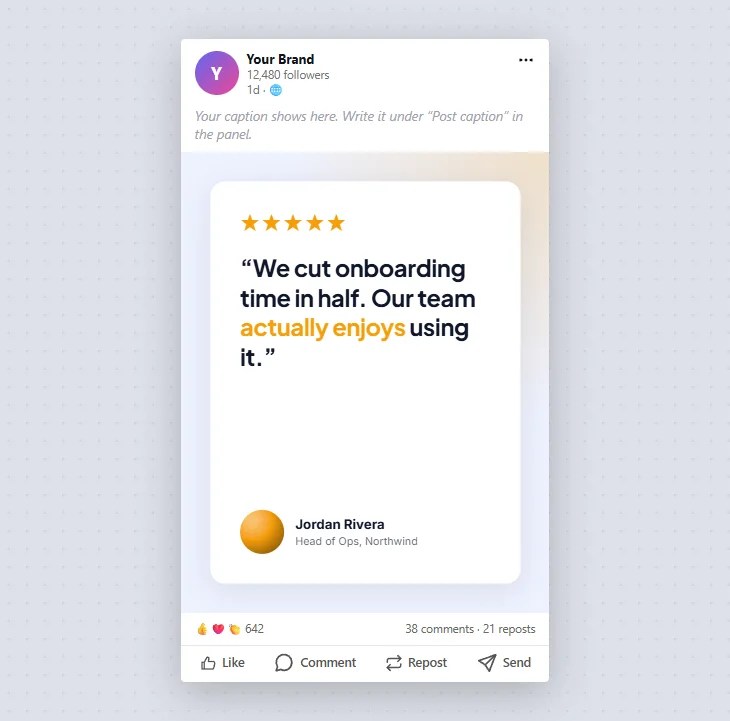
Write your caption in the Post caption box and it appears in the mock-ups. Live counters show the length against each platform’s limit (Instagram 2,200 characters, X 280, LinkedIn 3,000, Facebook 63,206), and Copy puts it on your clipboard.
Quality checks before you post
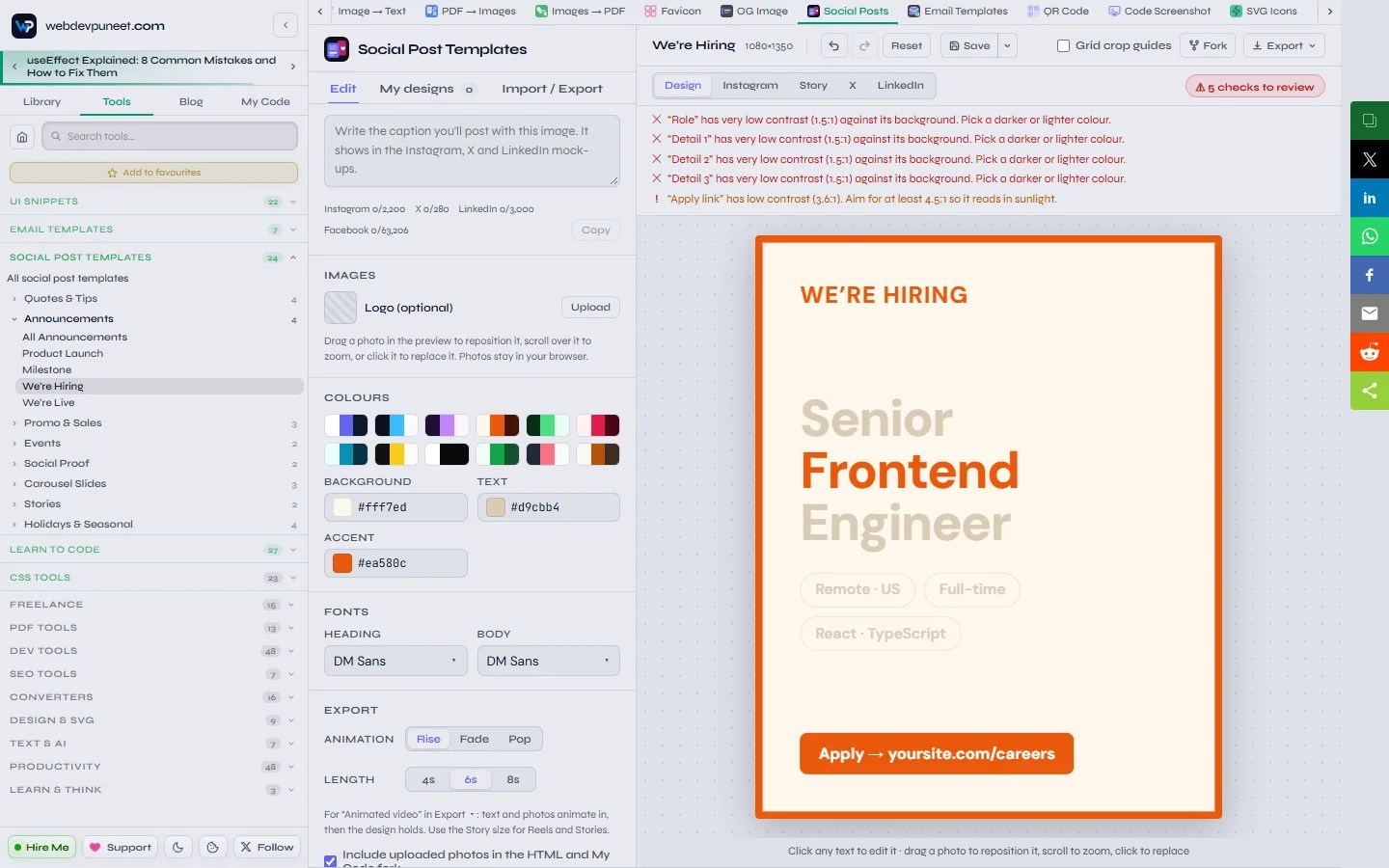
A chip above the preview runs automatic checks as you edit and shows either “Quality checks passed” or how many issues to review. Click it to see the list, and click an issue to jump to the field that causes it. The checks catch:
- Low contrast: text below 4.5:1 against its background (3:1 for large text), measured on the actual colours behind it.
- Tiny text: anything that would be under about 7.5 px tall on a phone screen.
- Overflow: text that runs off the edge or doesn’t fit its box.
- Story safe zones: text under Instagram’s Story header or reply bar.
- Blurry photos: images shown more than 1.6× larger than their real resolution.
- Leftovers: the placeholder “@yourbrand” handle and empty headlines.
Saving your work: autosave and My designs
There are two layers of saving, and both live in your browser’s IndexedDB storage, so photos and uploaded fonts are kept too.
- Autosave: every template remembers your latest edits. Close the tab, come back next week, and the template opens where you left it.
- My designs: named copies you keep on purpose. Click Save in the toolbar (or press Ctrl+S) and the design is stored under a name, which then becomes the title in the toolbar. A dot shows when you have unsaved changes.
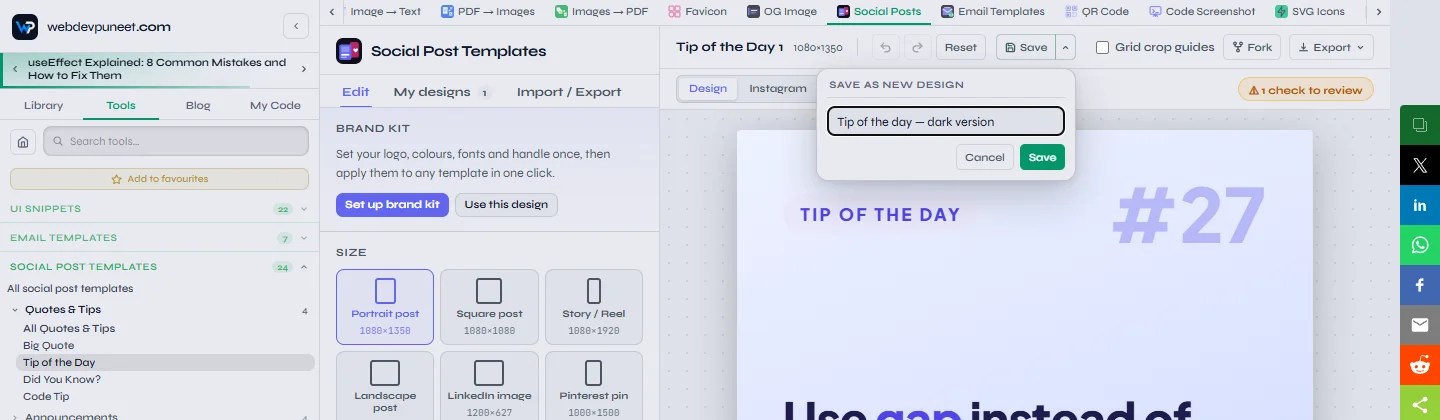
The arrow next to Save opens Save as new design, which keeps the current version under a new name. Use it for variations, such as a light and a dark version of the same post. When a saved design is open, the same menu offers Detach: keep editing without changing the saved copy.
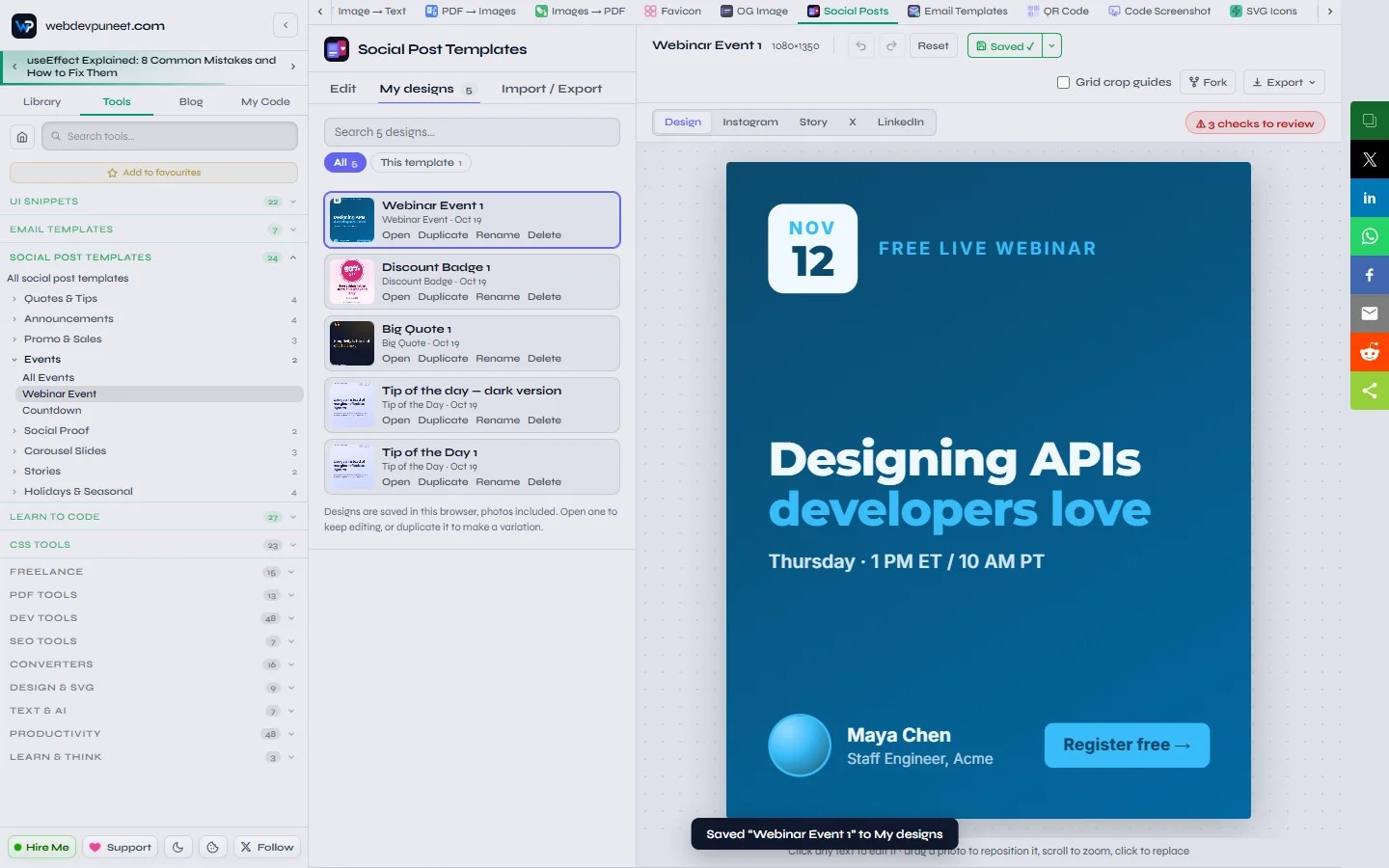
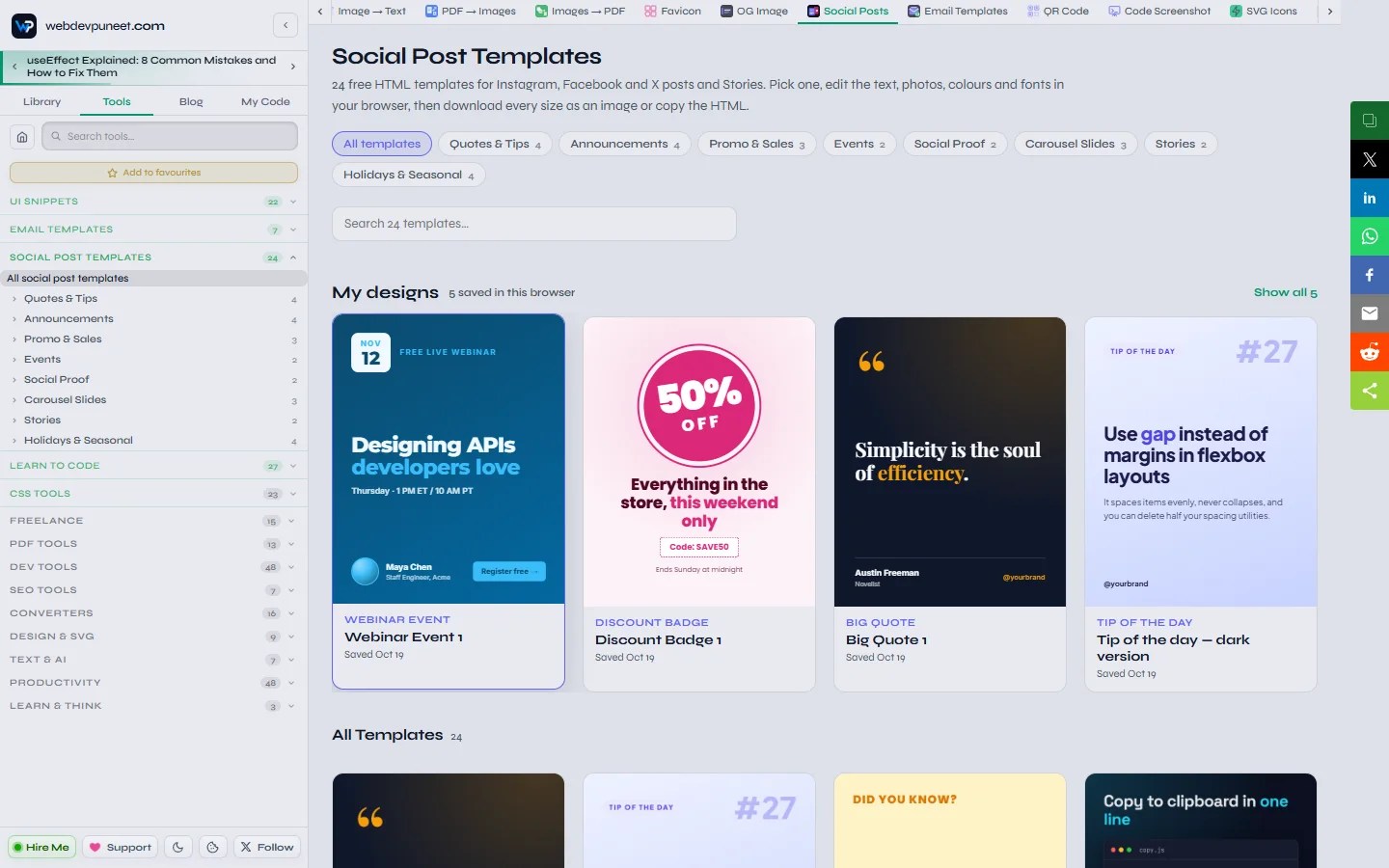
The My designs tab lists everything you’ve saved, with a thumbnail, the template name and the date. Search by name, switch between All designs and This template, and use Open, Duplicate, Rename or Delete on each one. Opening a design from another template takes you straight to it.
Your saved designs also appear at the top of the gallery page, rendered live from their HTML rather than as stale screenshots, and the gallery search filters them too.
Import and export: back up and move your designs
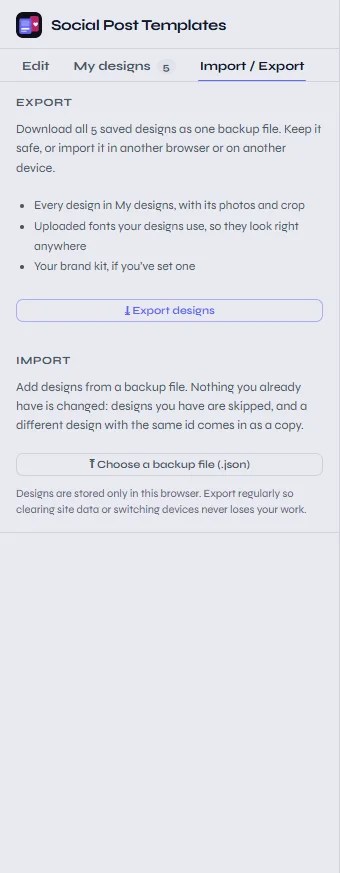
Because everything is stored in one browser, clearing site data or switching computers would lose your work. The Import / Export tab fixes that with a single backup file.
Export designs downloads one .json file containing:
- every design in My designs, with its photos and crop settings
- the uploaded fonts your designs use, so they look right anywhere
- your brand kit, if you’ve set one
Choose a backup file imports it in any browser, on any computer. Importing never changes what you already have: designs you already have are skipped, and a different design that happens to share an ID comes in as a copy. It’s also a simple way to share a set of designs with a teammate. Try it with this sample backup file of five designs.
Every export option
All downloads live in the Export menu in the toolbar.
| Option | What you get | Use it for |
|---|---|---|
| Download PNG | Full-size image, sharpest text | Most posts, especially text-heavy ones |
| Download JPG | Full-size image, smaller file | Photo-heavy posts |
| All sizes (PNG or JPG ZIP) | The post in all six sizes in one ZIP | Posting the same message on every platform |
| Download PDF | One page at the post’s size, or one page per slide for carousels | LinkedIn document posts, print, sharing |
| Animated video | MP4 (or WebM) of the post animating in | Reels, Stories and video-first feeds |
| Bulk create from CSV | A ZIP with one post per spreadsheet row | Series of quotes, tips or products |
| Copy HTML / Download .html | One self-contained HTML file with inline CSS | Websites, CMSs, emails, your own render pipeline |

Animated video for Reels and Stories
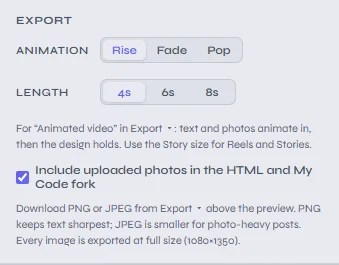
Short videos often reach more people than still images on Instagram and LinkedIn. Animated video turns any single-post template into a short clip: the text and photos animate in one after another, then the finished design holds on screen. In the Export section of the panel, choose:
- Animation: Rise (slides up into place), Fade (fades in) or Pop (scales up slightly).
- Length: 4, 6 or 8 seconds.
The video is recorded in your browser at 30 frames per second and the post’s full size. Chrome and Edge save an MP4, which every platform accepts. Browsers that can’t record MP4 save a WebM instead. For Reels and Stories, switch to the Story / Reel size first.
These are real exports from the tool at the shortest length, 4 seconds, with no editing afterwards:
Carousel Builder and LinkedIn PDF carousels
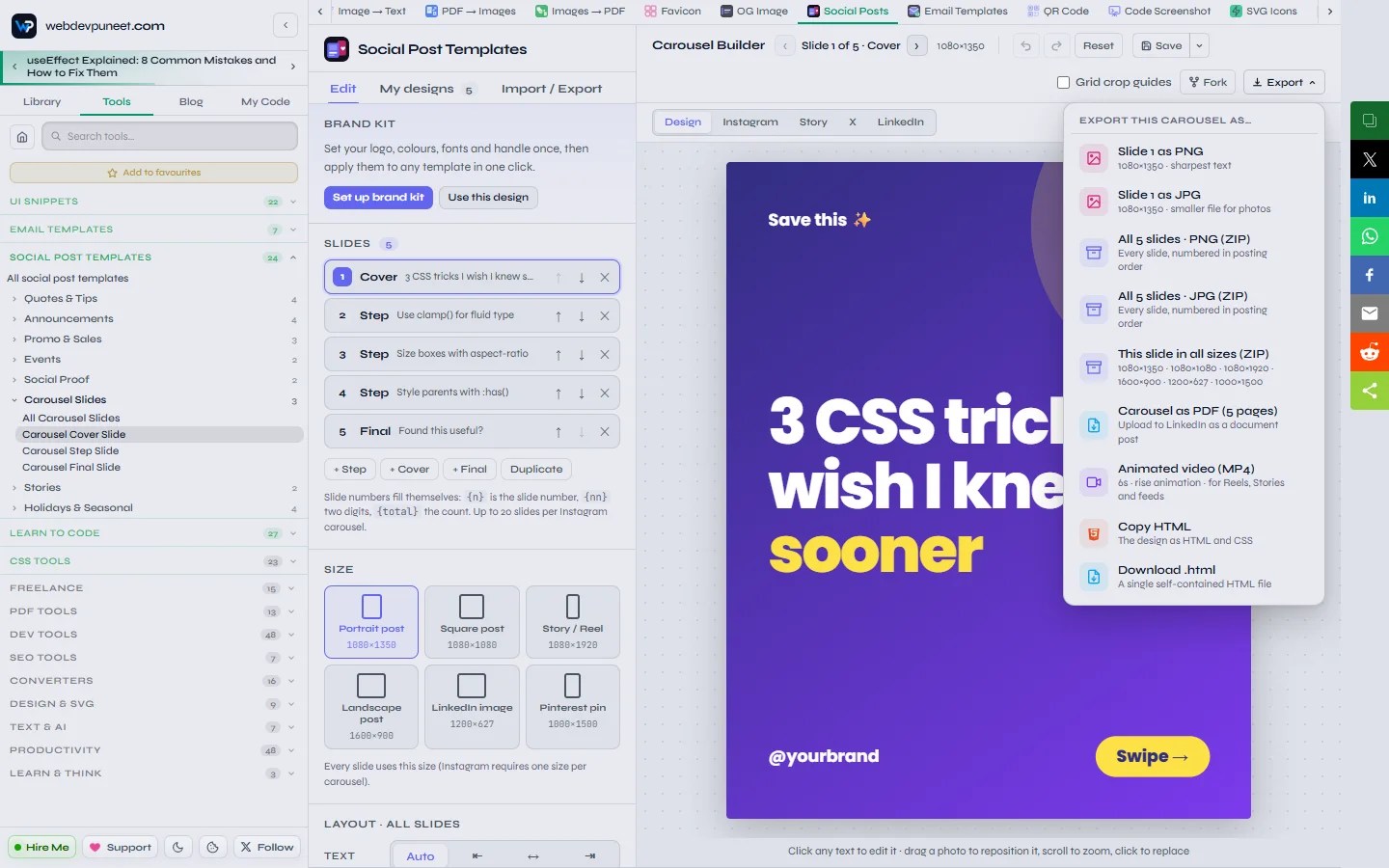
Open any Carousel Slides template and the editor becomes the Carousel Builder. Add slides with + Cover, + Step and + Final, duplicate a slide, reorder slides with the arrows, and step through them in the toolbar. Slide numbers fill themselves in: {n} is the slide number, {nn} the two-digit number and {total} the slide count, so “Step {nn}” stays right when you reorder. Colours, fonts and the post size apply to all slides, because Instagram needs one size per carousel. Instagram allows up to 20 slides in one carousel.
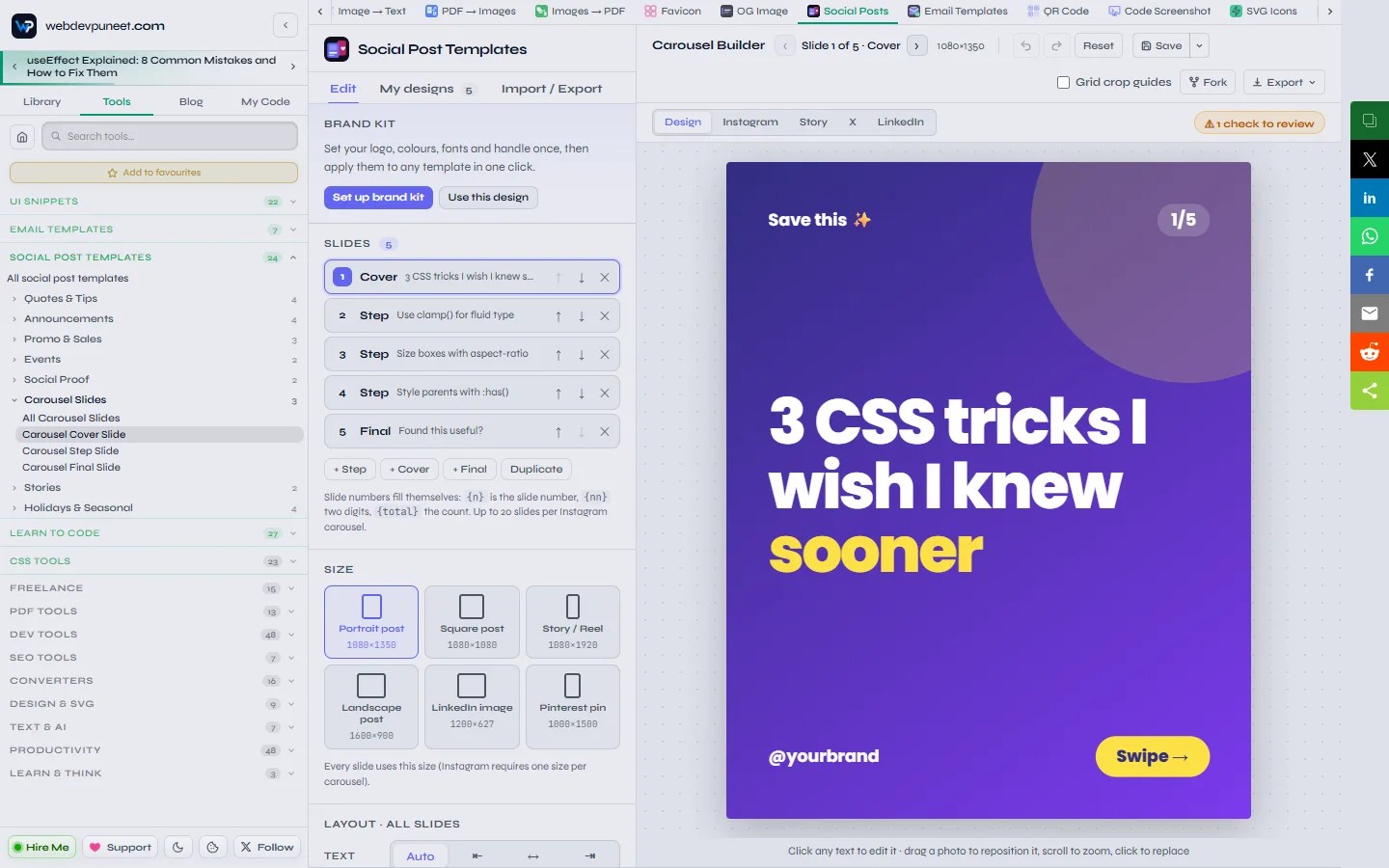
Export every slide as a numbered ZIP for Instagram, or choose Carousel as PDF. LinkedIn shows an uploaded PDF as a swipeable document post, a format that invites people to stop and swipe.
Bulk create from a spreadsheet
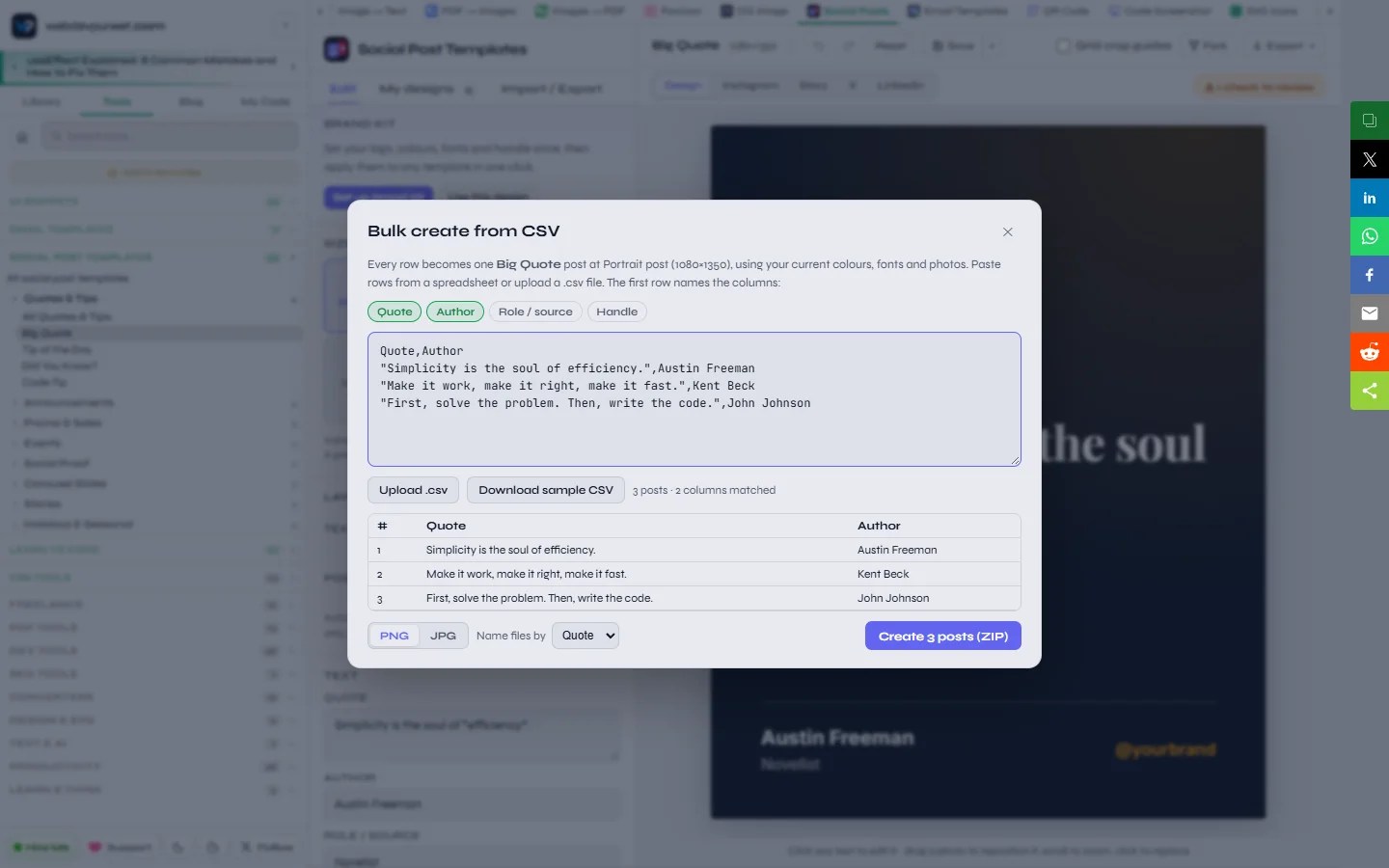
Got 30 quotes for the month, or a product list? Bulk create from CSV makes one post per row. Paste CSV text (straight from Google Sheets or Excel) or upload a .csv file. The first row holds column names that match the template’s field labels, such as Quote,Author, and the tool shows which columns matched. Each row starts from your current design, so colours, fonts, photos and any column you leave out stay the same. Files in the ZIP are numbered in row order and named from your data. Choose PNG or JPG and download up to 300 posts as one ZIP. Download sample CSV gives you a ready-made file with the right headers.
HTML export and Fork to My Code
Copy HTML and Download .html give you one self-contained file: the markup, all the CSS inline, and links to the Google Fonts it uses. Your uploaded photos are embedded in the file; untick “Include uploaded photos” in the panel to leave them out and keep the file small. Open it in a browser, paste it into a CMS, or render it with your own screenshot tool.
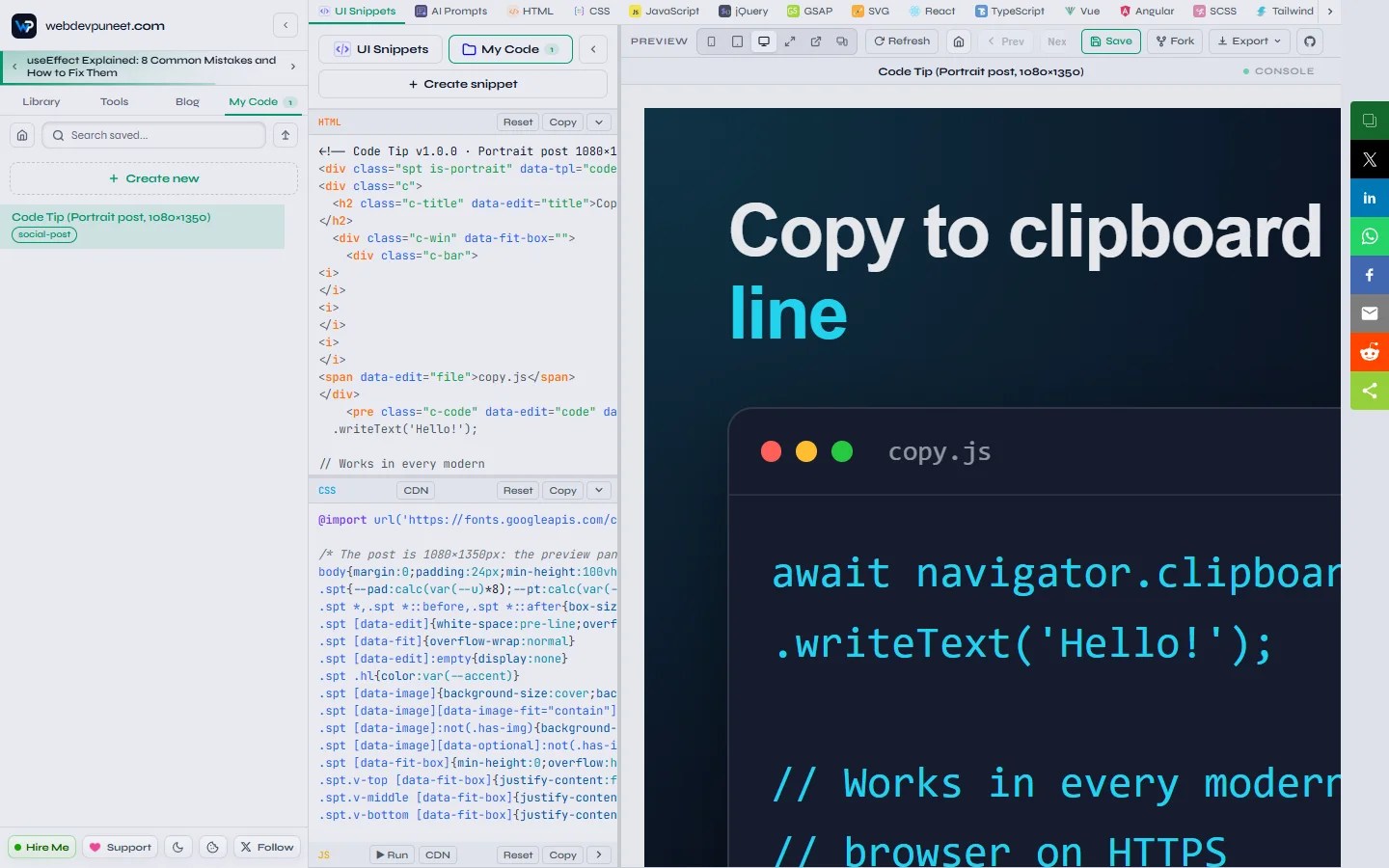
Fork in the toolbar goes a step further. It saves the design as an editable snippet in My Code, the free in-browser HTML, CSS and JavaScript editor on webdevpuneet.com, and opens it in a new tab. The HTML and CSS sit in separate panels with a live preview, so you can change anything the template’s fields don’t expose, keep versions, or sync them to a GitHub Gist.
Works on your phone
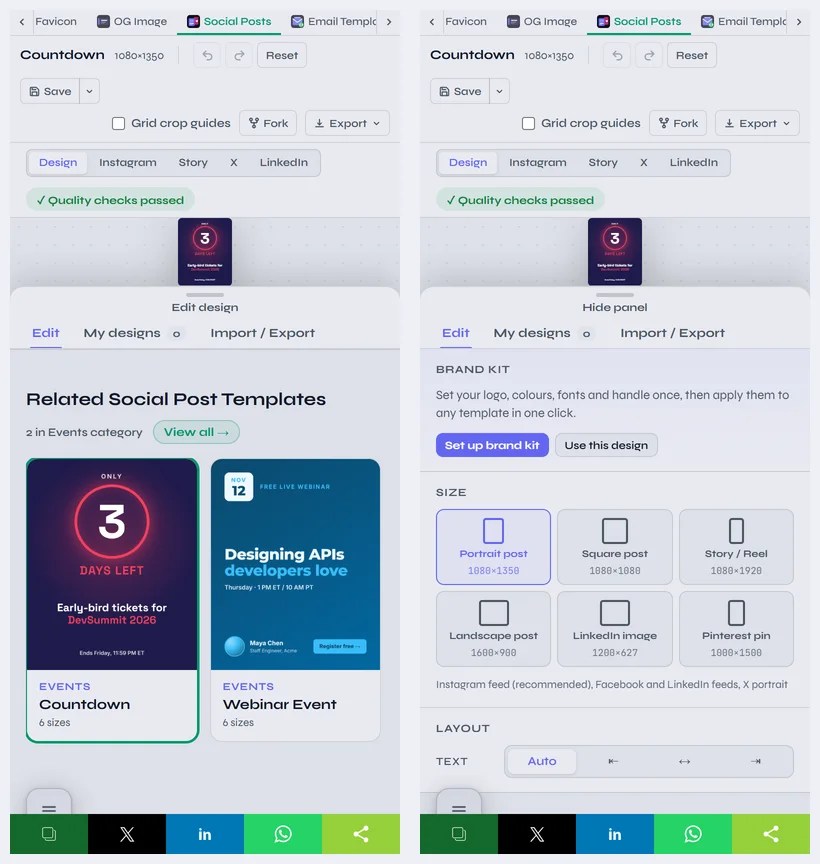
On a phone the preview fills the screen and the controls open as a bottom sheet. Tap text in the preview to edit it in place, tap Edit design to slide the panel up, and download the finished post to your phone, ready to share from the same device.
Privacy: nothing leaves your browser
There’s no upload step anywhere in the tool. Photos are resized locally, designs and fonts are stored in IndexedDB on your device, and images, PDFs and videos are drawn on an HTML canvas in your browser. The only outside requests are for the Google Fonts you pick. That makes it safe for unreleased product shots and client work, and it’s why there’s no sign-up: there’s no server-side account to create.
For developers: how it works under the hood
Each template is a function that returns HTML plus a CSS string. In the editor, the template is mounted inside a Shadow DOM so its styles can’t leak into the page, and sized with a CSS unit derived from the post’s shorter side, which is how one layout fits six sizes. Colours and fonts are CSS custom properties, so a palette or brand kit swap is just a new set of variables.
To export, the tool clones the rendered post, embeds the fonts it uses as data URLs, wraps everything in an SVG <foreignObject> and draws that onto a canvas at full resolution. PNG and JPEG come straight from the canvas. The PDF writer packs JPEG pages into a PDF without any library. Video renders each animation frame the same way, then plays the frames into a MediaRecorder at a fixed frame rate. Because the source is plain HTML, you can also render the downloaded file yourself with Puppeteer or Playwright, from a CMS, a spreadsheet or a CI job.
Tips for better-performing posts
- Use portrait 4:5 on Instagram. It takes up the most screen space in the feed. Turn on Grid crop guides to keep important content inside the profile-grid crop.
- Keep headlines short. If the auto-fit shrinks your headline a lot, cut words rather than accepting small text, and let the tiny-text check guide you.
- Repurpose with All sizes. One ZIP covers the Instagram feed, Stories, X, LinkedIn and Pinterest.
- Turn your best still into a Reel. A 4-second Rise animation at Story size adds motion to a post that already works, with no video editing.
- Post carousels as PDFs on LinkedIn. Document posts invite swiping, which keeps people on your post longer.
- Back up monthly. Export your designs from the Import / Export tab so a browser clean-up never costs you a month of work.
Frequently asked questions
Are these social media templates really free?
Yes. All 24 templates and every feature, including video, PDF, bulk creation and HTML export, are free for personal and commercial use, with no sign-up and no watermark.
Is this a good free Canva alternative?
For quick, branded social posts, yes. You don’t get Canva’s drag-anything canvas or stock library, but you do get designs that re-flow to six sizes, text that always fits, real HTML you can reuse, animated video, bulk creation from CSV, and complete privacy without an account.
How do I make an Instagram Reel from a template?
Open a template, switch the size to Story / Reel (1080×1920), pick an animation and a length of 4, 6 or 8 seconds in the panel’s Export section, then choose Animated video in the Export menu. Upload the MP4 as a Reel and add music in Instagram.
How do I create a LinkedIn carousel (PDF document post)?
Open a Carousel Slides template, add and edit your slides in the Carousel Builder, then choose Carousel as PDF in the Export menu. In LinkedIn, start a post, choose “Add a document” and upload the PDF.
Can I use my own fonts?
Yes. Pick any of the 1,949 Google Fonts, or upload a WOFF2, WOFF, TTF or OTF file from the font picker. Uploaded fonts are embedded in your image, PDF and video exports and included in your backup file.
Where are my designs saved?
In your browser’s IndexedDB storage on the device you used. They aren’t uploaded anywhere. To move them or keep a copy, use Export designs in the Import / Export tab and import the file elsewhere.
Will my brand kit change my designs automatically?
No. The brand kit only applies when you click “Apply to this design”, and Undo reverts it. Your name and handle are shown in the platform mock-ups.
Can I generate posts automatically from data?
Yes. Without code, use Bulk create from CSV for up to 300 posts at a time. With code, download the template’s HTML and render it with Puppeteer or Playwright, replacing the text from your CMS, spreadsheet or API.
Which browsers are supported?
Any modern browser can edit and export images, PDFs and HTML. Video recording works in Chrome, Edge and other Chromium browsers (MP4), and in browsers that record WebM.
Start designing
Open the Social Post Templates gallery, pick a design and make your first post in a couple of minutes. Need emails that match? The free HTML email templates use the same brand kit, saving and backup features, and UI Snippets has more than 2,000 free HTML and CSS components for your website.
Discover more from WebDevPuneet
Subscribe to get the latest posts sent to your email.


