
Quill Rich Text Editor with Custom Toolbar and Character Limit

CodeMirror JSON Editor with Validation Gutter
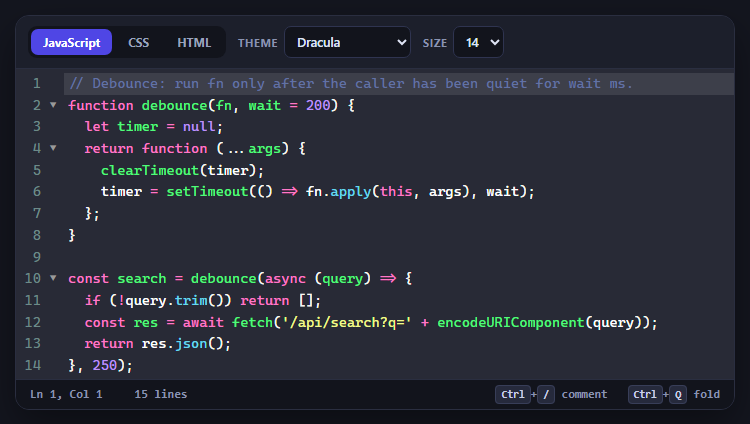
CodeMirror Code Editor with Line Numbers, Folding and Themes

Marked + DOMPurify Live Markdown Preview
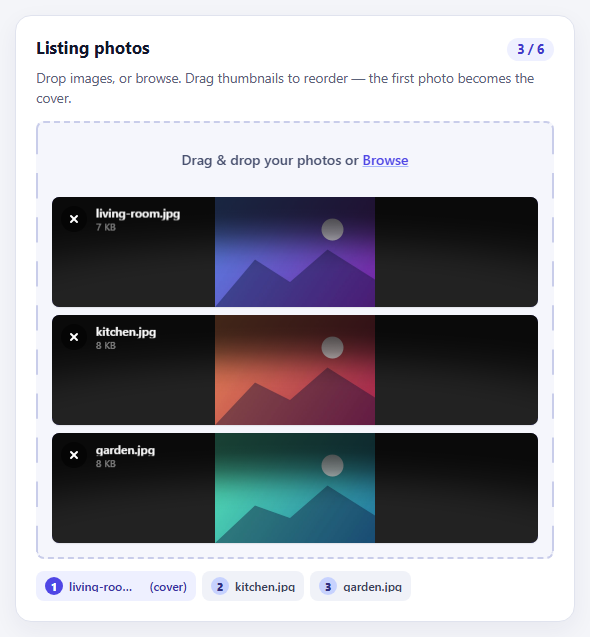
FilePond Image Upload with Preview and Reorder

Cropper.js Aspect-Ratio Presets for Social Posts
Chip Filter — Multi-Select Filter Chips With Live Counts
Chip Filter · Forms · Plain HTML, CSS & JS · Live preview
What's included
Features
About this UI Snippet
Chip Filter — Multi-Select Filter Chips With Faceted Counts, Search and Shareable URLs
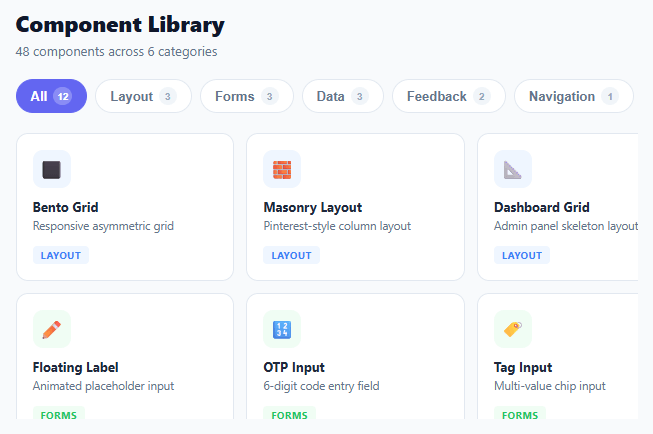
Chip Filter is a complete, production-style filter bar for any grid of items: multi-select category chips with live counts, a search box, an Any/All match switch, animated results, and filters that live in the URL so a filtered view can be shared or bookmarked. It is plain HTML, CSS and vanilla JavaScript with no dependencies, and every chip, count and card is generated from one data array.
Filter chips (also called filter pills or tag filters) are how component libraries, marketplaces, job boards, docs sites and product catalogues let people narrow a list without leaving the page. This snippet covers the details that simple demos skip.
Multi-select with Any or All matching
Each category chip toggles on and off, so people can combine categories. The Any/All switch decides how they combine: Any shows items in at least one selected category (OR), All shows only items that belong to every selected category (AND). Items can carry several categories (the Data Table is both Data and Forms), so both modes give different, useful results. "All" resets the selection, and a dashed Clear chip appears whenever something is selected.
Faceted counts that update live
Each chip's badge shows how many results it would lead to, given the current search, and in All mode, the current selection too. Type "chart" and the counts drop to match. A chip that would lead to zero results is disabled and dimmed, so people never click into a dead end. This is the "faceted search" pattern used by large stores, done in about 20 lines.
Search combined with the chips
The search box matches name, description and category label, word by word, and works together with the chips. Input is debounced by 120 ms so the grid doesn't flicker while typing, and Escape clears it.
Animated results with View Transitions
Cards are built once and only shown or hidden, each with its own view-transition-name. Filtering runs inside document.startViewTransition(), so in supporting browsers cards glide to their new positions and fade in and out. Other browsers get a lightweight CSS fade-in, and prefers-reduced-motion turns animation off completely.
Shareable URLs
The current filter is written to the query string (?cat=forms,data&q=chart&match=all) with history.pushState for chip changes and replaceState for typing, and popstate restores it, so the back button undoes a filter and a link reopens the exact same view.
Accessible by default
Chips are real buttons with aria-pressed, grouped in a role="toolbar" you can move through with the arrow keys, Home and End. A role="status" line announces the result ("Showing 4 of 12 components in Data or Forms"), focus rings are visible, and the empty state offers a "Clear filters" button.
Responsive and themeable
The grid uses repeat(auto-fill, minmax(190px, 1fr)), and on phones the chips become one swipeable row with faded edges. Colours are CSS custom properties with a built-in dark theme via prefers-color-scheme, and the icons are inline SVG, so they look the same on every device.
Step by step
How to Use
- 1Toggle categoriesClick one or more category chips. Each selected chip fills with the accent colour, and the grid animates to show matching cards.
- 2Choose Any or AllUse the Any/All switch to show items in any selected category, or only items that are in every selected category.
- 3SearchType in the search box to narrow the results further. Chip counts update as you type, and chips with no results are disabled.
- 4Share the viewThe URL updates with your filters, so copy it to share or bookmark the exact view. The browser back button steps back through filter changes.
- 5Use the keyboardTab to the chips and use the arrow keys, Home and End to move between them, and Space or Enter to toggle.
- 6Plug in your dataEdit the CATS and ITEMS arrays. Each item needs an id, name, desc and a cats array. Chips, counts, tags and icons are generated automatically.
Real-world uses
Common Use Cases
Got questions?
Frequently Asked Questions
Any (OR) shows items that belong to at least one selected category, so selecting more chips shows more items. All (AND) shows only items that belong to every selected category, so selecting more chips narrows the results. All mode is useful when items carry several categories, like a component that is both Data and Forms.
Each count is calculated from the items that match the current search. In All mode it also takes the current selection into account, so it shows how many results you would get by adding that chip. Chips that would give zero results are disabled, so users never land on an empty grid by accident.
document.startViewTransition() works in current Chrome, Edge, Safari and other Chromium-based browsers. Where it is not available, cards use a short CSS fade-in instead, and the filter works the same. Users with "reduce motion" turned on get no animation at all.
Fetch your items once, map each to { id, name, desc, cats }, assign the result to ITEMS, then build the cards and call update(). Filtering stays in memory, so chip clicks don't need extra network requests. For very large lists, filter on the server and render only the current page.
Every change writes the selected categories, search text and match mode to the query string, using pushState for chip clicks and replaceState while typing. On load, and when the user presses Back or Forward, readUrl() restores the filters from the URL. In sandboxed previews that cannot change the URL, filtering still works normally.
Yes. Use the React, Vue, Angular or Tailwind export above the preview as a starting point. In React, keep selected, mode and query in state and derive the visible items and counts with useMemo; in Vue use computed properties; in Angular use signals or getters. The matching and faceted-count functions are framework-agnostic and can be copied as they are.
Build with AI
Build, Understand, Optimize, and Extend It With AI
Paste this snippet into an AI coding assistant like Claude and ask it to adapt the filter to your data: load items from an API, add a sort dropdown or price range next to the chips, or turn it into a React, Vue or Svelte component. It is also a good way to understand the faceted-count logic, or to discuss when to move filtering to the server for very large lists.
Prompt to recreate it
Copy this into your AI assistant of choice to build the effect from scratch, or as a jumping-off point for your own variant:
Build a multi-select chip filter for a card grid in plain HTML, CSS and vanilla JavaScript, with no dependencies.

Requirements:
- Generate category chips from a CATS array and cards from an ITEMS array where each item has id, name, desc and a cats array (items can belong to several categories).
- Chips are toggle buttons with aria-pressed inside a role="toolbar" with arrow-key, Home and End navigation. Include an "All" chip that resets the selection and a "Clear" chip shown only while a selection exists.
- Add an Any/All switch: Any shows items in at least one selected category, All shows items in every selected category.
- Add a debounced search box that matches name, description and category labels word by word, combined with the chips.
- Show a faceted count on each chip (results it would produce given the search, and the selection in All mode) and disable chips that would give zero results.
- Build cards once and only show or hide them; animate changes with document.startViewTransition() using a unique view-transition-name per card, with a CSS fade-in fallback and no animation under prefers-reduced-motion.
- Sync selected categories, search and mode to the URL query string (pushState for chip changes, replaceState while typing) and restore them on load and on popstate.
- Announce results in a role="status" line ("Showing 4 of 12 components in Data or Forms"), show an empty state with a "Clear filters" button, use a responsive auto-fill grid, a swipeable chip row on small screens, CSS custom properties and a dark theme.
Want to tighten it up first? Run this prompt through the AI Prompt Studio to score it across 8 quality dimensions, catch anti-patterns, and tune the wording for Claude, ChatGPT, or Gemini before you paste it in.
Source Code
<div class="cf">
  <header class="cf-head">
    <div>
      <h1 class="cf-title">Component Library</h1>
      <p class="cf-sub" id="cfSub"></p>
    </div>
    <label class="cf-search">
      <svg viewBox="0 0 24 24" width="16" height="16" fill="none" stroke="currentColor" stroke-width="2.2" stroke-linecap="round" aria-hidden="true"><circle cx="11" cy="11" r="7"/><path d="M20 20l-3.5-3.5"/></svg>
      <input id="cfSearch" type="search" placeholder="Search components" aria-label="Search components" autocomplete="off" spellcheck="false">
    </label>
  </header>

  <div class="cf-bar">
    <div class="cf-chips" id="cfChips" role="toolbar" aria-label="Filter by category"></div>
    <div class="cf-mode" role="group" aria-label="Match categories">
      <button type="button" class="cf-mode-btn" data-mode="any" aria-pressed="true" title="Show items in any selected category">Any</button>
      <button type="button" class="cf-mode-btn" data-mode="all" aria-pressed="false" title="Show items in every selected category">All</button>
    </div>
  </div>

  <p class="cf-status" id="cfStatus" role="status" aria-live="polite"></p>

  <div class="cf-grid" id="cfGrid"></div>

  <div class="cf-empty" id="cfEmpty" hidden>
    <svg viewBox="0 0 24 24" width="28" height="28" fill="none" stroke="currentColor" stroke-width="1.8" stroke-linecap="round" aria-hidden="true"><circle cx="11" cy="11" r="7"/><path d="M20 20l-3.5-3.5M8.5 11h5"/></svg>
    <p>No components match these filters.</p>
    <button type="button" class="cf-reset" id="cfReset">Clear filters</button>
  </div>
</div>
:root {
--cf-bg: #f8fafc;
--cf-surface: #ffffff;
--cf-border: #e2e8f0;
--cf-text: #0f172a;
--cf-muted: #64748b;
--cf-soft: #f1f5f9;
--cf-accent: #6366f1;
--cf-accent-soft: #eef2ff;
--cf-on-accent: #ffffff;
--cf-ring: rgba(99, 102, 241, 0.45);
}
@media (prefers-color-scheme: dark) {
:root {
--cf-bg: #0b1020;
--cf-surface: #121a2e;
--cf-border: #24304a;
--cf-text: #e8edf7;
--cf-muted: #94a3b8;
--cf-soft: #1a2440;
--cf-accent: #818cf8;
--cf-accent-soft: #1e2456;
--cf-on-accent: #0b1020;
}
}
* { box-sizing: border-box; margin: 0; padding: 0; }
[hidden] { display: none !important; }
body { font-family: system-ui, -apple-system, 'Segoe UI', Roboto, sans-serif; background: var(--cf-bg); color: var(--cf-text); min-height: 100vh; padding: 24px 20px; }
.cf { max-width: 760px; margin: 0 auto; }
/* Header + search */
.cf-head { display: flex; align-items: flex-end; justify-content: space-between; gap: 16px; flex-wrap: wrap; margin-bottom: 18px; }
.cf-title { font-size: 22px; font-weight: 800; letter-spacing: -0.4px; }
.cf-sub { font-size: 13px; color: var(--cf-muted); margin-top: 3px; }
.cf-search {
display: flex; align-items: center; gap: 8px; flex: 0 1 260px;
padding: 0 12px; height: 38px;
background: var(--cf-surface); border: 1.5px solid var(--cf-border); border-radius: 10px;
color: var(--cf-muted); transition: border-color 0.15s, box-shadow 0.15s;
}
.cf-search:focus-within { border-color: var(--cf-accent); box-shadow: 0 0 0 3px var(--cf-ring); }
.cf-search input { flex: 1; min-width: 0; border: 0; outline: 0; background: transparent; color: var(--cf-text); font: inherit; font-size: 14px; }
/* Chip bar */
.cf-bar { display: flex; align-items: center; gap: 12px; margin-bottom: 10px; }
.cf-chips { display: flex; flex-wrap: wrap; gap: 8px; flex: 1; min-width: 0; }
.cf-chip {
display: inline-flex; align-items: center; gap: 7px;
height: 34px; padding: 0 13px;
border: 1.5px solid var(--cf-border); border-radius: 999px;
background: var(--cf-surface); color: var(--cf-muted);
font: inherit; font-size: 13px; font-weight: 600; white-space: nowrap;
cursor: pointer; user-select: none;
transition: border-color 0.15s, background 0.15s, color 0.15s, transform 0.1s, opacity 0.15s;
}
.cf-chip:hover:not(:disabled) { border-color: var(--cf-accent); color: var(--cf-accent); }
.cf-chip:active:not(:disabled) { transform: scale(0.96); }
.cf-chip[aria-pressed="true"] { background: var(--cf-accent); border-color: var(--cf-accent); color: var(--cf-on-accent); }
.cf-chip:disabled { opacity: 0.4; cursor: not-allowed; }
.cf-chip:focus-visible, .cf-mode-btn:focus-visible, .cf-card:focus-visible, .cf-reset:focus-visible { outline: none; box-shadow: 0 0 0 3px var(--cf-ring); }
.cf-dot { width: 8px; height: 8px; border-radius: 50%; flex: none; }
.cf-chip[aria-pressed="true"] .cf-dot { background: currentColor !important; }
.cf-count {
min-width: 20px; height: 20px; padding: 0 6px; border-radius: 10px;
display: inline-flex; align-items: center; justify-content: center;
font-size: 11px; font-weight: 700; background: var(--cf-soft); color: var(--cf-muted);
font-variant-numeric: tabular-nums;
}
.cf-chip[aria-pressed="true"] .cf-count { background: rgba(255, 255, 255, 0.25); color: inherit; }
.cf-clear { border-style: dashed; }
/* Any / All switch */
.cf-mode { display: inline-flex; padding: 3px; gap: 2px; flex: none; background: var(--cf-soft); border-radius: 10px; }
.cf-mode-btn {
height: 28px; padding: 0 11px; border: 0; border-radius: 7px;
background: transparent; color: var(--cf-muted); font: inherit; font-size: 12px; font-weight: 700; cursor: pointer;
}
.cf-mode-btn[aria-pressed="true"] { background: var(--cf-surface); color: var(--cf-text); box-shadow: 0 1px 3px rgba(0, 0, 0, 0.12); }
.cf-status { font-size: 12.5px; color: var(--cf-muted); margin: 4px 0 14px; min-height: 18px; }
/* Grid + cards */
.cf-grid { display: grid; grid-template-columns: repeat(auto-fill, minmax(190px, 1fr)); gap: 12px; }
.cf-card {
display: flex; flex-direction: column; gap: 4px;
padding: 16px; border-radius: 14px;
background: var(--cf-surface); border: 1px solid var(--cf-border);
color: inherit; text-decoration: none;
transition: border-color 0.15s, box-shadow 0.15s, transform 0.15s;
}
.cf-card:hover { border-color: var(--cf-accent); box-shadow: 0 8px 22px rgba(99, 102, 241, 0.14); transform: translateY(-2px); }
.cf-icon { width: 40px; height: 40px; border-radius: 11px; display: flex; align-items: center; justify-content: center; margin-bottom: 8px; }
.cf-name { font-size: 14px; font-weight: 700; }
.cf-desc { font-size: 12.5px; color: var(--cf-muted); line-height: 1.45; }
.cf-tags { display: flex; flex-wrap: wrap; gap: 5px; margin-top: 8px; }
.cf-tag { font-size: 10px; font-weight: 700; text-transform: uppercase; letter-spacing: 0.4px; padding: 2px 7px; border-radius: 5px; }
/* Cards fade in when shown (fallback for browsers without View Transitions) */
.cf-in { animation: cf-in 0.28s ease-out both; }
@keyframes cf-in { from { opacity: 0; transform: scale(0.94) translateY(6px); } }
::view-transition-group(*) { animation-duration: 0.3s; animation-timing-function: cubic-bezier(0.2, 0.8, 0.2, 1); }
/* Empty state */
.cf-empty { display: flex; flex-direction: column; align-items: center; gap: 10px; padding: 44px 20px; color: var(--cf-muted); font-size: 14px; text-align: center; border: 1.5px dashed var(--cf-border); border-radius: 14px; }
.cf-reset { height: 34px; padding: 0 14px; border: 0; border-radius: 9px; background: var(--cf-accent); color: var(--cf-on-accent); font: inherit; font-size: 13px; font-weight: 700; cursor: pointer; }
/* Phones: one swipeable chip row with faded edges */
@media (max-width: 560px) {
.cf-search { flex-basis: 100%; }
.cf-bar { flex-direction: column; align-items: stretch; }
.cf-chips {
flex-wrap: nowrap; overflow-x: auto; scroll-snap-type: x proximity; padding: 2px 2px 6px;
scrollbar-width: none;
-webkit-mask-image: linear-gradient(90deg, transparent, #000 14px, #000 calc(100% - 14px), transparent);
mask-image: linear-gradient(90deg, transparent, #000 14px, #000 calc(100% - 14px), transparent);
}
.cf-chips::-webkit-scrollbar { display: none; }
.cf-chip { scroll-snap-align: start; }
.cf-mode { align-self: flex-start; }
.cf-grid { grid-template-columns: repeat(auto-fill, minmax(150px, 1fr)); }
}
@media (prefers-reduced-motion: reduce) {
*, ::view-transition-group(*) { animation: none !important; transition: none !important; }
}// Categories and items: chips, counts, tags and icons are all generated from this data
var CATS = [
{ id: 'layout', label: 'Layout', color: '#3b82f6' },
{ id: 'forms', label: 'Forms', color: '#16a34a' },
{ id: 'data', label: 'Data', color: '#ca8a04' },
{ id: 'feedback', label: 'Feedback', color: '#a855f7' },
{ id: 'nav', label: 'Navigation', color: '#f97316' }
];
var ICONS = {
layout: '<rect x="3" y="3" width="7" height="9" rx="1.5"/><rect x="14" y="3" width="7" height="5" rx="1.5"/><rect x="14" y="12" width="7" height="9" rx="1.5"/><rect x="3" y="16" width="7" height="5" rx="1.5"/>',
forms: '<rect x="3" y="5" width="18" height="14" rx="2.5"/><path d="M7 10h6M7 14h10"/>',
data: '<path d="M3 21h18M6 17v-6M11 17V6M16 17v-4M20 17V9"/>',
feedback: '<path d="M6 8a6 6 0 1 1 12 0c0 7 3 8 3 8H3s3-1 3-8"/><path d="M10 20a2 2 0 0 0 4 0"/>',
nav: '<path d="M4 6h16M4 12h16M4 18h10"/>'
};
var ITEMS = [
{ id: 'bento-grid', name: 'Bento Grid', desc: 'Responsive asymmetric card grid', cats: ['layout'] },
{ id: 'masonry', name: 'Masonry Layout', desc: 'Pinterest-style column layout', cats: ['layout'] },
{ id: 'dashboard', name: 'Dashboard Shell', desc: 'Sidebar, header and content regions', cats: ['layout', 'nav'] },
{ id: 'floating-label', name: 'Floating Label', desc: 'Animated placeholder input', cats: ['forms'] },
{ id: 'otp-input', name: 'OTP Input', desc: '6-digit verification code field', cats: ['forms', 'feedback'] },
{ id: 'tag-input', name: 'Tag Input', desc: 'Multi-value chip input', cats: ['forms'] },
{ id: 'data-table', name: 'Data Table', desc: 'Sortable, filterable rows', cats: ['data', 'forms'] },
{ id: 'donut-chart', name: 'Donut Chart', desc: 'SVG donut with tooltip', cats: ['data'] },
{ id: 'sparkline', name: 'Sparkline', desc: 'Tiny inline trend chart', cats: ['data'] },
{ id: 'toast-queue', name: 'Toast Queue', desc: 'Stacked notification toasts', cats: ['feedback'] },
{ id: 'stepper', name: 'Progress Stepper', desc: 'Multi-step progress indicator', cats: ['feedback', 'nav'] },
{ id: 'mega-menu', name: 'Mega Menu', desc: 'Multi-column dropdown navigation', cats: ['nav'] }
];
var grid = document.getElementById('cfGrid');
var chipsEl = document.getElementById('cfChips');
var searchEl = document.getElementById('cfSearch');
var statusEl = document.getElementById('cfStatus');
var emptyEl = document.getElementById('cfEmpty');
var modeBtns = document.querySelectorAll('.cf-mode-btn');
var state = { selected: [], mode: 'any', q: '' };
var reduceMotion = window.matchMedia('(prefers-reduced-motion: reduce)').matches;
function catById(id) { return CATS.filter(function (c) { return c.id === id; })[0]; }
function icon(id, size) {
return '<svg viewBox="0 0 24 24" width="' + size + '" height="' + size + '" fill="none" stroke="currentColor" stroke-width="2" stroke-linecap="round" stroke-linejoin="round" aria-hidden="true">' + ICONS[id] + '</svg>';
}
document.getElementById('cfSub').textContent = ITEMS.length + ' components in ' + CATS.length + ' categories';
// Cards are built once; filtering only hides/shows them, so the View Transition can animate each one
var cards = {};
ITEMS.forEach(function (item) {
var main = catById(item.cats[0]);
var a = document.createElement('a');
a.className = 'cf-card';
a.href = '#' + item.id;
a.style.viewTransitionName = 'cf-' + item.id;
a.innerHTML =
'<span class="cf-icon" style="color:' + main.color + ';background:' + main.color + '1f">' + icon(main.id, 20) + '</span>' +
'<span class="cf-name"></span><span class="cf-desc"></span>' +
'<span class="cf-tags">' + item.cats.map(function (c) {
var k = catById(c);
return '<span class="cf-tag" style="color:' + k.color + ';background:' + k.color + '1f">' + k.label + '</span>';
}).join('') + '</span>';
a.querySelector('.cf-name').textContent = item.name;
a.querySelector('.cf-desc').textContent = item.desc;
grid.appendChild(a);
cards[item.id] = a;
});
// Chips: "All" resets, one toggle chip per category, and "Clear" while anything is selected
function makeChip(id, label) {
var b = document.createElement('button');
b.type = 'button';
b.className = 'cf-chip';
b.dataset.cat = id;
var cat = catById(id);
b.innerHTML = (cat ? '<span class="cf-dot" style="background:' + cat.color + '"></span>' : '') +
'<span class="cf-label"></span>' + (id === 'clear' ? '' : '<span class="cf-count"></span>');
b.querySelector('.cf-label').textContent = label;
chipsEl.appendChild(b);
return b;
}
var allChip = makeChip('all', 'All');
var catChips = CATS.map(function (c) { return makeChip(c.id, c.label); });
var clearChip = makeChip('clear', '\u00D7 Clear');
clearChip.classList.add('cf-clear');
clearChip.setAttribute('aria-label', 'Clear category filters');
function matchesQuery(item, q) {
if (!q) return true;
var hay = (item.name + ' ' + item.desc + ' ' + item.cats.map(function (c) { return catById(c).label; }).join(' ')).toLowerCase();
return q.split(/\s+/).every(function (w) { return hay.indexOf(w) !== -1; });
}
function matchesCats(item) {
var sel = state.selected;
if (!sel.length) return true;
var has = function (c) { return item.cats.indexOf(c) !== -1; };
return state.mode === 'all' ? sel.every(has) : sel.some(has);
}
// Faceted count: how many results this chip leads to, given the search (and, in All mode, the current selection)
function countFor(catId, pool) {
return pool.filter(function (item) {
if (item.cats.indexOf(catId) === -1) return false;
if (state.mode !== 'all') return true;
return state.selected.every(function (s) { return item.cats.indexOf(s) !== -1; });
}).length;
}
function statusText(shown, total) {
var text = 'Showing ' + shown + ' of ' + total + ' components';
if (state.q.trim()) text += ' matching \u201C' + state.q.trim() + '\u201D';
if (state.selected.length) {
var labels = state.selected.map(function (c) { return catById(c).label; });
text += ' in ' + (labels.length > 1 ? labels.slice(0, -1).join(', ') + (state.mode === 'all' ? ' and ' : ' or ') + labels[labels.length - 1] : labels[0]);
}
return text;
}
function update(opts) {
opts = opts || {};
var q = state.q.trim().toLowerCase();
var pool = ITEMS.filter(function (i) { return matchesQuery(i, q); });
var shown = pool.filter(matchesCats);
allChip.setAttribute('aria-pressed', String(!state.selected.length));
allChip.querySelector('.cf-count').textContent = pool.length;
catChips.forEach(function (b, i) {
var id = CATS[i].id;
var on = state.selected.indexOf(id) !== -1;
var n = countFor(id, pool);
b.setAttribute('aria-pressed', String(on));
b.querySelector('.cf-count').textContent = n;
b.disabled = !on && n === 0; // nothing to find here
});
clearChip.hidden = !state.selected.length;
modeBtns.forEach(function (m) { m.setAttribute('aria-pressed', String(m.dataset.mode === state.mode)); });
var animate = opts.animate && !reduceMotion;
var useVT = animate && typeof document.startViewTransition === 'function';
var apply = function () {
ITEMS.forEach(function (item) {
var el = cards[item.id];
var visible = shown.indexOf(item) !== -1;
if (visible && el.hidden && animate && !useVT) {
el.classList.remove('cf-in');
void el.offsetWidth; // restart the fade-in
el.classList.add('cf-in');
}
el.hidden = !visible;
});
emptyEl.hidden = shown.length > 0;
};
if (useVT) document.startViewTransition(apply); else apply();
statusEl.textContent = statusText(shown.length, ITEMS.length);
if (opts.url !== false) syncUrl(opts.push);
}
// Shareable state: ?cat=forms,data&q=chart&match=all (back/forward restores it)
function syncUrl(push) {
try {
var p = new URLSearchParams(location.search);
if (state.selected.length) p.set('cat', state.selected.join(',')); else p.delete('cat');
if (state.q.trim()) p.set('q', state.q.trim()); else p.delete('q');
if (state.mode === 'all') p.set('match', 'all'); else p.delete('match');
var qs = p.toString();
var url = location.pathname + (qs ? '?' + qs : '') + location.hash;
if (url !== location.pathname + location.search + location.hash) history[push ? 'pushState' : 'replaceState'](null, '', url);
} catch (err) { /* sandboxed previews can't change the URL; filtering still works */ }
}
function readUrl() {
try {
var p = new URLSearchParams(location.search);
var valid = CATS.map(function (c) { return c.id; });
state.selected = (p.get('cat') || '').split(',').filter(function (c) { return valid.indexOf(c) !== -1; });
state.q = p.get('q') || '';
state.mode = p.get('match') === 'all' ? 'all' : 'any';
} catch (err) { /* keep defaults */ }
searchEl.value = state.q;
}
chipsEl.addEventListener('click', function (e) {
var b = e.target.closest('.cf-chip');
if (!b || b.disabled) return;
var id = b.dataset.cat;
if (id === 'all' || id === 'clear') {
state.selected = [];
} else {
var k = state.selected.indexOf(id);
if (k === -1) state.selected.push(id); else state.selected.splice(k, 1);
}
update({ animate: true, push: true });
if (id === 'clear') allChip.focus();
});
// Arrow keys, Home and End move between enabled chips
chipsEl.addEventListener('keydown', function (e) {
var list = Array.prototype.filter.call(chipsEl.querySelectorAll('.cf-chip'), function (b) { return !b.hidden && !b.disabled; });
var i = list.indexOf(document.activeElement);
if (i < 0) return;
var next = { ArrowRight: i + 1, ArrowLeft: i - 1, Home: 0, End: list.length - 1 }[e.key];
if (next === undefined) return;
e.preventDefault();
var target = list[(next + list.length) % list.length];
target.focus();
target.scrollIntoView({ block: 'nearest', inline: 'nearest' });
});
modeBtns.forEach(function (m) {
m.addEventListener('click', function () {
if (state.mode === m.dataset.mode) return;
state.mode = m.dataset.mode;
update({ animate: true, push: true });
});
});
var searchTimer;
searchEl.addEventListener('input', function () {
clearTimeout(searchTimer);
searchTimer = setTimeout(function () { state.q = searchEl.value; update({ animate: true }); }, 120);
});
searchEl.addEventListener('keydown', function (e) {
if (e.key === 'Escape' && searchEl.value) { searchEl.value = ''; state.q = ''; update({ animate: true }); }
});
document.getElementById('cfReset').addEventListener('click', function () {
state.selected = [];
state.q = '';
searchEl.value = '';
update({ animate: true, push: true });
searchEl.focus();
});
// Demo only: cards would link to real pages
grid.addEventListener('click', function (e) { if (e.target.closest('.cf-card')) e.preventDefault(); });
window.addEventListener('popstate', function () { readUrl(); update({ animate: true, url: false }); });
readUrl();
update({ url: false });