


Bootstrap Image Lightbox Gallery Modal — Free Snippet
Bootstrap Image Lightbox Gallery Modal · Media · Plain HTML, CSS & JS · Live preview
Copy & paste
Source Code
<div class="container py-5">
  <div class="row g-2" id="bslightGrid">
    <div class="col-4"><div class="bslight-thumb" style="--h:230" data-idx="0"></div></div>
    <div class="col-4"><div class="bslight-thumb" style="--h:20" data-idx="1"></div></div>
    <div class="col-4"><div class="bslight-thumb" style="--h:150" data-idx="2"></div></div>
    <div class="col-4"><div class="bslight-thumb" style="--h:300" data-idx="3"></div></div>
    <div class="col-4"><div class="bslight-thumb" style="--h:60" data-idx="4"></div></div>
    <div class="col-4"><div class="bslight-thumb" style="--h:180" data-idx="5"></div></div>
  </div>
</div>

<div class="modal fade" id="bslightModal" tabindex="-1">
  <div class="modal-dialog modal-dialog-centered modal-lg">
    <div class="modal-content bslight-modal-content">
      <button type="button" class="btn-close btn-close-white position-absolute top-0 end-0 m-3" style="z-index:2" data-bs-dismiss="modal" aria-label="Close"></button>
      <div class="bslight-stage">
        <button class="bslight-nav bslight-prev" id="bslightPrev" aria-label="Previous image">‹</button>
        <div class="bslight-full" id="bslightFull"></div>
        <button class="bslight-nav bslight-next" id="bslightNext" aria-label="Next image">›</button>
      </div>
      <div class="text-center py-2 text-white-50 small" id="bslightCounter">1 / 6</div>
    </div>
  </div>
</div>
.bslight-thumb {
aspect-ratio: 1; border-radius: 8px; cursor: pointer;
background: linear-gradient(135deg, hsl(calc(var(--h)) 60% 75%), hsl(calc(var(--h) + 40) 60% 55%));
transition: transform .15s;
}
.bslight-thumb:hover { transform: scale(0.97); }
.bslight-modal-content { background: #111827; border: none; }
.bslight-stage { position: relative; display: flex; align-items: center; }
.bslight-full { aspect-ratio: 16/9; width: 100%; background: linear-gradient(135deg, hsl(calc(var(--h,0)) 60% 60%), hsl(calc(var(--h,0) + 40) 60% 40%)); }
.bslight-nav {
position: absolute; top: 50%; transform: translateY(-50%);
width: 40px; height: 40px; border-radius: 50%; border: none;
background: rgba(255,255,255,.15); color: #fff; font-size: 22px; cursor: pointer; z-index: 2;
}
.bslight-nav:hover { background: rgba(255,255,255,.3); }
.bslight-prev { left: 12px; }
.bslight-next { right: 12px; }const HUES = [230, 20, 150, 300, 60, 180];
const modalEl = document.getElementById('bslightModal');
const modal = new bootstrap.Modal(modalEl);
const full = document.getElementById('bslightFull');
const counter = document.getElementById('bslightCounter');
let current = 0;
function render() {
full.style.setProperty('--h', HUES[current]);
counter.textContent = (current + 1) + ' / ' + HUES.length;
}
document.getElementById('bslightGrid').addEventListener('click', e => {
const thumb = e.target.closest('.bslight-thumb');
if (!thumb) return;
current = Number(thumb.dataset.idx);
render();
modal.show();
});
document.getElementById('bslightPrev').addEventListener('click', () => {
current = (current - 1 + HUES.length) % HUES.length;
render();
});
document.getElementById('bslightNext').addEventListener('click', () => {
current = (current + 1) % HUES.length;
render();
});
// Arrow keys navigate while the lightbox is open — a standard gallery
// expectation Bootstrap's Modal doesn't provide on its own.
modalEl.addEventListener('keydown', e => {
if (e.key === 'ArrowLeft') document.getElementById('bslightPrev').click();
if (e.key === 'ArrowRight') document.getElementById('bslightNext').click();
});Extend with AI
Take This Snippet Further With AI
The AI prompt for this one is for Patreon supporters ($3 a month, 7 days free), along with a site with no ads. Supporters enter the passcode once and it is remembered in this browser.
What's included
Features
About this UI Snippet
Bootstrap Image Lightbox Gallery Modal — HTML, CSS & JavaScript
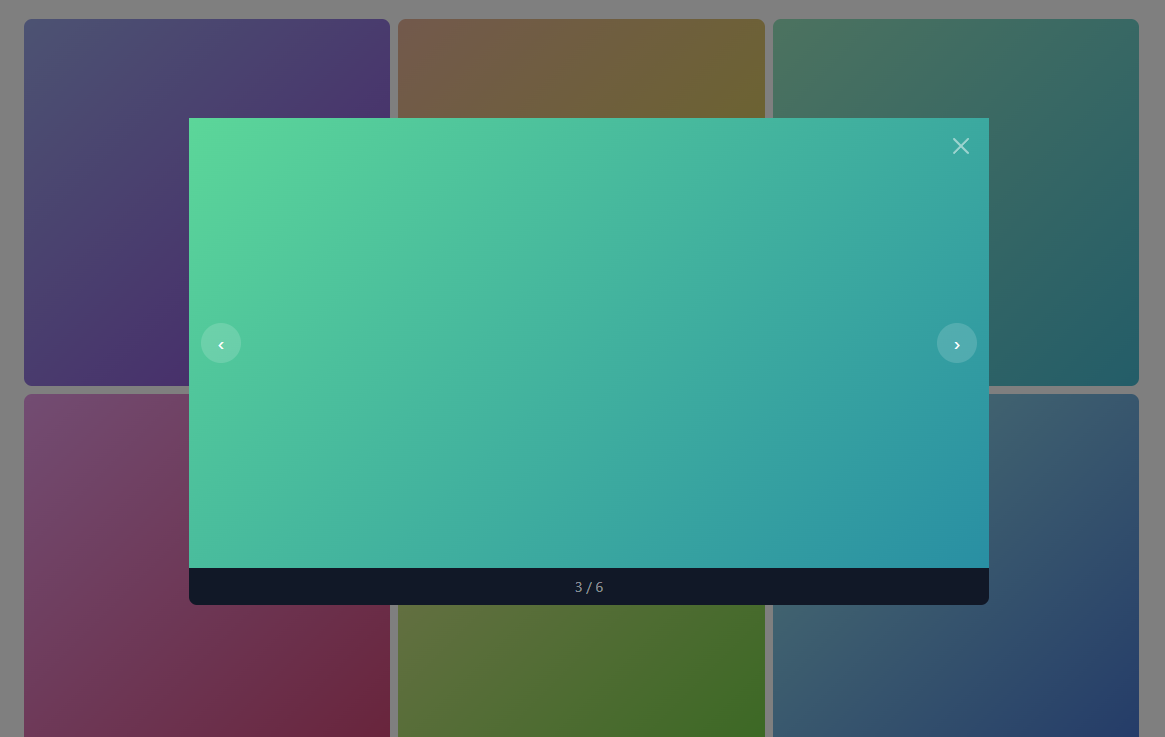
A thumbnail grid needs a way to view any image full-size without leaving the page — this snippet builds that on real Bootstrap 5.3's Modal component, opened programmatically (modal.show()) with whichever thumbnail's index was clicked, rather than each thumbnail needing its own separate modal element.
One shared render() function updates both the full-size image and the "N / 6" counter from a single current index — the prev/next buttons and clicking a different thumbnail all just change that one number and call render(), which is what keeps the counter, the displayed image, and the navigation buttons' behavior all consistent no matter how you got there. A keydown listener scoped to the modal element adds left/right arrow-key navigation, a gallery-lightbox expectation Bootstrap's Modal doesn't provide by itself.
Step by step
How to Use
- 1Load the snippetClick the snippet in the sidebar Library tab. The preview loads a 6-thumbnail grid.
- 2Click any thumbnailA real Bootstrap modal opens showing that image full-size, with a "N / 6" counter.
- 3Click the arrow buttonsNavigate to the next or previous image — the counter and image both update, wrapping around at either end.
- 4Use the arrow keysWith the modal open, press the left/right arrow keys on your keyboard for the same navigation.
- 5Close and reopen a different thumbnailThe lightbox opens directly to whichever thumbnail you clicked, not always the first image.
Real-world uses
Common Use Cases
Got questions?
Frequently Asked Questions
No — there's exactly one Bootstrap modal for the whole gallery, and clicking a thumbnail sets a shared current index before opening it, which is what lets prev/next simply increment or decrement that one number.
Both are updated together inside one render() function, called whenever current changes — from a thumbnail click, a prev/next click, or an arrow-key press — so they can never show conflicting values.
Only while the lightbox modal is open — the keydown listener is attached to the modal element itself, so arrow key presses elsewhere on the page don't affect it.
It wraps around to the first image — the index calculation uses modulo arithmetic ((current + 1) % length), so navigation never dead-ends at either end of the gallery.
No — every image is a CSS gradient generated from a hue value, so the gallery works immediately. Replace .bslight-full and .bslight-thumb's backgrounds with real image URLs when ready.