
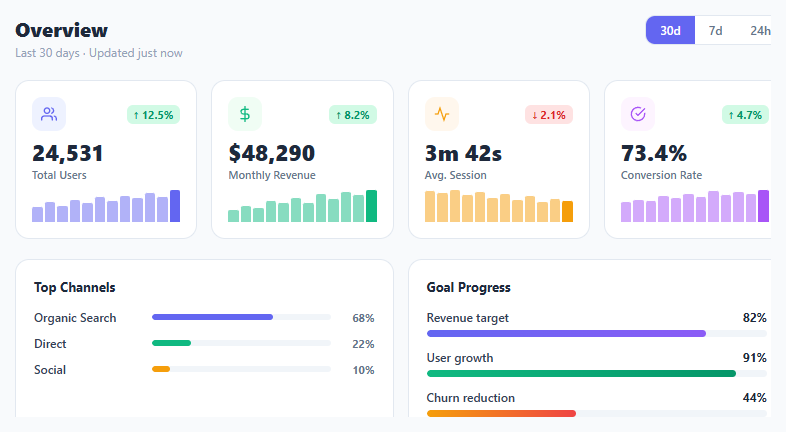
Metric KPI Card Grid

Interact.js Draggable and Resizable Dashboard Panels with Snapping
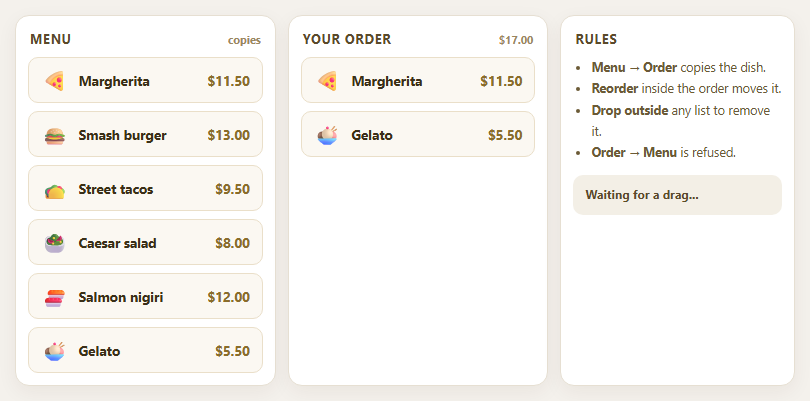
Dragula Copy vs Move Lists with Spill Control

SortableJS Shared Groups: Clone from a Palette into a Page Builder

SortableJS Drag Handle with Pinned and Locked Rows
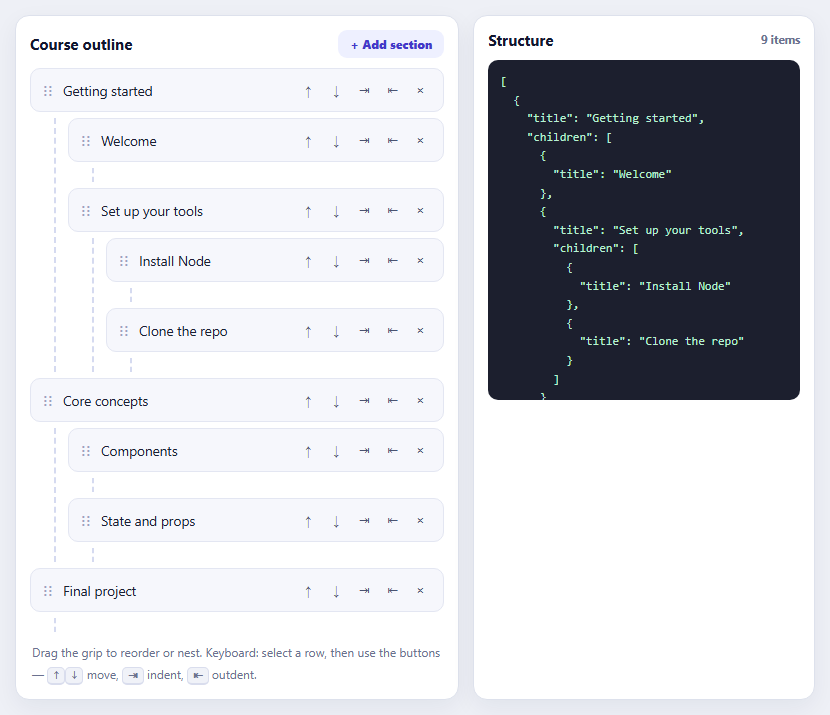
SortableJS Nested Sortable Tree with Keyboard Controls
Calendar Widget — Free HTML CSS JS Snippet
Calendar Widget · Dashboards · Plain HTML, CSS & JS · Live preview
Copy & paste
Source Code
<div class="wrap">
  <div class="cal">
    <div class="cal-head">
      <button class="nav-btn" onclick="shift(-1)">‹</button>
      <div class="month-label" id="month-label"></div>
      <button class="nav-btn" onclick="shift(1)">›</button>
    </div>

    <div class="day-names">
      <span>Su</span><span>Mo</span><span>Tu</span><span>We</span>
      <span>Th</span><span>Fr</span><span>Sa</span>
    </div>

    <div class="days" id="days"></div>

    <div class="events-section">
      <div class="events-head">Upcoming</div>
      <ul class="events-list" id="events-list"></ul>
    </div>
  </div>
</div>
* { box-sizing: border-box; margin: 0; padding: 0; }
body { font-family: system-ui, sans-serif; background: #f8fafc; min-height: 100vh; display: flex; align-items: center; justify-content: center; padding: 24px; }
.wrap { width: 100%; max-width: 320px; }
.cal { background: #fff; border-radius: 16px; padding: 20px; box-shadow: 0 1px 8px rgba(0,0,0,0.07); border: 1px solid #e2e8f0; }
.cal-head { display: flex; align-items: center; justify-content: space-between; margin-bottom: 16px; }
.month-label { font-size: 15px; font-weight: 700; color: #0f172a; }
.nav-btn { width: 28px; height: 28px; border-radius: 7px; border: 1px solid #e2e8f0; background: #fff; color: #64748b; font-size: 16px; cursor: pointer; display: flex; align-items: center; justify-content: center; transition: all 0.12s; }
.nav-btn:hover { border-color: #6366f1; color: #6366f1; }
.day-names { display: grid; grid-template-columns: repeat(7, 1fr); text-align: center; margin-bottom: 6px; }
.day-names span { font-size: 10px; font-weight: 600; color: #94a3b8; padding: 4px 0; }
.days { display: grid; grid-template-columns: repeat(7, 1fr); gap: 2px; }
.day { aspect-ratio: 1; display: flex; align-items: center; justify-content: center; font-size: 12px; border-radius: 6px; cursor: pointer; color: #374151; position: relative; transition: background 0.12s; font-family: system-ui, sans-serif; }
.day:hover { background: #f1f5f9; }
.day.other { color: #cbd5e1; }
.day.today { background: #6366f1; color: #fff !important; font-weight: 700; }
.day.today:hover { background: #4f46e5; }
.day.has-event::after { content: ''; position: absolute; bottom: 3px; width: 4px; height: 4px; border-radius: 50%; background: #6366f1; }
.day.today.has-event::after { background: #fff; }
.day.selected { background: rgba(99,102,241,0.1); color: #6366f1; font-weight: 600; }
.events-section { margin-top: 16px; padding-top: 14px; border-top: 1px solid #f1f5f9; }
.events-head { font-size: 11px; font-weight: 700; letter-spacing: 0.6px; text-transform: uppercase; color: #94a3b8; margin-bottom: 10px; }
.events-list { list-style: none; display: flex; flex-direction: column; gap: 8px; }
.event-item { display: flex; align-items: center; gap: 10px; }
.event-dot { width: 8px; height: 8px; border-radius: 50%; flex-shrink: 0; }
.event-body { flex: 1; min-width: 0; }
.event-title { font-size: 12px; font-weight: 600; color: #1e293b; white-space: nowrap; overflow: hidden; text-overflow: ellipsis; }
.event-date { font-size: 11px; color: #94a3b8; }
.no-events { font-size: 12px; color: #94a3b8; font-style: italic; }const events = [
{ date: '2026-05-30', title: 'Team standup', color: '#6366f1' },
{ date: '2026-05-30', title: 'Design review', color: '#ec4899' },
{ date: '2026-06-02', title: 'Sprint planning', color: '#10b981' },
{ date: '2026-06-05', title: 'Client demo', color: '#f59e0b' },
{ date: '2026-06-10', title: 'Product launch', color: '#0ea5e9' },
{ date: '2026-06-15', title: 'Quarterly review', color: '#6366f1' },
];
const today = new Date();
let cur = new Date(today.getFullYear(), today.getMonth(), 1);
function render() {
const year = cur.getFullYear(), month = cur.getMonth();
document.getElementById('month-label').textContent =
cur.toLocaleString('default', { month: 'long', year: 'numeric' });
const firstDay = new Date(year, month, 1).getDay();
const daysInMonth = new Date(year, month + 1, 0).getDate();
const prevDays = new Date(year, month, 0).getDate();
const grid = document.getElementById('days');
grid.innerHTML = '';
// Prev month padding
for (let i = firstDay - 1; i >= 0; i--) {
addDay(grid, prevDays - i, true);
}
// Current month
for (let d = 1; d <= daysInMonth; d++) {
const dateStr = year + '-' + String(month+1).padStart(2,'0') + '-' + String(d).padStart(2,'0');
const isToday = year === today.getFullYear() && month === today.getMonth() && d === today.getDate();
const hasEv = events.some(e => e.date === dateStr);
addDay(grid, d, false, isToday, hasEv, dateStr);
}
// Next month padding
const total = firstDay + daysInMonth;
const rem = total % 7 === 0 ? 0 : 7 - (total % 7);
for (let i = 1; i <= rem; i++) addDay(grid, i, true);
// Upcoming events (next 30 days)
const list = document.getElementById('events-list');
const now = new Date(); now.setHours(0,0,0,0);
const cutoff = new Date(now); cutoff.setDate(cutoff.getDate() + 30);
const upcoming = events.filter(e => { const d = new Date(e.date); return d >= now && d <= cutoff; })
.sort((a,b) => new Date(a.date) - new Date(b.date)).slice(0, 4);
list.innerHTML = upcoming.length === 0
? '<li class="no-events">No upcoming events</li>'
: upcoming.map(e => {
const d = new Date(e.date + 'T00:00:00');
const label = d.toLocaleDateString('default', { month: 'short', day: 'numeric' });
return '<li class="event-item"><span class="event-dot" style="background:'+e.color+'"></span><div class="event-body"><div class="event-title">'+e.title+'</div><div class="event-date">'+label+'</div></div></li>';
}).join('');
}
function addDay(grid, n, other, isToday, hasEv, dateStr) {
const el = document.createElement('div');
el.className = 'day' + (other ? ' other' : '') + (isToday ? ' today' : '') + (hasEv ? ' has-event' : '');
el.textContent = n;
if (dateStr) el.onclick = () => {
grid.querySelectorAll('.day').forEach(d => d.classList.remove('selected'));
if (!isToday) el.classList.add('selected');
};
grid.appendChild(el);
}
function shift(dir) { cur.setMonth(cur.getMonth() + dir); render(); }
render();Extend with AI
Take This Snippet Further With AI
The AI prompt for this one is for Patreon supporters ($3 a month), along with a site with no ads. Supporters enter the passcode once and it is remembered in this browser.
What's included
Features
About this UI Snippet
Calendar Widget — Monthly Grid, Today Highlight, Event Dots & Upcoming Events Panel

A calendar widget is a fundamental dashboard component for displaying date-based context alongside other metrics and tasks. This snippet provides a complete mini monthly calendar: previous/next month navigation, a 7-column day grid with today highlighted, event dot indicators on days that have events, click-to-select days, and a dynamic upcoming events panel that filters events within the next 30 days — all in plain HTML, CSS, and vanilla JavaScript.
How the calendar grid is generated
The render() function computes three things: the day of the week the month starts on (firstDay), the number of days in the month, and the number of days in the previous month (for padding). The grid always starts on Sunday. Padding days from the previous month fill the start of the first row; padding days from the next month fill the end of the last row. Each day div is created with classList flags: .other (padding days), .today (today's date), .has-event (dot indicator), and .selected (click selection).
The event dot indicator
Days with matching events get the .has-event class which adds a ::after pseudo-element — a 4px circle positioned at the bottom of the day cell. The dot is accent coloured for normal days and white on the .today cell (since the today background is the accent colour). This is a standard calendar pattern used by Apple Calendar, Google Calendar, and iOS date pickers.
The upcoming events panel
Below the calendar grid, an upcoming events list filters the events array to entries within the next 30 days from today. Events are sorted by date ascending and limited to 4 items. Each event shows a coloured dot matching the event's colour, the event title (truncated with text-overflow: ellipsis), and the formatted date. If no upcoming events exist, a "No upcoming events" italic message shows instead.
Month navigation
The shift(dir) function calls cur.setMonth(cur.getMonth() + dir) — JavaScript's Date handles month boundary arithmetic automatically. Shifting from January by -1 gives December of the previous year. The calendar re-renders fully on each navigation.
Customising events
Replace the events array with your own event data. Each event needs date (YYYY-MM-DD format), title, and color. Wire to a calendar API (Google Calendar, CalDAV) by replacing the events array with data fetched from the API on render.
Step by step
How to Use
- 1Navigate monthsClick the ‹ and › buttons to move to the previous or next month. The grid regenerates, today highlight remains on the current date, and event dots update for each month.
- 2Click a day to select itClick any day in the current month to highlight it with a selected state (indigo tint). The previously selected day deselects. Today cannot be selected — it always shows the filled accent background.
- 3Update the events arrayIn the JS panel, edit the events array. Each event needs: date in YYYY-MM-DD format, title string, and color hex. Events show as dots on the calendar and appear in the upcoming panel if within the next 30 days.
- 4Change the week start dayThe calendar starts on Sunday (getDay() = 0). To start on Monday, subtract 1 from firstDay and adjust the day-names header order: Mo Tu We Th Fr Sa Su.
- 5Extend upcoming events rangeIn render(), change the cutoff from 30 days to any number: cutoff.setDate(cutoff.getDate() + N). Increase the .slice(0, 4) limit to show more upcoming events in the panel.
- 6Export in your formatClick "HTML" for a standalone file, "JSX" for a React component managing cur state with useState and events with useMemo, or "Tailwind" for a Tailwind CSS version.
Real-world uses
Common Use Cases
Got questions?
Frequently Asked Questions
render() creates a Date for the first day of cur month and reads .getDay() to know which column (0=Sunday, 6=Saturday) the month starts on. It fills leftward from that column with trailing days from the previous month. It then places all days in the current month. Finally it fills any remaining cells in the last row with leading days of the next month. This always produces a complete 7-column grid, typically 5 rows (35 cells) or occasionally 6 rows (42 cells) for months that start on Saturday or Sunday.
Call the Google Calendar Events API: fetch("https://www.googleapis.com/calendar/v3/calendars/primary/events?timeMin="+startOfMonth+"&timeMax="+endOfMonth+"&key="+API_KEY). Map the response items to {date: item.start.dateTime || item.start.date, title: item.summary, color: "#6366f1"}. Call render() after the fetch resolves. For authentication, use Google OAuth2 and pass the access token in the Authorization header instead of the API key.
Change the firstDay calculation: const firstDay = (new Date(year, month, 1).getDay() + 6) % 7. This converts Sunday (0) to 6 and Monday (1) to 0, shifting the week start. Also update the day-names header to Mo Tu We Th Fr Sa Su. The padding calculations for prev/next month days remain the same.
Click "JSX" to download. Manage cur with useState<Date>(new Date(year, month, 1)). Compute grid days with useMemo([cur]) — run the same padding and day calculations, returning an array of day objects. Render the array to day divs. Manage selectedDate with useState<string|null>(null). For events, fetch from your API in a useEffect that re-runs when cur changes.