


Copy & paste
Source Code
<div class="hfw-card" id="hfwCard">
  <div class="hfw-ask" id="hfwAsk">
    <span class="hfw-q">Was this article helpful?</span>
    <div class="hfw-btns">
      <button type="button" class="hfw-btn" data-vote="up" aria-label="Yes, helpful">
        <svg width="17" height="17" viewBox="0 0 24 24" fill="none" stroke="currentColor" stroke-width="2" stroke-linecap="round" stroke-linejoin="round"><path d="M14 9V5a3 3 0 0 0-3-3l-4 9v11h11.28a2 2 0 0 0 2-1.7l1.38-9a2 2 0 0 0-2-2.3z"/><path d="M7 22H4a2 2 0 0 1-2-2v-7a2 2 0 0 1 2-2h3"/></svg>
        Yes
      </button>
      <button type="button" class="hfw-btn" data-vote="down" aria-label="No, not helpful">
        <svg width="17" height="17" viewBox="0 0 24 24" fill="none" stroke="currentColor" stroke-width="2" stroke-linecap="round" stroke-linejoin="round"><path d="M10 15v4a3 3 0 0 0 3 3l4-9V2H5.72a2 2 0 0 0-2 1.7l-1.38 9a2 2 0 0 0 2 2.3z"/><path d="M17 2h3a2 2 0 0 1 2 2v7a2 2 0 0 1-2 2h-3"/></svg>
        No
      </button>
    </div>
  </div>

  <div class="hfw-followup" id="hfwFollowup" hidden>
    <label class="hfw-q" id="hfwFollowupQ" for="hfwText">What could be better?</label>
    <div class="hfw-tags" id="hfwTags"></div>
    <textarea id="hfwText" rows="2" placeholder="Optional — tell us more"></textarea>
    <div class="hfw-actions">
      <button type="button" class="hfw-skip" id="hfwSkip">Skip</button>
      <button type="button" class="hfw-send" id="hfwSend">Send feedback</button>
    </div>
  </div>

  <div class="hfw-thanks" id="hfwThanks" hidden>
    <span class="hfw-thanks-icon">✓</span>
    <span id="hfwThanksText">Thanks for your feedback!</span>
  </div>
</div>*{box-sizing:border-box;margin:0;padding:0}
body{font-family:system-ui,-apple-system,sans-serif;background:#f8fafc;min-height:100vh;display:flex;align-items:center;justify-content:center;padding:24px}
.hfw-card{background:#fff;border:1px solid #e2e8f0;border-radius:14px;padding:18px 20px;width:100%;max-width:380px;box-shadow:0 8px 24px rgba(15,23,42,.06)}
.hfw-q{font-size:13.5px;font-weight:700;color:#1e293b;display:block}
.hfw-ask{display:flex;align-items:center;justify-content:space-between;gap:14px}
.hfw-ask[hidden]{display:none}
.hfw-btns{display:flex;gap:8px;flex-shrink:0}
.hfw-btn{display:inline-flex;align-items:center;gap:6px;border:1.5px solid #e2e8f0;background:#fff;border-radius:9px;padding:7px 13px;font-size:13px;font-weight:700;color:#475569;cursor:pointer;font-family:inherit;transition:border-color .15s,color .15s,background .15s}
.hfw-btn:hover{border-color:#cbd5e1}
.hfw-btn[data-vote="up"]:hover{border-color:#86efac;color:#16a34a;background:#f0fdf4}
.hfw-btn[data-vote="down"]:hover{border-color:#fca5a5;color:#dc2626;background:#fef2f2}
.hfw-followup{margin-top:4px}
.hfw-followup .hfw-q{margin-bottom:11px}
.hfw-tags{display:flex;flex-wrap:wrap;gap:7px;margin-bottom:11px}
.hfw-tag{border:1.5px solid #e2e8f0;background:#fff;border-radius:999px;padding:6px 12px;font-size:12px;font-weight:600;color:#475569;cursor:pointer;transition:border-color .15s,background .15s,color .15s}
.hfw-tag.on{border-color:#6366f1;background:#eef2ff;color:#4f46e5}
.hfw-followup textarea{width:100%;border:1.5px solid #e2e8f0;border-radius:9px;padding:9px 11px;font-size:13px;font-family:inherit;color:#0f172a;resize:vertical;margin-bottom:11px}
.hfw-followup textarea:focus{outline:none;border-color:#6366f1}
.hfw-actions{display:flex;justify-content:flex-end;gap:8px}
.hfw-skip{background:none;border:none;color:#94a3b8;font-size:12.5px;font-weight:700;cursor:pointer}
.hfw-skip:hover{color:#64748b}
.hfw-send{background:#6366f1;color:#fff;border:none;border-radius:8px;padding:8px 16px;font-size:12.5px;font-weight:700;cursor:pointer}
.hfw-send:hover{background:#4f46e5}
.hfw-thanks{display:flex;align-items:center;gap:9px;font-size:13.5px;font-weight:700;color:#16a34a}
.hfw-thanks[hidden]{display:none}
.hfw-thanks-icon{width:24px;height:24px;border-radius:50%;background:#22c55e;color:#fff;font-size:13px;display:flex;align-items:center;justify-content:center;flex-shrink:0}var TAGS = {
up: ['Clear and easy', 'Solved my problem', 'Well written', 'Good examples'],
down: ['Hard to follow', 'Missing information', 'Out of date', 'Not what I needed'],
};
var vote = null;
var selectedTags = [];
var ask = document.getElementById('hfwAsk');
var followup = document.getElementById('hfwFollowup');
var thanks = document.getElementById('hfwThanks');
function chooseVote(v) {
vote = v;
selectedTags = [];
ask.hidden = true;
followup.hidden = false;
document.getElementById('hfwFollowupQ').textContent = v === 'up' ? 'Great! What did you like?' : 'Sorry to hear that — what could be better?';
document.getElementById('hfwTags').innerHTML = TAGS[v].map(function (t) {
return '<button type="button" class="hfw-tag" data-tag="' + t + '">' + t + '</button>';
}).join('');
}
function finish() {
// Send { vote, selectedTags, comment } to your analytics/feedback endpoint here.
followup.hidden = true;
thanks.hidden = false;
document.getElementById('hfwThanksText').textContent = vote === 'up'
? 'Thanks — glad it helped!'
: 'Thanks — we\'ll use this to improve.';
}
document.getElementById('hfwAsk').addEventListener('click', function (e) {
var btn = e.target.closest('[data-vote]');
if (btn) chooseVote(btn.dataset.vote);
});
document.getElementById('hfwTags').addEventListener('click', function (e) {
var tag = e.target.closest('.hfw-tag');
if (!tag) return;
tag.classList.toggle('on');
var t = tag.dataset.tag;
var i = selectedTags.indexOf(t);
if (i === -1) selectedTags.push(t); else selectedTags.splice(i, 1);
});
document.getElementById('hfwSend').addEventListener('click', finish);
document.getElementById('hfwSkip').addEventListener('click', finish);Extend with AI
Take This Snippet Further With AI
The AI prompt for this one is for Patreon supporters ($3 a month), along with a site with no ads. Supporters enter the passcode once and it is remembered in this browser.
What's included
Features
About this UI Snippet
Helpful Feedback Widget — Yes/No Vote with Contextual Follow-Up
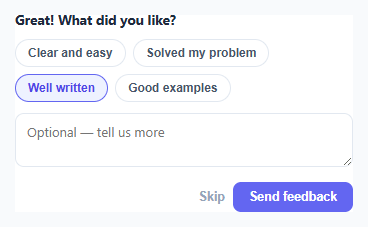
The "Was this helpful? 👍 👎" widget at the bottom of documentation and help-center articles is the simplest, highest-response-rate way to learn whether your content actually works. This snippet builds the complete pattern in plain HTML, CSS, and vanilla JavaScript: a one-tap yes/no vote, a contextual follow-up that adapts to the answer, quick-select reason tags, an optional comment, and a thank-you state — three screens in one small card.
One tap to participate, more if they want
The barrier to feedback has to be near zero, so the first screen asks one question with two buttons. That single tap is the most valuable signal — a raw helpful/unhelpful ratio per article — and many users will stop there, which is fine. Only after they've voted does the widget ask for more, so you capture the easy signal first and treat the detailed follow-up as a bonus rather than a gate.
A follow-up that adapts to the answer
The follow-up question and its reason tags change based on the vote. A thumbs-up asks "What did you like?" with positive tags (Clear and easy, Solved my problem, Well written); a thumbs-down asks "What could be better?" with diagnostic tags (Hard to follow, Missing information, Out of date). This matters because the useful question is different depending on the answer — asking an unhappy reader "what did you like?" wastes the moment, and asking a happy one "what's wrong?" is confusing. Matching the prompt to the sentiment gets you actionable, categorised feedback instead of vague free text.
Quick tags plus optional comment
Most people won't write a paragraph, but they'll happily tap a tag or two. The reason chips give one-tap structured categorisation (toggle-selectable, so multiple can apply), while the textarea stays explicitly optional for the minority who want to elaborate. This combination — structured tags for volume, free text for depth — is what makes the feedback both quantifiable (you can count "Out of date" across articles) and rich (you can read the specifics).
A real thank-you, sentiment-aware
Both the Send and Skip buttons lead to a thank-you state, because acknowledging the input matters even when the user skips the details. The message adapts too: a positive vote gets "glad it helped," a negative one gets "we'll use this to improve" — closing the loop honestly. Crucially, both paths end the interaction; the widget never re-asks, respecting that the user has already given what they chose to.
Lightweight and analytics-ready
The whole flow is three states toggled with the hidden attribute and driven by a few event listeners. The finish() function is where you'd send { vote, selectedTags, comment } to your analytics or feedback endpoint — the vote alone powers a per-article helpfulness score, while the tags and comment feed content-improvement decisions. Because it's so small and dependency-free, it drops into any docs page, blog post, or knowledge-base article without weighing the page down.
Step by step
How to Use
- 1Paste HTML, CSS, and JSA "Was this article helpful?" card renders with Yes and No buttons.
- 2VoteClick Yes or No — the widget reveals a follow-up whose question and tags match your answer.
- 3Pick reason tagsTap one or more reason chips (multi-select) and optionally add a comment.
- 4Send or skipBoth Send and Skip lead to a sentiment-aware thank-you — the widget never re-asks.
- 5Edit the tagsChange the positive/negative tag lists in the TAGS object to match what you want to learn.
- 6Connect your analyticsIn finish(), send { vote, selectedTags, comment } to your feedback or analytics endpoint, keyed by article id.
Real-world uses
Common Use Cases
Got questions?
Frequently Asked Questions
In the finish() function, send { vote, selectedTags, comment } along with the article id and URL to your analytics tool (a custom event) or a feedback endpoint. The vote alone gives you a per-article helpfulness ratio; the tags let you aggregate common issues ("Out of date" across docs), and the comment captures specifics worth reading.
Lowering the barrier to the first action maximizes response rate — most users will tap yes/no but not write a comment, and that single tap is the highest-value, most aggregatable signal. Showing the detailed follow-up only after the vote treats it as an optional bonus, so you never lose the easy signal by gating it behind effort.
After finish(), store a flag in localStorage keyed by article id (and optionally a timestamp), and check it on load — if present, render the thank-you state (or hide the widget) instead of the ask. For logged-in users, record the vote server-side against their account so it persists across devices.
Yes — the useful follow-up question depends on the answer. Asking an unhappy reader "what did you like?" wastes the moment, and asking a happy one "what went wrong?" is confusing. Matching the prompt and the reason tags to the sentiment produces actionable, correctly categorized feedback instead of mismatched noise.
In React, hold the vote, selected tags, and step in useState and conditionally render ask/follow-up/thanks; in Vue, use ref()/reactive() with v-if; in Angular, use component fields with *ngIf. The TAGS data and the finish() payload port unchanged — only the three-state toggling moves into the framework's conditional rendering.