


Scheduled Job Run History Tile — Dashboard Widget with Countdown and Run Strip
Scheduled Job Run History Tile · Dashboards · Plain HTML, CSS & JS · Live preview
What's included
Features
About this UI Snippet
Scheduled Job Run History Tile — Cron Health at a Glance
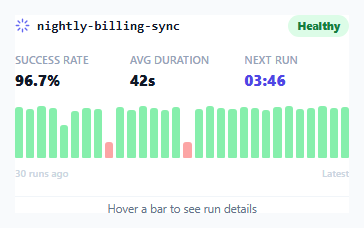
Dashboards for cron jobs, scheduled pipelines and background workers usually need to answer three questions fast: is this job currently healthy, when does it run next, and has it been flaky recently? This tile answers all three in a compact card by combining a live countdown with a horizontal history strip — a row of small bars, one per recent run, that doubles as both a health-at-a-glance visualization and a hoverable log.
Why height encodes duration, not just pass/fail color
Each bar's color is binary (green for pass, red for fail), but a passing run's *height* is also scaled to its duration — Math.max(18, (duration / 95) * 52) — so a viewer can spot a job that's technically still succeeding but has been creeping slower over recent runs, not just outright failures. Failed runs are deliberately rendered at a fixed short height regardless of how long they ran before timing out, since a failure's duration is rarely the meaningful signal.
A tooltip strip instead of 30 separate title attributes
Rather than relying on the native browser title tooltip (slow to appear, unstyled, and can't be positioned reliably), each bar has a mouseenter/mouseleave pair that writes a one-line description — "Run #14 — passed in 90s" or "Run #9 — failed (timeout after 90s)" — into a single shared .tile-foot element beneath the strip. This keeps the DOM lightweight (no tooltip element per bar) and gives a stable, always-in-the-same-place place to read run detail without a floating popover to position.
The live countdown as a trust signal
countdown ticks down every second via setInterval, converting a seconds-remaining integer into MM:SS. Beyond just being informative, a visibly *live* countdown reassures a dashboard viewer that the tile itself is actively connected and current — a static "next run: 3:47" label can't distinguish "the page loaded 3:47 ago and is now stale" from "there are genuinely 3:47 left," while a ticking number can only mean the latter.
Where this fits versus a full uptime page
A full status page (like the uptime-monitor pattern) is built for external, incident-level communication. This tile is the internal, operational counterpart — sized to sit in a grid of other small dashboard tiles, answering "is this specific background job okay" for an engineer glancing at an internal ops dashboard rather than a customer-facing status page.
Step by step
How to Use
- 1Replace the seed array with real run dataThe seed array in the JS panel represents duration-in-seconds per run, with 0 meaning a failed run — swap it for data from your job scheduler's API.
- 2Update the job name and iconChange the text inside .job-name in the HTML panel to your actual job identifier.
- 3Wire the countdown to a real next-run timestampReplace secondsLeft with a value computed from your job scheduler's next-run time minus the current time.
- 4Adjust the badge stateSwap the badge.ok class and "Healthy" text for a warning/critical variant when the success rate drops below your threshold.
- 5Recompute the stat valuesUpdate the success rate and average duration numbers in the HTML to be derived from your real run-history data rather than hardcoded.
Real-world uses
Common Use Cases
Got questions?
Frequently Asked Questions
Failed runs are always rendered at a fixed short height (16px) regardless of how long they ran before failing, since duration is not usually the meaningful signal for a failure — only the pass/fail color and the tooltip detail matter there.
As a simple array of numbers, where each value is a run's duration in seconds and 0 is a sentinel value meaning that run failed — swap this array for real data from your scheduler's run-history API.
Not in this snippet — it counts down to zero and stops. In production, replace the countdown logic with one that recomputes secondsLeft from a real "next scheduled run" timestamp so it naturally resets after each run.
A single .tile-foot element updated on hover keeps the DOM lightweight (no positioning logic or extra elements per bar) and gives run detail a stable, predictable location beneath the strip rather than a floating popover that has to avoid clipping at the tile edges.
The demo seeds 30 runs, one bar each, but the strip is a flexbox row that will accept any array length — adjust the seed array's length to show more or fewer recent runs.
Yes — compute the success rate from the run array (percentage of non-zero values) in JavaScript and set the badge's class and text based on threshold checks, rather than hardcoding "Healthy".
Build with AI
Build, Understand, Optimize, and Extend It With AI
Ask an AI assistant to explain the tradeoff between encoding duration in a bar's height versus only encoding pass/fail in its color, and when a dashboard designer should choose one over the other for a metric like job run history. It's also worth asking for a version that computes the success-rate and average-duration stats live from the seed array instead of hardcoding them, or one that groups runs into hourly buckets for jobs that run far more than 30 times a day.
Prompt to recreate it
Copy this into your AI assistant of choice to build the effect from scratch, or as a jumping-off point for your own variant:
Build a dashboard tile in HTML, CSS and vanilla JavaScript that shows the health of a single scheduled/cron job — no external charting library.

Requirements:
- A header with the job's name and a status badge (e.g. "Healthy").
- A three-column stats row showing success rate, average run duration, and a live MM:SS countdown to the next scheduled run that ticks down every second via setInterval.
- A horizontal strip of small bars, one per recent run (at least 20-30), where a passing run's bar height is proportional to its duration and a failing run is rendered as a fixed short red bar clearly distinct from passing green bars.
- Hovering any bar in the strip must show a one-line description of that specific run (its number, pass/fail state, and duration or failure reason) in a single shared text element beneath the strip — not a separate floating tooltip per bar.
- Give the history strip an appropriate ARIA role and label so its overall meaning is conveyed to screen reader users even though the detail is only revealed on hover.
- Keep the whole tile compact enough to sit in a grid alongside other similar dashboard tiles.
Want to tighten it up first? Run this prompt through the AI Prompt Studio to score it across 8 quality dimensions, catch anti-patterns, and tune the wording for Claude, ChatGPT, or Gemini before you paste it in.
Source Code
<div class="demo">
  <div class="tile">
    <div class="tile-head">
      <div class="job-name">
        <svg width="15" height="15" viewBox="0 0 24 24" fill="none" stroke="currentColor" stroke-width="2.2" stroke-linecap="round" stroke-linejoin="round"><path d="M12 2v4M12 18v4M4.9 4.9l2.8 2.8M16.3 16.3l2.8 2.8M2 12h4M18 12h4M4.9 19.1l2.8-2.8M16.3 7.7l2.8-2.8"/></svg>
        <span>nightly-billing-sync</span>
      </div>
      <span class="badge ok">Healthy</span>
    </div>

    <div class="tile-stats">
      <div class="stat">
        <span class="stat-label">Success rate</span>
        <span class="stat-value">96.7%</span>
      </div>
      <div class="stat">
        <span class="stat-label">Avg duration</span>
        <span class="stat-value">42s</span>
      </div>
      <div class="stat">
        <span class="stat-label">Next run</span>
        <span class="stat-value countdown" id="countdown">--:--</span>
      </div>
    </div>

    <div class="history" id="history" role="img" aria-label="Last 30 runs, mostly successful with 2 failures">
      <!-- bars injected by JS -->
    </div>
    <div class="history-legend">
      <span>30 runs ago</span>
      <span>Latest</span>
    </div>

    <div class="tile-foot" id="tooltip">Hover a bar to see run details</div>
  </div>
</div>
* { box-sizing: border-box; margin: 0; padding: 0; }
body { font-family: system-ui, sans-serif; background: #f8fafc; display: flex; align-items: center; justify-content: center; min-height: 100vh; padding: 24px; }
.tile { width: 380px; max-width: 100%; background: #fff; border: 1px solid #e2e8f0; border-radius: 16px; padding: 20px 22px; display: flex; flex-direction: column; gap: 16px; }
.tile-head { display: flex; align-items: center; justify-content: space-between; }
.job-name { display: flex; align-items: center; gap: 7px; font-size: 13px; font-weight: 700; color: #111827; font-family: ui-monospace, 'SF Mono', monospace; }
.job-name svg { color: #6366f1; flex-shrink: 0; }
.badge { font-size: 10.5px; font-weight: 800; letter-spacing: 0.03em; padding: 4px 9px; border-radius: 999px; }
.badge.ok { background: #dcfce7; color: #15803d; }
.tile-stats { display: grid; grid-template-columns: repeat(3,1fr); gap: 10px; }
.stat { display: flex; flex-direction: column; gap: 3px; }
.stat-label { font-size: 10.5px; color: #94a3b8; font-weight: 600; text-transform: uppercase; letter-spacing: 0.03em; }
.stat-value { font-size: 15px; font-weight: 800; color: #111827; font-variant-numeric: tabular-nums; }
.stat-value.countdown { color: #4f46e5; }
.history { display: flex; align-items: flex-end; gap: 3px; height: 52px; }
.bar { flex: 1; border-radius: 3px 3px 1px 1px; min-width: 4px; cursor: pointer; transition: opacity 0.12s; }
.bar:hover { opacity: 0.72; }
.bar.pass { background: #86efac; }
.bar.fail { background: #fca5a5; height: 16px !important; }
.history-legend { display: flex; justify-content: space-between; font-size: 10px; color: #cbd5e1; font-weight: 600; margin-top: -8px; }
.tile-foot { font-size: 11.5px; color: #64748b; text-align: center; padding-top: 4px; border-top: 1px solid #f1f5f9; min-height: 16px; }const history = document.getElementById('history');
const tooltip = document.getElementById('tooltip');
const countdown = document.getElementById('countdown');
// Seeded pseudo-random run history: mostly pass, a couple of fails
const seed = [92,88,95,90,60,85,91,89,0,93,87,94,90,86,92,0,88,95,91,89,93,90,87,92,94,88,91,95,90,93];
seed.forEach((duration, i) => {
const bar = document.createElement('div');
const failed = duration === 0;
bar.className = 'bar ' + (failed ? 'fail' : 'pass');
if (!failed) bar.style.height = Math.max(18, (duration / 95) * 52) + 'px';
bar.dataset.tip = failed
? `Run #${i + 1} — failed (timeout after 90s)`
: `Run #${i + 1} — passed in ${duration}s`;
bar.addEventListener('mouseenter', () => { tooltip.textContent = bar.dataset.tip; });
bar.addEventListener('mouseleave', () => { tooltip.textContent = 'Hover a bar to see run details'; });
history.appendChild(bar);
});
// Live countdown to next scheduled run
let secondsLeft = 3 * 60 + 47;
function tick() {
const m = Math.floor(secondsLeft / 60);
const s = secondsLeft % 60;
countdown.textContent = `${String(m).padStart(2, '0')}:${String(s).padStart(2, '0')}`;
if (secondsLeft > 0) secondsLeft--;
}
tick();
setInterval(tick, 1000);