

Interact.js Draggable and Resizable Dashboard Panels with Snapping
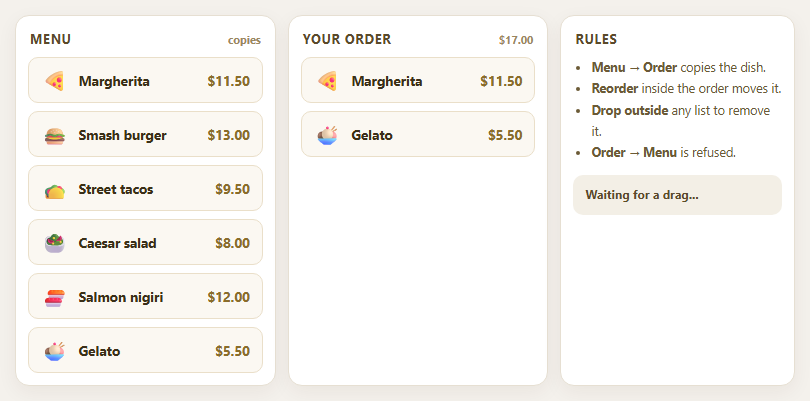
Dragula Copy vs Move Lists with Spill Control

SortableJS Shared Groups: Clone from a Palette into a Page Builder

SortableJS Drag Handle with Pinned and Locked Rows
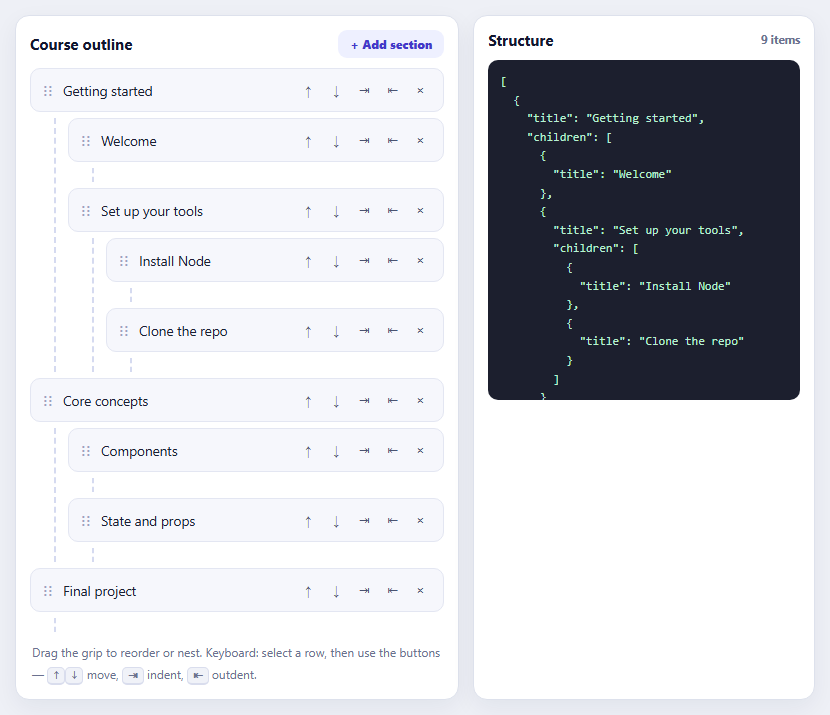
SortableJS Nested Sortable Tree with Keyboard Controls
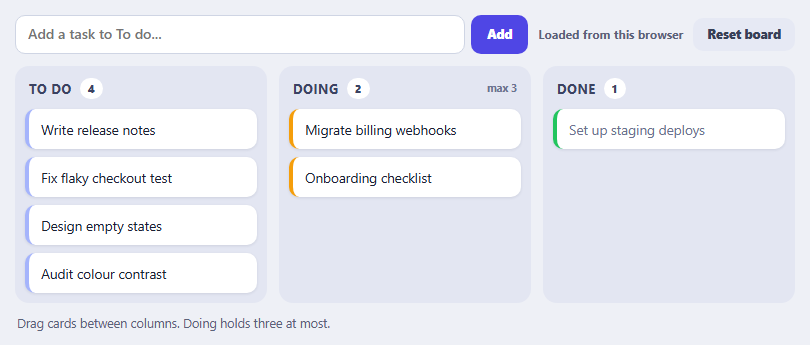
SortableJS Multi-List Kanban with Persistence and WIP Limit
Package Tracking Route — Free Shipment Progress Map Widget
Package Tracking Route · Dashboards · Plain HTML, CSS & JS · Live preview
Copy & paste
Source Code
<div class="pt-card">
  <div class="pt-head">
    <div>
      <h2>Package #TRK-88213</h2>
      <p>Estimated delivery: <strong>Today, 6:30 PM</strong></p>
    </div>
    <span class="pt-badge">In transit</span>
  </div>

  <div class="pt-route" id="ptRoute">
    <div class="pt-line"><div class="pt-line-fill" id="ptLineFill"></div></div>
    <div class="pt-node pt-node--done" data-pct="0">
      <span class="pt-dot"></span>
      <span class="pt-node-label">Origin<br /><small>Newark, NJ</small></span>
    </div>
    <div class="pt-node pt-node--done" data-pct="33">
      <span class="pt-dot"></span>
      <span class="pt-node-label">Hub<br /><small>Columbus, OH</small></span>
    </div>
    <div class="pt-node pt-node--current" data-pct="66">
      <span class="pt-dot pt-dot--pulse"></span>
      <span class="pt-node-label">Hub<br /><small>Denver, CO</small></span>
    </div>
    <div class="pt-node" data-pct="100">
      <span class="pt-dot"></span>
      <span class="pt-node-label">Destination<br /><small>Boise, ID</small></span>
    </div>
    <div class="pt-package" id="ptPackage" title="Package location">📦</div>
  </div>

  <ul class="pt-timeline">
    <li class="pt-done"><span class="pt-tl-dot"></span><div><strong>Order placed</strong><time>Mon, 9:02 AM</time></div></li>
    <li class="pt-done"><span class="pt-tl-dot"></span><div><strong>Shipped</strong><time>Mon, 4:47 PM</time></div></li>
    <li class="pt-done"><span class="pt-tl-dot"></span><div><strong>In transit</strong><time>Tue, 11:15 AM</time></div></li>
    <li class="pt-active"><span class="pt-tl-dot"></span><div><strong>Out for delivery</strong><time>Pending</time></div></li>
    <li><span class="pt-tl-dot"></span><div><strong>Delivered</strong><time>—</time></div></li>
  </ul>
</div>*{box-sizing:border-box}
body{font-family:system-ui,-apple-system,sans-serif;background:#0a0e17;color:#e6ebf5;padding:32px 16px;display:flex;justify-content:center;min-height:100vh;align-items:center}
.pt-card{width:100%;max-width:640px;background:#121826;border:1px solid #232c40;border-radius:16px;padding:24px}
.pt-head{display:flex;justify-content:space-between;align-items:flex-start;gap:12px;margin-bottom:28px}
.pt-head h2{font-size:17px;margin:0 0 4px}
.pt-head p{margin:0;font-size:13px;color:#8b95ab}
.pt-badge{background:#1d3a2e;color:#5fe0a0;font-size:12px;font-weight:700;padding:5px 12px;border-radius:999px;white-space:nowrap}
.pt-route{position:relative;display:flex;justify-content:space-between;padding:0 4px 8px;margin-bottom:32px}
.pt-line{position:absolute;top:9px;left:20px;right:20px;height:3px;background:#232c40;border-radius:3px}
.pt-line-fill{height:100%;width:66%;background:linear-gradient(90deg,#3d7bff,#5fe0a0);border-radius:3px;transition:width .6s ease}
.pt-node{position:relative;display:flex;flex-direction:column;align-items:center;gap:8px;z-index:1;flex:1}
.pt-dot{width:20px;height:20px;border-radius:50%;background:#1a2233;border:3px solid #384260;display:block}
.pt-node--done .pt-dot{background:#3d7bff;border-color:#3d7bff}
.pt-node--current .pt-dot{background:#5fe0a0;border-color:#5fe0a0}
.pt-dot--pulse{box-shadow:0 0 0 0 rgba(95,224,160,.6);animation:ptPulse 1.8s infinite}
@keyframes ptPulse{to{box-shadow:0 0 0 12px rgba(95,224,160,0)}}
.pt-node-label{font-size:11.5px;color:#9aa4ba;text-align:center;line-height:1.4}
.pt-node-label small{color:#5f6a83}
.pt-node--done .pt-node-label,.pt-node--current .pt-node-label{color:#dfe6f5}
.pt-package{position:absolute;top:-14px;left:66%;transform:translateX(-50%);font-size:22px;transition:left .6s ease;filter:drop-shadow(0 2px 4px rgba(0,0,0,.5))}
.pt-timeline{list-style:none;margin:0;padding:0;display:flex;flex-direction:column;gap:0}
.pt-timeline li{display:flex;align-items:flex-start;gap:12px;padding:10px 0;position:relative}
.pt-timeline li:not(:last-child)::after{content:'';position:absolute;left:5px;top:26px;bottom:-4px;width:2px;background:#232c40}
.pt-tl-dot{width:12px;height:12px;border-radius:50%;background:#232c40;flex-shrink:0;margin-top:4px}
.pt-timeline li.pt-done .pt-tl-dot{background:#3d7bff}
.pt-timeline li.pt-active .pt-tl-dot{background:#5fe0a0;box-shadow:0 0 0 4px rgba(95,224,160,.2)}
.pt-timeline strong{display:block;font-size:13.5px;color:#e6ebf5}
.pt-timeline li:not(.pt-done):not(.pt-active) strong{color:#68728a}
.pt-timeline time{font-size:12px;color:#6f7a92}// Position the package emoji and the filled line based on the "current" node's data-pct.
const currentNode = document.querySelector('.pt-node--current');
const pkg = document.getElementById('ptPackage');
const lineFill = document.getElementById('ptLineFill');
function placePackage() {
if (!currentNode) return;
const pct = Number(currentNode.dataset.pct);
pkg.style.left = pct + '%';
lineFill.style.width = pct + '%';
}
placePackage();
window.addEventListener('resize', placePackage);Extend with AI
Take This Snippet Further With AI
The AI prompt for this one is for Patreon supporters ($3 a month), along with a site with no ads. Supporters enter the passcode once and it is remembered in this browser.
What's included
Features
About this UI Snippet
Package Tracking Route — A Shipment Map With a Status Timeline

The package tracking route is the visual carriers and e-commerce order pages use to show a shipment's journey at a glance — origin, one or more transit hubs, and destination laid out on a horizontal line, with the package marked at its current position, backed by a chronological status list. This snippet builds it in plain HTML, CSS, and JavaScript.
Nodes on a line, not a real map
Rather than embedding a real map (which needs an API key and geodata), the route is four .pt-node elements spaced with justify-content: space-between over an absolutely positioned .pt-line. This keeps the widget dependency-free while still communicating "this is a journey with stops" clearly.
A fill that shows progress
.pt-line-fill is a second line, layered on top of the track, whose width is driven by the current node's data-pct attribute (a 0–100 position along the route). It's the same pattern as a progress bar, just applied along the route instead of a straight bar — everything before the current hub reads as "done."
The package marker floats above the line
The 📦 emoji is absolutely positioned and its left is set in JavaScript to match data-pct from the node marked .pt-node--current, so moving the package to a new stage is a one-line change (update the class and the script re-reads the new position on next run). A CSS transition on left animates the move.
A pulsing "current" dot
The current-hub dot uses a box-shadow keyframe animation that expands and fades — a common "live" indicator pattern — so the eye is drawn to where the package actually is without needing a live map.
Status timeline below
A vertical list mirrors the five standard shipment states — Order placed, Shipped, In transit, Out for delivery, Delivered — each with a timestamp. Completed steps get a filled dot and a connecting line in the brand blue; the active step gets a green glow; future steps stay dim, giving a clear "here's what's happened and what's next" read.
Customizing it
Add more transit hubs by inserting nodes with their own data-pct, wire the JS to update from a real tracking API response, or swap the emoji for an SVG truck/plane icon per leg. Pair it with a delivery ETA card or order tracking timeline.
Step by step
How to Use
- 1Paste HTML, CSS, and JSThe route, timeline, and header render.
- 2Mark the current nodeAdd the pt-node--current class to a stop.
- 3Set data-pctA 0–100 value positions the package on the line.
- 4Update the timelineToggle pt-done / pt-active as status changes.
- 5Wire to your APICall placePackage() after updating the DOM.
Real-world uses
Common Use Cases
data-pct position.Got questions?
Frequently Asked Questions
No. It's a stylized horizontal route made of positioned nodes and a fill line, not a real map with tiles or coordinates. This keeps it dependency-free and fast — swap in a real map library if you need actual geography.
Remove the pt-node--current class from the old node and add it to the new one (with its own data-pct), then call placePackage() again — it reads the currently marked node and repositions the marker and the fill line.
Insert another .pt-node element between existing ones with a data-pct value between its neighbors, matching the flexbox spacing. The line and fill automatically span the full width regardless of node count.
Yes — after fetching a shipment status, toggle the pt-done/pt-active classes on the timeline items, move the pt-node--current class to the matching route node with the right data-pct, and call placePackage() to sync the visual position.
The animation is purely decorative and doesn't convey information on its own — the "In transit" badge and timeline text carry the actual status, so screen reader users get the same information without relying on the animation.