

Scratch Card Reveal — Free HTML CSS JS Canvas Snippet
Scratch Card Reveal · Animations · Plain HTML, CSS & JS · Live preview
Copy & paste
Source Code
<div class="demo">
  <div class="card">
    <div class="prize">
      <span class="label">YOU WON</span>
      <span class="amount">25% OFF</span>
      <span class="hint">Use code SCRATCH25 at checkout</span>
    </div>
    <canvas class="scratch-layer" width="320" height="180"></canvas>
    <div class="reveal-msg">Scratched clear! Code copied below.</div>
  </div>
  <button class="reset-btn" type="button">Reset card</button>
</div>
.demo {
font-family: 'Segoe UI', system-ui, sans-serif;
display: flex;
flex-direction: column;
align-items: center;
gap: 16px;
padding: 32px;
background: linear-gradient(135deg, #1e1b4b, #312e81);
}
.card {
position: relative;
width: 320px;
height: 180px;
border-radius: 16px;
overflow: hidden;
box-shadow: 0 20px 50px rgba(0,0,0,0.4);
}
.prize {
position: absolute;
inset: 0;
display: flex;
flex-direction: column;
align-items: center;
justify-content: center;
gap: 6px;
background: linear-gradient(135deg, #f59e0b, #ec4899);
color: #fff;
text-align: center;
}
.prize .label {
font-size: 12px;
letter-spacing: 2px;
opacity: 0.85;
}
.prize .amount {
font-size: 32px;
font-weight: 800;
}
.prize .hint {
font-size: 13px;
background: rgba(0,0,0,0.2);
padding: 4px 12px;
border-radius: 999px;
}
.scratch-layer {
position: absolute;
inset: 0;
cursor: grab;
touch-action: none;
}
.scratch-layer.cleared {
opacity: 0;
pointer-events: none;
transition: opacity 0.5s ease;
}
.reveal-msg {
position: absolute;
bottom: 12px;
left: 50%;
transform: translate(-50%, 12px);
background: rgba(15,23,42,0.85);
color: #fff;
font-size: 13px;
padding: 6px 14px;
border-radius: 999px;
opacity: 0;
transition: opacity 0.4s ease, transform 0.4s ease;
white-space: nowrap;
}
.reveal-msg.show {
opacity: 1;
transform: translate(-50%, 0);
}
.reset-btn {
border: 1px solid rgba(255,255,255,0.25);
background: rgba(255,255,255,0.08);
color: #e5e7eb;
font-size: 13px;
padding: 8px 18px;
border-radius: 999px;
cursor: pointer;
transition: background 0.2s ease, border-color 0.2s ease;
}
.reset-btn:hover {
background: rgba(255,255,255,0.16);
border-color: rgba(255,255,255,0.4);
}const canvas = document.querySelector('.scratch-layer');
const ctx = canvas.getContext('2d');
const card = document.querySelector('.card');
const msg = document.querySelector('.reveal-msg');
const resetBtn = document.querySelector('.reset-btn');
const CLEAR_THRESHOLD = 0.55;
let scratching = false;
let cleared = false;
function paintLayer() {
const grad = ctx.createLinearGradient(0, 0, canvas.width, canvas.height);
grad.addColorStop(0, '#cbd5e1');
grad.addColorStop(1, '#94a3b8');
ctx.fillStyle = grad;
ctx.fillRect(0, 0, canvas.width, canvas.height);
ctx.fillStyle = 'rgba(15,23,42,0.55)';
ctx.font = '700 16px system-ui, sans-serif';
ctx.textAlign = 'center';
ctx.textBaseline = 'middle';
ctx.fillText('SCRATCH HERE', canvas.width / 2, canvas.height / 2);
ctx.globalCompositeOperation = 'source-over';
}
function reset() {
cleared = false;
canvas.classList.remove('cleared');
msg.classList.remove('show');
paintLayer();
}
function pointerPos(e) {
const rect = canvas.getBoundingClientRect();
const point = e.touches ? e.touches[0] : e;
return {
x: ((point.clientX - rect.left) / rect.width) * canvas.width,
y: ((point.clientY - rect.top) / rect.height) * canvas.height,
};
}
function scratchAt(x, y) {
ctx.globalCompositeOperation = 'destination-out';
ctx.beginPath();
ctx.arc(x, y, 18, 0, Math.PI * 2);
ctx.fill();
}
function checkCleared() {
if (cleared) return;
const pixels = ctx.getImageData(0, 0, canvas.width, canvas.height).data;
let transparent = 0;
for (let i = 3; i < pixels.length; i += 4) {
if (pixels[i] < 30) transparent++;
}
const ratio = transparent / (pixels.length / 4);
if (ratio > CLEAR_THRESHOLD) {
cleared = true;
canvas.classList.add('cleared');
msg.classList.add('show');
}
}
function start(e) {
scratching = true;
canvas.style.cursor = 'grabbing';
const { x, y } = pointerPos(e);
scratchAt(x, y);
}
function move(e) {
if (!scratching || cleared) return;
e.preventDefault();
const { x, y } = pointerPos(e);
scratchAt(x, y);
checkCleared();
}
function end() {
scratching = false;
canvas.style.cursor = 'grab';
}
canvas.addEventListener('mousedown', start);
canvas.addEventListener('mousemove', move);
window.addEventListener('mouseup', end);
canvas.addEventListener('touchstart', start, { passive: true });
canvas.addEventListener('touchmove', move, { passive: false });
canvas.addEventListener('touchend', end);
resetBtn.addEventListener('click', reset);
paintLayer();Extend with AI
Take This Snippet Further With AI
The AI prompt for this one is for Patreon supporters ($3 a month), along with a site with no ads. Supporters enter the passcode once and it is remembered in this browser.
What's included
Features
destination-out compositing — drawn shapes erase existing pixels instead of painting over them, the exact mechanic that makes a scratch surface feel realgetImageData() counts transparent pixels and auto-clears the card once a configurable percentage threshold is crossed, so visitors never have to scratch every cornerpointerPos() helper normalizes both input types into canvas-space coordinates, with touch-action: none to stop page scroll while scratchingopacity transition dissolves the spent overlay and a slide-up confirmation message appears, instead of an abrupt cut to the prizeAbout this UI Snippet
How this scratch card reveal was built — Canvas compositing and pixel sampling
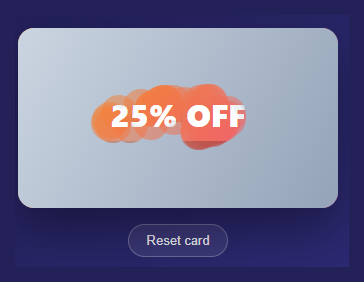
This snippet recreates the "scratch-to-win" promo card you see in loyalty apps, email campaigns, and game-style discount popups — drag across a frosted overlay and a hidden prize erodes into view underneath, exactly like scratching a physical lottery ticket. The whole effect runs on a single <canvas> layered on top of a plain HTML prize card, with zero dependencies and about 90 lines of JavaScript.
Painting the scratch layer
A paintLayer() function fills the canvas with a brushed-metal linear gradient (#cbd5e1 to #94a3b8) and stamps "SCRATCH HERE" across the middle in semi-transparent text. That canvas sits directly over a .prize div containing the badge, headline, and discount code — the prize is real DOM markup the whole time, just hidden behind an opaque layer of pixels. If you want to see the same gradient-fill-and-text primitives applied to a different effect, the Sparkline Chart snippet draws its lines and fills with the very same canvas building blocks, just arranged into a data visualization instead of a prize layer.
Erasing with destination-out compositing
The actual "scratching" is one line of canvas magic: ctx.globalCompositeOperation = 'destination-out'. In this mode, anything you draw doesn't add new pixels — it *subtracts* from what's already there, punching transparent holes wherever the new shape overlaps the existing layer. Each pointer move calls scratchAt(x, y), which draws a filled circle (ctx.arc + ctx.fill) at the cursor position; because of the composite mode, that circle erases a soft round patch of the gradient instead of painting over it, revealing the prize card underneath pixel by pixel.
Detecting "fully scratched" with pixel sampling
Rather than waiting for the visitor to scratch every last pixel — which feels tedious and often never quite happens — checkCleared() reads the canvas's raw pixel data with ctx.getImageData() and walks every fourth byte (the alpha channel) to count how many pixels have become transparent. Once that ratio crosses a CLEAR_THRESHOLD of 0.55 (55% scratched away), the snippet fades the whole canvas out with a CSS opacity transition and slides in a "Scratched clear!" confirmation message — so the reveal feels generous and complete well before every pixel is gone.
Pointer and touch in one code path
A small pointerPos() helper normalizes both mousemove and touchmove events into the same {x, y} shape, scaling client coordinates into canvas-space coordinates via getBoundingClientRect(). That lets start, move, and end handle mouse and touch identically — register both event families once, and the scratching works the same whether someone drags with a mouse on desktop or a finger on a phone, with touch-action: none on the canvas preventing the page from scrolling mid-scratch.
Step by step
How to Use
- 1Stack the prize card under a canvasPlace the real prize markup (badge, headline, code) inside a
.prizediv, then layer an absolutely-positioned<canvas class="scratch-layer">directly on top of it withinset: 0. - 2Paint the opaque scratch surfaceOn load, fill the canvas with a
createLinearGradientand draw "SCRATCH HERE" text over it inside apaintLayer()function — this is the layer the visitor erases. - 3Erase with destination-out compositingSet
ctx.globalCompositeOperation = "destination-out"before drawing, then stamp filled circles (ctx.arc+ctx.fill) at the pointer position on everymousemove/touchmoveto punch transparent holes in the layer. - 4Sample pixels to detect "enough" scratchingRead
ctx.getImageData()and count transparent pixels by checking the alpha byte (pixels[i] < 30). Once the transparent ratio passes a threshold (e.g. 0.55), treat the card as cleared. - 5Auto-clear and show the reveal messageWhen the threshold is hit, add a
.clearedclass that fades the canvas toopacity: 0via CSS transition, and toggle a.showclass on the confirmation message so it slides into view. - 6Wire up mouse and touch togetherNormalize coordinates with a
pointerPos()helper that readse.touches?.[0] ?? e, and register bothmousedown/mousemove/mouseupandtouchstart/touchmove/touchendso the same handlers drive desktop and mobile.
Real-world uses
Common Use Cases
globalCompositeOperation — the same family of techniques (destination-out, source-atop, lighter, etc.) used in image editors, masking tools, and particle effects.getImageData() sampling loop is a clean, copyable pattern any time you need to measure how much of a canvas has changed — useful well beyond scratch cards, in drawing apps, masking tools, or progress trackers.Got questions?
Frequently Asked Questions
By setting ctx.globalCompositeOperation = "destination-out" before drawing. In that mode, new shapes subtract from the canvas's existing pixels rather than painting on top — so stamping a filled circle at the cursor position punches a transparent hole in the overlay, revealing whatever sits underneath (in this case, a real HTML prize card).
It does not wait for 100% — that would feel tedious. Instead, checkCleared() calls ctx.getImageData() to read every pixel's alpha value and counts how many have become transparent. Once that count divided by the total pixel count passes CLEAR_THRESHOLD (set to 0.55, i.e. 55%), the card is treated as revealed: the canvas fades out and a confirmation message appears.
Yes — scratchAt(x, y) draws a filled circle with ctx.arc(x, y, 18, 0, Math.PI * 2). Increase the radius (the 18) for a fatter brush, or replace the arc call with a different path — a rounded rectangle, a star, or even a custom SVG-derived shape — to change the scratch tool's footprint.
Both. A pointerPos() helper reads e.touches?.[0] ?? e so the same coordinate math works for mousemove and touchmove. The canvas also sets touch-action: none, which stops the browser from scrolling the page while a finger drags across it — without that, scratching on mobile would fight with the page scroll gesture.
Edit the markup inside .prize — the badge text, headline, and hint are plain HTML, not canvas drawing, so you can restyle or replace them freely (swap in a gift icon, a percentage-off headline, a referral code, anything). The scratch mechanics in the JS do not need to change at all; they only operate on the canvas overlay sitting above whatever content you put underneath it.
Yes — copy the HTML, CSS, and JS with the buttons on this page and use them anywhere, including commercial products, with no attribution required. The snippet uses only the native Canvas 2D API and vanilla JavaScript, so there are no licensing concerns or third-party dependencies to track.