


ScrollOut Progress Nav Dots — Scroll-Synced Navigation Snippet
ScrollOut Progress Nav Dots · Navigation · Plain HTML, CSS & JS · Live preview
Copy & paste
Source Code
<nav class="spd-rail" id="spdRail">
  <button class="spd-dot" data-target="s1" aria-label="Intro"><span class="spd-label">Intro</span></button>
  <button class="spd-dot" data-target="s2" aria-label="Approach"><span class="spd-label">Approach</span></button>
  <button class="spd-dot" data-target="s3" aria-label="Details"><span class="spd-label">Details</span></button>
  <button class="spd-dot" data-target="s4" aria-label="Results"><span class="spd-label">Results</span></button>
  <button class="spd-dot" data-target="s5" aria-label="Contact"><span class="spd-label">Contact</span></button>
</nav>
<main class="spd-main">
  <section class="spd-section" id="s1" data-scroll>
    <span class="spd-tag">01 · Intro</span>
    <h2>Scroll-tracked navigation</h2>
    <p>ScrollOut's onShown callback tells this page which section is currently visible, and the matching dot lights up.</p>
  </section>
  <section class="spd-section" id="s2" data-scroll>
    <span class="spd-tag">02 · Approach</span>
    <h2>One callback, five dots</h2>
    <p>No IntersectionObserver boilerplate here — ScrollOut wraps it and exposes onShown/onHidden directly.</p>
  </section>
  <section class="spd-section" id="s3" data-scroll>
    <span class="spd-tag">03 · Details</span>
    <h2>Click a dot to jump</h2>
    <p>Each dot smooth-scrolls to its section, and ScrollOut picks up the new active section once the scroll settles.</p>
  </section>
  <section class="spd-section" id="s4" data-scroll>
    <span class="spd-tag">04 · Results</span>
    <h2>Works both directions</h2>
    <p>Scrolling up deactivates a section's dot the same way scrolling down activates the next one.</p>
  </section>
  <section class="spd-section" id="s5" data-scroll>
    <span class="spd-tag">05 · Contact</span>
    <h2>End of the page</h2>
    <p>Five sections, five dots, one small ScrollOut config.</p>
  </section>
</main>*{box-sizing:border-box;margin:0;padding:0}
body{font-family:system-ui,-apple-system,sans-serif;background:#0b0d18;color:#fff}
.spd-rail{position:fixed;right:22px;top:50%;transform:translateY(-50%);display:flex;flex-direction:column;gap:14px;z-index:10}
.spd-dot{position:relative;width:11px;height:11px;border-radius:50%;background:rgba(255,255,255,.18);border:1px solid rgba(255,255,255,.3);cursor:pointer;padding:0;transition:background .2s,transform .2s,border-color .2s}
.spd-dot:hover{transform:scale(1.3)}
.spd-dot.is-active{background:#38bdf8;border-color:#38bdf8;transform:scale(1.35);box-shadow:0 0 0 5px rgba(56,189,248,.18)}
.spd-label{position:absolute;right:22px;top:50%;transform:translateY(-50%);white-space:nowrap;font-size:11.5px;font-weight:700;color:#0b0d18;background:#38bdf8;padding:4px 10px;border-radius:6px;opacity:0;pointer-events:none;transition:opacity .16s}
.spd-dot:hover .spd-label{opacity:1}
.spd-dot:not(.is-active) .spd-label{background:rgba(255,255,255,.9)}
.spd-main{padding:0 90px 0 32px}
@media(max-width:640px){.spd-main{padding:0 60px 0 20px}.spd-rail{right:12px}}
.spd-section{min-height:100vh;display:flex;flex-direction:column;justify-content:center;max-width:560px;margin:0 auto;border-bottom:1px solid rgba(255,255,255,.06)}
.spd-tag{display:inline-block;width:fit-content;font-size:11px;font-weight:700;letter-spacing:.14em;text-transform:uppercase;color:#38bdf8;background:rgba(56,189,248,.12);border:1px solid rgba(56,189,248,.3);padding:5px 12px;border-radius:99px;margin-bottom:16px}
.spd-section h2{font-size:clamp(26px,5vw,40px);font-weight:800;letter-spacing:-.02em;margin-bottom:12px}
.spd-section p{font-size:15px;color:#9199bb;line-height:1.6;max-width:440px}// ScrollOut tracks every element matching its targets selector (default "[data-scroll]")
// and fires onShown/onHidden as each one crosses the visibility threshold. We don't touch
// IntersectionObserver directly at all -- ScrollOut owns that plumbing and just tells us
// which section is currently in view.
var dots = document.querySelectorAll('.spd-dot');
function setActive(id) {
dots.forEach(function (dot) {
dot.classList.toggle('is-active', dot.dataset.target === id);
});
}
ScrollOut({
targets: '.spd-section',
threshold: 0.5,
onShown: function (el) {
setActive(el.id);
}
});
dots.forEach(function (dot) {
dot.addEventListener('click', function () {
var target = document.getElementById(dot.dataset.target);
if (target) target.scrollIntoView({ behavior: 'smooth', block: 'center' });
});
});
// Activate the first dot immediately so the rail isn't empty before any scroll event fires.
setActive('s1');Extend with AI
Take This Snippet Further With AI
The AI prompt for this one is for Patreon supporters ($3 a month, 7 days free), along with a site with no ads. Supporters enter the passcode once and it is remembered in this browser.
What's included
Features
About this UI Snippet
ScrollOut Progress Nav Dots — Section Tracking Without Hand-Rolled Observers
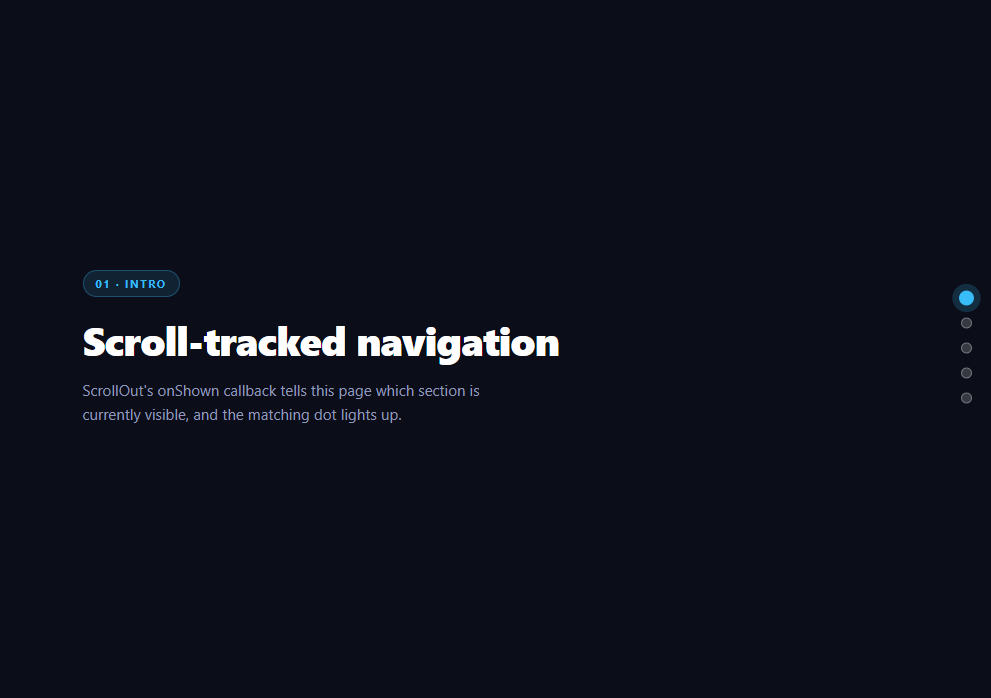
A "which section is the user looking at" nav is one of the most common places developers reach for IntersectionObserver directly — set up an observer, give it a threshold, track a Set of currently-intersecting entries, and diff it every callback. ScrollOut exists specifically to remove that boilerplate: it wraps the observer internally and gives you two callbacks, onShown and onHidden, that already tell you exactly which element crossed the line.
The configuration that does the tracking
js
ScrollOut({
  targets: '.spd-section',
  threshold: 0.5,
  onShown: function (el) { setActive(el.id); }
});
targets overrides ScrollOut's default selector ([data-scroll]) with an explicit .spd-section class, so every section in the page is tracked without needing a data-scroll attribute on each one (this snippet still adds data-scroll to the sections for clarity and to match ScrollOut's documented default pattern, but targets is what actually drives the selection here). threshold: 0.5 tells ScrollOut a section only counts as "shown" once at least half of it is inside the viewport — a deliberate choice for a nav-dot use case, because a lower threshold like 0.1 would flip the active dot the instant a section's top edge barely peeks into view, well before it's realistically the section the user is reading.
Why onShown alone is enough here
ScrollOut also exposes onHidden for elements leaving view, but this snippet doesn't use it. Because setActive() clears every other dot's .is-active class before applying it to the new one, there's no need to explicitly "turn off" the previous section's dot when it hides — the next section's onShown firing already handles that as a side effect of how setActive is written. This is a common simplification once you notice onShown/onHidden don't have to be handled symmetrically; use only the one your state model actually needs.
Click-to-scroll and the loop-back problem
Clicking a dot calls scrollIntoView({ behavior: 'smooth', block: 'center' }) on the target section. Because that scroll itself moves sections through the viewport, ScrollOut's own visibility tracking naturally fires onShown again once the destination section crosses the 0.5 threshold mid-scroll — so the active dot updates itself for free as the smooth scroll lands, with no manual "which dot did I click" bookkeeping required in the click handler.
Initial state
setActive('s1') runs once at load, outside of any ScrollOut callback. Without it, the rail would show zero active dots until the user's first scroll crosses a 0.5 threshold, which looks broken on a page that loads scrolled to the top with the first section already fully visible.
Step by step
How to Use
- 1Add the ScrollOut CDN scriptOne script tag, no CSS required — ScrollOut has no stylesheet of its own.
- 2Mark each section as a targetGive sections a shared class or data-scroll attribute so ScrollOut's targets option can find them.
- 3Call ScrollOut with onShownPass threshold: 0.5 and an onShown callback that reads el.id and updates the active dot.
- 4Match dots to sections by data-targetEach dot button carries a data-target matching a section id.
- 5Wire click-to-scrollscrollIntoView({ behavior: "smooth" }) on the matching section for each dot.
- 6Set the initial active dot manuallyCall setActive() once on load since ScrollOut only fires on scroll/visibility change.
Real-world uses
Common Use Cases
IntersectionObserver internally.threshold: 0.5 so the active dot does not flip on a barely visible section.targets, thresholds and onShown, where one function clears and sets every dot.Got questions?
Frequently Asked Questions
ScrollOut tracks every element matched by the targets option using an internal IntersectionObserver-based visibility check, and calls onShown(el) whenever one crosses the configured threshold going into view. This snippet reads el.id inside onShown and toggles the matching dot's active class.
It sets how much of a target element must be visible before ScrollOut considers it "shown" — 0.5 means at least half the section must be in the viewport. A lower value would activate a dot as soon as a sliver of the next section appears, which reads as premature.
Because setActive() removes the active class from every dot before adding it to the new one, there's no separate bookkeeping needed when a section leaves view — the next onShown call already clears the previous state as a side effect.
No — scrollIntoView triggers a real scroll, and ScrollOut's visibility tracking picks up the destination section crossing the threshold mid-scroll just like any user-driven scroll, so the active dot updates itself without special-casing the click.
ScrollOut only fires callbacks in response to scroll or visibility changes. On initial page load, before any scroll event happens, no dot would be marked active without this manual call — even though the first section is already fully visible.
Yes — ScrollOut's targets option accepts any valid CSS selector string, or a NodeList/element array. It defaults to [data-scroll] if omitted, which is why this snippet's sections still carry that attribute for documentation clarity even though targets overrides it.
Yes. While the ScrollOut Progress Nav Dots snippet gives you one pattern to copy, the free Responsive Navbar Builder at webdevpuneet.com/navbar-builder/ designs a whole navigation bar: logo, links and dropdown menus, a mobile hamburger menu (dropdown panel, slide-in drawer or full screen) and a scroll effect (sticky, shrink, hide on scroll or transparent). It has six presets, a live preview that runs the real code, and exports HTML + CSS + vanilla JS, React, Tailwind, Vue 3 or Angular — or you can click Fork & Edit to keep editing it in My Code.