


Spin the Wheel HTML CSS JS — Canvas Prize Wheel
Spin the Wheel · Games · Plain HTML, CSS & JS · Live preview
For supporters
Source Code
Want the source code?
Play the game for free. Become a WebDevPuneet supporter to unlock the complete HTML, CSS and JavaScript source code, the exports (HTML, React, Vue, Angular, Tailwind) and Fork.
Extend with AI
Take This Snippet Further With AI
The AI prompt for this one is for Patreon supporters ($3 a month), along with a site with no ads. Supporters enter the passcode once and it is remembered in this browser.
What's included
Features
About this UI Snippet
Spin the Wheel — How to Build an Animated Canvas Prize Wheel with Web Audio Tick Sounds in JavaScript
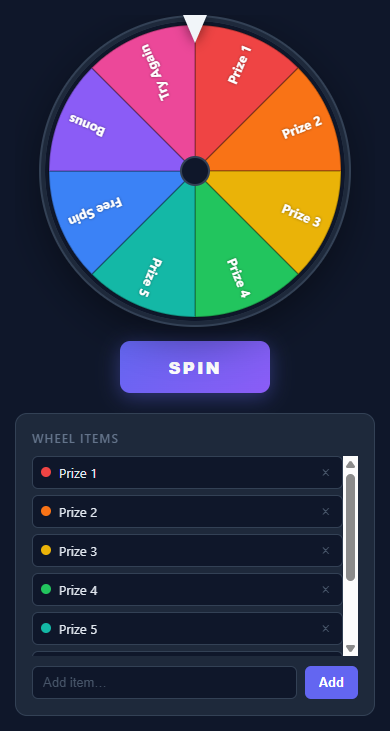
A spin-the-wheel randomizer is one of the most kinetically satisfying UI components you can build — the smooth deceleration, the ticking sound on each segment, and the winner reveal all feel rewarding in a way that a random number generator does not. Building it correctly requires mastering four distinct browser technologies: Canvas 2D for drawing the wheel, requestAnimationFrame for smooth animation, the Web Audio API for the tick sounds, and pointer events for the spin interaction.
This snippet builds a complete, fully interactive prize wheel with editable items, dynamic segment drawing, requestAnimationFrame-based easing, Web Audio tick sounds, and a winner overlay — all in plain JavaScript with no external libraries.
Canvas 2D Arc Drawing
The wheel is drawn on an HTML <canvas> element using the Canvas 2D API. Each prize segment is a pie slice drawn with ctx.beginPath(), ctx.moveTo(cx, cy), ctx.arc(cx, cy, radius, startAngle, endAngle), ctx.closePath(). The arc command takes angles in radians: startAngle = rotation + i * segmentAngle, endAngle = startAngle + segmentAngle, where segmentAngle = 2 * Math.PI / items.length.
The fill color cycles through the COLORS array by index: ctx.fillStyle = COLORS[i % COLORS.length]. After filling, the text label is drawn: ctx.save(), translate to the arc midpoint, rotate to align with the segment, ctx.fillText(item), ctx.restore(). The text position: translate to (cx + cos(midAngle) * (radius * 0.6), cy + sin(midAngle) * (radius * 0.6)) — 60% of the way from center to edge along the segment midpoint angle.
The entire drawWheel(rotation) function is called on every animation frame, passing the current rotation offset. This re-draws all segments at the new angle, creating the animation.
The Pointer Triangle
A CSS triangle (<div class="pointer">) sits at the top of the wheel and marks the winning segment. It uses the border trick: a zero-width/height div with border-left: 14px solid transparent; border-right: 14px solid transparent; border-top: 24px solid #fff creates a downward-pointing triangle. The pointer is purely CSS — no SVG, no canvas.
The winning segment is determined by which segment is under the pointer at the end of the spin. Since the pointer is at the 12 o'clock position (−90° = top of canvas), the winning segment is: ((2 * Math.PI - (finalRotation % (2 * Math.PI))) / segmentAngle) rounded to get the segment index.
requestAnimationFrame Easing
The spin animation uses a cubic ease-out deceleration. A random target rotation is computed: targetRotation = rotation + (Math.PI * 2 * spinCount) + randomOffset where spinCount is 4–6 full rotations and randomOffset is a random fraction of a full rotation. This ensures the wheel spins multiple times before landing on a random segment.
On each animation frame: t = (now - startTime) / DURATION (where DURATION is 4800ms). The easing: ease = 1 - Math.pow(1 - t, 4) — a quartic ease-out that starts fast and decelerates dramatically near the end, simulating physical wheel inertia. currentRotation = startRotation + (targetRotation - startRotation) * ease. When t >= 1, the animation stops, the final rotation is set, and the winner is computed.
Web Audio API Tick Sounds
The tick sound plays each time the pointer crosses a new segment during the spin. An AudioContext is created lazily on first user interaction (required by browser autoplay policy). On each animation frame, the current segment under the pointer is computed: currentSegment = Math.floor((2*Math.PI - normalizedRotation) / segmentAngle) % items.length. If currentSegment !== lastTickSegment, a tick plays and lastTickSegment updates.
The tick is synthesized with the Web Audio API: const osc = audioCtx.createOscillator(), osc.frequency.value = 880 (Hz), osc.connect(gainNode), gainNode.gain.setValueAtTime(0.15, now), gainNode.gain.exponentialRampToValueAtTime(0.001, now + 0.04), osc.start(), osc.stop(now + 0.05). This creates a brief 880Hz click that naturally fades out — no audio files, no WAV/MP3 loading required.
The tick frequency increases as the wheel decelerates: early in the spin, segments flash past quickly and ticks blend together. As the wheel slows, individual ticks become audible. This matches the physics of a real ratchet wheel.
Dynamic Segment Count and Item Editor
The wheel dynamically redraws when items are added or removed. Items are stored in a JavaScript array. renderItemList() creates a <li> element for each item with a delete button. drawWheel() always reads items.length to compute segmentAngle and cycles through COLORS by index.
Adding an item: the Add button reads the input value, validates it (non-empty, under max length), pushes it to the array, calls renderItemList() and drawWheel(rotation). Removing an item: the delete button calls items.splice(index, 1) and re-renders. The wheel instantly shows the updated segments with equal-width arcs.
Responsive Canvas Sizing
The canvas is resized on load and window.resize via resize(): const size = Math.min(300, window.innerWidth - 48). This caps the canvas at 300px and reduces it on narrow screens. canvas.width = canvas.height = size sets the pixel buffer, and canvas.style.width = canvas.style.height = size + "px" sets the CSS display size to match (1:1 pixel density by default, higher on devicePixelRatio screens if scaled).
Step by step
How to Use
- 1Spin the wheelClick the SPIN button. The wheel accelerates, spins through 4–6 full rotations with a ticking sound on each segment, then decelerates and stops on a random winner.
- 2See the winnerA result overlay appears showing the winning item. Click Dismiss to close it and spin again.
- 3Add itemsType a new item in the input field below the wheel and click Add (or press Enter). The wheel redraws immediately with an additional equal-width segment.
- 4Remove itemsClick the × button next to any item in the list to remove it. The wheel redraws with one fewer segment. Minimum 2 items required to spin.
- 5Enable soundThe tick sound uses Web Audio API and requires a user gesture. Click SPIN once to unlock the AudioContext. Subsequent spins play the tick automatically.
- 6Customize the wheelEdit the COLORS array to change segment colors. Edit the initial items array for default options. Change DURATION for faster or slower spins.
Real-world uses
Common Use Cases
Got questions?
Frequently Asked Questions
A random target rotation is calculated before the spin starts: startRotation + full rotations + random landing offset. On each animation frame, t = (elapsed / DURATION) gives progress 0–1. The ease = 1 - Math.pow(1-t, 4) quartic ease-out maps that linear progress to a curve that moves quickly at the start and extremely slowly at the end. currentRotation = startRotation + (targetRotation - startRotation) * ease. The deceleration near t=1 creates the "slowing to a stop" feel. Because the target rotation is fixed before the animation starts, the winner is always deterministic — the easing only affects the visual path, not the outcome.
An OscillatorNode is created: const osc = audioCtx.createOscillator(); osc.type = "sine"; osc.frequency.value = 880. A GainNode applies a fast volume envelope: gainNode.gain.setValueAtTime(0.15, now) sets the initial volume, and gainNode.gain.exponentialRampToValueAtTime(0.001, now + 0.04) fades it to near-zero over 40ms. osc.start(now); osc.stop(now + 0.05) plays a 50ms burst. The AudioContext is created lazily on first user interaction to comply with browser autoplay policy — iOS and Chrome require a gesture before creating an AudioContext.
After the spin stops, finalRotation is the total accumulated rotation in radians. normalizedRotation = ((finalRotation % (2*Math.PI)) + 2*Math.PI) % (2*Math.PI) normalizes it to 0–2π. The pointer is at the top (12 o'clock = -π/2). The segment under the pointer: segmentIndex = Math.floor((2*Math.PI - normalizedRotation + Math.PI/2) / segmentAngle) % items.length. The winner is items[segmentIndex]. The exact formula depends on where segment 0 starts in your drawing code.
Check items.length before spinning: if (items.length < 2) { alert("Add at least 2 items to spin"); return; }. For the delete button, check after splice: if (items.length < 1) { items.push("Default"); }. You can also disable the SPIN button via spinBtn.disabled = items.length < 2 and re-enable it in renderItemList() after adds. Style the disabled state with CSS: .spin-btn:disabled { opacity: 0.5; cursor: not-allowed; }.
After any add or remove operation, call: localStorage.setItem("wheel-items", JSON.stringify(items)). On page load: const saved = localStorage.getItem("wheel-items"); if (saved) { items = JSON.parse(saved); } else { items = defaultItems; }. Call renderItemList() and drawWheel(0) after loading. This persists the item list across refreshes. For multi-user or multi-device persistence, save to your backend API instead.
Yes. Click JSX for React, Vue for a Vue 3 SFC, Angular for a standalone component, or Tailwind for a utility-class build. In React, store the accumulated rotation in a ref (not state) so the CSS transition animates from the previous angle, and read the winning segment in a transitionend handler.