



Workout Interval Timer — Free HTML CSS JS Snippet
Workout Interval Timer · Tools · Plain HTML, CSS & JS · Live preview
Copy & paste
Source Code
<div class="wint-card">
  <div class="wint-config" id="wintConfig">
    <div class="wint-field">
      <label>Work (sec)</label>
      <input type="number" id="wintWork" value="20" min="5" max="180">
    </div>
    <div class="wint-field">
      <label>Rest (sec)</label>
      <input type="number" id="wintRest" value="10" min="5" max="120">
    </div>
    <div class="wint-field">
      <label>Rounds</label>
      <input type="number" id="wintRounds" value="8" min="1" max="30">
    </div>
  </div>

  <div class="wint-ring-wrap" id="wintRingWrap">
    <svg class="wint-ring" viewBox="0 0 200 200">
      <circle class="wint-ring-track" cx="100" cy="100" r="86"></circle>
      <circle class="wint-ring-fill" id="wintRingFill" cx="100" cy="100" r="86"></circle>
    </svg>
    <div class="wint-center">
      <span class="wint-phase" id="wintPhase">READY</span>
      <span class="wint-clock" id="wintClock">20</span>
      <span class="wint-round" id="wintRound">Round 1 of 8</span>
    </div>
  </div>

  <div class="wint-controls">
    <button type="button" class="wint-btn primary" id="wintStart">Start</button>
    <button type="button" class="wint-btn" id="wintReset">Reset</button>
  </div>
</div>*{box-sizing:border-box;margin:0;padding:0}
body{font-family:system-ui,-apple-system,sans-serif;background:#0a0a12;min-height:100vh;display:flex;align-items:center;justify-content:center;padding:24px}
.wint-card{background:#131320;border:1px solid #262640;border-radius:20px;padding:24px;width:100%;max-width:360px;box-shadow:0 26px 65px rgba(0,0,0,.55);text-align:center}
.wint-config{display:grid;grid-template-columns:repeat(3,1fr);gap:8px;margin-bottom:22px}
.wint-field label{display:block;font-size:9.5px;font-weight:700;color:#6b7280;text-transform:uppercase;letter-spacing:.04em;margin-bottom:5px}
.wint-field input{width:100%;background:#1a1a2c;border:1px solid #2a2a44;border-radius:8px;color:#e5e7eb;font-size:14px;font-weight:700;text-align:center;padding:7px 4px;font-family:inherit}
.wint-field input:focus{outline:none;border-color:#818cf8}
.wint-ring-wrap{position:relative;width:220px;height:220px;margin:0 auto}
.wint-ring{width:220px;height:220px;transform:rotate(-90deg)}
.wint-ring-track{fill:none;stroke:#1c1c30;stroke-width:10}
.wint-ring-fill{fill:none;stroke:#f97316;stroke-width:10;stroke-linecap:round;stroke-dasharray:540;stroke-dashoffset:0;transition:stroke-dashoffset 1s linear,stroke .3s}
.wint-ring-fill.rest{stroke:#38bdf8}
.wint-ring-fill.done{stroke:#34d399}
.wint-center{position:absolute;inset:0;display:flex;flex-direction:column;align-items:center;justify-content:center;gap:2px}
.wint-phase{font-size:12px;font-weight:800;letter-spacing:.1em;color:#f97316;transition:transform .25s,color .3s}
.wint-phase.rest{color:#38bdf8}
.wint-phase.pulse{transform:scale(1.18)}
.wint-clock{font-size:52px;font-weight:800;color:#f5f5f7;font-variant-numeric:tabular-nums;line-height:1}
.wint-round{font-size:11.5px;color:#6b7280;margin-top:4px}
.wint-controls{display:flex;gap:10px;margin-top:22px}
.wint-btn{flex:1;background:#1c1c30;border:1px solid #2a2a44;color:#cbd2e0;font-size:13px;font-weight:700;padding:11px;border-radius:11px;cursor:pointer;transition:background .12s}
.wint-btn:hover{background:#252540}
.wint-btn.primary{background:#f97316;border-color:#f97316;color:#1a0e02}
.wint-btn.primary:hover{background:#fb923c}
.wint-btn.primary.running{background:#ef4444;border-color:#ef4444;color:#2b0505}var CIRC = 540.35;
var state = {
running: false,
phase: 'ready',
round: 1,
timeLeft: 0,
timerId: null,
};
var workInput = document.getElementById('wintWork');
var restInput = document.getElementById('wintRest');
var roundsInput = document.getElementById('wintRounds');
var ringFill = document.getElementById('wintRingFill');
var phaseEl = document.getElementById('wintPhase');
var clockEl = document.getElementById('wintClock');
var roundEl = document.getElementById('wintRound');
var startBtn = document.getElementById('wintStart');
function cfg() {
return {
work: parseInt(workInput.value, 10) || 20,
rest: parseInt(restInput.value, 10) || 10,
rounds: parseInt(roundsInput.value, 10) || 8,
};
}
function pulse() {
phaseEl.classList.add('pulse');
setTimeout(function () { phaseEl.classList.remove('pulse'); }, 250);
}
function paint() {
var c = cfg();
var duration = state.phase === 'work' ? c.work : c.rest;
var pct = duration > 0 ? state.timeLeft / duration : 0;
ringFill.style.strokeDashoffset = (CIRC * (1 - pct)).toFixed(2);
ringFill.classList.toggle('rest', state.phase === 'rest');
ringFill.classList.toggle('done', state.phase === 'done');
phaseEl.classList.toggle('rest', state.phase === 'rest');
phaseEl.textContent = state.phase === 'work' ? 'WORK' : state.phase === 'rest' ? 'REST' : state.phase === 'done' ? 'DONE' : 'READY';
clockEl.textContent = state.phase === 'done' ? '\u2713' : state.timeLeft;
roundEl.textContent = state.phase === 'done' ? 'Workout complete' : 'Round ' + state.round + ' of ' + c.rounds;
}
function tick() {
var c = cfg();
state.timeLeft -= 1;
if (state.timeLeft < 0) {
if (state.phase === 'work') {
state.phase = 'rest';
state.timeLeft = c.rest - 1;
pulse();
} else {
if (state.round >= c.rounds) {
finish();
return;
}
state.round += 1;
state.phase = 'work';
state.timeLeft = c.work - 1;
pulse();
}
}
paint();
}
function finish() {
clearInterval(state.timerId);
state.running = false;
state.phase = 'done';
startBtn.textContent = 'Start';
startBtn.classList.remove('running');
toggleConfig(false);
paint();
}
function toggleConfig(enabled) {
[workInput, restInput, roundsInput].forEach(function (el) { el.disabled = !enabled; });
}
startBtn.addEventListener('click', function () {
if (state.running) {
clearInterval(state.timerId);
state.running = false;
startBtn.textContent = 'Resume';
startBtn.classList.remove('running');
return;
}
var c = cfg();
if (state.phase === 'ready' || state.phase === 'done') {
state.round = 1;
state.phase = 'work';
state.timeLeft = c.work;
toggleConfig(false);
}
state.running = true;
startBtn.textContent = 'Pause';
startBtn.classList.add('running');
paint();
state.timerId = setInterval(tick, 1000);
});
document.getElementById('wintReset').addEventListener('click', function () {
clearInterval(state.timerId);
state.running = false;
state.phase = 'ready';
state.round = 1;
state.timeLeft = cfg().work;
startBtn.textContent = 'Start';
startBtn.classList.remove('running');
toggleConfig(true);
ringFill.style.strokeDashoffset = '0';
ringFill.classList.remove('rest', 'done');
phaseEl.classList.remove('rest');
phaseEl.textContent = 'READY';
clockEl.textContent = cfg().work;
roundEl.textContent = 'Round 1 of ' + cfg().rounds;
});
[workInput, roundsInput].forEach(function (el) {
el.addEventListener('input', function () {
if (state.phase === 'ready') {
clockEl.textContent = cfg().work;
roundEl.textContent = 'Round 1 of ' + cfg().rounds;
}
});
});Extend with AI
Take This Snippet Further With AI
The AI prompt for this one is for Patreon supporters ($3 a month, 7 days free), along with a site with no ads. Supporters enter the passcode once and it is remembered in this browser.
What's included
Features
About this UI Snippet
Workout Interval Timer — Configurable Work/Rest Rounds With a Phase-Coded Ring
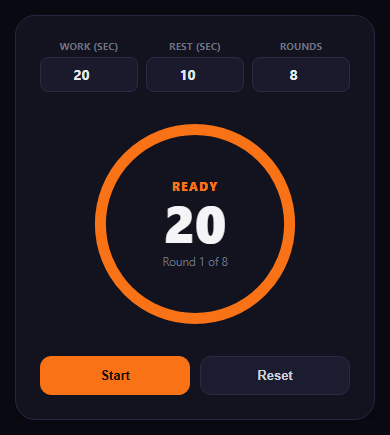
Interval training lives or dies on the timer: work and rest phases need to be unmistakable at a glance, transitions need a cue you can catch out of the corner of your eye mid-exercise, and the round count needs to be right there so you know how much is left. This snippet builds a Tabata-style interval timer in plain HTML, CSS, and vanilla JavaScript, with configurable work duration, rest duration, and round count. Pair it with a water intake tracker or sleep cycle chart in a broader fitness dashboard, or compare it with pomodoro timer and countdown timer for related countdown patterns.
A small state machine, not scattered flags
The timer's entire behavior lives in one state object — phase (ready/work/rest/done), the current round, and timeLeft — updated by a single tick() function that runs every second. When timeLeft runs out, tick() decides the next phase: work rolls into rest, rest either advances to the next round's work phase or, on the final round, calls finish(). Centralizing this logic in one function is what makes the timer's behavior predictable and easy to extend (adding a warm-up phase, for instance, is one more branch).
A ring that changes color with the phase
The same SVG stroke-dashoffset technique used in a progress ring drives the countdown visually, but here the ring's *color* changes with the phase — orange during work, blue during rest, green when the workout completes — so you can tell which phase you're in from peripheral vision without reading the phase label. The ring resets to full and counts back down to empty on every new phase, rather than continuing to drain across the whole workout.
A pulse cue at every transition
At the exact moment a phase changes — work to rest, rest to the next round, or completion — the phase label briefly scales up and back down via a CSS class toggle (pulse(), removed after 250ms with setTimeout). This is the audio-free equivalent of a haptic buzz: a sharp, brief visual jolt exactly when your attention should shift, which matters far more mid-workout than a color that merely changes gradually.
Pause and resume, not just start
Clicking the primary button while running pauses the countdown in place (clearing the interval without resetting timeLeft) and relabels itself "Resume"; clicking again picks up exactly where it left off. The config inputs (work/rest/round duration) lock as soon as a workout starts, preventing an accidental mid-workout edit from desyncing the ring's percentage math, and unlock again on Reset.
Extending it
Add a short countdown "warm-up" phase before round 1, a distinct color for the final round to build urgency, or swap the visual pulse for the Web Vibration API's navigator.vibrate() on supporting mobile browsers for a real haptic cue alongside the visual one.
Step by step
How to Use
- 1Set work, rest, and roundsAdjust the three number inputs before starting — they lock once the timer is running.
- 2Click StartThe ring fills orange and counts down the first work interval.
- 3Watch the phase changeAt zero, the label pulses, the ring turns blue, and rest begins counting down.
- 4Follow the roundsWork and rest alternate automatically until the configured round count is reached.
- 5Pause and resumeClick the primary button mid-countdown to pause in place; click again to resume.
- 6Finish or resetThe ring turns green with a checkmark on completion, or click Reset any time to start over.
Real-world uses
Common Use Cases
tick() function driving every phase, with a brief scale pulse cueing each transition.Got questions?
Frequently Asked Questions
tick() runs every second, decrementing timeLeft. When timeLeft drops below zero, a single block of logic decides the next phase: if the current phase was "work," it switches to "rest" with the configured rest duration; if it was "rest," it either advances to the next round's work phase or, if the last round just finished resting, calls finish(). This keeps all transition logic in one place instead of scattered across separate timers.
During an actual workout you're rarely looking directly at the timer — you catch it in peripheral vision between reps. A phase-appropriate ring color (orange for work, blue for rest, green for done) is readable at a glance without focusing on or reading the text label, which is the whole point of a color-coded cue: it works even when you can't spare full attention.
Pausing calls clearInterval() on the running timer but does not touch timeLeft, phase, or round — so the countdown is frozen exactly where it was. The button relabels itself "Resume," and clicking it again starts a new setInterval that continues decrementing from the preserved timeLeft, rather than restarting the current phase from its full duration.
The ring's fill percentage is calculated as timeLeft divided by the current phase's configured duration (work or rest). If you changed the work duration mid-countdown, that denominator would suddenly not match the timeLeft value that was already counting down, producing a ring that jumps or shows an inaccurate percentage. Locking the inputs during a run prevents that mismatch; Reset re-enables them.
Inside pulse() (or wherever a phase transition is triggered), call navigator.vibrate(200) — or a short pattern array like [100, 50, 100] — guarded by a check for navigator.vibrate existing, since the Vibration API is only supported on some mobile browsers and requires a user gesture in the page's history. Keep the visual scale-pulse as the primary cue since vibration support and permissions are inconsistent across browsers.