


ApexCharts Likert Survey Stacked Bar Chart — Free 100% Stacked Snippet
ApexCharts Likert Survey Stacked Bar Chart · Charts · Plain HTML, CSS & JS · Live preview
What's included
Features
About this UI Snippet
ApexCharts Likert Chart — Comparing Survey Answers Across Statements
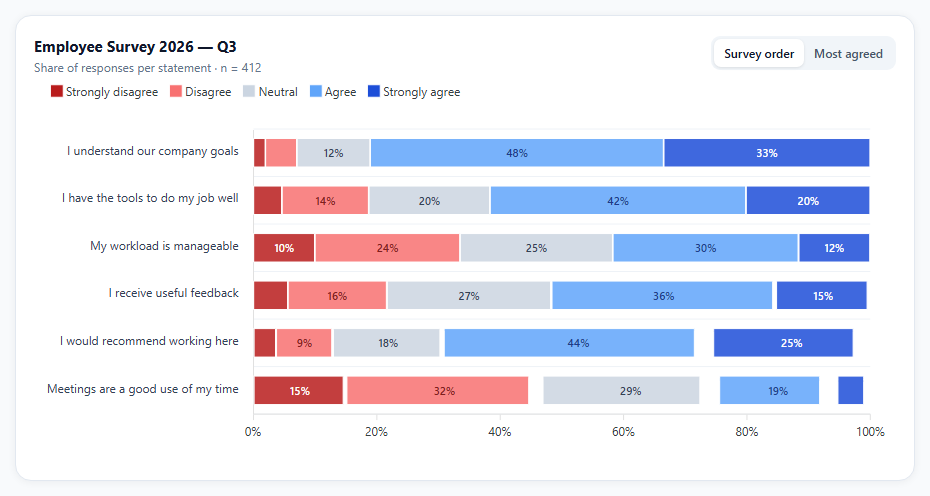
Likert questions ("strongly disagree" to "strongly agree") produce five numbers per statement. The standard way to compare many statements is a 100% stacked horizontal bar: every row is the same length, split by answer, so the eye compares the size of the blue (agree) and red (disagree) regions across rows.
stackType '100%' does the maths
The series hold raw response counts, one series per answer option. chart.stacked: true with stackType: '100%' makes ApexCharts convert each row into shares. That matters when rows have different numbers of responses: 180 "agree" out of 412 and 180 out of 300 are not the same result, and percentages make them comparable.
A diverging, colour-blind-friendlier palette
Disagreement uses two reds, neutral a light grey, agreement two blues. A red-to-green scale is common but hard to read for people with red-green colour deficiency; red-to-blue keeps the "negative/positive" reading while staying distinguishable.
Labels that know when to stay quiet
Data labels show percentages, but the formatter returns an empty string for segments under 7%. A "3%" squeezed into a 10-pixel segment is unreadable and overlaps its neighbours. Label colours are set per series so text contrasts with each segment's fill.
Counts in the tooltip
The axis and labels show percentages; the tooltip shows the raw count as well, so readers can judge whether a percentage is based on many or few responses.
Sorting by agreement
"Most agreed" reorders statements by their combined agree + strongly agree share. Survey order is kept as the default, because the order questions were asked in can itself affect answers.
Step by step
How to Use
- 1Load ApexChartsInclude apexcharts.min.js from the CDN.
- 2Paste the snippetSix survey statements render as 100% stacked bars.
- 3Hover a segmentThe tooltip shows the count and its share of that statement.
- 4SortSwitch to "Most agreed" to rank statements by agreement.
- 5Add your surveyEdit ROWS with statements and five counts each.
Real-world uses
Common Use Cases
agreeShare, puts the best and worst rated items at the top of the report.stackType: '100%' convert each row to shares, so statements with different numbers of respondents still compare fairly side by side.Got questions?
Frequently Asked Questions
Set chart.type to 'bar', chart.stacked to true and chart.stackType to '100%'. Pass raw values; ApexCharts converts each category to shares that add up to 100%. Add plotOptions.bar.horizontal: true for horizontal bars.
Statements can have different numbers of responses, for example when a question is optional. Percentages make rows comparable. Keep counts available, for example in a tooltip, so readers can see the base size.
Red-green colour vision deficiency is common, and it makes a red-to-green scale hard to read. Red-to-blue keeps a clear negative-to-positive meaning while remaining distinguishable.
Return an empty string from dataLabels.formatter when the value is below a threshold. With stackType '100%', the value passed to the formatter is the percentage.
Some Likert charts centre the neutral segment on a zero line to create a diverging bar. That emphasises the agree-disagree balance; the 100% stack shown here is simpler and keeps every row aligned at the left.
Build with AI
Build, Understand, Optimize, and Extend It With AI
Paste this snippet into an AI assistant like Claude and ask how stackType '100%' changes the values passed to formatters and why the palette avoids red-green. Ask it to convert the chart into a centred diverging Likert chart, add a net-agreement score column, filter by department, or compare this quarter with the last. It can also review your statement wording for leading questions.
Prompt to recreate it
Copy this into your AI assistant of choice to build the effect from scratch, or as a jumping-off point for your own variant:
Build a Likert survey results chart with ApexCharts (loaded from a CDN) in plain HTML, CSS and JavaScript.

Requirements:
- Six survey statements, each with raw response counts for five answers from "Strongly disagree" to "Strongly agree".
- Render a horizontal 100% stacked bar chart with one series per answer option, so each row shows answer shares.
- Use a diverging palette: two reds, a light grey for neutral and two blues.
- Show percentage data labels inside segments, hiding them on segments under 7%, with label colours chosen to contrast with each fill.
- Show the raw count and its percentage of that statement in the tooltip.
- Add a toggle between survey order and sorting by combined agree + strongly agree share, updating categories and series together.
- Put the legend at the top and allow long statement labels to wrap.
Want to tighten it up first? Run this prompt through the AI Prompt Studio to score it across 8 quality dimensions, catch anti-patterns, and tune the wording for Claude, ChatGPT, or Gemini before you paste it in.
Source Code
<div class="alk-wrap">
  <div class="alk-card">
    <div class="alk-head">
      <div>
        <div class="alk-title">Employee Survey 2026 — Q3</div>
        <div class="alk-sub">Share of responses per statement · n = 412</div>
      </div>
      <div class="alk-sort" role="group" aria-label="Sort statements">
        <button type="button" data-sort="survey" aria-pressed="true">Survey order</button>
        <button type="button" data-sort="agree" aria-pressed="false">Most agreed</button>
      </div>
    </div>
    <div id="alkChart"></div>
  </div>
</div>*{box-sizing:border-box;margin:0;padding:0}
body{font-family:system-ui,-apple-system,sans-serif;background:#f8fafc;min-height:100vh;display:flex;align-items:center;justify-content:center;padding:24px}
.alk-wrap{width:100%;max-width:900px}
.alk-card{background:#fff;border:1px solid #e2e8f0;border-radius:16px;padding:20px 18px 10px;box-shadow:0 1px 8px rgba(15,23,42,.06)}
.alk-head{display:flex;justify-content:space-between;align-items:flex-start;gap:12px;flex-wrap:wrap}
.alk-title{font-size:15px;font-weight:700;color:#0f172a}
.alk-sub{font-size:12px;color:#64748b;margin-top:3px}
.alk-sort{display:flex;background:#f1f5f9;border-radius:9px;padding:3px}
.alk-sort button{border:0;background:transparent;font:600 12px system-ui;color:#475569;padding:6px 10px;border-radius:7px;cursor:pointer}
.alk-sort button[aria-pressed="true"]{background:#fff;color:#0f172a;box-shadow:0 1px 3px rgba(0,0,0,.1)}var SCALE = ['Strongly disagree', 'Disagree', 'Neutral', 'Agree', 'Strongly agree'];
// A diverging palette: reds for disagreement, grey for neutral, blues for
// agreement. Two hues avoid a red/green pair that many readers can't tell apart.
var COLORS = ['#b91c1c', '#f87171', '#cbd5e1', '#60a5fa', '#1d4ed8'];
// Raw response COUNTS per statement, in the order the survey asked them.
var ROWS = [
{ q: 'I understand our company goals', counts: [8, 21, 49, 196, 138] },
{ q: 'I have the tools to do my job well', counts: [19, 58, 81, 171, 83] },
{ q: 'My workload is manageable', counts: [41, 97, 102, 124, 48] },
{ q: 'I receive useful feedback', counts: [23, 66, 110, 150, 63] },
{ q: 'I would recommend working here', counts: [15, 38, 74, 180, 105] },
{ q: 'Meetings are a good use of my time', counts: [62, 131, 118, 79, 22] },
];
function agreeShare(r) {
var total = r.counts.reduce(function (a, b) { return a + b; }, 0);
return (r.counts[3] + r.counts[4]) / total;
}
function build(rows) {
return {
categories: rows.map(function (r) { return r.q; }),
// One series per answer option. stackType '100%' converts the counts
// into shares of each row, so rows with different totals compare fairly.
series: SCALE.map(function (name, i) {
return { name: name, data: rows.map(function (r) { return r.counts[i]; }) };
}),
};
}
var init = build(ROWS);
var chart = new ApexCharts(document.getElementById('alkChart'), {
chart: { type: 'bar', height: 380, stacked: true, stackType: '100%', toolbar: { show: false }, fontFamily: 'system-ui, sans-serif' },
series: init.series,
colors: COLORS,
plotOptions: { bar: { horizontal: true, barHeight: '62%' } },
xaxis: { categories: init.categories, labels: { formatter: function (v) { return Math.round(v) + '%'; } } },
yaxis: { labels: { maxWidth: 240, style: { fontSize: '12px', colors: '#334155' } } },
dataLabels: {
enabled: true,
// Hide labels on thin segments instead of letting them overflow.
formatter: function (val) { return val >= 7 ? Math.round(val) + '%' : ''; },
style: { fontSize: '11px', fontWeight: 600, colors: ['#fff', '#7f1d1d', '#334155', '#1e3a8a', '#fff'] },
dropShadow: { enabled: false },
},
stroke: { width: 1, colors: ['#fff'] },
legend: { position: 'top', horizontalAlign: 'left', markers: { shape: 'square' } },
tooltip: {
shared: false,
y: {
formatter: function (v, o) {
var row = currentRows[o.dataPointIndex];
var total = row.counts.reduce(function (a, b) { return a + b; }, 0);
return v + ' responses (' + ((v / total) * 100).toFixed(1) + '%)';
},
},
},
grid: { borderColor: '#eef2f7' },
});
var currentRows = ROWS.slice();
chart.render();
document.querySelectorAll('.alk-sort button').forEach(function (btn) {
btn.addEventListener('click', function () {
document.querySelectorAll('.alk-sort button').forEach(function (b) {
b.setAttribute('aria-pressed', b === btn ? 'true' : 'false');
});
currentRows = btn.dataset.sort === 'agree'
? ROWS.slice().sort(function (a, b) { return agreeShare(b) - agreeShare(a); })
: ROWS.slice();
var d = build(currentRows);
chart.updateOptions({ xaxis: { categories: d.categories }, series: d.series });
});
});