


Bootstrap Avatar Upload Editor — Free HTML CSS JS Snippet
Bootstrap Avatar Upload Editor · Forms · Plain HTML, CSS & JS · Live preview
Copy & paste
Source Code
<div class="container py-5 d-flex justify-content-center">
<div class="card bsavatar-card">
<div class="card-body p-4 text-center">
<div class="bsavatar-circle mb-3" id="bsavatarCircle">
<span id="bsavatarInitials">PN</span>
<img id="bsavatarImg" class="d-none" alt="Profile photo">
</div>
<input type="file" accept="image/*" class="d-none" id="bsavatarInput">
<div class="d-flex justify-content-center gap-2">
<button type="button" class="btn btn-sm btn-outline-secondary" id="bsavatarChange">Change photo</button>
<button type="button" class="btn btn-sm btn-outline-danger d-none" id="bsavatarRemove">Remove</button>
</div>
<button type="button" class="btn btn-dark btn-sm fw-bold mt-3 d-none" id="bsavatarSave">Save changes</button>
<p class="small text-muted mt-3 mb-0" id="bsavatarStatus"> </p>
</div>
</div>
</div>.bsavatar-card { width: 320px; max-width: 100%; border: 1px solid #eceef1; border-radius: 14px; }
.bsavatar-circle {
width: 96px; height: 96px; border-radius: 50%; margin: 0 auto;
background: linear-gradient(135deg, #818cf8, #6366f1); color: #fff;
display: flex; align-items: center; justify-content: center;
font: 700 26px system-ui, sans-serif; overflow: hidden; position: relative;
}
.bsavatar-circle img { width: 100%; height: 100%; object-fit: cover; }const input = document.getElementById('bsavatarInput');
const initials = document.getElementById('bsavatarInitials');
const imgEl = document.getElementById('bsavatarImg');
const changeBtn = document.getElementById('bsavatarChange');
const removeBtn = document.getElementById('bsavatarRemove');
const saveBtn = document.getElementById('bsavatarSave');
const status = document.getElementById('bsavatarStatus');
let objectUrl = null;
let dirty = false;
function markDirty() {
dirty = true;
saveBtn.classList.remove('d-none');
status.textContent = '';
}
changeBtn.addEventListener('click', () => input.click());
input.addEventListener('change', () => {
const file = input.files && input.files[0];
if (!file) return;
if (objectUrl) URL.revokeObjectURL(objectUrl);
objectUrl = URL.createObjectURL(file);
imgEl.src = objectUrl;
imgEl.classList.remove('d-none');
initials.classList.add('d-none');
removeBtn.classList.remove('d-none');
markDirty();
});
removeBtn.addEventListener('click', () => {
if (objectUrl) { URL.revokeObjectURL(objectUrl); objectUrl = null; }
imgEl.src = '';
imgEl.classList.add('d-none');
initials.classList.remove('d-none');
removeBtn.classList.add('d-none');
input.value = '';
markDirty();
});
saveBtn.addEventListener('click', () => {
dirty = false;
saveBtn.classList.add('d-none');
status.textContent = 'Profile photo saved.';
status.className = 'small text-success mt-3 mb-0';
});Extend with AI
Take This Snippet Further With AI
The AI prompt for this one is for Patreon supporters ($3 a month), along with a site with no ads. Supporters enter the passcode once and it is remembered in this browser.
What's included
Features
About this UI Snippet
Bootstrap Avatar Upload Editor — HTML, CSS & JavaScript
The circular avatar has two mutually exclusive states — an initials fallback and an actual photo — and this snippet keeps exactly one visible at all times by toggling both together every time either changes: choosing a photo hides #bsavatarInitials and shows #bsavatarImg, and Remove reverses both in the same click handler rather than leaving a stale image element hidden underneath.
A hidden native <input type="file"> is triggered programmatically via input.click() from the visible "Change photo" button — this is the standard technique for styling a file input as a normal button, since a real <input type="file"> can't be restyled directly across browsers with any real consistency.
Save only appears once markDirty() has actually run, called from both selecting a new photo and removing the existing one — so accidentally opening the file picker and cancelling it (which never fires the change event) correctly leaves the Save button hidden, since nothing was actually changed. The object URL is revoked before every new one is created, in change and again in Remove, so switching photos or removing one repeatedly never accumulates unreleased memory.
Step by step
How to Use
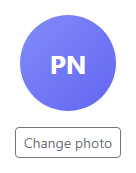
- 1Load the snippetA circular avatar shows initials ("PN") with no Save button visible.
- 2Click "Change photo" and pick an imageThe circle swaps to your photo, a Remove button appears, and Save reveals itself.
- 3Click "Remove"The circle reverts to initials, Remove disappears again, and Save is still shown since something changed.
- 4Click "Save changes"A green confirmation appears and the Save button hides itself until the next real change.
- 5Open the file picker and cancel it without choosing a fileNothing changes and Save stays hidden, since no actual photo change occurred.
Real-world uses
Common Use Cases
Got questions?
Frequently Asked Questions
Native file inputs render very differently across browsers and resist consistent styling; hiding it and triggering .click() from a normal, fully-stylable button is the standard, reliable way to get a custom-looking upload trigger.
No — the change event only fires when a file is actually selected, so cancelling the picker leaves everything, including the hidden Save button, exactly as it was.
Yes. Keep the object URL and a dirty boolean in component state, revoking the previous URL inside the same state-setting logic used for a new selection, and trigger the hidden input via a ref's .click() method from your styled button.
Inside the Save handler, upload the actual File object (kept from the change event, not just its object URL) to your backend, and only show the success message once that request resolves — a real network request should also handle and surface a failure state.