


Bootstrap Team Member Card Grid — Free Snippet
Bootstrap Team Member Card Grid · Cards · Plain HTML, CSS & JS · Live preview
About this UI Snippet
Bootstrap Team Member Card Grid — HTML, CSS & JavaScript

An "about" or careers page's team section benefits from letting visitors narrow a large team down by department, rather than scrolling past everyone. This snippet builds the grid on real Bootstrap 5.3 — the actual .card component in a responsive row/col-lg-3 grid — with a real Bootstrap btn-group acting as the department filter.
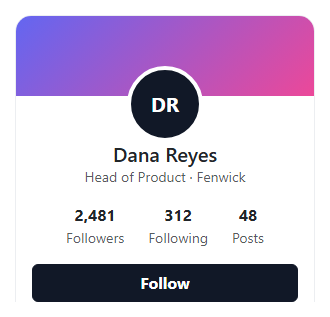
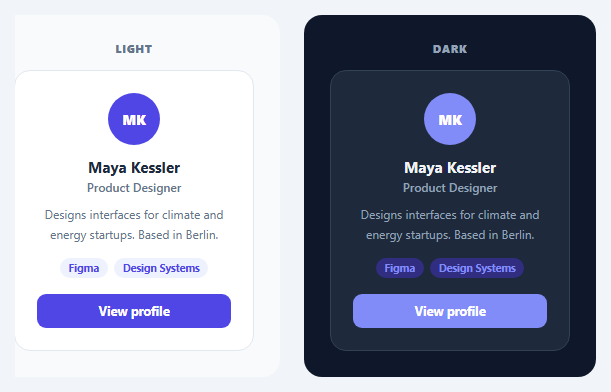
Each team card carries a data-dept attribute; clicking a filter button reads its own data-dept, restyles itself as the active choice (swapping btn-dark/btn-outline-dark), and hides every card whose department doesn't match — "All" simply matches everything. The avatars are CSS gradients keyed off a per-card hue custom property, so the grid works immediately with no headshot photography required.
What's included
Features
Step by step
How to Use
- 1Load the snippetClick the snippet in the sidebar Library tab. The preview loads four team cards with an "All" filter active.
- 2Click "Engineering"Only the two engineering team members stay visible; the design cards hide.
- 3Click "Design"The filter switches — design cards show, engineering cards hide.
- 4Click "All"Every card is visible again.
- 5Add a new departmentAdd a button with a new data-dept value to the filter group, and give matching cards that same data-dept.
Real-world uses
Common Use Cases
Got questions?
Frequently Asked Questions
The button group is Bootstrap's real btn-group component; the filtering logic itself (comparing data-dept attributes and toggling visibility) is custom JavaScript layered on top, since Bootstrap has no built-in filtering component.
Add a new filter button with a data-dept value, and set that same value as the data-dept attribute on any team cards belonging to it — the existing click handler picks up the new button automatically.
No — each is a CSS linear-gradient generated from a --h hue custom property set per card, so the grid works immediately. Replace .bsteam-avatar's background with a real photo when available.
No — clicking a filter button clears the active style from every other button first, so exactly one department (or "All") is selected at a time.
They're placeholder anchors (javascript:void(0)) — set their href to real LinkedIn/X profile URLs for actual links.
Copy & paste
Source Code
<div class="container py-5">
  <div class="d-flex justify-content-between align-items-center mb-4">
    <h1 class="bsteam-title mb-0">Meet the team</h1>
    <div class="btn-group btn-group-sm" role="group" id="bsteamFilter">
      <button type="button" class="btn btn-dark" data-dept="all">All</button>
      <button type="button" class="btn btn-outline-dark" data-dept="eng">Engineering</button>
      <button type="button" class="btn btn-outline-dark" data-dept="design">Design</button>
    </div>
  </div>
  <div class="row g-4" id="bsteamGrid">
    <div class="col-sm-6 col-lg-3 bsteam-card" data-dept="eng">
      <div class="card h-100 text-center"><div class="card-body">
        <div class="bsteam-avatar mx-auto" style="--h:230">DR</div>
        <h6 class="mb-0 mt-2">Dana Reyes</h6><p class="text-muted small mb-2">Engineering Lead</p>
        <div class="d-flex justify-content-center gap-2"><a href="javascript:void(0)" class="bsteam-social">in</a><a href="javascript:void(0)" class="bsteam-social">𝕏</a></div>
      </div></div>
    </div>
    <div class="col-sm-6 col-lg-3 bsteam-card" data-dept="design">
      <div class="card h-100 text-center"><div class="card-body">
        <div class="bsteam-avatar mx-auto" style="--h:20">MC</div>
        <h6 class="mb-0 mt-2">Marcus Chen</h6><p class="text-muted small mb-2">Product Designer</p>
        <div class="d-flex justify-content-center gap-2"><a href="javascript:void(0)" class="bsteam-social">in</a><a href="javascript:void(0)" class="bsteam-social">𝕏</a></div>
      </div></div>
    </div>
    <div class="col-sm-6 col-lg-3 bsteam-card" data-dept="eng">
      <div class="card h-100 text-center"><div class="card-body">
        <div class="bsteam-avatar mx-auto" style="--h:150">PN</div>
        <h6 class="mb-0 mt-2">Priya Nair</h6><p class="text-muted small mb-2">Backend Engineer</p>
        <div class="d-flex justify-content-center gap-2"><a href="javascript:void(0)" class="bsteam-social">in</a><a href="javascript:void(0)" class="bsteam-social">𝕏</a></div>
      </div></div>
    </div>
    <div class="col-sm-6 col-lg-3 bsteam-card" data-dept="design">
      <div class="card h-100 text-center"><div class="card-body">
        <div class="bsteam-avatar mx-auto" style="--h:300">TW</div>
        <h6 class="mb-0 mt-2">Talia Wu</h6><p class="text-muted small mb-2">Brand Designer</p>
        <div class="d-flex justify-content-center gap-2"><a href="javascript:void(0)" class="bsteam-social">in</a><a href="javascript:void(0)" class="bsteam-social">𝕏</a></div>
      </div></div>
    </div>
  </div>
</div>
.bsteam-title { font-weight: 800; letter-spacing: -0.01em; }
.bsteam-avatar {
width: 64px; height: 64px; border-radius: 50%;
background: linear-gradient(135deg, hsl(calc(var(--h)) 65% 60%), hsl(calc(var(--h) + 40) 65% 45%));
color: #fff; display: flex; align-items: center; justify-content: center; font-weight: 700;
}
.bsteam-social { color: #6b7280; text-decoration: none; font-size: 13px; width: 26px; height: 26px; border-radius: 50%; border: 1px solid #e5e7eb; display: flex; align-items: center; justify-content: center; }
.bsteam-social:hover { color: #6366f1; border-color: #6366f1; }
.bsteam-card { transition: opacity .15s; }
.bsteam-card.bsteam-hidden { display: none; }const filterBar = document.getElementById('bsteamFilter');
const cards = document.querySelectorAll('.bsteam-card');
filterBar.addEventListener('click', e => {
const btn = e.target.closest('button');
if (!btn) return;
filterBar.querySelectorAll('button').forEach(b => { b.classList.remove('btn-dark'); b.classList.add('btn-outline-dark'); });
btn.classList.add('btn-dark');
btn.classList.remove('btn-outline-dark');
const dept = btn.dataset.dept;
cards.forEach(card => {
card.classList.toggle('bsteam-hidden', dept !== 'all' && card.dataset.dept !== dept);
});
});Extend with AI
Take This Snippet Further With AI
Hand this snippet's HTML, CSS, and JS to an AI coding assistant like Claude and ask it to add a search box that combines with the department filter (both conditions must match), or to animate the filtered-out cards with a fade instead of an instant display:none. It's also a good exercise to ask the assistant to load team member data from a JSON array and render the cards dynamically.
Prompt to recreate it
Copy this into your AI assistant of choice to build the effect from scratch, or as a jumping-off point for your own variant:
Build a Bootstrap 5.3 team member card grid with a department filter, using the real Bootstrap CDN framework (bootstrap.min.css and bootstrap.bundle.min.js), not custom CSS made to resemble Bootstrap.

Requirements:
- A responsive grid of at least four team member cards using Bootstrap's real card component and grid classes, each with a CSS-gradient avatar (no external images required), name, role, and two social link icons, tagged with a data-dept attribute (e.g. "eng" or "design").
- A Bootstrap btn-group of filter buttons ("All" plus one per department) above the grid.
- Clicking a filter button must restyle itself as the active selection using Bootstrap's button variant classes (not just a custom class), and show only the team cards whose data-dept matches (or show all cards when "All" is selected) — hiding non-matching cards entirely.
- The filtering and active-button logic must scale to any number of departments and team cards added later, without hardcoding a department count.
Want to tighten it up first? Run this prompt through the AI Prompt Studio to score it across 8 quality dimensions, catch anti-patterns, and tune the wording for Claude, ChatGPT, or Gemini before you paste it in.