

Drag-to-Reorder Carousel — HTML CSS JS Snippet
Drag-to-Reorder Carousel · Carousels · Plain HTML, CSS & JS · Live preview
Copy & paste
Source Code
<div class="drc-wrap">
  <div class="drc-track" id="drcTrack">
    <div class="drc-slide" draggable="true" data-id="1" style="background:linear-gradient(160deg,#6366f1,#4338ca)">1</div>
    <div class="drc-slide" draggable="true" data-id="2" style="background:linear-gradient(160deg,#0ea5e9,#0369a1)">2</div>
    <div class="drc-slide" draggable="true" data-id="3" style="background:linear-gradient(160deg,#ec4899,#9d174d)">3</div>
    <div class="drc-slide" draggable="true" data-id="4" style="background:linear-gradient(160deg,#10b981,#047857)">4</div>
    <div class="drc-slide" draggable="true" data-id="5" style="background:linear-gradient(160deg,#f59e0b,#b45309)">5</div>
  </div>
  <p class="drc-hint">Drag any card to reorder the carousel — the new order persists.</p>
  <p class="drc-order" id="drcOrder"></p>
</div>*{box-sizing:border-box;margin:0;padding:0}
body{font-family:system-ui,-apple-system,sans-serif;background:#f6f7f9;min-height:100vh;display:flex;align-items:center;justify-content:center;padding:24px}
.drc-wrap{width:100%;max-width:480px}
.drc-track{display:flex;gap:12px;overflow-x:auto;padding-bottom:6px}
.drc-slide{flex:0 0 90px;height:110px;border-radius:12px;display:flex;align-items:center;justify-content:center;color:#fff;font-size:24px;font-weight:800;cursor:grab;box-shadow:0 8px 18px rgba(15,23,42,.16);transition:transform .15s,opacity .15s}
.drc-slide:active{cursor:grabbing}
.drc-slide.drc-dragging{opacity:.35}
.drc-slide.drc-drop-before{transform:translateX(-6px)}
.drc-slide.drc-drop-after{transform:translateX(6px)}
.drc-hint{text-align:center;color:#9ca3af;font-size:12px;margin-top:14px}
.drc-order{text-align:center;font:700 12px ui-monospace,monospace;color:#6366f1;margin-top:6px}var track = document.getElementById('drcTrack');
var orderEl = document.getElementById('drcOrder');
var dragging = null;
function updateOrderLabel() {
var ids = Array.prototype.map.call(track.children, function (el) { return el.dataset.id; });
orderEl.textContent = 'Order: ' + ids.join(' → ');
}
function getSlides() { return Array.prototype.slice.call(track.querySelectorAll('.drc-slide')); }
track.addEventListener('dragstart', function (e) {
dragging = e.target.closest('.drc-slide');
if (!dragging) return;
dragging.classList.add('drc-dragging');
e.dataTransfer.effectAllowed = 'move';
});
track.addEventListener('dragend', function () {
if (dragging) dragging.classList.remove('drc-dragging');
getSlides().forEach(function (s) { s.classList.remove('drc-drop-before', 'drc-drop-after'); });
dragging = null;
updateOrderLabel();
});
track.addEventListener('dragover', function (e) {
e.preventDefault();
var target = e.target.closest('.drc-slide');
if (!target || target === dragging) return;
var rect = target.getBoundingClientRect();
var isAfter = e.clientX - rect.left > rect.width / 2;
getSlides().forEach(function (s) { s.classList.remove('drc-drop-before', 'drc-drop-after'); });
target.classList.add(isAfter ? 'drc-drop-after' : 'drc-drop-before');
});
track.addEventListener('drop', function (e) {
e.preventDefault();
var target = e.target.closest('.drc-slide');
if (!target || !dragging || target === dragging) return;
var rect = target.getBoundingClientRect();
var isAfter = e.clientX - rect.left > rect.width / 2;
if (isAfter) {
target.after(dragging);
} else {
target.before(dragging);
}
});
// Keyboard reordering as a real alternative to drag: focus a card, then hold
// Shift with an arrow key to move it one position left/right in the DOM.
track.addEventListener('keydown', function (e) {
var el = e.target.closest('.drc-slide');
if (!el || !e.shiftKey) return;
if (e.key === 'ArrowRight' && el.nextElementSibling) { el.nextElementSibling.after(el); updateOrderLabel(); e.preventDefault(); }
else if (e.key === 'ArrowLeft' && el.previousElementSibling) { el.previousElementSibling.before(el); updateOrderLabel(); e.preventDefault(); }
});
getSlides().forEach(function (s) { s.tabIndex = 0; });
updateOrderLabel();Extend with AI
Take This Snippet Further With AI
The AI prompt for this one is for Patreon supporters ($3 a month, 7 days free), along with a site with no ads. Supporters enter the passcode once and it is remembered in this browser.
What's included
Features
About this UI Snippet
Drag-to-Reorder Carousel — Dragging Changes the Data, Not Just the View
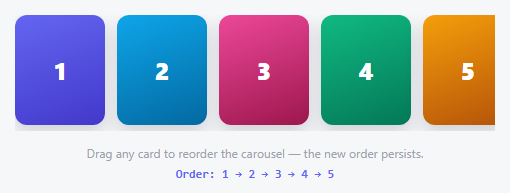
Every other carousel in this library treats dragging as a *navigation* gesture — it moves which slide is showing, then snaps back. This one treats it as an *editing* gesture: drop a card in a new spot and it stays there, because the drag handlers use the native HTML5 Drag and Drop API to physically move DOM nodes, not to read a gesture and animate a transform.
Which side of the target, not just which target
dragover doesn't just detect *which* card you're hovering over — it compares the cursor's x-position against that card's horizontal midpoint to decide whether you're dropping *before* or *after* it, and shows a small visual nudge (drc-drop-before/drc-drop-after) on that side. drop reads the exact same midpoint calculation and calls either target.before(dragging) or target.after(dragging) — real DOM methods that move the dragged element to precisely that position in one call, no array-splicing or re-rendering required.
The DOM order *is* the data — there's no separate array
Because dragged elements are moved with native DOM methods rather than re-rendered from a JavaScript array, the current order at any moment is just whatever order the .drc-slide children actually appear in — updateOrderLabel() reads that directly off track.children after every change. There's no state to keep in sync with the visual order, because the visual order *is* the state.
A real, separate reordering path for keyboard users
Drag-and-drop is unusable without a mouse or touchscreen, so Shift+ArrowLeft/Shift+ArrowRight on a focused card calls the same before/after DOM methods against its immediate sibling — a fully independent, keyboard-only way to reach the identical reordering capability.
Step by step
How to Use
- 1Paste HTML, CSS, and JSFive numbered cards appear with their starting order shown below.
- 2Drag a card over anotherA visual nudge shows whether it will drop before or after that card, based on cursor position.
- 3Drop itThe card moves to that exact spot — the order label updates to reflect the real new sequence.
- 4Focus a card and hold ShiftPress Shift+Left or Shift+Right to swap it with its neighbor without a mouse.
- 5Refresh and checkThe order shown is always read directly from the DOM's actual current arrangement, never a stale cached array.
Real-world uses
Common Use Cases
Got questions?
Frequently Asked Questions
After any drop or keyboard reorder, read the current order from track.children (as updateOrderLabel already does) and save that array of ids to localStorage or your backend; on load, re-append the slide elements in that saved order before anything else runs.
The native API is purpose-built for exactly this "pick up and drop a DOM element into a new position" pattern, and gives useful behaviors (a drag ghost image, dragover/drop targeting) for free — pointer events (used elsewhere for free-form gestures like carousel navigation) would require reimplementing that targeting logic by hand.
The native HTML5 Drag and Drop API has inconsistent touch support across mobile browsers — for a touch-reliable version, reimplement the same before/after drop-position logic using pointer events instead, tracking a dragged element's position manually during a touch-driven gesture.
Remove the draggable="true" attribute from any card that should stay fixed, and add a check in the dragover/drop handlers that ignores drop targets adjacent to a locked position if needed.
Yes — Shift+Left/Right on a focused, tabindex="0" card provides a fully independent keyboard reordering path that doesn't depend on drag-and-drop at all; consider adding an aria-live announcement confirming a card's new position after each reorder.