

GLB Hotspot Annotation Viewer — Free Three.js glTF Screen-Space Marker Snippet
GLB Hotspot Annotation Viewer · Media · Plain HTML, CSS & JS · Live preview
Copy & paste
Source Code
<div class="gha-wrap">
<canvas id="ghaCanvas"></canvas>
<div class="gha-hint">Drag to orbit · click a dot for details · Ctrl/Cmd + scroll to zoom</div>
<div class="gha-zoom">
<span class="gha-zoom-label">+</span>
<input type="range" id="ghaZoom" class="gha-zoom-slider" min="0" max="100" step="1" />
<span class="gha-zoom-label">−</span>
</div>
<div class="gha-markers" id="ghaMarkers"></div>
<div class="gha-card" id="ghaCard">
<button class="gha-card-close" id="ghaCardClose">×</button>
<div class="gha-card-title" id="ghaCardTitle"></div>
<div class="gha-card-text" id="ghaCardText"></div>
</div>
</div>*{box-sizing:border-box;margin:0;padding:0}
body{font-family:system-ui,-apple-system,sans-serif;min-height:100vh;display:flex;align-items:center;justify-content:center;background:#0a0b12;color:#fff;padding:24px}
.gha-wrap{position:relative;width:min(760px,94vw);height:min(540px,80vh);border-radius:20px;overflow:hidden;background:radial-gradient(60% 60% at 50% 42%,#181c28,#0a0b12);border:1px solid rgba(255,255,255,.08)}
#ghaCanvas{display:block;width:100%;height:100%;cursor:grab}
#ghaCanvas:active{cursor:grabbing}
.gha-hint{position:absolute;top:18px;left:18px;font-size:11.5px;font-weight:600;color:#b7c0da;background:rgba(10,12,20,.55);padding:7px 14px;border-radius:999px;backdrop-filter:blur(6px);border:1px solid rgba(255,255,255,.08);max-width:min(60%,320px)}
.gha-zoom{position:absolute;right:18px;top:18px;bottom:18px;width:32px;display:flex;flex-direction:column;align-items:center;gap:8px;background:rgba(10,12,20,.55);border:1px solid rgba(255,255,255,.1);border-radius:999px;padding:10px 0;backdrop-filter:blur(6px)}
.gha-zoom-label{font-size:12px;font-weight:700;color:#b7c0da;line-height:1;user-select:none}
.gha-zoom-slider{flex:1;width:6px;-webkit-appearance:slider-vertical;writing-mode:vertical-lr;direction:rtl;accent-color:#fb7185;cursor:pointer}
.gha-markers{position:absolute;inset:0;pointer-events:none}
.gha-dot{position:absolute;width:16px;height:16px;margin:-8px 0 0 -8px;border-radius:50%;background:rgba(251,113,133,.9);border:2px solid #fff;box-shadow:0 0 0 0 rgba(251,113,133,.6);cursor:pointer;pointer-events:auto;transition:opacity .15s,transform .15s}
.gha-dot::after{content:'';position:absolute;inset:-6px;border-radius:50%;border:1.5px solid rgba(251,113,133,.55);animation:ghaPing 2.2s infinite}
@keyframes ghaPing{0%{transform:scale(.6);opacity:1}100%{transform:scale(1.8);opacity:0}}
.gha-dot:hover{transform:scale(1.25)}
.gha-dot.active{background:#fff}
.gha-card{position:absolute;left:18px;bottom:18px;width:min(280px,60%);background:rgba(10,12,20,.75);border:1px solid rgba(255,255,255,.12);border-radius:14px;padding:16px;backdrop-filter:blur(10px);opacity:0;transform:translateY(8px);pointer-events:none;transition:opacity .2s,transform .2s}
.gha-card.open{opacity:1;transform:translateY(0);pointer-events:auto}
.gha-card-close{position:absolute;top:8px;right:10px;background:none;border:none;color:#9aa0b8;font-size:16px;cursor:pointer;line-height:1}
.gha-card-title{font-size:13px;font-weight:700;color:#fecdd3;margin-bottom:6px;padding-right:16px}
.gha-card-text{font-size:12.5px;color:#cbd5e1;line-height:1.5}const canvas = document.getElementById('ghaCanvas');
const wrap = document.querySelector('.gha-wrap');
const renderer = new THREE.WebGLRenderer({ canvas, antialias: true, alpha: true });
renderer.setPixelRatio(Math.min(window.devicePixelRatio, 2));
const scene = new THREE.Scene();
const camera = new THREE.PerspectiveCamera(40, 1, 0.1, 50);
camera.position.set(1.8, 1.1, 3.2);
const controls = new THREE.OrbitControls(camera, renderer.domElement);
controls.enableDamping = true;
controls.dampingFactor = 0.08;
controls.target.set(0, 0.2, 0);
controls.minDistance = 1.5;
controls.maxDistance = 8;
// OrbitControls' own wheel-zoom is turned off on purpose: left on, it calls
// preventDefault() on every wheel event over the canvas, which would block
// normal page scrolling around this card. Zoom is reimplemented below as an
// explicit, opt-in gesture (a slider, and Ctrl/Cmd + scroll) instead.
controls.enableZoom = false;
const zoomSlider = document.getElementById('ghaZoom');
function setZoomDistance(distance) {
const clamped = THREE.MathUtils.clamp(distance, controls.minDistance, controls.maxDistance);
const offset = camera.position.clone().sub(controls.target);
offset.setLength(clamped || 0.001);
camera.position.copy(controls.target).add(offset);
const t = (clamped - controls.minDistance) / (controls.maxDistance - controls.minDistance);
zoomSlider.value = String(Math.round((1 - t) * 100));
}
setZoomDistance(camera.position.distanceTo(controls.target));
zoomSlider.addEventListener('input', () => {
const t = 1 - Number(zoomSlider.value) / 100;
setZoomDistance(controls.minDistance + t * (controls.maxDistance - controls.minDistance));
});
canvas.addEventListener('wheel', (e) => {
if (!e.ctrlKey && !e.metaKey) return; // plain scroll always passes through to the page
e.preventDefault();
const current = camera.position.distanceTo(controls.target);
setZoomDistance(current + e.deltaY * 0.01);
}, { passive: false });
scene.add(new THREE.AmbientLight(0x445066, 0.7));
const key = new THREE.DirectionalLight(0xffffff, 1.8);
key.position.set(4, 6, 5);
scene.add(key);
const fill = new THREE.DirectionalLight(0x93c5fd, 0.5);
fill.position.set(-5, 2, 3);
scene.add(fill);
const ground = new THREE.Mesh(
new THREE.CircleGeometry(3, 44),
new THREE.MeshStandardMaterial({ color: 0x14161f, roughness: 1 })
);
ground.rotation.x = -Math.PI / 2;
ground.position.y = -0.85;
scene.add(ground);
// Hotspots are defined in the model's own LOCAL space (before scale/position
// are known), then converted to fixed world-space points once the model
// finishes loading and its final transform is settled — so a hotspot always
// tracks the exact same physical point on the model regardless of how the
// auto-fit scale ends up sizing it.
const HOTSPOT_DEFS = [
{ local: [0, 0.35, 0.55], title: 'Viewfinder', text: 'The optical viewfinder sits atop the body, offset from the taking lens.' },
{ local: [0, -0.05, 0.7], title: 'Taking lens', text: 'The front-mounted lens assembly, the camera\u2019s largest single component.' },
{ local: [0.45, 0.1, -0.1], title: 'Film advance', text: 'A manual wind mechanism on the camera\u2019s right side, used between exposures.' },
{ local: [-0.4, 0.3, 0.1], title: 'Strap lug', text: 'A metal loop for attaching a carrying strap, mounted to the body\u2019s side.' },
];
let modelRoot = null;
const hotspots = []; // { worldPos: Vector3, def, el }
const markersLayer = document.getElementById('ghaMarkers');
const card = document.getElementById('ghaCard');
const cardTitle = document.getElementById('ghaCardTitle');
const cardText = document.getElementById('ghaCardText');
document.getElementById('ghaCardClose').addEventListener('click', () => closeCard());
function closeCard() {
card.classList.remove('open');
document.querySelectorAll('.gha-dot').forEach((d) => d.classList.remove('active'));
}
function openCard(hotspot, dotEl) {
cardTitle.textContent = hotspot.def.title;
cardText.textContent = hotspot.def.text;
card.classList.add('open');
document.querySelectorAll('.gha-dot').forEach((d) => d.classList.remove('active'));
dotEl.classList.add('active');
}
function buildHotspots(root, scale) {
HOTSPOT_DEFS.forEach((def) => {
const worldPos = new THREE.Vector3(def.local[0], def.local[1], def.local[2]).multiplyScalar(scale).add(root.position);
const el = document.createElement('div');
el.className = 'gha-dot';
markersLayer.appendChild(el);
const hotspot = { worldPos, def, el };
el.addEventListener('click', () => openCard(hotspot, el));
hotspots.push(hotspot);
});
}
// Khronos' official sample-asset "Antique Camera" — a real, freely-licensed
// .glb with several genuinely distinct physical features worth annotating
// (viewfinder, lens, wind mechanism, strap lug).
const MODEL_URL = 'https://cdn.jsdelivr.net/gh/KhronosGroup/glTF-Sample-Assets@main/Models/AntiqueCamera/glTF-Binary/AntiqueCamera.glb';
const loader = new THREE.GLTFLoader();
loader.load(
MODEL_URL,
(gltf) => {
modelRoot = gltf.scene;
// Auto-fit rather than a hardcoded scale factor: different .glb exports
// (and loader versions) can decode the same source asset at wildly
// different raw sizes, so measuring the loaded geometry and scaling it
// to a known target height is far more reliable than guessing a number.
const box = new THREE.Box3().setFromObject(modelRoot);
const size = box.getSize(new THREE.Vector3());
const maxDim = Math.max(size.x, size.y, size.z) || 1;
const finalScale = 1.7 / maxDim;
modelRoot.scale.setScalar(finalScale);
const fitted = new THREE.Box3().setFromObject(modelRoot);
modelRoot.position.y += -0.85 - fitted.min.y;
scene.add(modelRoot);
buildHotspots(modelRoot, finalScale);
},
undefined,
(err) => {
// Honest failure state: if the CDN model can't load, swap in a simple
// placeholder so the hotspot markers still have something real to
// annotate.
console.error('GLB failed to load, showing a placeholder instead:', err);
const placeholder = new THREE.Mesh(
new THREE.BoxGeometry(1.1, 0.8, 1.4),
new THREE.MeshStandardMaterial({ color: 0xfb7185, roughness: 0.5 })
);
placeholder.position.y = 0.1;
modelRoot = placeholder;
scene.add(placeholder);
buildHotspots(placeholder, 1);
}
);
const projected = new THREE.Vector3();
function updateMarkers() {
hotspots.forEach((h) => {
projected.copy(h.worldPos).project(camera);
const behindCamera = projected.z > 1;
if (behindCamera) {
h.el.style.opacity = '0';
h.el.style.pointerEvents = 'none';
return;
}
const x = (projected.x * 0.5 + 0.5) * canvas.clientWidth;
const y = (-projected.y * 0.5 + 0.5) * canvas.clientHeight;
h.el.style.left = x + 'px';
h.el.style.top = y + 'px';
h.el.style.opacity = '1';
h.el.style.pointerEvents = 'auto';
});
}
function resize() {
const w = canvas.clientWidth, h = canvas.clientHeight;
renderer.setSize(w, h, false);
camera.aspect = w / h;
camera.updateProjectionMatrix();
}
function animate() {
requestAnimationFrame(animate);
controls.update();
updateMarkers();
renderer.render(scene, camera);
}
resize();
window.addEventListener('resize', resize);
animate();Extend with AI
Take This Snippet Further With AI
The AI prompt for this one is for Patreon supporters ($3 a month), along with a site with no ads. Supporters enter the passcode once and it is remembered in this browser.
What's included
Features
About this UI Snippet
GLB Hotspot Annotation Viewer — Real DOM Markers Tracking a 3D Model
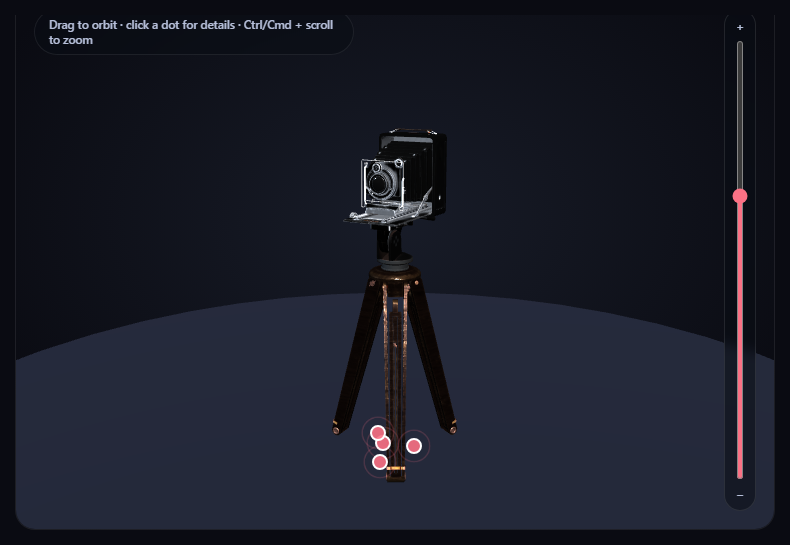
Annotating a 3D model with labeled hotspots means solving one core problem: keeping a flat, clickable 2D marker glued to a specific 3D point on the model as the camera orbits and zooms around it. This snippet solves that with camera.project(), converting each hotspot's fixed world-space position into normalized device coordinates every single frame, and positioning a real absolutely-positioned <div> there — genuine, accessible, styleable DOM elements, not a canvas-drawn overlay.
Defined in local space, converted once the scale is known
Each hotspot in HOTSPOT_DEFS is authored as a local coordinate — a point relative to the model's own unscaled geometry, easy to eyeball from the source asset's proportions. Once the model loads and its auto-fit scale factor is computed, buildHotspots() converts every local point into a fixed world-space Vector3 exactly once, multiplying by that same scale factor and adding the model's final grounded position — so a hotspot always tracks the same physical point on the model regardless of how large or small the auto-fit ends up making it.
camera.project(), recomputed every frame
Inside the render loop, updateMarkers() calls .project(camera) on each hotspot's stored world position, which returns normalized device coordinates in the [-1, 1] range for x and y. A short conversion maps that into actual canvas pixel coordinates, and the marker's <div> gets its left/top CSS set directly — recomputed fresh every frame, so dragging to orbit or zooming with the slider or Ctrl/Cmd + scroll all keep every marker glued exactly where it should be with zero lag.
A simple occlusion check, not a full raycast
projected.z > 1 after projection indicates the point has gone behind the camera's near/far range from this viewing angle — the marker's opacity is set to 0 and its pointer-events disabled in that case, so a hotspot on the far side of the model doesn't sit visibly (and clickably) on top of it. This is a lightweight heuristic, not a full raycasted occlusion test against the model's own geometry, but it's enough to keep markers from feeling obviously wrong.
Real DOM, real accessibility, real info cards
Because markers are genuine <div> elements layered in a position: absolute container over the canvas, they support real click listeners, hover states, and focus — clicking one opens a styled info card anchored to the corner of the viewer with that hotspot's title and description, closable independently of which marker triggered it.
A named, honest fallback if the model fails
If the .glb can't load, a simple box placeholder is built and run through the exact same buildHotspots() function, so the four hotspots still appear (in slightly less meaningful spots) and remain fully clickable.
Zoom is opt-in, not a hijacked scroll wheel
OrbitControls' built-in wheel-zoom is turned off, with zoom reimplemented as a slider plus Ctrl/Cmd + scroll, so a plain scroll over the card always scrolls the page.
Customizing it
Adjust each hotspot's local coordinate to point at different features, add more entries to HOTSPOT_DEFS, or pair this with GLB exploded view assembly toggle to label parts once they're pulled apart.
Step by step
How to Use
- 1Add all three CDN scriptsthree.min.js, GLTFLoader.js, and OrbitControls.js.
- 2Paste HTML, CSS, and JSThe camera model loads with four pulsing hotspot markers already tracking it.
- 3Drag on the canvasOrbit around the model; every marker keeps glued to its point in real time.
- 4Click a markerAn info card opens describing that specific feature.
- 5Use the slider or Ctrl/Cmd + scroll to zoomPlain scroll always scrolls the page; markers keep tracking through any zoom.
- 6Edit HOTSPOT_DEFSChange local coordinates, titles, and text to annotate different features.
Real-world uses
Common Use Cases
camera.project() every frame to convert each fixed 3D point into current pixel coordinates.Got questions?
Frequently Asked Questions
Every hotspot's fixed world-space position is passed through camera.project() once per rendered frame, which returns normalized device coordinates for exactly where that 3D point currently projects onto the 2D screen from the camera's current position and angle. Those coordinates are converted into pixel values and set directly as the marker div's left/top CSS — recomputed fresh every frame, so any orbit or zoom keeps every marker exactly aligned with no lag or drift.
Local coordinates are authored relative to the model's own original, unscaled geometry, which is far easier to eyeball correctly from the source asset's proportions. Once the model loads and its auto-fit scale factor is known, each local coordinate is converted into a fixed world-space position exactly once, using that same scale factor — so a hotspot always tracks the same physical point on the model regardless of how large the auto-fit ends up making it.
After projecting a hotspot's world position through the camera, a projected z value greater than 1 indicates that point is currently behind the camera in its projected depth range. The snippet uses this as a lightweight heuristic to fade out and disable clicking on markers in that state — it is not a full raycast against the model's actual geometry, but it is enough to avoid an obviously wrong-feeling marker sitting on top of the model from the wrong side.
The loader's error callback logs the real failure and builds a simple box placeholder, which is passed through the exact same buildHotspots() function the real model uses — so all four hotspot markers still appear and remain fully clickable, just annotating a placeholder shape instead of the real camera model.
Set up the renderer, scene, GLTFLoader call, OrbitControls, and the hotspots array inside a mount effect, keeping the array and modelRoot in refs so the render loop's updateMarkers() and the card click handlers can reach current values. Call controls.dispose() and renderer.dispose() in the cleanup function to release the WebGL context and drag listeners on unmount.