



Ken Burns Slideshow — Pan-Zoom Image Slider HTML CSS JS
Ken Burns Slideshow · Carousels · Plain HTML, CSS & JS · Live preview
Copy & paste
Source Code
<div class="kb-stage" id="kbStage">
  <div class="kb-slides" id="kbSlides"></div>
  <div class="kb-overlay">
    <h2 id="kbCap"></h2>
    <div class="kb-dots" id="kbDots"></div>
  </div>
</div>*{box-sizing:border-box;margin:0;padding:0}
body{font-family:system-ui,-apple-system,sans-serif;background:#0f172a;min-height:100vh;display:flex;align-items:center;justify-content:center;padding:24px}
.kb-stage{position:relative;width:100%;max-width:560px;height:340px;border-radius:18px;overflow:hidden;box-shadow:0 24px 60px rgba(0,0,0,.4)}
.kb-slides{position:absolute;inset:0}
.kb-slide{position:absolute;inset:0;opacity:0;transition:opacity 1.2s ease;background-size:cover;background-position:center;will-change:transform,opacity}
.kb-slide.kb-on{opacity:1}
/* The slow pan-zoom: the active slide drifts/zooms over the display duration. */
.kb-slide.kb-on{animation:kbPan 7s ease-out forwards}
@keyframes kbPan{from{transform:scale(1.18) translate(3%,2%)}to{transform:scale(1) translate(-2%,-2%)}}
.kb-overlay{position:absolute;inset:0;display:flex;flex-direction:column;justify-content:flex-end;padding:24px;background:linear-gradient(transparent 45%,rgba(0,0,0,.6));pointer-events:none}
.kb-overlay h2{color:#fff;font-size:24px;font-weight:800;text-shadow:0 2px 12px rgba(0,0,0,.6);transition:opacity .5s;letter-spacing:-.01em}
.kb-dots{display:flex;gap:7px;margin-top:14px;pointer-events:auto}
.kb-dot{width:8px;height:8px;border-radius:50%;background:rgba(255,255,255,.45);border:none;cursor:pointer;padding:0;transition:background .2s,width .2s}
.kb-dot.kb-active{background:#fff;width:22px;border-radius:4px}var SLIDES = [
{ grad: 'linear-gradient(135deg,#6366f1,#8b5cf6)', cap: 'Mountain sunrise' },
{ grad: 'linear-gradient(135deg,#0ea5e9,#22c55e)', cap: 'Coastal cliffs' },
{ grad: 'linear-gradient(135deg,#f59e0b,#ef4444)', cap: 'Desert dunes' },
{ grad: 'linear-gradient(135deg,#ec4899,#8b5cf6)', cap: 'City at dusk' },
];
// In production use real photos: { img: 'photo.jpg', cap: '...' } and set
// backgroundImage to url(img).
var slidesEl = document.getElementById('kbSlides');
var dotsEl = document.getElementById('kbDots');
var cap = document.getElementById('kbCap');
var current = 0, timer = null, DURATION = 6000;
slidesEl.innerHTML = SLIDES.map(function (s) {
return '<div class="kb-slide" style="background-image:' + (s.img ? 'url(' + s.img + ')' : s.grad) + '"></div>';
}).join('');
dotsEl.innerHTML = SLIDES.map(function (_, i) {
return '<button type="button" class="kb-dot" data-i="' + i + '" aria-label="Slide ' + (i + 1) + '"></button>';
}).join('');
var slides = slidesEl.querySelectorAll('.kb-slide');
var dots = dotsEl.querySelectorAll('.kb-dot');
function show(i) {
slides.forEach(function (s, k) {
// Re-trigger the pan animation on the incoming slide by removing/re-adding.
s.classList.toggle('kb-on', k === i);
if (k === i) { s.style.animation = 'none'; void s.offsetWidth; s.style.animation = ''; }
});
dots.forEach(function (d, k) { d.classList.toggle('kb-active', k === i); });
cap.style.opacity = 0;
setTimeout(function () { cap.textContent = SLIDES[i].cap; cap.style.opacity = 1; }, 250);
current = i;
}
function next() { show((current + 1) % SLIDES.length); }
function play() { clearInterval(timer); timer = setInterval(next, DURATION); }
dotsEl.addEventListener('click', function (e) {
var dot = e.target.closest('.kb-dot');
if (dot) { show(+dot.dataset.i); play(); } // reset the timer on manual nav
});
// Pause on hover so viewers can read a caption.
document.getElementById('kbStage').addEventListener('mouseenter', function () { clearInterval(timer); });
document.getElementById('kbStage').addEventListener('mouseleave', play);
show(0);
play();Extend with AI
Take This Snippet Further With AI
The AI prompt for this one is for Patreon supporters ($3 a month, 7 days free), along with a site with no ads. Supporters enter the passcode once and it is remembered in this browser.
What's included
Features
About this UI Snippet
Ken Burns Slideshow — Slow Pan-and-Zoom Crossfading Image Slider
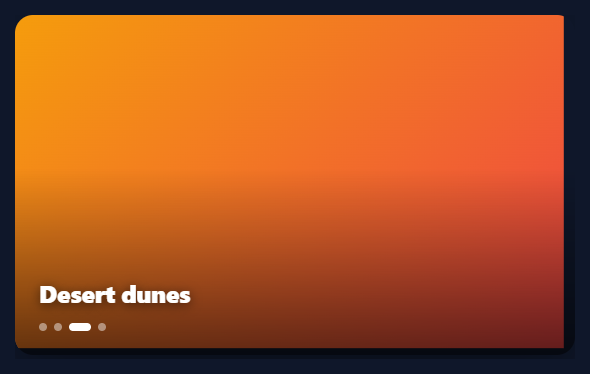
The Ken Burns effect — named for the documentary filmmaker — brings still images to life by slowly panning and zooming across them. Applied to a slideshow, it turns a static gallery into cinematic motion. This snippet builds it in plain HTML, CSS, and vanilla JavaScript: slides that drift and zoom while crossfading, with captions, dot navigation, autoplay, and hover-pause — no library.
The pan-zoom is one keyframe
Each active slide runs a @keyframes that animates its transform from a slightly zoomed, offset start to a different scale and position over several seconds — a slow drift across the image. Because it animates transform (scale and translate), it is GPU-accelerated and smooth, and the image is sized background-size: cover so it always fills the frame even as it scales. Varying both scale and translate is what gives the effect its characteristic gentle camera-move feel rather than a plain zoom.
Re-triggering the motion per slide
The subtle bit: the pan animation must restart each time a slide becomes active, or only the first slide would ever move. When showing a slide, the snippet sets animation: none, forces a reflow (void offsetWidth), then clears it — the standard reflow trick that restarts a CSS animation. So every slide gets a fresh pan as it comes in, not just on initial load.
Crossfade, not cut
Slides are stacked and transition their opacity, so the outgoing image fades as the incoming one appears — a soft crossfade rather than a hard cut. Combined with the continuing pan underneath, the transition feels filmic. The caption fades out and back in on each change so text never abruptly swaps.
Autoplay with considerate controls
It advances automatically on an interval, but pauses while the pointer is over the stage so viewers can read a caption or study an image, and resumes on leave. Dot navigation lets you jump to any slide and resets the timer so a manual pick is not immediately overridden. These touches — hover-pause, timer reset on manual nav, active-dot indicator — are what separate a polished slideshow from a bare auto-rotator.
Drop-in with real photos
The demo uses gradients so it runs with no assets, but each slide accepts an img URL — set the background to your photo and it pans across the real image. Tune the durations, the pan keyframe start/end, and the crossfade length to taste. It is a clear, dependency-free reference for the Ken Burns transform animation, CSS-animation re-triggering, and a considerate autoplay slideshow. Worth keeping in mind with real photography: because the pan keyframe both scales up and translates the image, a tightly cropped subject can drift toward the edge of frame at the animation's extremes — leaving a little extra margin around the subject when sourcing or cropping images gives the pan room to move without ever cutting off the thing the photo is actually about. will-change: transform, opacity is set on every slide for the same reason performance-sensitive carousels use it: it hints to the browser to promote the element to its own compositor layer ahead of time, so the very first frame of a pan-zoom doesn't stutter while the browser allocates that layer mid-animation.
Step by step
How to Use
- 1Paste HTML, CSS, and JSA slideshow renders, each slide slowly panning and zooming while crossfading.
- 2Let it autoplaySlides advance on an interval; the caption and active dot update each time.
- 3Navigate manuallyClick a dot to jump to a slide; the autoplay timer resets so it is not skipped.
- 4Hover to pauseMove the pointer over the stage to pause; leave to resume.
- 5Use real photosGive each SLIDES entry an img URL — the pan-zoom plays over your image.
- 6Tune the motionAdjust the kbPan keyframe and durations for a stronger or subtler effect.
Real-world uses
Common Use Cases
background-size: cover so the frame stays filled as the image scales.Got questions?
Frequently Asked Questions
Each active slide runs a @keyframes animation on its transform, going from a slightly larger scale with one offset to a different scale and offset over several seconds. Because it animates transform (scale + translate) rather than width/height or background-position, it is GPU-accelerated and smooth. background-size: cover keeps the image filling the frame at every scale.
A CSS animation runs once when applied; if the keyframes are already on the element, switching which slide is active will not replay them. So when a slide becomes active, the code sets animation: none, reads offsetWidth to force a reflow, then clears the inline animation — the standard trick to restart a CSS animation. Without it, only the first slide would ever pan.
Each SLIDES entry supports an img property; the code sets the slide background to url(img) when present (falling back to the gradient otherwise). Just provide image URLs (and captions), and the pan-zoom and crossfade play over your photos. Use appropriately sized images since they are scaled up slightly by the effect.
Autoplay is convenient but can advance before a viewer finishes reading a caption or looking at an image. Pausing when the pointer enters the stage (and resuming on leave) gives the viewer control without needing an explicit pause button. Manual dot navigation also resets the timer so your chosen slide is not immediately replaced by the next auto-advance.
Hold the current index in state and render slides/dots from an array. Run the autoplay interval in a useEffect (React), onMounted/onUnmounted (Vue), or ngOnInit/ngOnDestroy (Angular), clearing it on cleanup, and pause it on hover handlers. The transform keyframe and crossfade CSS are framework-agnostic; for the re-trigger, toggle a key or class so the incoming slide remounts/replays.