



Swiper Coverflow 3D Product Carousel — Free JS Snippet
Swiper Coverflow 3D Product Carousel · Carousels · Plain HTML, CSS & JS · Live preview
What's included
Features
About this UI Snippet
Swiper Coverflow 3D Product Carousel — HTML, CSS & JavaScript
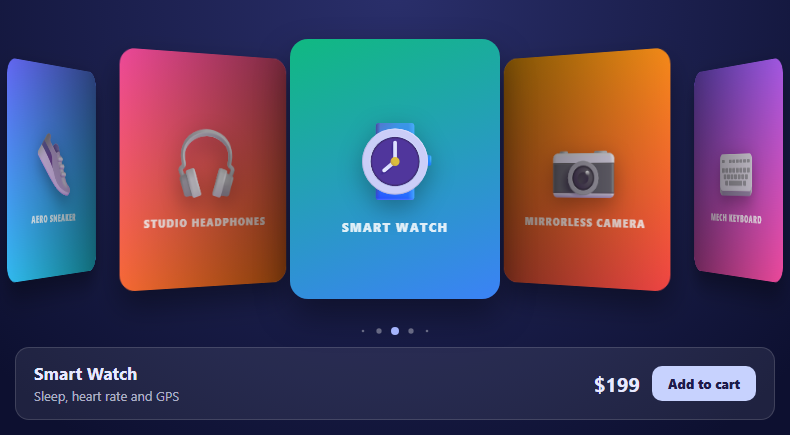
Coverflow is the carousel style made famous by the iTunes album browser: one item faces you at the centre while its neighbours turn away and recede into the background. It suits product showcases because it keeps one item in focus while hinting that there are more to explore. Swiper ships it as a built-in effect, so a convincing 3D carousel needs a few options rather than custom transforms.
The effect: 'coverflow' option alone is not enough; three companion settings make it work. centeredSlides: true keeps the active slide in the middle, slidesPerView: 'auto' lets each slide's width come from your CSS instead of dividing the container evenly — this is what lets the neighbours peek in from either side — and coverflowEffect tunes the geometry. rotate sets how many degrees the side slides turn away, depth pushes them back on the z-axis, stretch adds spacing, and modifier scales all of them together. Enabling slideShadows adds the soft shading on receding slides that sells the depth. A common mistake is forgetting that the container needs overflow: visible for the outer slides to appear beyond it, which is set on the swiper element here.
Interaction is where a carousel earns its keep. grabCursor signals that it can be dragged, keyboard control makes the arrow keys work, and a mousewheel setting with forceToAxis stops a diagonal trackpad swipe from scrolling the page and the carousel at once. slideToClickedSlide is a small but important usability touch: clicking a partly visible neighbour brings it to the front, which is what people instinctively try.
The panel under the carousel demonstrates the standard pattern for connecting a slider to the rest of the page. The slideChange event fires whenever the active slide changes — by dragging, keys, clicks or pagination — and the handler reads swiper.activeIndex to update the product name, description and price. Data lives in one array that renders both the slides and the details, so they cannot drift apart. The pagination uses dynamicBullets so seven products stay tidy, and each slide is drawn with a CSS gradient and an emoji, so the demo needs no image files.
Step by step
How to Use
- 1Drag the carouselDrag left or right. The centre product turns to face you while the others rotate away.
- 2Click a neighbourClick a partly visible product to bring it to the front.
- 3Use the keyboard or wheelUse the arrow keys or scroll the mouse wheel over the carousel to move between products.
- 4Watch the detailsThe panel below updates with the active product's name, description and price.
- 5Add to cartPress Add to cart for a quick confirmation state on the button.
Real-world uses
Common Use Cases
slideToClickedSlide so tapping a neighbouring item focuses it immediately.Got questions?
Frequently Asked Questions
Ensure centeredSlides is true, slidesPerView is "auto" with a fixed slide width in CSS, and the container allows overflow so neighbours are visible.
rotate turns side slides away in degrees, depth pushes them back in 3D space, and stretch adds spacing between slides.
Listen for the slideChange event and read swiper.activeIndex.
Use mousewheel with forceToAxis: true and a thresholdDelta so intentional wheel movement drives the carousel.
Set slideToClickedSlide: true.
Loop mode works but needs enough slides to duplicate; with few slides it can look wrong, so test with your data.
Yes. Use the JSX, Vue, Angular or Tailwind export buttons on this page to convert the markup and styles. The behaviour comes from Swiper, so in a framework project install it with npm install swiper (its React and Vue components take the same options) instead of the CDN tag, use the Swiper and SwiperSlide components, or create it in useEffect / onMounted / ngAfterViewInit, and release it with destroy() when the component unmounts.
Build with AI
Build, Understand, Optimize, and Extend It With AI
Ask an AI assistant like Claude to add reflections under each slide, autoplay that pauses on hover, or a fullscreen preview when the centre slide is clicked.
Prompt to recreate it
Copy this into your AI assistant of choice to build the effect from scratch, or as a jumping-off point for your own variant:
Build a 3D coverflow product carousel with Swiper 11 loaded from a CDN (bundle script and CSS).

Requirements:
- Render seven product slides from an array using CSS gradients and emoji; use effect 'coverflow', centeredSlides, slidesPerView 'auto', grabCursor and slide widths set in CSS.
- Configure coverflowEffect with rotate 38, depth 140, stretch 0, modifier 1 and slideShadows, plus keyboard, mousewheel (forceToAxis), slideToClickedSlide and dynamic clickable pagination.
- Update a details panel (name, description, price) on the slideChange event using swiper.activeIndex.
- Add an Add to cart button with a temporary confirmation state.
Want to tighten it up first? Run this prompt through the AI Prompt Studio to score it across 8 quality dimensions, catch anti-patterns, and tune the wording for Claude, ChatGPT, or Gemini before you paste it in.
Source Code
<div class="cf-wrap">
  <div class="swiper cf-swiper" id="cfSwiper">
    <div class="swiper-wrapper" id="cfSlides"></div>
    <div class="swiper-pagination"></div>
  </div>
  <div class="cf-info" aria-live="polite">
    <div><b id="cfName">-</b><span id="cfNote">-</span></div>
    <div class="cf-buy"><strong id="cfPrice">-</strong><button type="button" id="cfBtn">Add to cart</button></div>
  </div>
</div>
body { margin: 0; background: radial-gradient(circle at 50% 0, #2a2f6b, #0d1030 70%); padding: 26px 12px 22px; font-family: system-ui, sans-serif; }
.cf-wrap { max-width: 760px; margin: 0 auto; }
.cf-swiper { padding: 24px 0 44px; overflow: visible; }
.cf-swiper .swiper-slide { width: 210px; height: 260px; border-radius: 18px; overflow: hidden; display: flex; flex-direction: column; align-items: center; justify-content: center; color: #fff; user-select: none; box-shadow: 0 16px 34px rgba(0,0,0,.4); }
.cf-swiper .swiper-slide .cf-emoji { font-size: 78px; filter: drop-shadow(0 8px 12px rgba(0,0,0,.3)); }
.cf-swiper .swiper-slide .cf-tag { margin-top: 12px; font: 800 12px/1 system-ui, sans-serif; letter-spacing: .1em; text-transform: uppercase; opacity: .85; }
.cf-swiper .swiper-pagination-bullet { background: #fff; opacity: .35; }
.cf-swiper .swiper-pagination-bullet-active { opacity: 1; background: #a5b4fc; }
.cf-swiper .swiper-slide-shadow-left, .cf-swiper .swiper-slide-shadow-right { border-radius: 18px; }
.cf-info { display: flex; justify-content: space-between; align-items: center; gap: 12px; margin-top: 4px; padding: 14px 18px; background: rgba(255,255,255,.08); border: 1px solid rgba(255,255,255,.14); border-radius: 14px; color: #e7e9ff; }
.cf-info b { display: block; font-size: 17px; } .cf-info span { font-size: 13px; opacity: .7; }
.cf-buy { display: flex; align-items: center; gap: 12px; }
.cf-buy strong { font-size: 20px; font-variant-numeric: tabular-nums; }
.cf-buy button { font: 800 13px/1 system-ui, sans-serif; color: #1e1b4b; background: #c7d2fe; border: 0; border-radius: 10px; padding: 11px 16px; cursor: pointer; }
.cf-buy button:hover { background: #e0e7ff; }const PRODUCTS = [
{ name: 'Aero Sneaker', note: 'Featherweight running shoe', price: 129, emoji: '👟', bg: 'linear-gradient(160deg,#6366f1,#22d3ee)' },
{ name: 'Studio Headphones', note: '40h battery, adaptive noise cancelling', price: 249, emoji: '🎧', bg: 'linear-gradient(160deg,#ec4899,#f97316)' },
{ name: 'Smart Watch', note: 'Sleep, heart rate and GPS', price: 199, emoji: '⌚', bg: 'linear-gradient(160deg,#10b981,#3b82f6)' },
{ name: 'Mirrorless Camera', note: '24MP, 4K video, in-body stabilisation', price: 899, emoji: '📷', bg: 'linear-gradient(160deg,#f59e0b,#ef4444)' },
{ name: 'Mech Keyboard', note: 'Hot-swap switches, wireless', price: 149, emoji: '⌨️', bg: 'linear-gradient(160deg,#8b5cf6,#ec4899)' },
{ name: 'Travel Backpack', note: 'Weatherproof, 32L, laptop sleeve', price: 139, emoji: '🎒', bg: 'linear-gradient(160deg,#14b8a6,#84cc16)' },
{ name: 'Espresso Machine', note: '15-bar pump with steam wand', price: 329, emoji: '☕', bg: 'linear-gradient(160deg,#a16207,#f97316)' },
];
document.getElementById('cfSlides').innerHTML = PRODUCTS.map(function (p) {
return '<div class="swiper-slide" style="background:' + p.bg + '"><span class="cf-emoji" aria-hidden="true">' + p.emoji + '</span><span class="cf-tag">' + p.name + '</span></div>';
}).join('');
const swiper = new Swiper('#cfSwiper', {
effect: 'coverflow',
grabCursor: true,
centeredSlides: true, // the active slide sits in the middle
slidesPerView: 'auto', // slide width comes from CSS, so the neighbours peek in
initialSlide: 2,
speed: 500,
coverflowEffect: {
rotate: 38, // degrees the side slides turn away
stretch: 0, // extra spacing between slides
depth: 140, // how far back the side slides sit (the 3D depth)
modifier: 1, // multiplies all of the effect values
slideShadows: true,
},
keyboard: { enabled: true },
mousewheel: { thresholdDelta: 30, forceToAxis: true },
pagination: { el: '.swiper-pagination', clickable: true, dynamicBullets: true },
slideToClickedSlide: true, // clicking a peeking slide brings it to the front
});
const $ = function (id) { return document.getElementById(id); };
function show(i) {
const p = PRODUCTS[i];
$('cfName').textContent = p.name; $('cfNote').textContent = p.note; $('cfPrice').textContent = '$' + p.price;
}
swiper.on('slideChange', function () { show(swiper.activeIndex); });
show(swiper.activeIndex);
$('cfBtn').addEventListener('click', function () {
const b = $('cfBtn'); b.textContent = 'Added ✓';
setTimeout(function () { b.textContent = 'Add to cart'; }, 1200);
});