



Swiper Thumbnail-Synced Gallery — Free JS Snippet
Swiper Thumbnail-Synced Gallery · Carousels · Plain HTML, CSS & JS · Live preview
What's included
Features
About this UI Snippet
Swiper Thumbnail-Synced Gallery — HTML, CSS & JavaScript
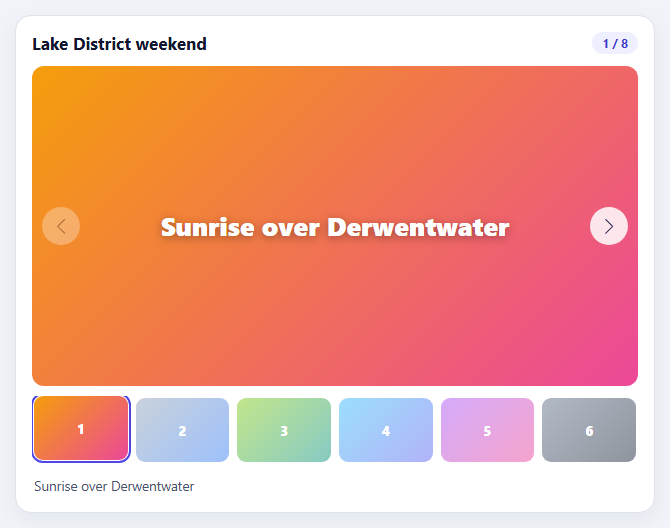
The main-image-plus-thumbnails gallery is the standard layout for product pages and photo albums, and it hides a synchronisation problem. Clicking a thumbnail must move the main image. Swiping the main image must highlight the matching thumbnail. And if the highlighted thumbnail is off-screen in a long strip, the strip must scroll to reveal it. Written by hand, that is three event handlers and a lot of index arithmetic. Swiper's thumbs module does all of it from one option.
The setup has a strict order that catches people out. Two Swiper instances are involved: a thumbnails swiper with slidesPerView set to the number of thumbnails visible, and a main swiper that receives the thumbnail instance through thumbs: { swiper: thumbs }. The thumbnails instance must be created first, because the main instance needs a reference to it at construction time; reversing the order produces a thumb strip that does nothing. The thumbnails swiper also needs watchSlidesProgress: true, which is how Swiper tracks which thumbnails are visible and adds the swiper-slide-thumb-active class to the one that matches the main slide. That class is the styling hook — the CSS here uses it to lift and outline the active thumbnail and to fade the others.
freeMode on the thumbnail strip lets it be flicked and coast rather than snap slide by slide, which feels natural for a strip of small images, and breakpoints change how many thumbnails show at each width so they stay tappable on a phone. The main swiper adds navigation arrows and keyboard control. The counter and caption use the slideChange event on the main swiper, reading activeIndex, so the "3 / 8" label and the description always reflect what is on screen however the change was triggered.
The data lives in a single array of captions and gradients that generates both sets of slides, which guarantees the two lists have the same length and order — an assumption the thumbs module depends on. Photos are drawn as CSS gradients so the demo needs no image files, but in production each slide would contain an img with the full-size image and each thumb a small version.
Step by step
How to Use
- 1Click a thumbnailClick any thumbnail in the strip. The main image slides to match.
- 2Swipe the main imageDrag or use the arrow buttons. The matching thumbnail lifts and the strip scrolls to keep it visible.
- 3Flick the stripDrag the thumbnails; free mode lets the strip glide and slow to a stop.
- 4Use the keyboardPress the left and right arrow keys to move through the gallery.
- 5Read the counterThe "n / 8" badge and the caption update whichever way you change the slide.
Real-world uses
Common Use Cases
watchSlidesProgress and the swiper-slide-thumb-active class to style the current thumbnail.Got questions?
Frequently Asked Questions
The thumbnails Swiper must be created before the main one, because the main instance receives it via thumbs: { swiper }. Also set watchSlidesProgress: true on the thumbnails.
Swiper adds the swiper-slide-thumb-active class to the matching thumbnail. Style that class.
Yes. The thumbs module maps by index, so the two sets must have the same length and order.
Use the breakpoints option on the thumbnails swiper to change slidesPerView by width.
Listen for the main swiper's slideChange event and read main.activeIndex.
Yes. Set direction: "vertical" on the thumbnails swiper and give it a fixed height.
Yes. Use the JSX, Vue, Angular or Tailwind export buttons on this page to convert the markup and styles. The behaviour comes from Swiper, so in a framework project install it with npm install swiper (its React and Vue components take the same options) instead of the CDN tag, use the Swiper and SwiperSlide components, or create it in useEffect / onMounted / ngAfterViewInit, and release it with destroy() when the component unmounts.
Build with AI
Build, Understand, Optimize, and Extend It With AI
Ask an AI assistant like Claude to add a fullscreen lightbox on click, a zoom module for pinch-to-zoom, or lazy loading for the main images.
Prompt to recreate it
Copy this into your AI assistant of choice to build the effect from scratch, or as a jumping-off point for your own variant:
Build a thumbnail-synced gallery with Swiper 11 loaded from a CDN (bundle script and CSS).

Requirements:
- Create the thumbnails Swiper first (slidesPerView 5, spaceBetween 8, freeMode, watchSlidesProgress, breakpoints), then the main Swiper with thumbs: { swiper: thumbs }, navigation and keyboard control.
- Generate both sets of slides from one array of captions and gradients.
- Style the .swiper-slide-thumb-active thumbnail (full opacity, outline, slight lift) and fade the rest.
- Show an "n / total" counter and a caption that update on the main swiper's slideChange event.
Want to tighten it up first? Run this prompt through the AI Prompt Studio to score it across 8 quality dimensions, catch anti-patterns, and tune the wording for Claude, ChatGPT, or Gemini before you paste it in.
Source Code
<div class="tg-wrap">
  <div class="tg-top"><h3>Lake District weekend</h3><span class="tg-count" id="tgCount" aria-live="polite">1 / 8</span></div>
  <div class="swiper tg-main" id="tgMain">
    <div class="swiper-wrapper" id="tgMainSlides"></div>
    <div class="swiper-button-prev" aria-label="Previous photo"></div>
    <div class="swiper-button-next" aria-label="Next photo"></div>
  </div>
  <div class="swiper tg-thumbs" id="tgThumbs">
    <div class="swiper-wrapper" id="tgThumbSlides"></div>
  </div>
  <p class="tg-cap" id="tgCap" aria-live="polite"></p>
</div>
body { background: #f1f3f8; padding: 20px; font-family: system-ui, sans-serif; }
.tg-wrap { max-width: 640px; margin: 0 auto; background: #fff; border: 1px solid #dfe3ee; border-radius: 16px; padding: 16px; box-shadow: 0 8px 24px rgba(20,30,70,.06); }
.tg-top { display: flex; justify-content: space-between; align-items: center; margin-bottom: 12px; }
.tg-top h3 { margin: 0; font-size: 17px; color: #12162e; }
.tg-count { font: 700 12px/1 system-ui, sans-serif; color: #4338ca; background: #eef0ff; padding: 5px 10px; border-radius: 999px; font-variant-numeric: tabular-nums; }
.tg-main { border-radius: 12px; overflow: hidden; margin-bottom: 10px; }
.tg-main .swiper-slide { height: 320px; display: grid; place-items: center; color: #fff; font: 800 26px/1.2 system-ui, sans-serif; text-shadow: 0 2px 10px rgba(0,0,0,.35); }
.tg-main .swiper-button-prev, .tg-main .swiper-button-next { width: 38px; height: 38px; margin-top: -19px; border-radius: 50%; background: rgba(255,255,255,.85); color: #1e1b4b; --swiper-navigation-size: 15px; }
.tg-main .swiper-button-prev:hover, .tg-main .swiper-button-next:hover { background: #fff; }
/* room for the active thumb's 2px lift plus its outline (3px), or the swiper's overflow:hidden clips them */
.tg-thumbs { padding: 6px 4px; }
.tg-thumbs .swiper-slide { height: 64px; border-radius: 9px; overflow: hidden; cursor: pointer; opacity: .5; transition: opacity .2s, transform .2s; display: grid; place-items: center; color: #fff; font: 800 13px/1 system-ui, sans-serif; outline: 2px solid transparent; outline-offset: 1px; }
.tg-thumbs .swiper-slide:hover { opacity: .8; }
.tg-thumbs .swiper-slide-thumb-active { opacity: 1; outline-color: #4f46e5; transform: translateY(-2px); }
.tg-cap { margin: 12px 2px 0; min-height: 20px; font-size: 13.5px; color: #4b5270; }const SHOTS = [
['Sunrise over Derwentwater', 'linear-gradient(135deg,#f59e0b,#ec4899)'],
['Morning mist on the fells', 'linear-gradient(135deg,#94a3b8,#3b82f6)'],
['Stone bridge at Ambleside', 'linear-gradient(135deg,#84cc16,#0d9488)'],
['Rowing boats, Windermere', 'linear-gradient(135deg,#38bdf8,#6366f1)'],
['Heather on the ridge', 'linear-gradient(135deg,#a855f7,#ec4899)'],
['The old slate quarry', 'linear-gradient(135deg,#64748b,#1e293b)'],
['Lunch stop at Grasmere', 'linear-gradient(135deg,#f97316,#eab308)'],
['Last light on Helvellyn', 'linear-gradient(135deg,#f43f5e,#7c3aed)'],
];
document.getElementById('tgMainSlides').innerHTML = SHOTS.map(function (s) {
return '<div class="swiper-slide" style="background:' + s[1] + '">' + s[0] + '</div>';
}).join('');
document.getElementById('tgThumbSlides').innerHTML = SHOTS.map(function (s, i) {
return '<div class="swiper-slide" style="background:' + s[1] + '" aria-label="Photo ' + (i + 1) + '">' + (i + 1) + '</div>';
}).join('');
// The thumbnails Swiper MUST exist first, because the main one is handed a reference to it.
const thumbs = new Swiper('#tgThumbs', {
slidesPerView: 5,
spaceBetween: 8,
freeMode: true,
watchSlidesProgress: true, // lets Swiper mark which thumbnails are visible and which is active
breakpoints: { 0: { slidesPerView: 4 }, 520: { slidesPerView: 5 }, 640: { slidesPerView: 6 } },
});
const main = new Swiper('#tgMain', {
spaceBetween: 10,
keyboard: { enabled: true },
navigation: { nextEl: '.swiper-button-next', prevEl: '.swiper-button-prev' },
thumbs: { swiper: thumbs }, // one option wires both directions: clicking a thumb moves main, sliding main highlights the thumb
});
const count = document.getElementById('tgCount'), cap = document.getElementById('tgCap');
function update() {
count.textContent = (main.activeIndex + 1) + ' / ' + SHOTS.length;
cap.textContent = SHOTS[main.activeIndex][0];
}
main.on('slideChange', update);
update();