



Synced Main + Thumbnail Carousel — HTML CSS JS Snippet
Synced Main + Thumbnail Carousel · Carousels · Plain HTML, CSS & JS · Live preview
What's included
Features
About this UI Snippet
Synced Main + Thumbnail Carousel — One State, Two Views
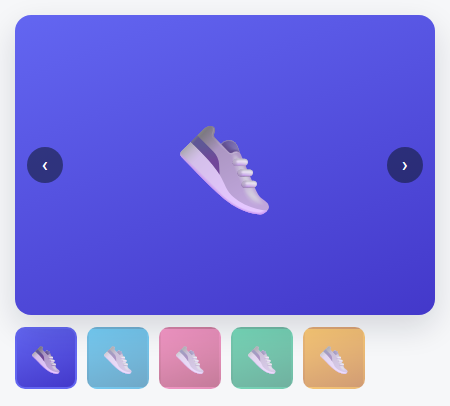
Product galleries never show just one carousel — they show a big image plus a row of thumbnails that both control and reflect it. This snippet builds that with a single source of truth: one current index. The main track slides via translateX, the matching thumbnail gets an active border, and — the detail most hand-rolled versions skip — the active thumbnail calls scrollIntoView on itself so it's never left off-screen in its own scrollable strip while the main image has already moved on.
Thumbnails generated, not duplicated by hand
Rather than writing the thumbnail row's markup twice (once for the big slides, once for the small previews), the JS builds each thumbnail from its matching slide's own background style at load time. Add a sixth slide to the main track and a sixth thumbnail appears automatically, already wired to the same click handler — there's no second list to keep in sync by hand.
Every input path funnels through one function
Clicking a thumbnail, clicking an arrow, and pressing an arrow key all call the same goTo/next/prev functions, which all end in the same render(). That's what guarantees the main image and the thumbnail row can never drift out of sync with each other — there's exactly one place that decides what "current" means, and every interaction updates it the same way.
Step by step
How to Use
- 1Paste HTML, CSS, and JSA large image appears above a row of small thumbnails, the first one highlighted.
- 2Click a thumbnailThe main image slides to match, and that thumbnail gets the active border.
- 3Click the arrowsThe main image advances and the thumbnail row auto-scrolls to keep the active one in view.
- 4Use arrow keysLeft/Right steps through the gallery without touching the mouse.
- 5Swap in real photosReplace each slide's background gradient with a real product photo — the thumbnails pick it up automatically.
Real-world uses
Common Use Cases
Got questions?
Frequently Asked Questions
Add a caption element inside each .stc-slide, and optionally read its text into a shared caption element below the main track inside render() based on the current index.
Yes — change .stc-thumbs from overflow-x: auto to flex-wrap: wrap; the auto-scroll-into-view call in render() becomes a no-op harmlessly since everything is already visible.
Track touchstart/touchend clientX on .stc-main, and if the horizontal delta exceeds a small threshold, call next() or prev() — the same pattern used in this library's other touch-enabled carousels.
translateX with a CSS transition gives precise, synchronized control over exactly one slide at a time and works identically across browsers — native scroll-snap is a valid alternative but couples the thumbnail sync to scroll events instead of a single state variable.
The arrows and thumbnails are real <button> elements with descriptive aria-labels, and the whole thing is operable via Left/Right arrow keys with no mouse required.
Build with AI
Build, Understand, Optimize, and Extend It With AI
Paste this snippet's HTML, CSS, and JS into an AI coding assistant like Claude and ask it to explain why every navigation path (thumbnail click, arrow click, arrow key) is written to call the same goTo/next/prev functions rather than each updating the DOM directly — and what class of bug that single-source-of-truth pattern prevents. It's also a good exercise to ask the assistant to add pinch-zoom on the main image, or to make the thumbnail strip reorder via drag-and-drop while keeping the main track in sync with the new order.
Prompt to recreate it
Copy this into your AI assistant of choice to build the effect from scratch, or as a jumping-off point for your own variant:
Build a product-gallery-style carousel in plain HTML, CSS, and vanilla JavaScript with a large main image synced to a row of small thumbnails — no library.

Requirements:
- A main image area showing one slide at a time via a horizontally sliding track (translateX transform with a CSS transition), with previous/next arrow buttons overlaid on it.
- A separate horizontally-scrollable strip of thumbnail buttons below the main image, generated dynamically in JavaScript from the same slide data the main track uses (not duplicated by hand in the HTML) — each thumbnail's click handler must jump the main image directly to that slide.
- A single shared "current index" variable that is the only source of truth for which slide is active; every interaction (thumbnail click, arrow click, arrow key) must update this one variable and then re-render both the main track's position and every thumbnail's active/inactive state from it, so the two views can never disagree with each other.
- When the current slide changes, the matching thumbnail must scroll itself into view within its own scrollable strip if it is not already fully visible, using scrollIntoView with smooth behavior.
- Left/Right arrow key support performing the same next/previous action as the arrow buttons.
- The active thumbnail must be visually distinguished (e.g. a colored border) from the inactive ones, updated every time the current index changes.
Want to tighten it up first? Run this prompt through the AI Prompt Studio to score it across 8 quality dimensions, catch anti-patterns, and tune the wording for Claude, ChatGPT, or Gemini before you paste it in.
Source Code
<div class="stc-wrap">
  <div class="stc-main">
    <div class="stc-track" id="stcTrack">
      <div class="stc-slide" style="background:linear-gradient(160deg,#6366f1,#4338ca)"><span>👟</span></div>
      <div class="stc-slide" style="background:linear-gradient(160deg,#0ea5e9,#0369a1)"><span>👟</span></div>
      <div class="stc-slide" style="background:linear-gradient(160deg,#ec4899,#9d174d)"><span>👟</span></div>
      <div class="stc-slide" style="background:linear-gradient(160deg,#10b981,#047857)"><span>👟</span></div>
      <div class="stc-slide" style="background:linear-gradient(160deg,#f59e0b,#b45309)"><span>👟</span></div>
    </div>
    <button class="stc-arrow stc-arrow-left" id="stcPrev" aria-label="Previous image">‹</button>
    <button class="stc-arrow stc-arrow-right" id="stcNext" aria-label="Next image">›</button>
  </div>
  <div class="stc-thumbs" id="stcThumbs"></div>
</div>*{box-sizing:border-box;margin:0;padding:0}
body{font-family:system-ui,-apple-system,sans-serif;background:#f6f7f9;min-height:100vh;display:flex;align-items:center;justify-content:center;padding:24px}
.stc-wrap{width:100%;max-width:420px}
.stc-main{position:relative;height:300px;border-radius:16px;overflow:hidden;box-shadow:0 12px 32px rgba(15,23,42,.14)}
.stc-track{display:flex;height:100%;transition:transform .4s cubic-bezier(.4,0,.2,1)}
.stc-slide{flex:0 0 100%;display:flex;align-items:center;justify-content:center;font-size:90px}
.stc-arrow{position:absolute;top:50%;transform:translateY(-50%);width:36px;height:36px;border-radius:50%;border:none;background:rgba(15,23,42,.55);color:#fff;font-size:19px;cursor:pointer;display:flex;align-items:center;justify-content:center;transition:background .15s}
.stc-arrow:hover{background:rgba(15,23,42,.8)}
.stc-arrow-left{left:12px}
.stc-arrow-right{right:12px}
.stc-thumbs{display:flex;gap:10px;margin-top:12px;overflow-x:auto;padding-bottom:2px}
.stc-thumb{flex:0 0 62px;height:62px;border-radius:10px;border:2.5px solid transparent;cursor:pointer;display:flex;align-items:center;justify-content:center;font-size:28px;transition:border-color .15s,opacity .15s;opacity:.55}
.stc-thumb.active{border-color:#6366f1;opacity:1}var track = document.getElementById('stcTrack');
var slides = document.querySelectorAll('.stc-slide');
var thumbsWrap = document.getElementById('stcThumbs');
var current = 0;
slides.forEach(function (s, i) {
var t = document.createElement('button');
t.className = 'stc-thumb';
t.style.background = s.style.background;
t.innerHTML = '<span>👟</span>';
t.setAttribute('aria-label', 'View image ' + (i + 1));
t.addEventListener('click', function () { goTo(i); });
thumbsWrap.appendChild(t);
});
var thumbs = document.querySelectorAll('.stc-thumb');
function render() {
track.style.transform = 'translateX(' + (-current * 100) + '%)';
thumbs.forEach(function (t, i) {
t.classList.toggle('active', i === current);
if (i === current) t.scrollIntoView({ inline: 'nearest', block: 'nearest', behavior: 'smooth' });
});
}
function goTo(i) { current = i; render(); }
function next() { current = (current + 1) % slides.length; render(); }
function prev() { current = (current - 1 + slides.length) % slides.length; render(); }
document.getElementById('stcNext').addEventListener('click', next);
document.getElementById('stcPrev').addEventListener('click', prev);
document.addEventListener('keydown', function (e) {
if (e.key === 'ArrowRight') next();
else if (e.key === 'ArrowLeft') prev();
});
render();