



Drag to Reorder Table Rows — HTML5 Drag and Drop Table
Drag to Reorder Table Rows · Tables · Plain HTML, CSS & JS · Live preview
Copy & paste
Source Code
<div class="trd-card">
  <div class="trd-head">
    <h3>Sprint priority order</h3>
    <p class="trd-hint">Drag a row by its handle to reorder.</p>
  </div>
  <table class="trd-table">
    <thead><tr><th></th><th>#</th><th>Task</th><th>Owner</th><th>Points</th></tr></thead>
    <tbody id="trdBody"></tbody>
  </table>
</div>*{box-sizing:border-box;margin:0;padding:0}
body{font-family:system-ui,-apple-system,sans-serif;background:#f4f6fb;min-height:100vh;display:flex;align-items:center;justify-content:center;padding:24px}
.trd-card{background:#fff;border-radius:14px;padding:16px;width:100%;max-width:560px;box-shadow:0 18px 44px rgba(15,23,42,.1)}
.trd-head{margin-bottom:10px}
.trd-head h3{font-size:14px;font-weight:800;color:#0f172a}
.trd-hint{font-size:11px;color:#94a3b8;font-weight:600;margin-top:2px}
.trd-table{width:100%;border-collapse:collapse;font-size:12.5px}
.trd-table th{text-align:left;padding:8px 10px;color:#94a3b8;font-weight:700;font-size:10.5px;text-transform:uppercase;letter-spacing:.03em;border-bottom:1.5px solid #e2e8f0}
.trd-table td{padding:9px 10px;border-bottom:1px solid #f1f5f9;color:#334155}
.trd-table tbody tr{position:relative}
.trd-table tbody tr.dragging{opacity:.4}
.trd-handle{width:18px;height:18px;cursor:grab;color:#cbd5e1;display:flex;align-items:center;justify-content:center}
.trd-handle:active{cursor:grabbing}
.trd-num{color:#94a3b8;font-variant-numeric:tabular-nums;width:24px}
.trd-pts{font-weight:700;color:#6366f1;text-align:right}
.trd-drop-line{height:2px;background:#6366f1;position:relative}
.trd-drop-line::before{content:'';position:absolute;left:-4px;top:-3px;width:8px;height:8px;border-radius:50%;background:#6366f1}
.trd-drop-line td{padding:0;height:2px;border:none}var ITEMS = [
{ task: 'Ship checkout redesign', owner: 'Priya', points: 8 },
{ task: 'Fix pagination bug', owner: 'Marcus', points: 2 },
{ task: 'Write onboarding emails', owner: 'Elena', points: 3 },
{ task: 'Migrate auth service', owner: 'Yuki', points: 13 },
{ task: 'Add dark mode toggle', owner: 'Dan', points: 5 },
];
var body = document.getElementById('trdBody');
var dragIndex = null;
function render() {
body.innerHTML = ITEMS.map(function (item, i) {
return '<tr draggable="true" data-index="' + i + '">' +
'<td><span class="trd-handle" title="Drag to reorder">' +
'<svg width="12" height="12" viewBox="0 0 24 24" fill="currentColor"><circle cx="8" cy="6" r="2"/><circle cx="16" cy="6" r="2"/><circle cx="8" cy="12" r="2"/><circle cx="16" cy="12" r="2"/><circle cx="8" cy="18" r="2"/><circle cx="16" cy="18" r="2"/></svg>' +
'</span></td>' +
'<td class="trd-num">' + (i + 1) + '</td>' +
'<td>' + item.task + '</td>' +
'<td>' + item.owner + '</td>' +
'<td class="trd-pts">' + item.points + '</td>' +
'</tr>';
}).join('');
}
function clearDropLine() {
var line = body.querySelector('.trd-drop-line');
if (line) line.remove();
}
function insertDropLine(beforeRow) {
clearDropLine();
var tr = document.createElement('tr');
tr.className = 'trd-drop-line';
var td = document.createElement('td');
td.colSpan = 5;
tr.appendChild(td);
if (beforeRow) body.insertBefore(tr, beforeRow);
else body.appendChild(tr);
}
body.addEventListener('dragstart', function (e) {
var row = e.target.closest('tr[draggable]');
if (!row) return;
dragIndex = Number(row.dataset.index);
row.classList.add('dragging');
e.dataTransfer.effectAllowed = 'move';
e.dataTransfer.setData('text/plain', String(dragIndex));
});
body.addEventListener('dragend', function (e) {
var row = e.target.closest('tr[draggable]');
if (row) row.classList.remove('dragging');
clearDropLine();
dragIndex = null;
});
body.addEventListener('dragover', function (e) {
e.preventDefault();
e.dataTransfer.dropEffect = 'move';
var row = e.target.closest('tr[draggable]');
if (!row || dragIndex === null) return;
var rect = row.getBoundingClientRect();
var before = (e.clientY - rect.top) < rect.height / 2;
insertDropLine(before ? row : row.nextElementSibling);
});
body.addEventListener('drop', function (e) {
e.preventDefault();
var row = e.target.closest('tr[draggable]');
clearDropLine();
if (dragIndex === null) return;
var targetIndex = row ? Number(row.dataset.index) : ITEMS.length - 1;
var rect = row ? row.getBoundingClientRect() : null;
var before = rect ? (e.clientY - rect.top) < rect.height / 2 : false;
var insertAt = row ? (before ? targetIndex : targetIndex + 1) : ITEMS.length;
var moved = ITEMS.splice(dragIndex, 1)[0];
if (insertAt > dragIndex) insertAt -= 1;
ITEMS.splice(insertAt, 0, moved);
dragIndex = null;
render();
});
render();Extend with AI
Take This Snippet Further With AI
The AI prompt for this one is for Patreon supporters ($3 a month), along with a site with no ads. Supporters enter the passcode once and it is remembered in this browser.
What's included
Features
About this UI Snippet
Drag to Reorder Table Rows — Real HTML5 Drag Events With a Drop Indicator
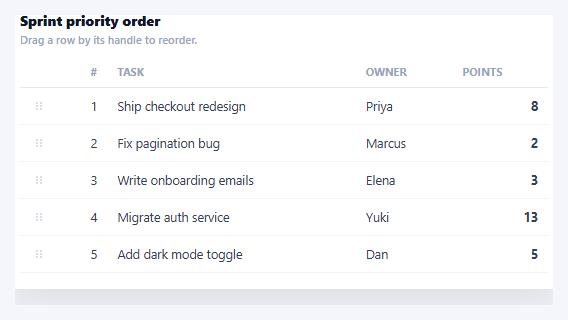
Ordered lists — a sprint backlog, a priority queue, a playlist — are far easier to reorganize by dragging a row where it belongs than by editing a rank number in a text field. This snippet implements genuine HTML5 drag-and-drop for table rows: real draggable="true" elements, dragstart/dragover/drop handlers, and a live drop-indicator line that shows exactly where the row will land before you release the mouse — not a fake reorder that just swaps two rows on click.
Native drag events, not mouse-position simulation
Every <tr> is marked draggable="true". On dragstart, the handler records which row index is being dragged (dragIndex), adds a .dragging class that fades the row to signal it's lifted, and calls e.dataTransfer.setData(...) — required by the drag-and-drop spec for some browsers to permit the drag at all, even though this implementation tracks the source index in a JS variable rather than reading it back out of dataTransfer.
dragover must call preventDefault, or drop never fires
By default, browsers don't allow dropping onto arbitrary elements — a drop event only fires on a target if its dragover handler called e.preventDefault(). This is the single most common HTML5 drag-and-drop bug: skip that line and the whole interaction silently does nothing. Here, every dragover on the tbody prevents the default and sets dropEffect = 'move' so the cursor shows the correct move icon.
A drop-indicator line computed from real cursor position
Rather than just highlighting the whole row you're hovering, dragover computes the cursor's vertical position relative to the hovered row's getBoundingClientRect() — if the cursor is in the top half, the indicator line is inserted above that row; in the bottom half, below it. This is a genuine positional calculation on every dragover event, not a static highlight, and it's what makes the drop location obvious before you let go.
Correct index math on drop
The trickiest part of any row-reorder is getting the final index right when the dragged row itself is removed from the array before being reinserted — removing an earlier row shifts every later index down by one. The drop handler splices the dragged item out first, then decrements insertAt by one if the target position was after the original position, before splicing it back in at the corrected index — the standard off-by-one trap in drag-reorder logic, handled explicitly here rather than by luck.
A real array as the source of truth
The whole table re-renders from the ITEMS array after every successful drop, so the DOM never drifts out of sync with the underlying order — dragging doesn't directly move DOM nodes around, it reorders the array and lets render() rebuild the table, keeping row numbering and any derived values consistent.
Customizing it
Persist the new order to a backend on drop, add multi-row drag selection, or combine with a column drag reorder for both axes. Compare with an editable table for inline field edits alongside reordering.
Step by step
How to Use
- 1Paste HTML, CSS, and JSA five-row task list renders with a drag handle in the first column of each row.
- 2Press and drag a rowGrab the handle (or the row) — it fades to signal it's lifted, and the cursor becomes a grab icon.
- 3Watch the drop-indicator lineAs you drag over other rows, a blue line shows exactly above or below which row the drop will land.
- 4Release to dropThe row moves to its new position; the # column renumbers to reflect the new order.
- 5Drag to the very top or bottomDropping above the first row or below the last row places it at either end correctly.
- 6Swap in your own dataReplace the ITEMS array — render() and the drag handlers work for any row count.
Real-world uses
Common Use Cases
getBoundingClientRect showing where the row will land.preventDefault on dragover so the drop event fires at all.draggable rows and the ranking use case, where manual order is clearer than editing a number field.Got questions?
Frequently Asked Questions
The HTML5 drag-and-drop spec treats every element as a non-drop-target by default. Calling e.preventDefault() inside the dragover handler is the explicit signal that this element accepts the drop; skip it and the browser silently rejects the drop attempt, so the drop event handler never runs no matter how the drag ends.
Because removing the dragged row shifts the index of every row that came after it down by one. If you inserted at the raw target index without accounting for that shift, dropping a row just below its own original position would land it one slot further than intended. Decrementing insertAt when the target was after the original position corrects for this off-by-one.
In the drop handler, after ITEMS.splice(insertAt, 0, moved) and before or after render(), send the updated ITEMS array (or just the moved item's id and new index) to your backend with a fetch call, so the reordering survives a page reload rather than only existing in memory.
Native HTML5 drag events are unreliable on touch screens. For touch, implement the same drop-indicator and index-shift logic driven by touchstart/touchmove/touchend and pointer coordinates instead of the dragstart/dragover/drop events, or use the Pointer Events API (pointerdown/pointermove/pointerup) which unifies mouse and touch and can replace HTML5 DnD entirely if mobile support matters.
Keep ITEMS in component state and the same dragstart/dragover/drop handlers, but instead of mutating the array in place and calling render(), call your state setter with the new array (e.g. setItems(next) in React) after computing it with the same splice logic — the drag-position math and off-by-one correction are plain JavaScript and port unchanged.