Click any text to edit it · drag a photo to reposition it, scroll to zoom, click to replace
Event Recap — Free Events Social Post Template
Events · v1.0.0 · Updated 2026-10-20 · Instagram, Facebook & X · HTML + CSS
What's included
Features
About this template
Event Recap — Free "That's a Wrap" Event Recap Post Template
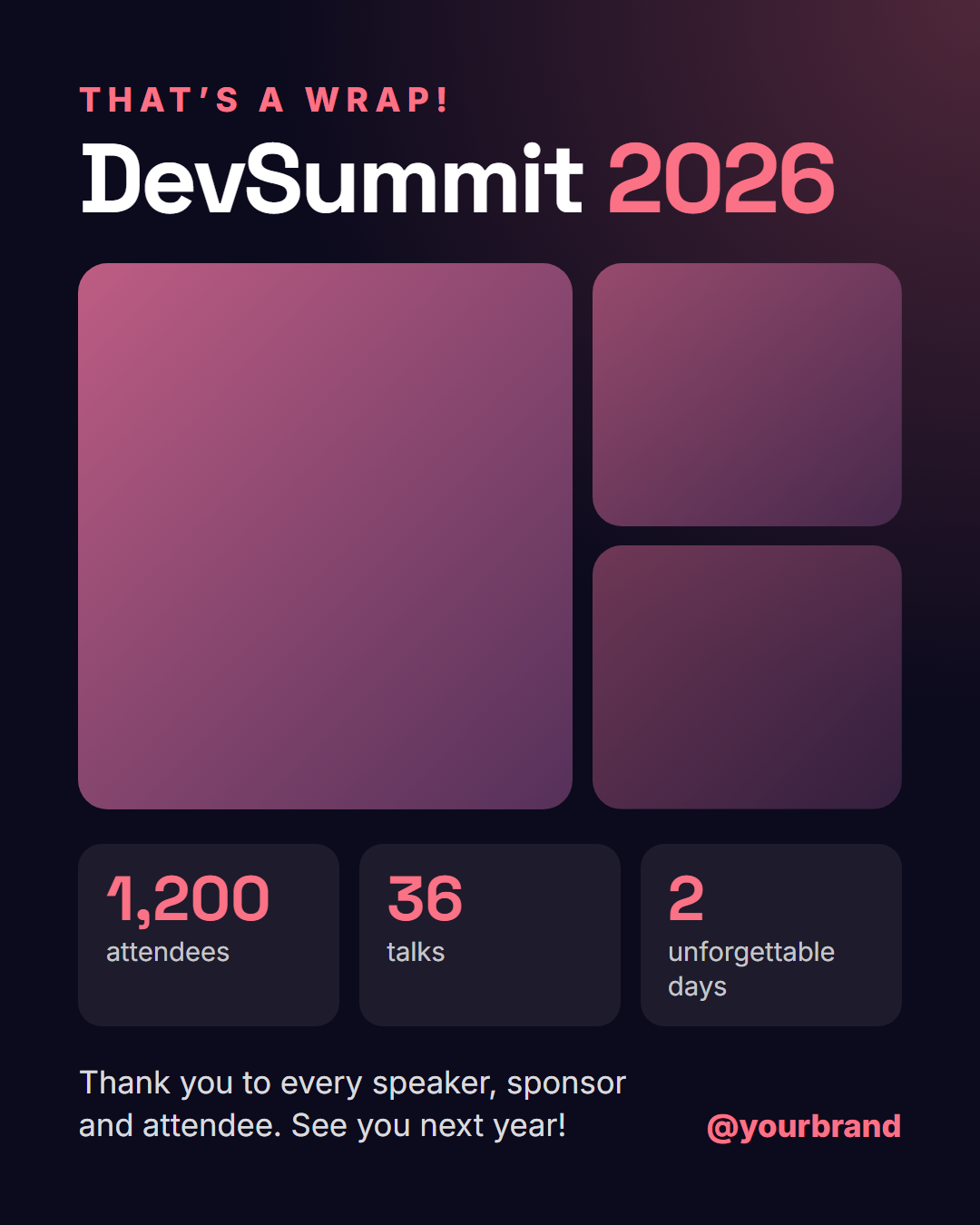
Event Recap is a free social media template for the post that goes out after your event: a "That's a wrap!" label, the event name, a collage of three photos, three highlight numbers and a thank-you line to everyone who made it happen.
Keep the momentum after the event
The day after an event, attendees are sharing their own photos and tagging you. A recap post joins that conversation, thanks speakers and sponsors publicly, and shows people who missed it what they missed, which is the best promotion for next year's tickets. Big numbers such as "1,200 attendees" and "36 talks" make the event feel substantial at a glance.
Photo collage without a design tool
Upload three photos (one large, two smaller) straight from your computer, and drag each to choose the best crop. Until you add photos, the slots show soft accent-coloured gradients, so the layout always looks finished. The stats are three editable number-and-label pairs, so they work for any event: attendees, talks, workshops, cities, countries or cups of coffee.
Every size from one design
On the 4:5 feed size the photos sit between the headline and the stats. On 16:9 for X and LinkedIn the photos move to the right with the headline and stats stacked on the left, a great fit for LinkedIn, where event recaps get strong engagement. Wrap part of the event name in *asterisks* to colour it, like the year. Promote your next event with Webinar Event and Countdown.
Why use it
Why Use the Event Recap Template
How it’s different
How It’s Different From Canva-Style Templates
Step by step
How to Use
- 1Pick the sizeChoose Portrait 4:5 (the Instagram feed default), Square, Story / Reel, Landscape 16:9 for X, a 1200×627 LinkedIn image or a 1000×1500 Pinterest pin. Event Recap opens at 1080×1350.
- 2Edit the textClick any text in the preview, or use the fields on the left (label, event name, stat 1 number, stat 1 label and more). Wrap words in *asterisks* to colour them.
- 3Add your imagesClick a photo area in the preview or use Images to upload your photo 1 (large) and photo 2 and photo 3. Images stay in your browser.
- 4Match your brandApply your saved brand kit or one of 12 palettes, set exact colours, and choose heading and body fonts from any Google Font or your own uploaded font.
- 5Preview it in the feedSwitch the preview to Instagram, Story, X or LinkedIn to see the post with your name, handle and caption, and fix anything the quality checks flag.
- 6Download, save or bulk createDownload PNG, JPG or PDF, every size as a ZIP, or copy the HTML. Save it to My designs to reuse later, or turn a CSV into dozens of posts with Bulk create.
Real-world uses
Common Use Cases
Got questions?
Frequently Asked Questions
Open the Event Recap template, type the event name, upload three photos, fill in three highlight stats and write a thank-you line. Keep the 1080×1350 portrait size or switch to the LinkedIn size, then download the PNG.
Within one or two days of the event, while attendees are still posting about it and the photos are fresh. Tag speakers and sponsors in the caption so they can reshare it.
Pick three numbers that make the event feel big or special, such as attendees, talks, workshops, countries represented or funds raised. Keep the labels short.
Use it in the large slot. The two small slots show soft gradients when empty, or you can add close-up shots such as the stage, the venue or the swag.
Portrait post 1080×1350 (4:5): Instagram feed (recommended), Facebook and LinkedIn feeds, X portrait. Square post 1080×1080 (1:1): Instagram, Facebook, LinkedIn and X feeds. Story / Reel 1080×1920 (9:16): Instagram and Facebook Stories, Reel covers. Landscape post 1600×900 (16:9): X feed image, Facebook landscape. LinkedIn image 1200×627 (1.91:1): LinkedIn shared image and link posts, Facebook link images. Pinterest pin 1000×1500 (2:3): Pinterest standard pin (the recommended 2:3 ratio). Switch sizes in the editor and the layout adapts, or click "All sizes (ZIP)" to download every size at once.
Yes. Choose Export, then "Bulk create from CSV", and paste rows from a spreadsheet or upload a CSV whose column names match the Event Recap fields. Every row becomes one post, and you download them all as a ZIP.
Yes. The preview switches between the plain design and mock-ups of an Instagram feed post, an Instagram Story, an X post and a LinkedIn post, using the name, handle and logo from your brand kit and the caption you type.
Yes. "Copy HTML" and "Download .html" give you one self-contained file: the markup, all the CSS and links to the Google Fonts it uses. "Fork to My Code" saves an editable copy in the UI Snippets editor. The file records the template name and version (v1.0.0).
Yes. It is free for personal and commercial posts, with no sign-up and no watermark. Everything runs in your browser and nothing you type or upload is sent to a server.