Click any text to edit it · drag a photo to reposition it, scroll to zoom, click to replace
New Blog Article — Free Announcements Social Post Template
Announcements · v1.0.0 · Updated 2026-11-02 · Instagram, Facebook & X · HTML + CSS
What's included
Features
About this template
New Blog Article — Free Blog Post Announcement Template
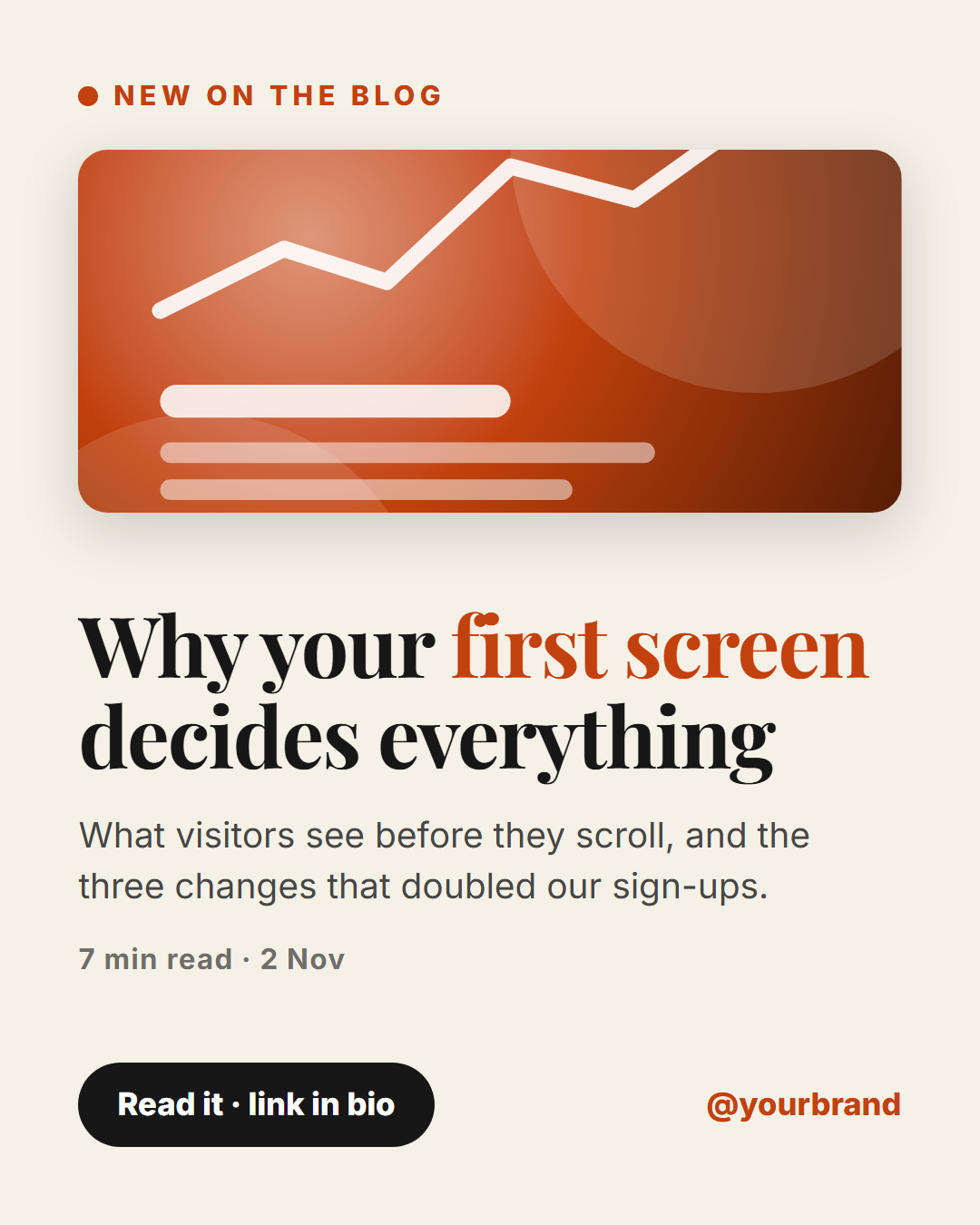
New Blog Article is a free social media template for the post you will make more often than any other: telling people that something new is live. It is laid out like the opening of a magazine feature: a small "new on the blog" tag with a dot, a cover image, a serif headline, a two-line excerpt, a reading-time line and a dark button that points to your bio link.
An editorial look that says "worth reading"
Most blog announcements are a screenshot of the page. This card is built more carefully: warm paper-white background, a Playfair serif headline that suggests long-form writing, and generous spacing so the title does the work. Wrap the most interesting words in *asterisks* to colour them in the accent, like "Why your *first screen* decides everything".
Your cover image, handled for you
Upload the article's cover or a crop of its best chart, and drag to choose the crop. Until you add one, the cover shows an accent-coloured gradient, so the post looks finished in the editor. The excerpt is one or two lines that make a promise, for example the result a reader will get, and the read-time line, such as "7 min read · 2 Nov", sets expectations.
Send people to the right place
Instagram posts cannot hold links, so the button says "Read it · link in bio", and you update the bio link or add a link sticker in Stories. On LinkedIn and X, put the URL in the post text. The template switches to a two-column layout on the 16:9 and LinkedIn sizes, with the cover on the right, and the Story size keeps the button clear of the bottom bar.
Make a series by keeping the same colours and changing only the title, cover and excerpt. Pair it with Product Launch for bigger announcements or Carousel Cover to turn the article into a swipeable summary.
Extend with AI
Take This Post Further With AI
Ask an AI assistant to adapt the New Blog Article HTML and CSS: write an excerpt that makes a specific promise, turn the card into a component fed by your RSS feed, or generate a matching Story with a link sticker space.
Prompt to recreate it
Copy this into your AI assistant of choice to build the effect from scratch, or as a jumping-off point for your own variant:
Create a 1080×1350 "new blog article" social post in plain HTML and CSS.

- Warm paper-white background (#f6f1e7), dark text, burnt-orange (#c2410c) accent.
- A small uppercase tag "New on the blog" with a filled orange dot before it.
- A rounded cover image (a gradient placeholder) about one third of the height, with a soft shadow.
- A bold serif headline in Playfair Display, "Why your first screen decides everything", with "first screen" in orange.
- A grey two-line excerpt and a small line "7 min read · 2 Nov".
- A footer with a dark pill button "Read it · link in bio" and the handle in orange on the right.
- Size everything with a CSS variable --u equal to 1% of the shorter side.
Want to tighten it up first? Run this prompt through the AI Prompt Studio to score it across 8 quality dimensions, catch anti-patterns, and tune the wording for Claude, ChatGPT, or Gemini before you paste it in.
Why use it
Why Use the New Blog Article Template
How it’s different
How It’s Different From Canva-Style Templates
Step by step
How to Use
- 1Pick the sizeChoose Portrait 4:5 (the Instagram feed default), Square, Story / Reel, Landscape 16:9 for X, a 1200×627 LinkedIn image or a 1000×1500 Pinterest pin. New Blog Article opens at 1080×1350.
- 2Edit the textClick any text in the preview, or use the fields on the left (label, article title, excerpt, read time / date and more). Wrap words in *asterisks* to colour them.
- 3Add your imagesClick a photo area in the preview or use Images to upload your cover image. Images stay in your browser.
- 4Match your brandApply your saved brand kit or one of 12 palettes, set exact colours, and choose heading and body fonts from any Google Font or your own uploaded font.
- 5Preview it in the feedSwitch the preview to Instagram, Story, X or LinkedIn to see the post with your name, handle and caption, and fix anything the quality checks flag.
- 6Download, save or bulk createDownload PNG, JPG or PDF, every size as a ZIP, or copy the HTML. Save it to My designs to reuse later, or turn a CSV into dozens of posts with Bulk create.
Real-world uses
Common Use Cases
Got questions?
Frequently Asked Questions
Use New Blog Article: add the cover, headline and excerpt, keep the "link in bio" button, and update your bio link to the article. In Stories, add a link sticker on top. In the caption, tell people what they will learn.
One or two lines that promise a specific result or answer, not a summary of the introduction. "The three changes that doubled our sign-ups" gives a reason to click that a general description does not.
Yes. The 1200×627 LinkedIn size puts the cover on the right and the text on the left. Replace "link in bio" with "Read it below" and put the URL in the post text.
Leave the cover empty and it shows a gradient in your accent colour. You can also crop a chart or a screenshot from the article, which often works better than a stock photo.
Portrait post 1080×1350 (4:5): Instagram feed (recommended), Facebook and LinkedIn feeds, X portrait. Square post 1080×1080 (1:1): Instagram, Facebook, LinkedIn and X feeds. Story / Reel 1080×1920 (9:16): Instagram and Facebook Stories, Reel covers. Landscape post 1600×900 (16:9): X feed image, Facebook landscape. LinkedIn image 1200×627 (1.91:1): LinkedIn shared image and link posts, Facebook link images. Pinterest pin 1000×1500 (2:3): Pinterest standard pin (the recommended 2:3 ratio). Switch sizes in the editor and the layout adapts, or click "All sizes (ZIP)" to download every size at once.
Yes. Choose Export, then "Bulk create from CSV", and paste rows from a spreadsheet or upload a CSV whose column names match the New Blog Article fields. Every row becomes one post, and you download them all as a ZIP.
Yes. The preview switches between the plain design and mock-ups of an Instagram feed post, an Instagram Story, an X post and a LinkedIn post, using the name, handle and logo from your brand kit and the caption you type.
Yes. "Copy HTML" and "Download .html" give you one self-contained file: the markup, all the CSS and links to the Google Fonts it uses. "Fork to My Code" saves an editable copy in the UI Snippets editor. The file records the template name and version (v1.0.0).
Yes. It is free for personal and commercial posts, with no sign-up and no watermark. Everything runs in your browser and nothing you type or upload is sent to a server.