

Accessibility Toolbar Widget: HTML, CSS & JS Snippet
Free accessibility widget in plain HTML, CSS & JavaScript · 10 options · Remembers choices · Try it on the demo page
What's included
Features
About this UI Snippet
Accessibility Toolbar Widget: A Floating Panel That Lets Visitors Adjust Your Page
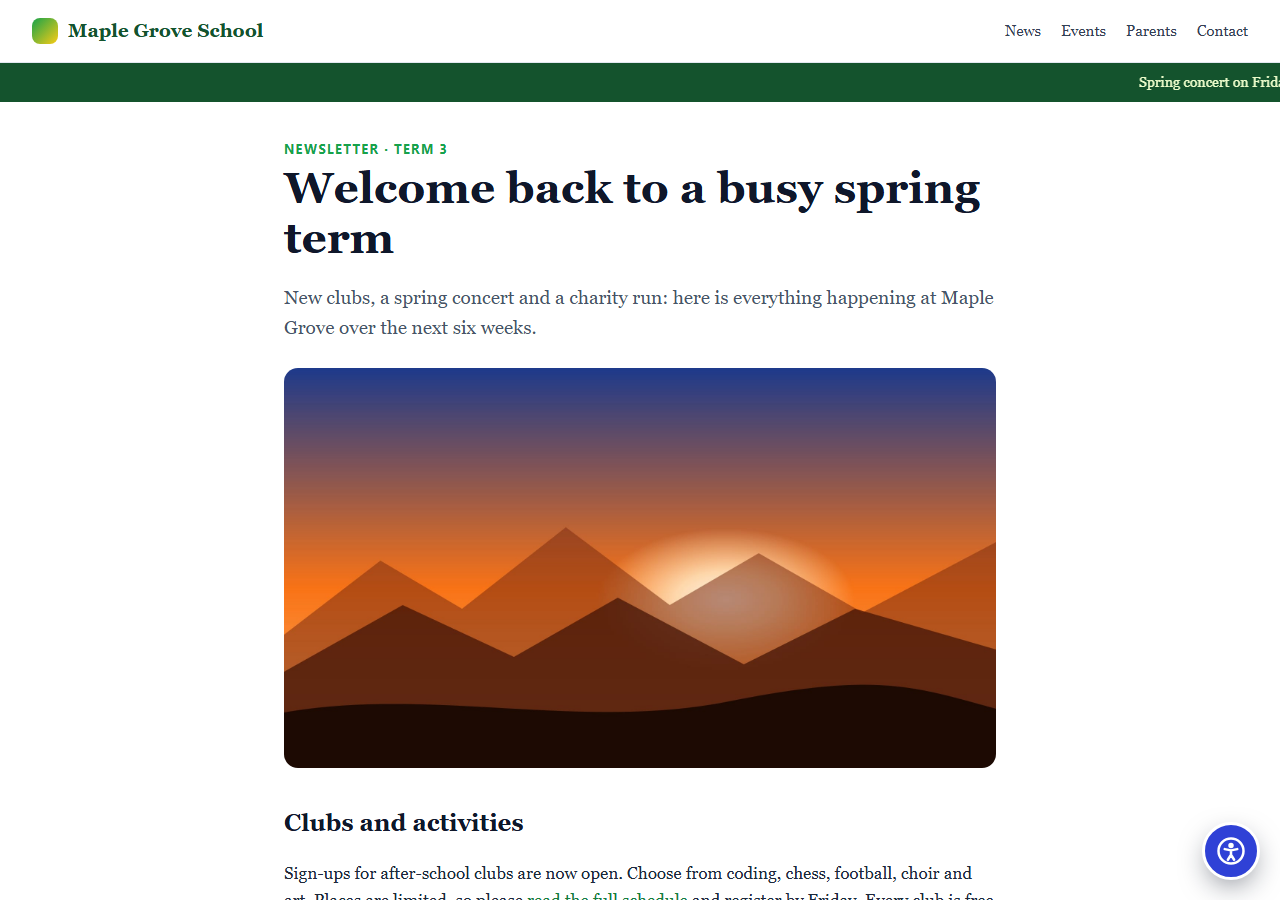
This snippet adds a floating accessibility button to a page, like the Ally and UserWay widgets, without a subscription or a third-party script. Click the round button in the corner of the preview, switch an option on, and watch the demo page change in front of you: the text grows, the colours drain, the images disappear. It is plain HTML, CSS and JavaScript, built from the free Accessibility Toolbar Widget section template, where you can edit the labels and colours visually and export the same code.
Ten options visitors can switch on
The panel groups its options into Text, Visual and Orientation. Bigger text scales the text on the page in three steps, line height adds space between lines, text align cycles left, centre and right, and readable font swaps in a plain, widely installed typeface. Contrast has a high-contrast level and a dark inverted level, grayscale removes colour, hide images clears pictures and background images, and pause animations stops CSS animations, video and GSAP timelines. Highlight links puts every link on a bright underlined background, and the reading mask darkens the page except for a strip that follows the pointer, touch or keyboard focus.
How the options are applied
Each option sets a data attribute on the <html> element, and one injected <style> element holds the rules, such as html[data-a11y-font] body *:not(.a11y *). The :not(.a11y *) part keeps the widget itself out of every rule, so the panel never becomes unreadable. Text size is the one exception: the script records each text element's computed size once and writes a scaled font-size, so layouts using rem, px or clamp() all grow together.
Filters without breaking the button
Putting filter: grayscale(1) on <html> or <body> would also filter the widget, and on <body> it would turn position: fixed descendants into absolutely positioned ones. The script instead adds a small class to the page's other top-level blocks and applies the filter to those, walking down the branch that contains the widget. The fixed button and panel stay sharp and stay where they are.
It remembers each visitor
Choices are written to localStorage inside a try/catch, applied again after the page loads and cleared by the reset button. If storage is blocked, the widget still works for the current page. You can turn memory off with the data-remember="off" attribute.
Keyboard and screen reader basics
The button has an accessible name and aria-expanded, every option is a real button with aria-pressed, Esc closes the panel and focus returns to the button. A widget is a helpful extra, not a substitute for an accessible page: headings in order, alt text, labelled forms, enough contrast and keyboard access still have to be built into the page itself.
Customise and reuse
Rename any label to translate the panel, remove options you do not need by deleting their tiles and their entries in the LEVELS object, and change the brand colour through the --st-brand variable. To use it in a framework, export it as React or Vue, or open the template in the Website Builder.
Step by step
How to Use
- 1Click the round button in the cornerThe floating accessibility button opens a panel with three groups: Text, Visual and Orientation.
- 2Switch on Bigger textEach click steps through three sizes and back to normal. The level dots on the tile show where you are.
- 3Try contrast, grayscale and Hide imagesThe demo page changes at once while the button and the panel stay untouched.
- 4Turn on Highlight links and the Reading maskLinks get a bright underline, and the page dims everywhere except a strip that follows your pointer.
- 5Pause animationsThe moving banner and the pulsing Sign up badge stop, which covers both CSS and GSAP animation.
- 6Reload the preview or press ResetYour choices are remembered on this device; the reset icon in the panel header clears all of them.
- 7Make it yoursEdit the labels in the HTML, delete options you do not need, or open the Website Section Template to change them visually.
Real-world uses
Common Use Cases
Got questions?
Frequently Asked Questions
No. A widget helps visitors change how a page looks, but compliance depends on the page itself: heading order, alt text, labelled forms, colour contrast and keyboard access. Use the toolbar as a helpful extra and test your pages.
The script records each text element's computed font size once, then writes a scaled font-size (115%, 130% or 150%) with !important. Going back to level zero restores the original inline values.
A filter on the html or body element would also filter the widget, and on body it makes fixed descendants behave like absolute ones. The snippet applies filters to the page's other top-level blocks and walks down the branch containing the widget.
Yes. They are stored in localStorage and applied again after the page loads, so they carry to other pages on the same site. Reset clears them, and data-remember="off" turns saving off.
Yes. Every label is plain text in the HTML, so edit it to translate. To remove an option, delete its tile and its key in the LEVELS object in the script.
Yes. Click "JSX" for a React component, "Vue" for a single-file component or "Angular" for a standalone component. Initialise the script once after mount, and remove the injected style element when the component unmounts.
Extend with AI
Take This Snippet Further With AI
Paste this snippet's HTML, CSS and JavaScript into an AI coding assistant like Claude and ask it to explain how the filters avoid affecting the fixed widget, or to add a dyslexia-friendly font, a cursor size option, or a keyboard shortcut that opens the panel. It can also review the options against WCAG 2.2 success criteria.
Prompt to recreate it
Copy this into your AI assistant of choice to build the effect from scratch, or as a jumping-off point for your own variant:
Build a floating accessibility toolbar in plain HTML, CSS and vanilla JavaScript, with a demo page behind it.

Requirements:
- A fixed round button in the bottom-right corner with an accessible name and aria-expanded. It opens a non-modal panel (role="dialog"); Esc and a close button close it and return focus to the button.
- The panel has a header with a title, a reset icon and a close icon, then three groups of tiles: Text (bigger text with 3 steps, line height with 2 steps, text align left/centre/right, readable font), Visual (contrast with high-contrast then inverted dark levels, grayscale, hide images, pause animations) and Orientation (highlight links, reading mask).
- Each tile is a real button with aria-pressed; clicking steps through its levels and back to off, shown by small level dots.
- Apply options with data attributes on the html element and one injected style element. Exclude the widget from every rule with :not(.a11y *). Scale text by recording each text element's computed font-size once and writing a scaled font-size.
- Apply filters (contrast, grayscale) to the page's other top-level blocks, never to html or body, by adding a class while walking down the branch that contains the widget.
- Pause animations sets animation and transition to none, pauses video and calls gsap.globalTimeline.pause() when GSAP is present.
- The reading mask is two dark fixed bars with a clear strip that follows the mouse, touch and focused element.
- Save choices in localStorage inside try/catch, restore them after the page loads, and clear them with reset. Respect prefers-reduced-motion and hide the widget when printing.
- Include a realistic demo page (header, ticker animation, article with an image, cards, links and a form) so every option visibly changes something.
Want to tighten it up first? Run this prompt through the AI Prompt Studio to score it across 8 quality dimensions, catch anti-patterns, and tune the wording for Claude, ChatGPT, or Gemini before you paste it in.
Source Code
<div class="atw-page">
<header class="atw-top">
<a class="atw-brand" href="#"><span class="atw-logo" aria-hidden="true"></span>Maple Grove School</a>
<nav class="atw-nav" aria-label="Demo menu"><a href="#">News</a><a href="#">Events</a><a href="#">Parents</a><a href="#">Contact</a></nav>
</header>
<div class="atw-ticker" aria-hidden="true"><span>Spring concert on Friday · Library open until 6 pm · Charity run sign-ups close Monday · </span></div>
<main class="atw-main">
<p class="atw-kicker">Newsletter · Term 3</p>
<h1>Welcome back to a busy spring term</h1>
<p class="atw-lead">New clubs, a spring concert and a charity run: here is everything happening at Maple Grove over the next six weeks.</p>
<img class="atw-photo" src="https://webdevpuneet.com/images/section-templates/hero-landscape.jpg" alt="Green hills at sunrise behind the school fields" width="1200" height="520">
<h2>Clubs and activities</h2>
<p>Sign-ups for after-school clubs are now open. Choose from coding, chess, football, choir and art. Places are limited, so please <a href="#">read the full schedule</a> and register by Friday. Every club is free for pupils in years 3 to 6.</p>
<p>Our reading corner has also been refreshed with over 400 new books. Parents are welcome to borrow them too, and our librarian is happy to <a href="#">suggest titles for every age</a>.</p>
<div class="atw-cards">
<article class="atw-card"><h3>Spring concert</h3><p>Friday at 6 pm in the main hall. Doors open at 5:30 pm and entry is free.</p></article>
<article class="atw-card"><h3>Charity run</h3><p>A 3 km family fun run on Saturday morning, raising money for the new playground.</p><span class="atw-pulse">Sign up</span></article>
<article class="atw-card"><h3>Parents evening</h3><p>Book a ten-minute slot with your child's teacher using the <a href="#">online booking page</a>.</p></article>
</div>
<h2>Contact the office</h2>
<p>Questions about term dates, meals or transport? Send us a message and we will reply within one working day.</p>
<form class="atw-form" onsubmit="return false">
<label for="atw-email">Your email</label>
<input id="atw-email" type="email" placeholder="you@example.com">
<button type="submit">Send message</button>
</form>
</main>
<footer class="atw-foot">© 2026 Maple Grove School · An example page for the accessibility toolbar</footer>
</div>
<section class="st st-accessibility-toolbar">
<div class="a11y" data-a11y data-pos="right" data-remember="on">
<button type="button" class="a11y-fab" aria-expanded="false" data-a11y-open aria-label="Open accessibility tools">
<svg viewBox="0 0 24 24" width="30" height="30" fill="none" stroke="currentColor" stroke-width="2" stroke-linecap="round" stroke-linejoin="round" aria-hidden="true" focusable="false"><circle cx="12" cy="12" r="10"/><circle cx="12" cy="7.500" r="1.200" fill="currentColor"/><path d="M7 10.500l5 1 5-1M12 11.500v3.500M9.500 19l2.500-4 2.500 4"/></svg>
</button>
<div class="a11y-panel" role="dialog" tabindex="-1" hidden aria-label="Accessibility">
<div class="a11y-head">
<h2 class="a11y-title">Accessibility</h2>
<button type="button" class="a11y-icon" data-a11y-reset aria-label="Reset all settings" title="Reset all settings"><svg viewBox="0 0 24 24" width="18" height="18" fill="none" stroke="currentColor" stroke-width="2.2" stroke-linecap="round" stroke-linejoin="round" aria-hidden="true"><path d="M3 12a9 9 0 1 0 3-6.700L3 8"/><path d="M3 3v5h5"/></svg></button>
<button type="button" class="a11y-icon" data-a11y-close aria-label="Close accessibility tools" title="Close accessibility tools"><svg viewBox="0 0 24 24" width="18" height="18" fill="none" stroke="currentColor" stroke-width="2.400" stroke-linecap="round" aria-hidden="true"><path d="M6 6l12 12M18 6 6 18"/></svg></button>
</div>
<div class="a11y-body">
<div class="a11y-sec">
<h3 class="a11y-h">Text</h3>
<div class="a11y-grid">
<button type="button" class="a11y-tile" data-feature="text" aria-pressed="false"><svg class="a11y-ic" viewBox="0 0 24 24" width="24" height="24" fill="none" stroke="currentColor" stroke-width="1.8" stroke-linecap="round" stroke-linejoin="round" aria-hidden="true" focusable="false"><path d="M4 7V5h10v2M9 5v12M6 17h6"/><path d="M15 12h6M18 12v6"/></svg><span class="a11y-lab">Bigger text</span><span class="a11y-pips" aria-hidden="true"></span></button>
<button type="button" class="a11y-tile" data-feature="lineheight" aria-pressed="false"><svg class="a11y-ic" viewBox="0 0 24 24" width="24" height="24" fill="none" stroke="currentColor" stroke-width="1.8" stroke-linecap="round" stroke-linejoin="round" aria-hidden="true" focusable="false"><path d="M8 6h13M8 12h13M8 18h13"/><path d="M3 8l2-2 2 2M3 16l2 2 2-2"/></svg><span class="a11y-lab">Line height</span><span class="a11y-pips" aria-hidden="true"></span></button>
<button type="button" class="a11y-tile" data-feature="align" aria-pressed="false"><svg class="a11y-ic" viewBox="0 0 24 24" width="24" height="24" fill="none" stroke="currentColor" stroke-width="1.8" stroke-linecap="round" stroke-linejoin="round" aria-hidden="true" focusable="false"><path d="M4 6h16M4 12h10M4 18h14"/></svg><span class="a11y-lab">Text align</span><span class="a11y-pips" aria-hidden="true"></span></button>
<button type="button" class="a11y-tile" data-feature="font" aria-pressed="false"><svg class="a11y-ic" viewBox="0 0 24 24" width="24" height="24" fill="none" stroke="currentColor" stroke-width="1.8" stroke-linecap="round" stroke-linejoin="round" aria-hidden="true" focusable="false"><path d="M4 19 10 5l6 14M6.5 14h7"/><path d="M17 11h4M19 11v8"/></svg><span class="a11y-lab">Readable font</span><span class="a11y-pips" aria-hidden="true"></span></button>
</div>
</div>
<div class="a11y-sec">
<h3 class="a11y-h">Visual</h3>
<div class="a11y-grid">
<button type="button" class="a11y-tile" data-feature="contrast" aria-pressed="false"><svg class="a11y-ic" viewBox="0 0 24 24" width="24" height="24" fill="none" stroke="currentColor" stroke-width="1.8" stroke-linecap="round" stroke-linejoin="round" aria-hidden="true" focusable="false"><circle cx="12" cy="12" r="9"/><path d="M12 3v18" /><path d="M12 3a9 9 0 0 1 0 18z" fill="currentColor"/></svg><span class="a11y-lab">Contrast</span><span class="a11y-pips" aria-hidden="true"></span></button>
<button type="button" class="a11y-tile" data-feature="gray" aria-pressed="false"><svg class="a11y-ic" viewBox="0 0 24 24" width="24" height="24" fill="none" stroke="currentColor" stroke-width="1.8" stroke-linecap="round" stroke-linejoin="round" aria-hidden="true" focusable="false"><path d="M12 3s6 6.2 6 10.5A6 6 0 0 1 6 13.500C6 9.200 12 3 12 3z"/><path d="M12 3v16.500" /></svg><span class="a11y-lab">Grayscale</span><span class="a11y-pips" aria-hidden="true"></span></button>
<button type="button" class="a11y-tile" data-feature="images" aria-pressed="false"><svg class="a11y-ic" viewBox="0 0 24 24" width="24" height="24" fill="none" stroke="currentColor" stroke-width="1.8" stroke-linecap="round" stroke-linejoin="round" aria-hidden="true" focusable="false"><rect x="3" y="5" width="18" height="14" rx="2"/><circle cx="9" cy="10" r="1.500"/><path d="m21 16-5-5-9 8M3 3l18 18"/></svg><span class="a11y-lab">Hide images</span><span class="a11y-pips" aria-hidden="true"></span></button>
<button type="button" class="a11y-tile" data-feature="motion" aria-pressed="false"><svg class="a11y-ic" viewBox="0 0 24 24" width="24" height="24" fill="none" stroke="currentColor" stroke-width="1.8" stroke-linecap="round" stroke-linejoin="round" aria-hidden="true" focusable="false"><circle cx="12" cy="12" r="9"/><path d="M10 9v6M14 9v6"/></svg><span class="a11y-lab">Pause animations</span><span class="a11y-pips" aria-hidden="true"></span></button>
</div>
</div>
<div class="a11y-sec">
<h3 class="a11y-h">Orientation</h3>
<div class="a11y-grid">
<button type="button" class="a11y-tile" data-feature="links" aria-pressed="false"><svg class="a11y-ic" viewBox="0 0 24 24" width="24" height="24" fill="none" stroke="currentColor" stroke-width="1.8" stroke-linecap="round" stroke-linejoin="round" aria-hidden="true" focusable="false"><path d="M10 14a4.500 4.500 0 0 0 6.400 0l3-3a4.500 4.500 0 0 0-6.400-6.400l-1 1"/><path d="M14 10a4.500 4.500 0 0 0-6.400 0l-3 3a4.500 4.500 0 0 0 6.400 6.400l1-1"/></svg><span class="a11y-lab">Highlight links</span><span class="a11y-pips" aria-hidden="true"></span></button>
<button type="button" class="a11y-tile" data-feature="mask" aria-pressed="false"><svg class="a11y-ic" viewBox="0 0 24 24" width="24" height="24" fill="none" stroke="currentColor" stroke-width="1.8" stroke-linecap="round" stroke-linejoin="round" aria-hidden="true" focusable="false"><rect x="3" y="4" width="18" height="16" rx="2"/><path d="M3 9h18M3 15h18"/></svg><span class="a11y-lab">Reading mask</span><span class="a11y-pips" aria-hidden="true"></span></button>
</div>
</div>
<p class="a11y-note">Your choices are saved on this device only.</p>
</div>
</div>
</div>
</section>/* Demo page (example content for the toolbar to change) */
*{box-sizing:border-box}
body{margin:0;background:#fff;color:#1e293b;font-family:Georgia,'Times New Roman',serif;font-size:17px;line-height:1.6}
.atw-page{min-height:100vh;display:flex;flex-direction:column}
.atw-top{display:flex;align-items:center;justify-content:space-between;gap:16px;padding:16px 32px;border-bottom:1px solid #e2e8f0}
.atw-brand{display:inline-flex;align-items:center;gap:10px;font-weight:700;font-size:19px;color:#14532d;text-decoration:none}
.atw-logo{width:26px;height:26px;border-radius:8px;background:linear-gradient(135deg,#16a34a,#facc15)}
.atw-nav{display:flex;gap:20px}
.atw-nav a{color:#334155;text-decoration:none;font-size:15px}
.atw-ticker{overflow:hidden;white-space:nowrap;background:#14532d;color:#ecfccb;font-size:14px;padding:8px 0}
.atw-ticker span{display:inline-block;padding-left:100%;animation:atw-scroll 22s linear infinite}
@keyframes atw-scroll{to{transform:translateX(-100%)}}
.atw-main{width:100%;max-width:760px;margin:0 auto;padding:40px 24px 72px}
.atw-kicker{margin:0 0 8px;font:700 13px/1 system-ui,sans-serif;letter-spacing:.1em;text-transform:uppercase;color:#16a34a}
.atw-main h1{margin:0 0 14px;font-size:clamp(30px,5vw,44px);line-height:1.15;color:#0f172a}
.atw-main h2{margin:36px 0 10px;font-size:24px;color:#0f172a}
.atw-lead{font-size:19px;color:#475569}
.atw-photo{display:block;width:100%;height:auto;margin:24px 0;border-radius:14px;background:linear-gradient(135deg,#86efac,#fde68a)}
.atw-main a{color:#15803d}
.atw-cards{display:grid;grid-template-columns:repeat(auto-fit,minmax(200px,1fr));gap:16px;margin:24px 0}
.atw-card{padding:18px;border:1px solid #e2e8f0;border-radius:14px;background:#f8fafc}
.atw-card h3{margin:0 0 6px;font-size:18px;color:#0f172a}
.atw-card p{margin:0 0 10px;font-size:15px}
.atw-pulse{display:inline-block;padding:6px 14px;border-radius:999px;background:#16a34a;color:#fff;font:700 13px/1 system-ui,sans-serif}
.atw-form{display:grid;gap:10px;max-width:420px}
.atw-form label{font:600 14px/1 system-ui,sans-serif}
.atw-form input{padding:12px 14px;border:1.5px solid #cbd5e1;border-radius:10px;font:inherit}
.atw-form button{justify-self:start;padding:12px 22px;border:0;border-radius:10px;background:#14532d;color:#fff;font:700 15px/1 system-ui,sans-serif;cursor:pointer}
.atw-foot{margin-top:auto;padding:20px 32px;border-top:1px solid #e2e8f0;font-size:14px;color:#64748b;text-align:center}
@media (max-width:640px){.atw-top{flex-direction:column;align-items:flex-start;padding:14px 20px}.atw-nav{gap:14px;flex-wrap:wrap}}
/* The accessibility toolbar (from the section template) */
@import url('https://fonts.googleapis.com/css2?family=Plus+Jakarta+Sans:wght@400;500;600;700;800&family=Inter:wght@400;500;600;700;800;900&display=swap');
.st{--st-brand:#2f41d6;--st-btn-text:#ffffff;--st-bg:#ffffff;--st-surface:#f1f3fb;--st-text:#0f172a;--st-muted:#475569;--st-radius:18;--st-max:1200;--st-font-heading:"Plus Jakarta Sans", sans-serif;--st-font-body:"Inter", sans-serif}
.st{--st-pad:clamp(20px,5cqi,56px);container:st/inline-size;position:relative;overflow:hidden;background:var(--st-bg);color:var(--st-text);font-family:var(--st-font-body);font-size:17px;line-height:1.6;-webkit-font-smoothing:antialiased}
:where(.st) *,:where(.st) *::before,:where(.st) *::after{box-sizing:border-box;margin:0;padding:0}
:where(.st img){display:block;max-width:100%;height:auto}
:where(.st a){color:inherit}
:where(.st h1,.st h2,.st h3){font-family:var(--st-font-heading);line-height:1.08;letter-spacing:-.025em;font-weight:800;color:var(--st-text)}
.st .hl{color:var(--st-brand)}
.st [data-edit]:empty,.st [data-i-edit]:empty{display:none}
.st-wrap{width:100%;max-width:calc(var(--st-max) * 1px);margin:0 auto;padding-left:var(--st-pad);padding-right:var(--st-pad)}
.st-eyebrow{display:inline-flex;align-items:center;gap:8px;font-size:13px;font-weight:700;letter-spacing:.12em;text-transform:uppercase;color:var(--st-brand)}
.st-pill{display:inline-flex;align-items:center;gap:8px;padding:6px 14px;border-radius:999px;background:color-mix(in srgb,var(--st-brand) 12%,transparent);color:var(--st-brand);font-size:13.5px;font-weight:700}
.st-btns{display:flex;flex-wrap:wrap;gap:12px}
.st-btn{display:inline-flex;align-items:center;justify-content:center;gap:8px;min-height:50px;padding:0 26px;border-radius:calc(var(--st-radius) * 1px);border:2px solid var(--st-brand);background:var(--st-brand);color:var(--st-btn-text);font:700 16px/1 var(--st-font-body);text-decoration:none;transition:transform .15s ease,box-shadow .15s ease,background .15s ease}
.st-btn:hover{transform:translateY(-1px);box-shadow:0 8px 24px color-mix(in srgb,var(--st-brand) 35%,transparent)}
.st-btn:focus-visible{outline:3px solid color-mix(in srgb,var(--st-brand) 45%,transparent);outline-offset:3px}
.st-btn--ghost{background:transparent;color:var(--st-text);border-color:color-mix(in srgb,var(--st-text) 22%,transparent)}
.st-btn--ghost:hover{box-shadow:none;border-color:var(--st-text)}
.st-lead{font-size:clamp(17px,1.2cqi + 12px,20px);line-height:1.65;color:var(--st-muted)}
.st-head{display:flex;flex-direction:column;align-items:center;gap:14px;max-width:46em;margin:0 auto clamp(36px,5cqi,64px);text-align:center}
.st-head--left{align-items:flex-start;margin-left:0;text-align:left}
.st-h2{font-size:clamp(30px,2.6cqi + 16px,48px)}
.st-icon{display:inline-grid;place-items:center;flex:none;width:48px;height:48px;border-radius:calc(var(--st-radius) * .85px);background:color-mix(in srgb,var(--st-brand) 12%,transparent);color:var(--st-brand)}
.st-icon svg{width:24px;height:24px}
.st-icon:empty{display:none}
.st-checks{list-style:none;display:flex;flex-direction:column;gap:11px}
.st-checks li{position:relative;padding-left:30px;font-size:15.5px;line-height:1.5}
.st-checks li::before{content:"";position:absolute;left:0;top:.12em;width:20px;height:20px;border-radius:50%;background:color-mix(in srgb,var(--st-brand) 15%,transparent)}
.st-checks li::after{content:"";position:absolute;left:5px;top:calc(.12em + 5px);width:10px;height:10px;background:var(--st-brand);-webkit-mask:url("data:image/svg+xml,%3Csvg xmlns='http://www.w3.org/2000/svg' viewBox='0 0 24 24' fill='none' stroke='%23000' stroke-width='3.5' stroke-linecap='round' stroke-linejoin='round'%3E%3Cpath d='M20 6 9 17l-5-5'/%3E%3C/svg%3E") center/contain no-repeat;mask:url("data:image/svg+xml,%3Csvg xmlns='http://www.w3.org/2000/svg' viewBox='0 0 24 24' fill='none' stroke='%23000' stroke-width='3.5' stroke-linecap='round' stroke-linejoin='round'%3E%3Cpath d='M20 6 9 17l-5-5'/%3E%3C/svg%3E") center/contain no-repeat}
@media (prefers-reduced-motion:reduce){.st *{transition:none!important;animation:none!important}}
.st-accessibility-toolbar{overflow:visible;container-type:normal;height:0;min-height:0;background:transparent}
.st-accessibility-toolbar:has(.a11y.is-preview){height:auto;min-height:680px;padding:clamp(16px,2vw,24px) var(--st-pad);background:color-mix(in srgb,var(--st-text) 8%,var(--st-bg))}
.a11y{--a11y-w:380px}
.a11y-fab{position:fixed;bottom:20px;z-index:2147483000;display:grid;place-items:center;width:58px;height:58px;padding:0;border:3px solid #fff;border-radius:50%;background:var(--st-brand);color:var(--st-btn-text);cursor:pointer;box-shadow:0 10px 28px -6px rgba(15,23,42,.5);transition:transform .2s ease,box-shadow .2s ease}
.a11y[data-pos=right] .a11y-fab{right:20px}
.a11y[data-pos=left] .a11y-fab{left:20px}
.a11y-fab:hover{transform:scale(1.06)}
.a11y-fab:focus-visible,.a11y-tile:focus-visible,.a11y-icon:focus-visible{outline:3px solid color-mix(in srgb,var(--st-brand) 60%,#fff);outline-offset:3px}
.a11y.is-open .a11y-fab{box-shadow:0 0 0 4px color-mix(in srgb,var(--st-brand) 30%,transparent),0 10px 28px -6px rgba(15,23,42,.5)}
.a11y-panel{position:fixed;bottom:92px;z-index:2147483001;display:flex;flex-direction:column;width:min(var(--a11y-w),calc(100vw - 24px));max-height:calc(100vh - 116px);max-height:calc(100dvh - 116px);overflow:hidden;border-radius:calc(var(--st-radius) * 1.3px);background:var(--st-bg);color:var(--st-text);font-family:var(--st-font-body);font-size:15px;line-height:1.4;box-shadow:0 30px 70px -18px rgba(15,23,42,.55),0 0 0 1px color-mix(in srgb,var(--st-text) 8%,transparent);opacity:0;transform:translateY(12px) scale(.98);transition:opacity .2s ease,transform .2s ease}
.a11y-panel[hidden]{display:none}
.a11y[data-pos=right] .a11y-panel{right:20px}
.a11y[data-pos=left] .a11y-panel{left:20px}
.a11y.is-open .a11y-panel{opacity:1;transform:none}
.a11y-head{display:flex;align-items:center;gap:6px;padding:13px 18px;background:linear-gradient(135deg,var(--st-brand),color-mix(in srgb,var(--st-brand) 70%,#000));color:var(--st-btn-text)}
.a11y-title{flex:1;margin:0;font-family:var(--st-font-heading);font-size:21px;font-weight:800;letter-spacing:-.01em;color:inherit}
.a11y-icon{display:grid;place-items:center;width:34px;height:34px;padding:0;border:0;border-radius:50%;background:rgba(255,255,255,.16);color:inherit;cursor:pointer;transition:background .15s ease}
.a11y-icon:hover{background:rgba(255,255,255,.3)}
.a11y-body{overflow-y:auto;padding:12px 14px 14px;background:var(--st-surface);overscroll-behavior:contain}
.a11y-sec{margin-bottom:10px;padding:12px;border-radius:calc(var(--st-radius) * 1px);background:var(--st-bg)}
.a11y-sec:not(:has(.a11y-tile)){display:none}
.a11y-h{margin:0 0 8px;font-size:14px;font-weight:700;color:var(--st-text)}
.a11y-grid{display:grid;grid-template-columns:1fr 1fr;gap:8px}
.a11y-tile{position:relative;display:flex;flex-direction:column;align-items:flex-start;justify-content:space-between;gap:8px;min-height:70px;padding:10px 12px;border:2px solid transparent;border-radius:calc(var(--st-radius) * .75px);background:var(--st-surface);color:var(--st-text);font:600 14px/1.25 var(--st-font-body);text-align:left;cursor:pointer;transition:background .15s ease,border-color .15s ease,color .15s ease}
.a11y-tile:hover{border-color:color-mix(in srgb,var(--st-brand) 35%,transparent)}
.a11y-tile[aria-pressed=true]{border-color:var(--st-brand);background:color-mix(in srgb,var(--st-brand) 12%,var(--st-bg));color:var(--st-brand)}
.a11y-ic{flex:none}
.a11y-lab{display:block}
.a11y-pips{display:flex;gap:4px;min-height:6px}
.a11y-pip{width:16px;height:5px;border-radius:3px;background:color-mix(in srgb,var(--st-text) 18%,transparent)}
.a11y-pip.on{background:var(--st-brand)}
.a11y-note{margin:4px 2px 0;font-size:12.5px;color:var(--st-muted);text-align:center}
.a11y-note:empty{display:none}
.a11y.is-preview .a11y-fab{position:absolute}
.a11y.is-preview .a11y-panel{position:relative;inset:auto;margin:0 auto;opacity:1;transform:none;max-height:none}
.a11y-mask{position:fixed;left:0;right:0;z-index:2147482000;background:rgba(0,0,0,.78);pointer-events:none}
@media (max-width:480px){.a11y-grid{gap:8px}.a11y-tile{min-height:76px;padding:10px}}
@media (prefers-reduced-motion:reduce){.a11y-fab,.a11y-panel{transition:none}}
@media print{.a11y,.a11y-mask{display:none}}// Demo only: a GSAP animation, so "Pause animations" is seen stopping both CSS and GSAP motion
if (window.gsap) gsap.to('.atw-pulse', { scale: 1.12, duration: 0.8, repeat: -1, yoyo: true, ease: 'sine.inOut' });
// The toolbar (the same code the Website Section Templates export gives you)
(function () {
var inline = window.ST_STILL || window.ST_PREVIEW || window.ST_POPUP_INLINE;
var btnMode = !!window.ST_POPUP_BUTTON;
var LEVELS = { text: 3, lineheight: 2, align: 3, font: 1, contrast: 2, gray: 1, images: 1, motion: 1, links: 1, mask: 1 };
var SIZES = [1, 1.15, 1.3, 1.5];
var ALIGNS = ['', 'left', 'center', 'right'];
var KEY = 'st-a11y';
var CSS = [
'html[data-a11y-lh="1"] body *:not(.a11y *){line-height:1.7!important}',
'html[data-a11y-lh="2"] body *:not(.a11y *){line-height:2.1!important}',
'html[data-a11y-font] body *:not(.a11y *){font-family:Verdana,Tahoma,Arial,sans-serif!important;letter-spacing:.02em!important}',
'html[data-a11y-align] body *:not(.a11y *){text-align:var(--a11y-align)!important}',
'html[data-a11y-img] body :is(img,picture,video,canvas):not(.a11y *){visibility:hidden!important}',
'html[data-a11y-img] body *:not(.a11y *){background-image:none!important}',
'html[data-a11y-motion] body *:not(.a11y *),html[data-a11y-motion] body *::before,html[data-a11y-motion] body *::after{animation:none!important;transition:none!important;scroll-behavior:auto!important}',
'html[data-a11y-links] body a:not(.a11y a){text-decoration:underline!important;text-underline-offset:3px!important;background:#ffe14d!important;color:#111!important;outline:2px solid #111!important;outline-offset:1px!important}',
'.a11y-fx{filter:var(--a11y-filter,none)}',
'html[data-a11y-contrast="2"] .a11y-fx :is(img,video,picture){filter:invert(1) hue-rotate(180deg)}'
].join('\n');
var textBase = new Map();
function load(remember) {
if (!remember) return {};
try { return JSON.parse(localStorage.getItem(KEY) || '{}') || {}; } catch (e) { return {}; }
}
function save(state, remember) {
if (!remember) return;
try {
var any = Object.keys(LEVELS).some(function (k) { return state[k]; });
if (any) localStorage.setItem(KEY, JSON.stringify(state)); else localStorage.removeItem(KEY);
} catch (e) {}
}
document.querySelectorAll('.st [data-a11y]').forEach(function (root) {
if (root.getAttribute('data-a11y-ready')) return;
root.setAttribute('data-a11y-ready', '1');
var fab = root.querySelector('.a11y-fab');
var panel = root.querySelector('.a11y-panel');
if (!fab || !panel) return;
var remember = root.getAttribute('data-remember') !== 'off';
var tiles = root.querySelectorAll('[data-feature]');
var state = {};
Object.keys(LEVELS).forEach(function (k) { state[k] = 0; });
function paint() {
tiles.forEach(function (t) {
var f = t.getAttribute('data-feature');
var lvl = state[f] || 0, max = LEVELS[f] || 1;
t.setAttribute('aria-pressed', lvl > 0 ? 'true' : 'false');
var pips = t.querySelector('.a11y-pips');
if (pips) {
pips.innerHTML = '';
if (max > 1) for (var i = 1; i <= max; i++) { var p = document.createElement('span'); p.className = 'a11y-pip' + (i <= lvl ? ' on' : ''); pips.appendChild(p); }
}
});
}
root.querySelectorAll('[data-a11y-close]').forEach(function (b) { b.addEventListener('click', function (e) { if (inline && !btnMode) { e.preventDefault(); panel.hidden = true; fab.setAttribute('aria-expanded', 'false'); return; } close(true); }); });
if (inline && !btnMode) {
root.classList.add('is-preview');
panel.hidden = false;
fab.setAttribute('aria-expanded', 'true');
fab.addEventListener('click', function () { panel.hidden = !panel.hidden; fab.setAttribute('aria-expanded', String(!panel.hidden)); });
tiles.forEach(function (t) {
t.addEventListener('click', function () { var f = t.getAttribute('data-feature'); state[f] = ((state[f] || 0) + 1) % ((LEVELS[f] || 1) + 1); paint(); });
});
var rs = root.querySelector('[data-a11y-reset]');
if (rs) rs.addEventListener('click', function () { Object.keys(LEVELS).forEach(function (k) { state[k] = 0; }); paint(); });
state.text = 1; state.contrast = 0; state.font = 1; // a sample of switched-on options for the preview
paint();
return;
}
/* ---------- real page ---------- */
var styleEl = document.createElement('style');
styleEl.setAttribute('data-a11y-css', '');
styleEl.textContent = CSS;
document.head.appendChild(styleEl);
var html = document.documentElement;
var maskTop = null, maskBottom = null, maskY = 140;
function markFx() {
(function walk(node) {
Array.prototype.forEach.call(node.children, function (c) {
if (c === root) return;
if (c.contains(root)) { walk(c); return; }
if (/^(SCRIPT|STYLE|LINK|META|NOSCRIPT|TEMPLATE)$/.test(c.tagName) || c.hasAttribute('data-a11y-css')) return;
c.classList.add('a11y-fx');
});
})(document.body);
}
function applyText(level) {
var els = [];
document.body.querySelectorAll('*').forEach(function (el) {
if (el.closest('.a11y') || /^(SCRIPT|STYLE|NOSCRIPT|SVG|PATH|BR|HR|IMG|VIDEO|CANVAS)$/i.test(el.tagName)) return;
for (var n = el.firstChild; n; n = n.nextSibling) { if (n.nodeType === 3 && n.nodeValue.trim()) { els.push(el); break; } }
});
if (level === 0) {
textBase.forEach(function (info, el) { if (info.inline) el.style.setProperty('font-size', info.inline); else el.style.removeProperty('font-size'); });
textBase.clear();
return;
}
els.forEach(function (el) { if (!textBase.has(el)) textBase.set(el, { inline: el.style.getPropertyValue('font-size'), px: parseFloat(getComputedStyle(el).fontSize) || 16 }); });
els.forEach(function (el) { var info = textBase.get(el); el.style.setProperty('font-size', (info.px * SIZES[level]).toFixed(2) + 'px', 'important'); });
}
function setMask(on) {
if (!on) {
document.removeEventListener('mousemove', onMove);
document.removeEventListener('touchmove', onTouch);
document.removeEventListener('focusin', onFocus);
if (maskTop) { maskTop.remove(); maskBottom.remove(); maskTop = maskBottom = null; }
return;
}
if (maskTop) return;
maskTop = document.createElement('div'); maskTop.className = 'a11y-mask'; maskTop.style.top = '0';
maskBottom = document.createElement('div'); maskBottom.className = 'a11y-mask'; maskBottom.style.bottom = '0';
document.body.appendChild(maskTop); document.body.appendChild(maskBottom);
place(maskY);
document.addEventListener('mousemove', onMove);
document.addEventListener('touchmove', onTouch, { passive: true });
document.addEventListener('focusin', onFocus);
}
function place(y) {
maskY = y;
var half = 55;
maskTop.style.height = Math.max(0, y - half) + 'px';
maskBottom.style.height = Math.max(0, window.innerHeight - y - half) + 'px';
}
function onMove(e) { place(e.clientY); }
function onTouch(e) { if (e.touches[0]) place(e.touches[0].clientY); }
function onFocus(e) { if (e.target && e.target.getBoundingClientRect && !root.contains(e.target)) { var r = e.target.getBoundingClientRect(); place(r.top + r.height / 2); } }
function apply() {
var s = state;
function flag(name, on, val) { if (on) html.setAttribute(name, val === undefined ? '' : val); else html.removeAttribute(name); }
flag('data-a11y-lh', s.lineheight > 0, String(s.lineheight));
flag('data-a11y-font', s.font > 0);
flag('data-a11y-align', s.align > 0);
if (s.align > 0) html.style.setProperty('--a11y-align', ALIGNS[s.align]); else html.style.removeProperty('--a11y-align');
flag('data-a11y-img', s.images > 0);
flag('data-a11y-motion', s.motion > 0);
flag('data-a11y-links', s.links > 0);
flag('data-a11y-contrast', s.contrast > 0, String(s.contrast));
var filters = [];
if (s.contrast === 1) filters.push('contrast(1.5)');
if (s.contrast === 2) filters.push('invert(1) hue-rotate(180deg)');
if (s.gray) filters.push('grayscale(1)');
if (filters.length) { markFx(); html.style.setProperty('--a11y-filter', filters.join(' ')); } else html.style.removeProperty('--a11y-filter');
applyText(s.text);
if (s.motion) {
document.querySelectorAll('video').forEach(function (v) { try { v.pause(); } catch (e) {} });
if (window.gsap && gsap.globalTimeline) gsap.globalTimeline.pause();
} else if (window.gsap && gsap.globalTimeline) gsap.globalTimeline.resume();
setMask(s.mask > 0);
paint();
save(s, remember);
}
tiles.forEach(function (t) {
t.addEventListener('click', function () { var f = t.getAttribute('data-feature'); state[f] = ((state[f] || 0) + 1) % ((LEVELS[f] || 1) + 1); apply(); });
});
var reset = root.querySelector('[data-a11y-reset]');
if (reset) reset.addEventListener('click', function () { Object.keys(LEVELS).forEach(function (k) { state[k] = 0; }); apply(); });
function open() {
panel.hidden = false;
requestAnimationFrame(function () { root.classList.add('is-open'); });
fab.setAttribute('aria-expanded', 'true');
panel.focus();
}
function close(refocus) {
root.classList.remove('is-open');
fab.setAttribute('aria-expanded', 'false');
setTimeout(function () { if (!root.classList.contains('is-open')) panel.hidden = true; }, 220);
if (refocus) fab.focus();
}
fab.addEventListener('click', function () { if (root.classList.contains('is-open')) close(true); else open(); });
root.addEventListener('keydown', function (e) { if (e.key === 'Escape' && root.classList.contains('is-open')) { e.stopPropagation(); close(true); } });
document.addEventListener('mousedown', function (e) { if (root.classList.contains('is-open') && !root.contains(e.target)) close(false); });
var saved = load(remember);
var any = false;
Object.keys(LEVELS).forEach(function (k) { var v = parseInt(saved[k], 10); if (v > 0 && v <= LEVELS[k]) { state[k] = v; any = true; } });
paint();
// Restore after the page has finished loading, so text added below this script is found too
if (any) { if (document.readyState === 'loading') document.addEventListener('DOMContentLoaded', apply); else apply(); }
});
})();