Desktop · 1280px · shown at 0% · edit the text, images and colours in the panel
Accessibility Toolbar Widget — Free Website Section Template
Accessibility · v1.0.0 · Updated 2026-10-30 · Responsive · GSAP animation · HTML, React & Vue
What's included
Features
About this section
Accessibility Toolbar Widget: Free Floating Accessibility Panel for Any Website
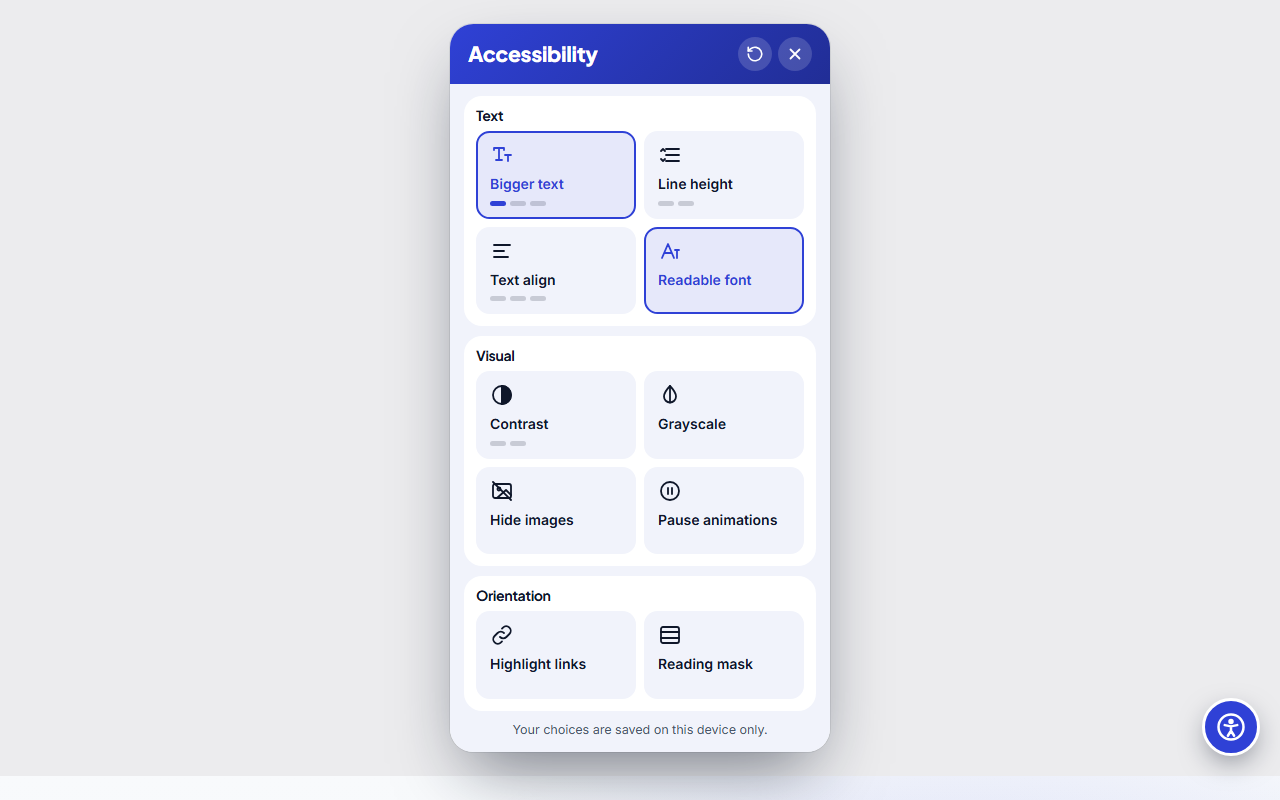
Accessibility Toolbar Widget is a free floating button that opens a panel of display options visitors can switch on for themselves, in the style of the Ally and UserWay widgets. It takes no space in your layout: the round button sits in the bottom corner of the screen, and one click or key press opens the panel. Everything is plain HTML, CSS and a little JavaScript, with no account, no tracking and no monthly fee.
What visitors can change
Ten options are built in. Bigger text steps the page text through three larger sizes, line height adds more space between lines and text align switches the page to left, centre or right aligned text. Readable font swaps the typeface for a plain, widely installed one. Contrast offers a high-contrast mode and a dark inverted mode, grayscale removes colour, hide images clears pictures and background images, and pause animations stops CSS animations, videos and GSAP timelines. Highlight links underlines every link on a bright background, and the reading mask darkens the page except a strip that follows the pointer or the focused element, which helps people who lose their place when reading.
It remembers each visitor
Choices are saved in the visitor's browser (localStorage) and applied again on the next page and the next visit, so a visitor sets things once. A reset button clears everything, and you can switch memory off for a site that should never store anything on the visitor's device.
Built to be usable itself
The button and the panel are real buttons with labels, visible focus rings and Esc to close, and focus returns to the button afterwards. The panel stays out of every filter and style it applies, so it never becomes unreadable. Reduced-motion preferences are respected.
Customise it
Choose the button corner, switch individual options on or off, rename every label for your language, and set the brand colour and corner radius in the theme. Export HTML, a ZIP, React or Vue, or fork it into My Code. Try every option on a demo page in the Accessibility Toolbar Widget UI snippet, or pair it with an exit offer or promo in the Popup & Promo Modal.
An honest note
A toolbar like this helps visitors adjust how a page looks, but it does not make a website compliant on its own. Real accessibility starts in the page itself: headings in order, alt text, labelled forms, enough contrast and keyboard access. Use the toolbar as a friendly extra, not a replacement, and test your pages with a keyboard and a screen reader.
Live example
See the Accessibility Toolbar Widget Working on a Demo Page
The editor above shows the panel as a card you can edit. To see what the toolbar does to a real page, try it on a demo school newsletter, where bigger text, contrast, grayscale, hiding images, pausing animations and the reading mask each change the page in front of you. Open the Accessibility Toolbar Widget UI snippet to try it. It uses the same code this template exports, so you can copy it from either page.
Extend with AI
Take This Section Further With AI
Ask an AI assistant to adapt the Accessibility Toolbar HTML, CSS and JavaScript: add a dyslexia-friendly font, a stronger dark mode, a keyboard shortcut to open the panel, or turn it into a React component.
Prompt to recreate it
Copy this into your AI assistant of choice to build the effect from scratch, or as a jumping-off point for your own variant:
Create a floating accessibility toolbar in plain HTML, CSS and JavaScript.

- A fixed round button in the bottom-right corner (aria-expanded, aria-label) that opens a non-modal panel; Esc and a close button close it and return focus to the button.
- The panel has tiles you click to step through levels, each a real button with aria-pressed and small level dots: bigger text (3 steps, scaling the font size of every text element), line height (2 steps), text align (left, centre, right), readable font, contrast (high contrast, then inverted dark mode), grayscale, hide images, pause animations, highlight links and a reading mask.
- Apply options with attributes on the html element and one injected style element. Exclude the widget itself from every rule. Put filters (contrast, grayscale) on the page's top-level blocks, not on html, so the fixed button and panel are not filtered.
- The reading mask is two dark fixed bars with a clear strip that follows the pointer, touch and focused element.
- Save the choices in localStorage inside try/catch, restore them on load, and add a reset button.
- Respect prefers-reduced-motion and hide the widget when printing.
Want to tighten it up first? Run this prompt through the AI Prompt Studio to score it across 8 quality dimensions, catch anti-patterns, and tune the wording for Claude, ChatGPT, or Gemini before you paste it in.
Why use it
Why Use the Accessibility Toolbar Widget
How it’s different
How It’s Different From Other Free Section Templates
Step by step
How to Use
- 1Edit the contentFill in the position & memory, panel text, option names and options to show in the panel. Wrap words in *asterisks* to colour them.
- 2Add your imagesUpload your own images (resized in your browser and kept on your device) or paste a hosted image URL.
- 3Match your brandPick a colour preset or exact colours, choose heading and body fonts from Google Fonts or your own uploaded font, set the corner radius and width, or apply your brand kit.
- 4Animate and previewChoose a GSAP entrance effect and speed, press Play animation, and check the section on desktop, tablet and mobile.
- 5Save and exportSave it to My designs, then export a single HTML file, a ZIP with your images, a React or Vue component, or fork it into My Code.
Real-world uses
Common Use Cases
In real websites
Website Templates That Use the Accessibility Toolbar Widget Section
The Accessibility Toolbar Widget section is part of 7 complete website templates in the free Website Builder, so you can see it in a full page before you use it on its own: Dental Clinic Website, Local Service Business Website, Nonprofit & Charity Website, Boutique Hotel Website, Law Firm Website, School Website, Church Website. Open any of them in the builder to edit the whole page, or keep customising this section by itself.
Got questions?
Frequently Asked Questions
No. A toolbar helps visitors change how a page looks, but compliance depends on the page itself: heading order, alt text, labelled forms, colour contrast and keyboard access. Use the widget as an extra and test your pages.
Edit the labels and colours, then export the HTML and paste it into your page, or add it as a section in the Website Builder. It appears as a floating button on every page that includes it.
Yes. Choices are saved in the browser with localStorage and applied again on later pages and visits. The reset button clears them, and you can turn memory off in the settings.
No. It is a small script with no external requests and no analytics, and the only thing stored is a short setting on the visitor's own device.
Yes. Each of the ten options has a switch, and every label can be renamed, so you can show just bigger text and contrast, or translate the panel into your own language.
It saves an editable copy of your Accessibility Toolbar Widget in My Code, the UI Snippets code editor: the section markup goes in the HTML panel, its CSS (theme variables, base styles and layout) in the CSS panel, and the GSAP library is added as a CDN link, so you can keep refining the code and save your own versions.
Yes. It is free for personal and commercial websites, with no sign-up, no watermark and no attribution required. Everything runs in your browser and your edits are saved locally.