Accessibility Widget Templates
1 free, editable accessibility section template. Floating accessibility toolbars that let visitors enlarge text, change contrast, hide images, pause animations and more. Change the text, images, colours and fonts in your browser, add a GSAP animation, then export HTML, React or Vue.
Accessibility Widget Templates
1 section · Responsive · GSAP animation · HTML, React & Vue
About these sections
Accessibility Widget Templates
Some visitors need larger text, stronger contrast or fewer distractions, and a visible toolbar lets them set the page up for themselves in a click. These templates add that toolbar to any website as a small floating button, with no subscription and no tracking.
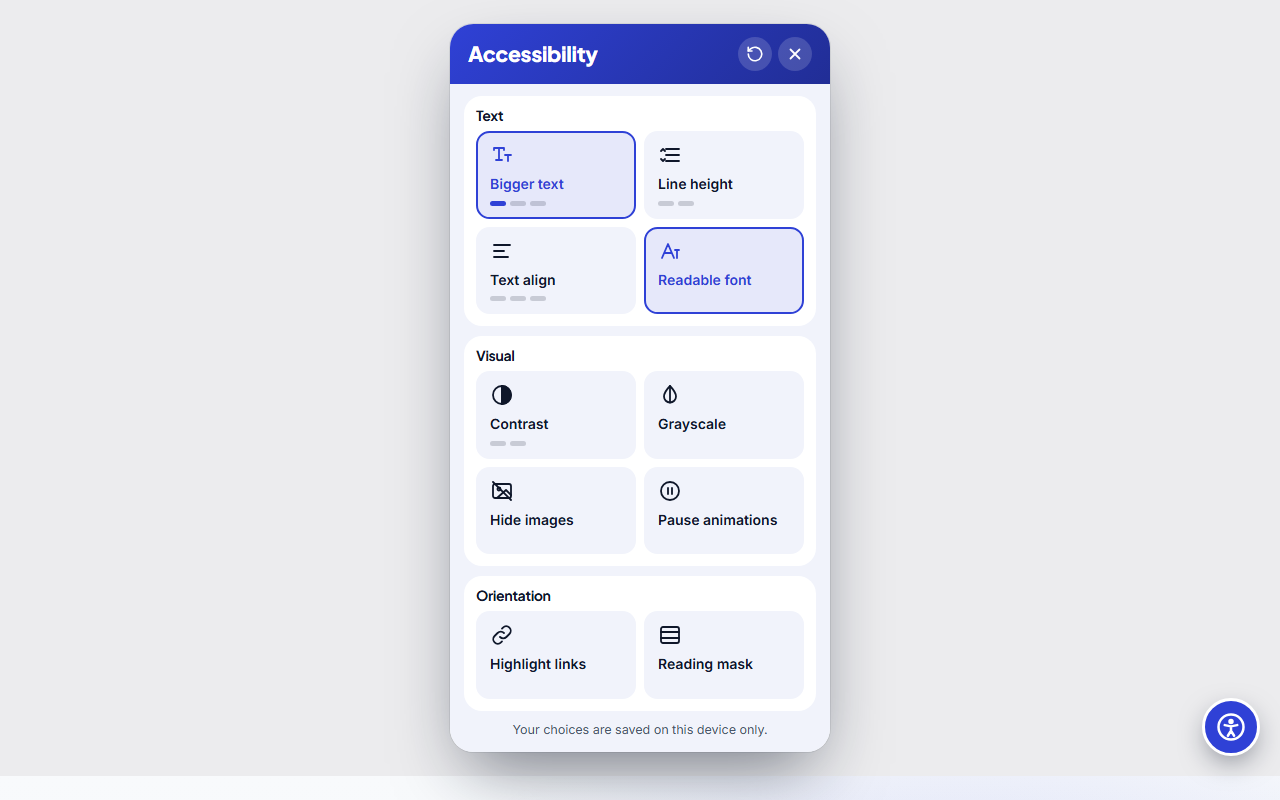
The Accessibility Toolbar Widget offers ten options: bigger text, line height, text alignment, a readable font, contrast, grayscale, hide images, pause animations, highlight links and a reading mask. Choices are remembered on the visitor's device and a reset button clears them.
It takes no space in your layout, works with a keyboard and respects reduced motion. Rename every label for your language, switch off options you do not need, set your brand colours and export HTML, a ZIP, React or Vue.
A toolbar is a helpful extra, not a substitute for an accessible page. Build the basics first: ordered headings, alt text, labelled forms and enough contrast. Then add the toolbar. For an offer that appears at the right moment, see the popup templates.
Accessibility Toolbar Widget: A floating accessibility button that opens a panel of display options visitors can switch on for themselves: bigger text, line height, text alignment, a readable font, contrast, grayscale, hide images, pause animations, highlight links and a reading mask. It takes no space in your layout, remembers each visitor's choices on their device and works with a keyboard.
Real-world uses
Best Uses for Accessibility Sections
How it’s different
How These Section Templates Are Different
Step by step
How to Use
- 1Pick a sectionOpen one of the accessibility sections above. Your edits autosave in your browser as you go.
- 2Edit the contentChange the text, buttons, links and images in the panel, and switch optional parts on or off.
- 3Add your brandPick colours, fonts, radius and width, or apply your saved brand kit; every section shares the same theme.
- 4Animate and previewChoose a GSAP entrance effect, press Play animation, and check desktop, tablet and mobile.
- 5ExportDownload HTML or a ZIP, copy a React or Vue component, or fork it into My Code.
Got questions?
Frequently Asked Questions
It adds a floating button that opens a panel where visitors can enlarge text, raise contrast, switch to grayscale, hide images, pause animations, highlight links or use a reading mask.
No. A widget helps visitors adjust the display, but compliance depends on how the page is built. Fix headings, alt text, forms, contrast and keyboard access first.
No. It is plain HTML, CSS and a little JavaScript that you export and host yourself, with no third-party script or tracking.
Yes. Every label in the panel can be renamed in the editor, so you can write it in your own language or change the wording.
Accessibility Toolbar Widget: A floating accessibility button that opens a panel of display options visitors can switch on for themselves: bigger text, line height, text alignment, a readable font, contrast, grayscale, hide images, pause animations, highlight links and a reading mask. It takes no space in your layout, remembers each visitor's choices on their device and works with a keyboard.
Yes. Every section is free for personal and commercial websites, with no account and no watermark. Everything runs in your browser and your edits are saved locally.