Team Section Templates
3 free, editable team section templates. Team grids with photos, names and roles. Change the text, images, colours and fonts in your browser, add a GSAP animation, then export HTML, React or Vue.




Team Section Templates
3 sections · Responsive · GSAP animation · HTML, React & Vue
About these sections
Team Section Templates
People buy from people. A team section puts faces and names to your company, which builds trust with customers, partners and future hires.
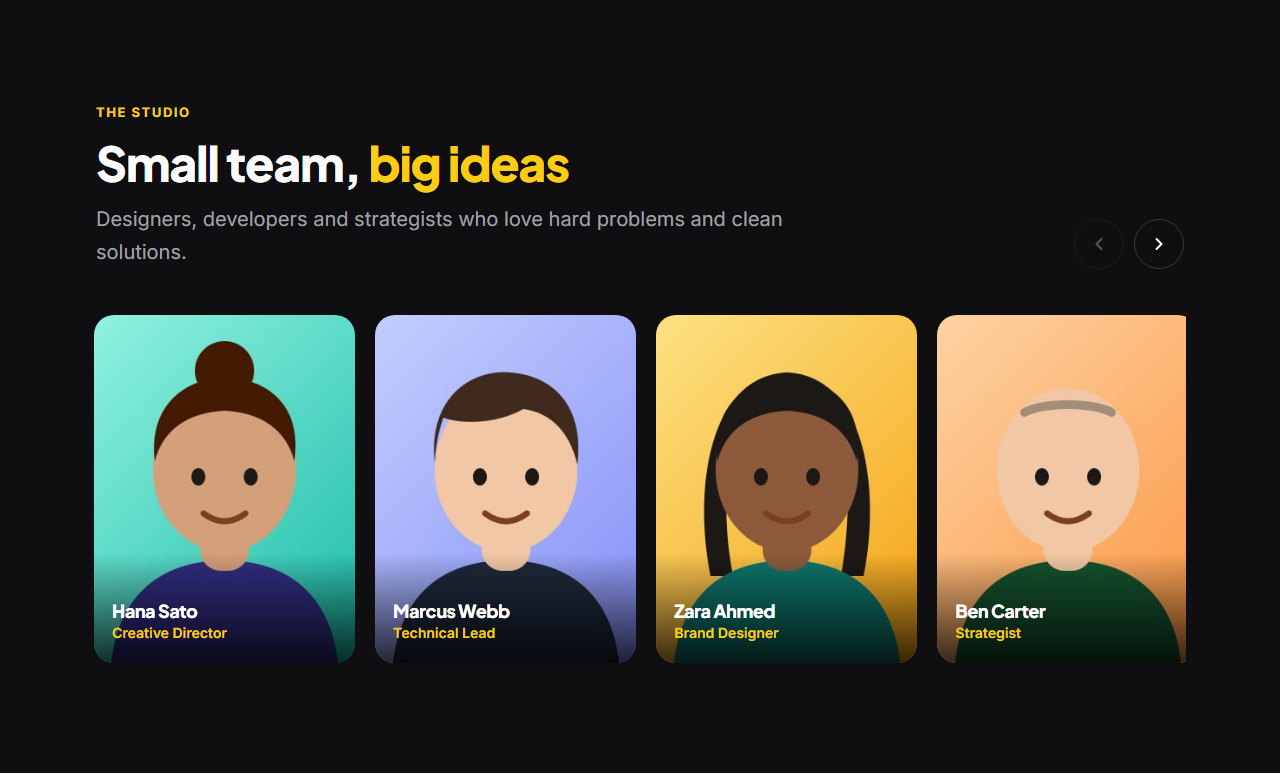
The Team Grid shows members as cards with photos, roles, bios and social links that slide in on hover. The Team Carousel presents tall portrait cards in a row you can drag with momentum, ideal for larger or creative teams. The Team With Hiring CTA pairs a mosaic of team photos with a "We're hiring" card listing perks and open roles.
Team members are editable lists: add, reorder and remove people, and upload photos (resized in your browser) or start with the illustrated placeholders. Every section shares the library's theme, animates with GSAP and exports to HTML, React or Vue.
Team Grid: A “meet the team” grid: a centred heading, then cards with each person’s photo, name, role and a one-line bio. LinkedIn and X icons slide up over the photo on hover (and are always visible on touch screens). Add up to twelve people; the grid reflows from four columns to two.
Team Carousel: A team section with personality: tall portrait cards in a horizontal row, each with the person’s name and role over a soft gradient at the bottom of the photo. Drag it with the mouse (GSAP Draggable + Inertia), swipe on touch screens, or use the arrow buttons beside the heading.
Team With Hiring CTA: A culture-and-careers section: on the left a heading, short text and a mosaic of round team photos with a “+ more” bubble; on the right a “We’re hiring” card listing perks and open roles (each linking to its job page) with a button to the careers page.
Real-world uses
Best Uses for Team Sections
How it’s different
How These Section Templates Are Different
Step by step
How to Use
- 1Pick a sectionOpen one of the team sections above. Your edits autosave in your browser as you go.
- 2Edit the contentChange the text, buttons, links and images in the panel, and switch optional parts on or off.
- 3Add your brandPick colours, fonts, radius and width, or apply your saved brand kit; every section shares the same theme.
- 4Animate and previewChoose a GSAP entrance effect, press Play animation, and check desktop, tablet and mobile.
- 5ExportDownload HTML or a ZIP, copy a React or Vue component, or fork it into My Code.
Got questions?
Frequently Asked Questions
A photo, name and role for each person, ideally with a short line about them and a link to their profile. For companies that are hiring, a link to open roles turns interest into applications.
For small teams, yes. For larger ones, show leadership or a representative group, use a carousel, or link to a full team page.
Yes. The sections ship with illustrated avatars, and any square or portrait image works, including illustrations or brand-styled portraits.
Team Grid: A “meet the team” grid: a centred heading, then cards with each person’s photo, name, role and a one-line bio. LinkedIn and X icons slide up over the photo on hover (and are always visible on touch screens). Add up to twelve people; the grid reflows from four columns to two. Team Carousel: A team section with personality: tall portrait cards in a horizontal row, each with the person’s name and role over a soft gradient at the bottom of the photo. Drag it with the mouse (GSAP Draggable + Inertia), swipe on touch screens, or use the arrow buttons beside the heading. Team With Hiring CTA: A culture-and-careers section: on the left a heading, short text and a mosaic of round team photos with a “+ more” bubble; on the right a “We’re hiring” card listing perks and open roles (each linking to its job page) with a button to the careers page.
Yes. Every section is free for personal and commercial websites, with no account and no watermark. Everything runs in your browser and your edits are saved locally.