Features Section Templates
5 free, editable features section templates. Feature grids, alternating image-and-text rows and benefit lists. Change the text, images, colours and fonts in your browser, add a GSAP animation, then export HTML, React or Vue.


Features Section Templates
5 sections · Responsive · GSAP animation · HTML, React & Vue
About these sections
Features Section Templates
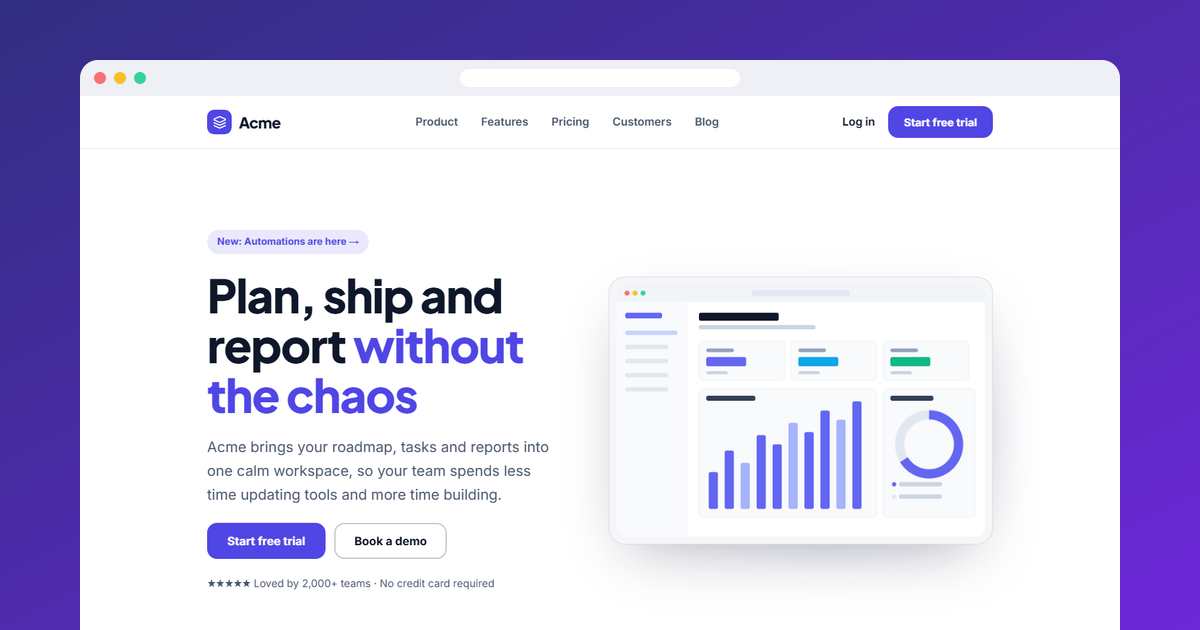
After the hero, the features section does the explaining: what your product does, why it matters and how it works. The right layout depends on how much you need to say.
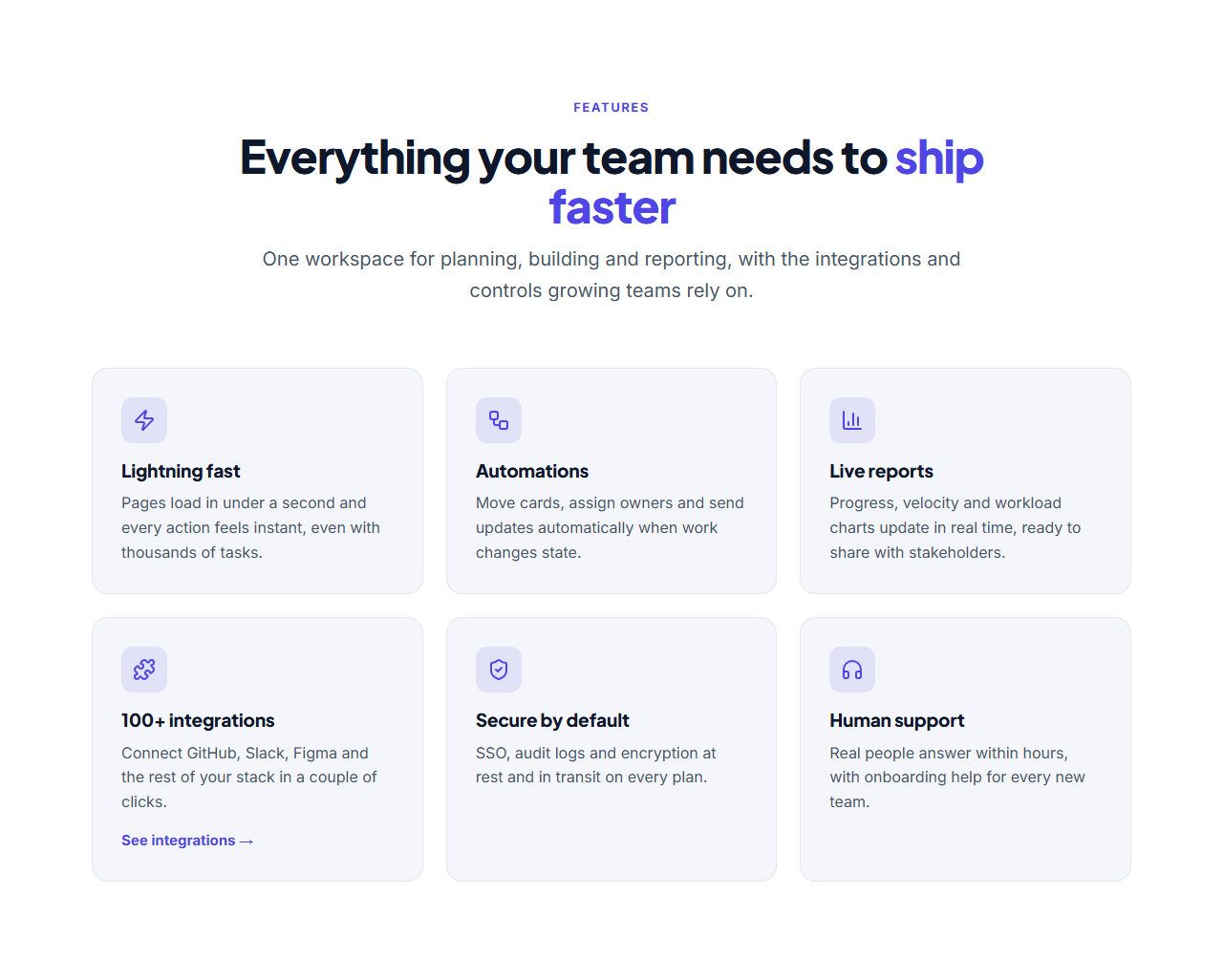
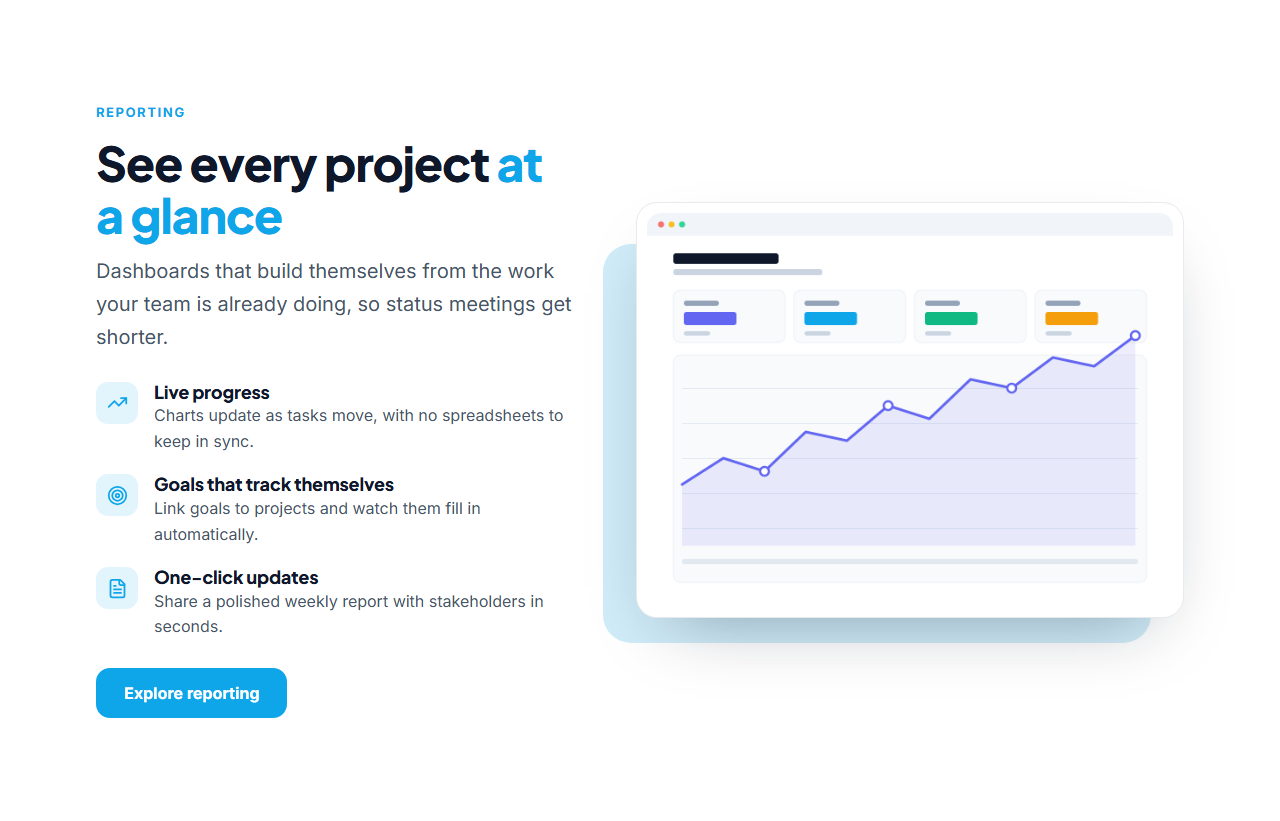
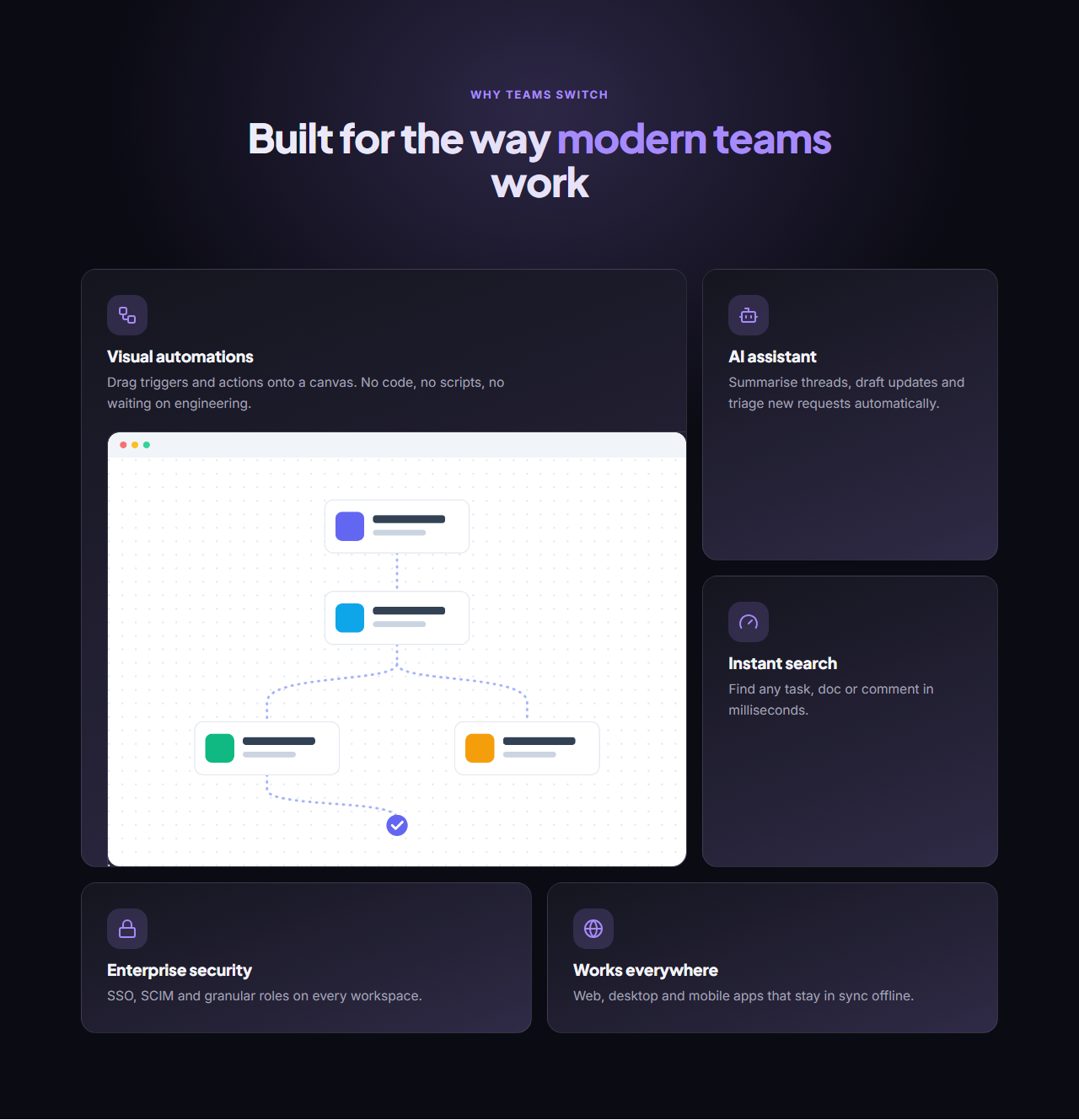
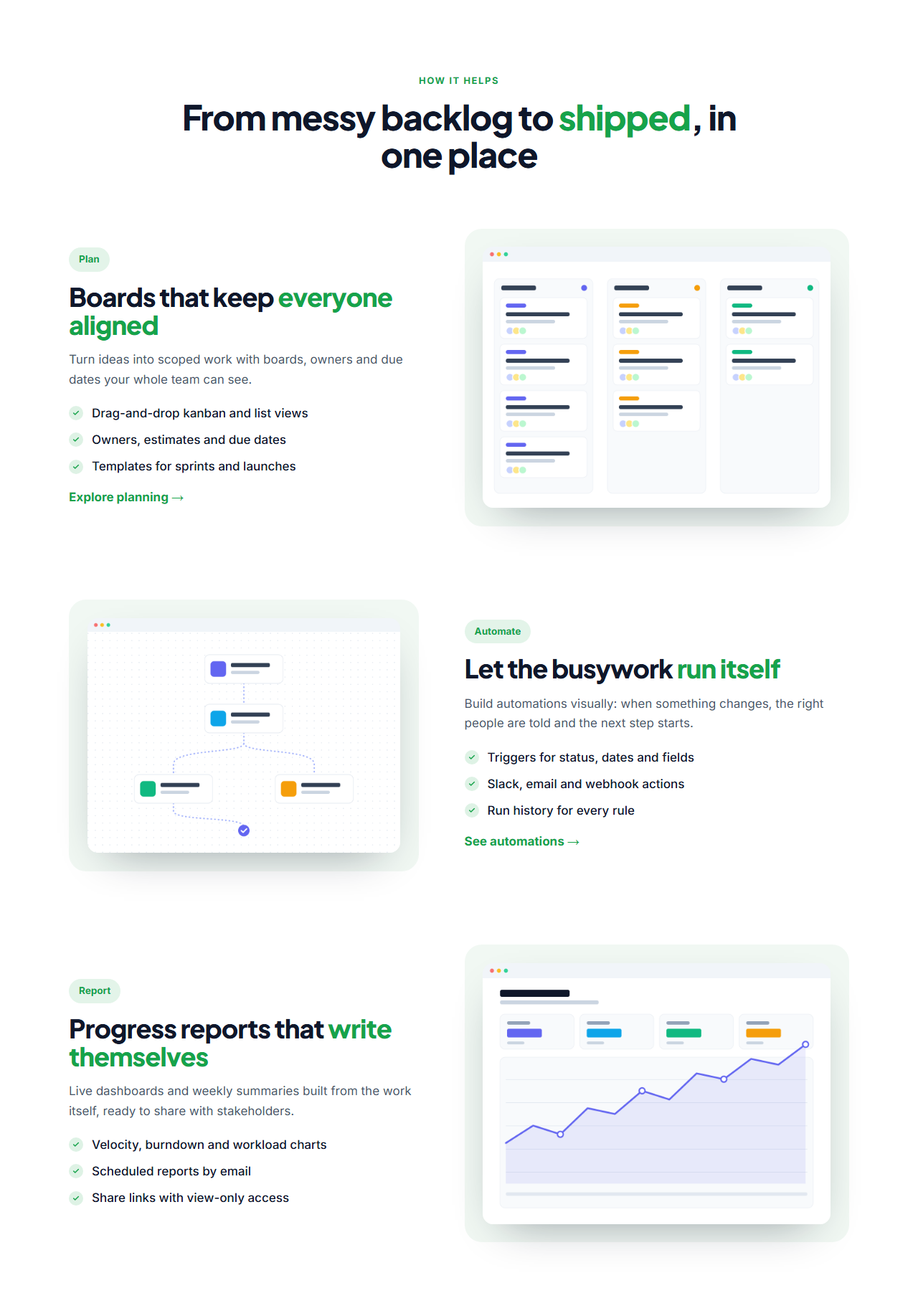
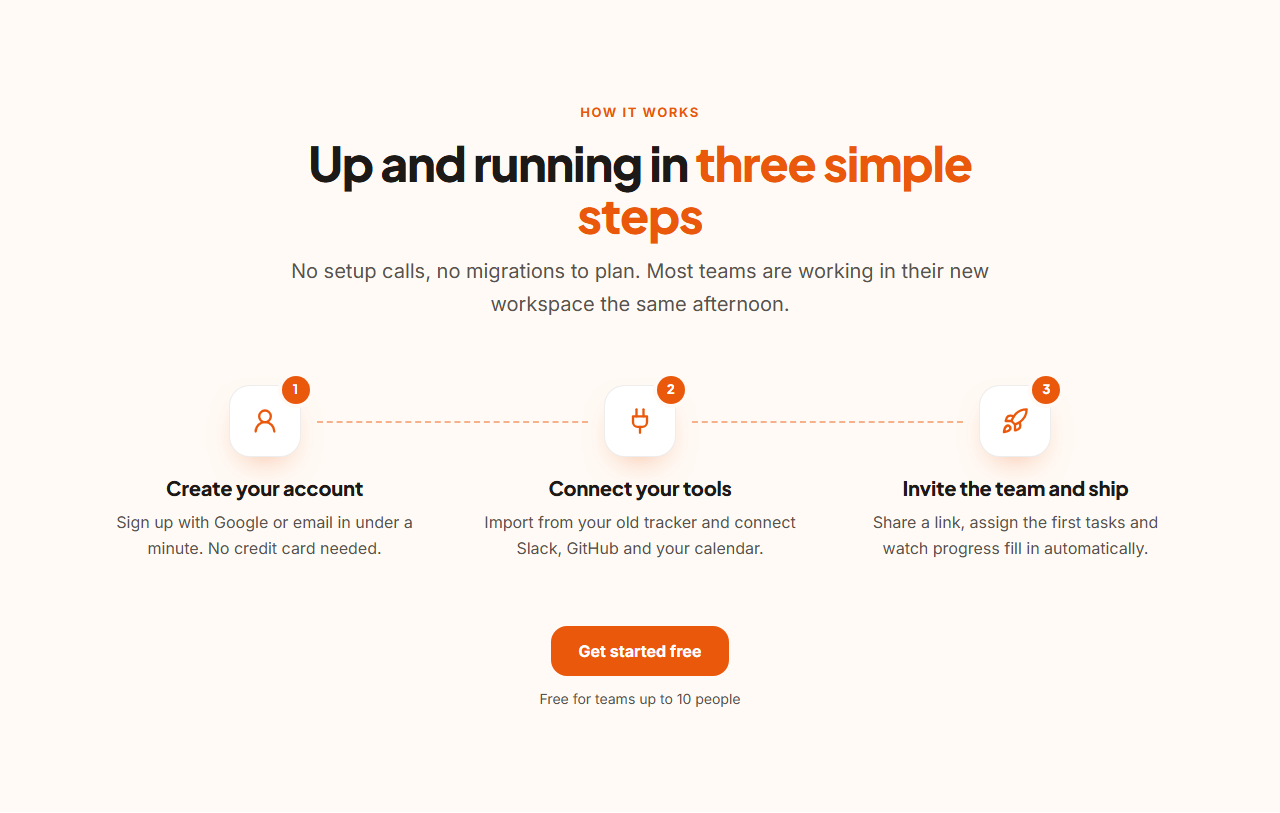
For a quick overview, the Icon Grid Features puts six benefits in scannable cards, and the Bento Grid Features does the same in a modern mosaic with one large tile for your headline feature. To go deeper, Split Features With Image pairs a point list with a screenshot, and Alternating Feature Rows gives every feature its own zig-zag row. To explain a process, How It Works Steps shows numbered steps with a sign-up button.
Cards, rows and steps are editable lists: add, duplicate, reorder and remove them, and pick icons from 60 Lucide line icons. Every section shares the library's theme, adapts with container queries and animates with GSAP (SplitText headline reveals and staggered entrances). Export HTML, a ZIP, React or Vue.
Icon Grid Features: The classic features section: an eyebrow, a centred heading and intro, then a responsive grid of cards, each with an icon, a short title, a sentence of detail and an optional link. Add, remove and reorder cards; the grid reflows from three columns to one.
Split Features With Image: A two-column feature section: an eyebrow, heading and intro above a short list of icon-led features and a button on one side, a framed product screenshot on the other. Ideal for explaining one product area in depth, and it stacks on narrow screens.
Bento Grid Features: A modern bento box grid on a dark background: cards of different sizes arranged in a tidy mosaic, each with an icon, title and text, and any card can carry a screenshot. Popular with AI and developer products; the grid reflows to two columns and then one.
Alternating Feature Rows: A zig-zag feature section: a centred heading, then rows that alternate image-left and image-right. Each row has a small label, a heading, a paragraph, a checklist of benefits, an optional link and its own image. Add as many rows as you need; they stack on phones.
How It Works Steps: A "how it works" section that explains a process in a few numbered steps. Each step has a number badge, an icon, a title and a short description, joined by a dashed connector line; a button below invites visitors to start. Steps sit in a row on desktop and stack on phones.
Real-world uses
Best Uses for Features Sections
How it’s different
How These Section Templates Are Different
Step by step
How to Use
- 1Pick a sectionOpen one of the features sections above. Your edits autosave in your browser as you go.
- 2Edit the contentChange the text, buttons, links and images in the panel, and switch optional parts on or off.
- 3Add your brandPick colours, fonts, radius and width, or apply your saved brand kit; every section shares the same theme.
- 4Animate and previewChoose a GSAP entrance effect, press Play animation, and check desktop, tablet and mobile.
- 5ExportDownload HTML or a ZIP, copy a React or Vue component, or fork it into My Code.
Got questions?
Frequently Asked Questions
A short heading that states the overall benefit, then three to six features, each with a clear title and one or two sentences about why it matters. Icons or screenshots make each point easier to scan, and a link or button gives interested visitors somewhere to go next.
Three to six works best in a grid or bento layout. If you have more, group them, or use alternating rows to cover the most important few in depth and link to a full features page for the rest.
Use an icon grid or bento grid for an overview, a split section or alternating rows for depth with screenshots, and a numbered steps section to explain how something works. Many pages use two: an overview grid followed by a few detailed rows.
Icon Grid Features: The classic features section: an eyebrow, a centred heading and intro, then a responsive grid of cards, each with an icon, a short title, a sentence of detail and an optional link. Add, remove and reorder cards; the grid reflows from three columns to one. Split Features With Image: A two-column feature section: an eyebrow, heading and intro above a short list of icon-led features and a button on one side, a framed product screenshot on the other. Ideal for explaining one product area in depth, and it stacks on narrow screens. Bento Grid Features: A modern bento box grid on a dark background: cards of different sizes arranged in a tidy mosaic, each with an icon, title and text, and any card can carry a screenshot. Popular with AI and developer products; the grid reflows to two columns and then one. Alternating Feature Rows: A zig-zag feature section: a centred heading, then rows that alternate image-left and image-right. Each row has a small label, a heading, a paragraph, a checklist of benefits, an optional link and its own image. Add as many rows as you need; they stack on phones. How It Works Steps: A "how it works" section that explains a process in a few numbered steps. Each step has a number badge, an icon, a title and a short description, joined by a dashed connector line; a button below invites visitors to start. Steps sit in a row on desktop and stack on phones.
Yes. Every section is free for personal and commercial websites, with no account and no watermark. Everything runs in your browser and your edits are saved locally.