FAQ Section Templates
3 free, editable faq section templates. Frequently asked question sections with expandable answers. Change the text, images, colours and fonts in your browser, add a GSAP animation, then export HTML, React or Vue.

FAQ Section Templates
3 sections · Responsive · GSAP animation · HTML, React & Vue
About these sections
FAQ Section Templates
An FAQ section answers the questions that would otherwise stop someone from signing up, buying or getting in touch. It also helps search: clear questions with direct answers are exactly what search engines and AI assistants look for.
The FAQ Accordion is a centred list where one answer opens at a time, the most common layout on landing and pricing pages. The Split FAQ With Contact Card puts a sticky support card beside the questions, ideal for help and service pages. The FAQ Grid shows every short answer at once in a two-column grid.
The accordions are built on native details/summary, so they work without JavaScript and keep every answer in the HTML, with smooth GSAP animation on top. Every FAQ section adds FAQPage structured data (JSON-LD) to its HTML export, generated from your questions.
FAQ Accordion: A centred FAQ section: heading and intro, then a single column of questions that expand smoothly to show their answers, one at a time, with a rotating plus/minus icon. A contact line underneath catches anyone whose question isn’t answered.
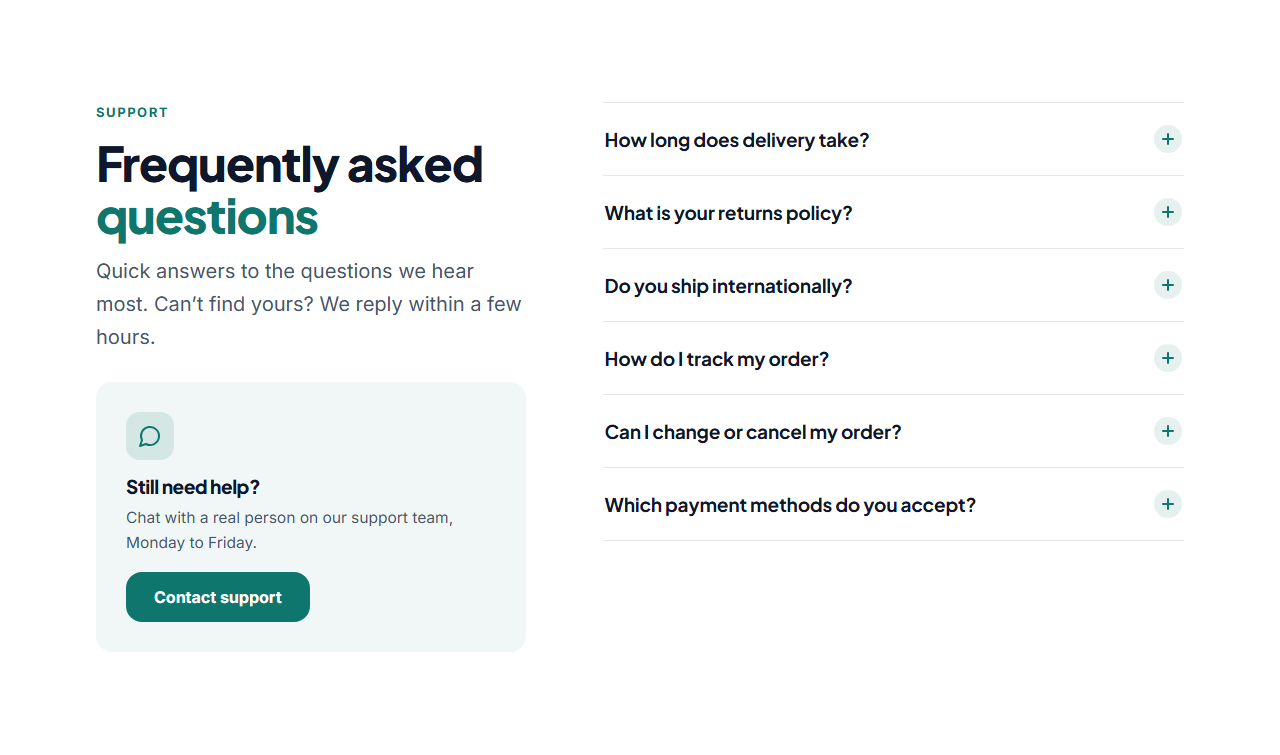
Split FAQ With Contact Card: A two-column FAQ: on the left a heading, intro and a support card with an icon, a short message and a contact button, which stays in view while you scroll; on the right an accordion of questions that open smoothly. Several answers can be open at once.
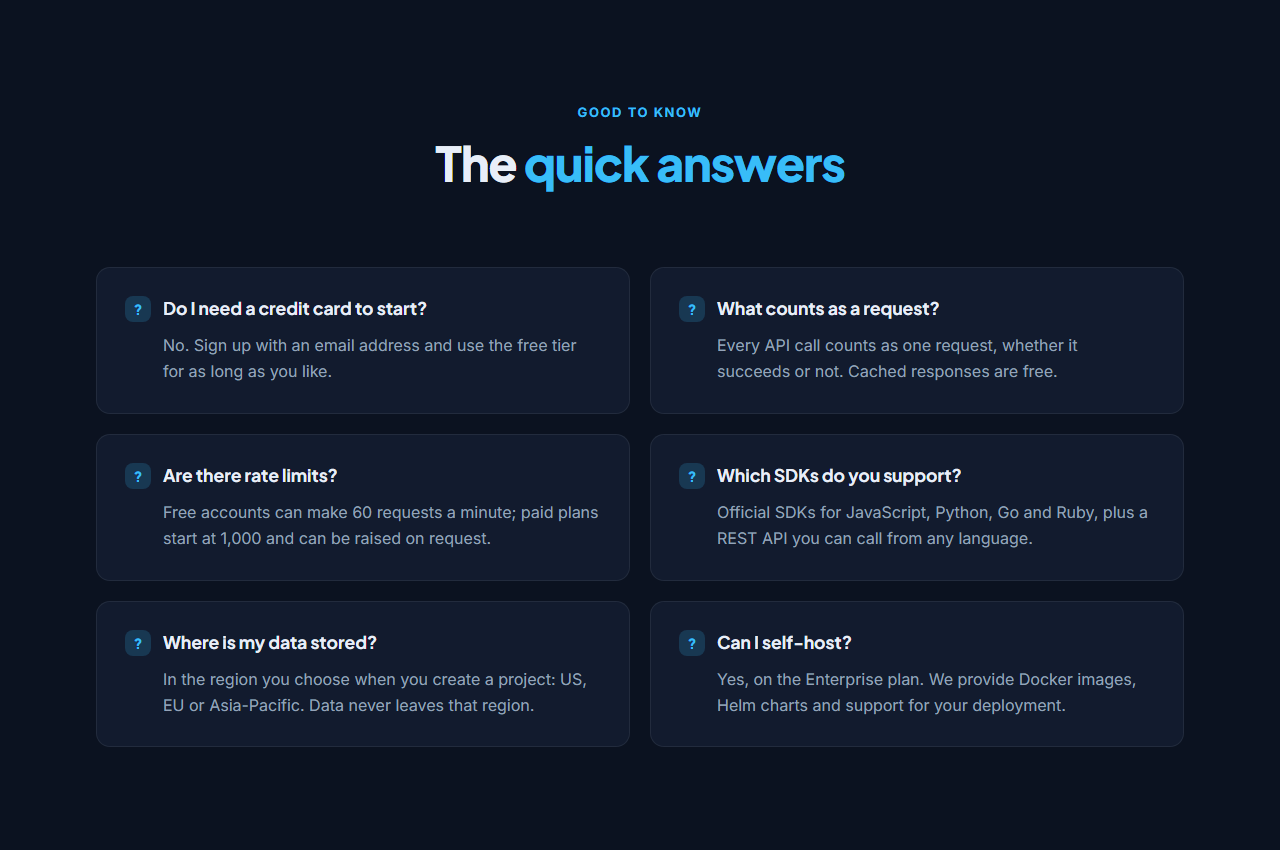
FAQ Grid: Questions and answers laid out openly in a two-column grid, with no clicking needed: each card has a small question icon, the question in bold and the answer below. Ideal when the answers are short and you want every one seen. Shown here on a dark theme.
Real-world uses
Best Uses for FAQ Sections
How it’s different
How These Section Templates Are Different
Step by step
How to Use
- 1Pick a sectionOpen one of the faq sections above. Your edits autosave in your browser as you go.
- 2Edit the contentChange the text, buttons, links and images in the panel, and switch optional parts on or off.
- 3Add your brandPick colours, fonts, radius and width, or apply your saved brand kit; every section shares the same theme.
- 4Animate and previewChoose a GSAP entrance effect, press Play animation, and check desktop, tablet and mobile.
- 5ExportDownload HTML or a ZIP, copy a React or Vue component, or fork it into My Code.
Got questions?
Frequently Asked Questions
It can. Clear question headings with direct answers match how people search, the answers give search engines and AI assistants quotable content, and FAQPage structured data describes them explicitly. Keep answers genuinely useful rather than stuffed with keywords.
Use an accordion for longer answers or many questions, so the page stays short. Use an open grid when answers are a sentence or two and you want every one read.
Yes. With details/summary the answers are in the HTML from the start, just collapsed, so search engines can read them.
FAQ Accordion: A centred FAQ section: heading and intro, then a single column of questions that expand smoothly to show their answers, one at a time, with a rotating plus/minus icon. A contact line underneath catches anyone whose question isn’t answered. Split FAQ With Contact Card: A two-column FAQ: on the left a heading, intro and a support card with an icon, a short message and a contact button, which stays in view while you scroll; on the right an accordion of questions that open smoothly. Several answers can be open at once. FAQ Grid: Questions and answers laid out openly in a two-column grid, with no clicking needed: each card has a small question icon, the question in bold and the answer below. Ideal when the answers are short and you want every one seen. Shown here on a dark theme.
Yes. Every section is free for personal and commercial websites, with no account and no watermark. Everything runs in your browser and your edits are saved locally.