Desktop · 1280px · shown at 0% · edit the text, images and colours in the panel


CTA Strip — Free Website Section Template
Call to action · v1.0.0 · Updated 2026-10-20 · Responsive · GSAP animation · HTML, React & Vue
What's included
Features
About this section
CTA Strip — Free Inline Call to Action Section Template
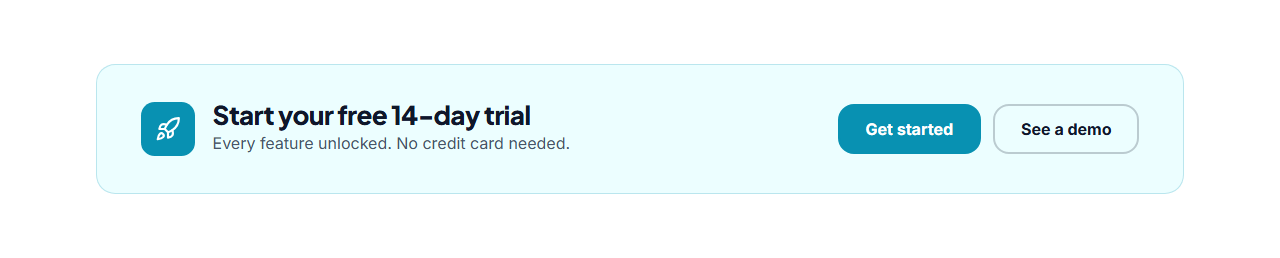
CTA Strip is a compact call to action for the middle of a page: a softly tinted band with a bold icon, a one-line heading and a short sentence on the left, and two buttons on the right. It invites action without the full-screen interruption of a big banner, so you can use it between sections, above the footer or at the end of articles.
Quick to adapt
Pick the icon from 60 Lucide line icons, write a heading such as "Start your free 14-day trial", and link the two buttons. Leave the second button empty to show only one. The border and background are tinted from your brand colour.
Feels responsive
On desktop the buttons are magnetic, drifting slightly toward the cursor (GSAP quickTo). The heading and buttons fade in as the strip scrolls into view. On phones the content stacks and the buttons share the full width.
Use it often
Because it's small, you can repeat it on long pages and documentation without overwhelming readers; every instance shares the same theme as the rest of your sections.
Export it
Download HTML, a ZIP, React or Vue, or fork into My Code. For a bigger closing moment, use the Gradient CTA Banner.
Why use it
Why Use the CTA Strip
How it’s different
How It’s Different From Other Free Section Templates
Step by step
How to Use
- 1Edit the contentFill in the heading & text and buttons in the panel. Wrap words in *asterisks* to colour them.
- 2Add your imagesUpload your own images (resized in your browser and kept on your device) or paste a hosted image URL.
- 3Match your brandPick a colour preset or exact colours, choose heading and body fonts from Google Fonts or your own uploaded font, set the corner radius and width, or apply your brand kit.
- 4Animate and previewChoose a GSAP entrance effect and speed, press Play animation, and check the section on desktop, tablet and mobile.
- 5Save and exportSave it to My designs, then export a single HTML file, a ZIP with your images, a React or Vue component, or fork it into My Code.
Real-world uses
Common Use Cases
Got questions?
Frequently Asked Questions
Use the strip between sections or on content pages where a big banner would interrupt reading, and a banner as the main closing CTA of a landing page.
Yes. Leave the secondary button text empty and it is removed.
On devices with a mouse, the buttons move slightly toward the cursor and spring back when it leaves, using GSAP. It is off on touch screens and for reduced motion.
The icon, heading and text stack, and the two buttons sit side by side across the full width.
It saves an editable copy of your CTA Strip in My Code, the UI Snippets code editor: the section markup goes in the HTML panel, its CSS (theme variables, base styles and layout) in the CSS panel, and the GSAP library is added as a CDN link, so you can keep refining the code and save your own versions.
Yes. It is free for personal and commercial websites, with no sign-up, no watermark and no attribution required. Everything runs in your browser and your edits are saved locally.