Desktop · 1280px · shown at 0% · edit the text, images and colours in the panel
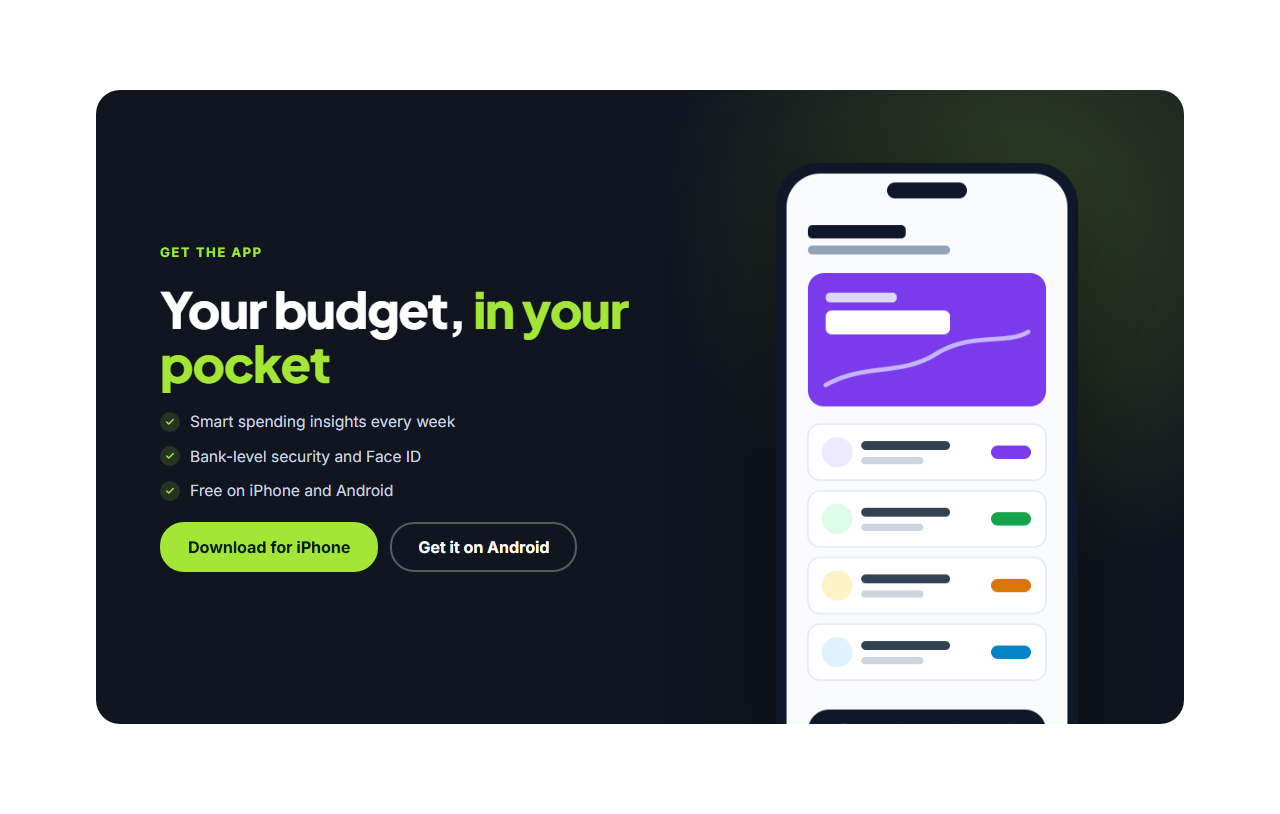
Split CTA With Image
Responsive · Animated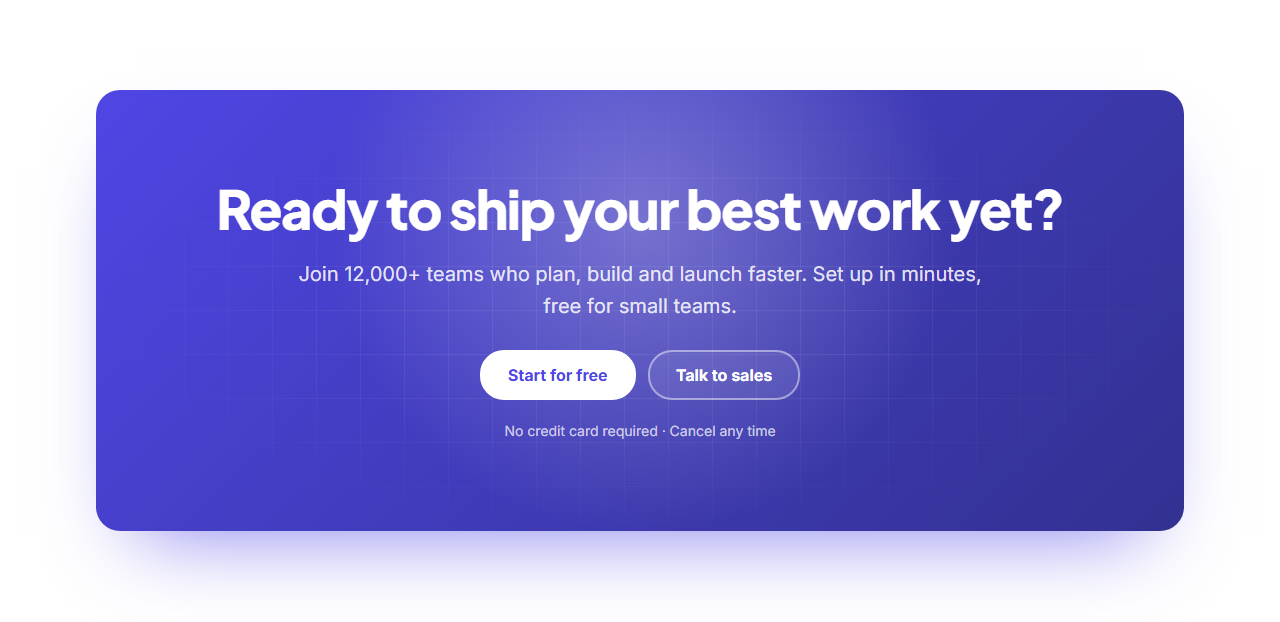
Gradient CTA Banner
Responsive · Animated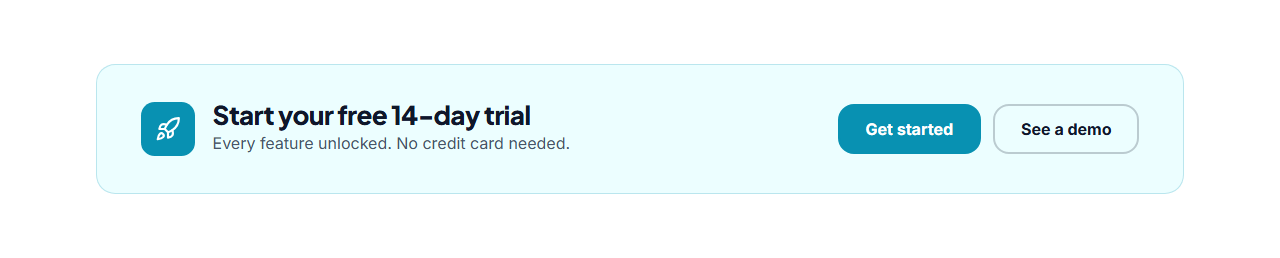
CTA Strip
Responsive · Animated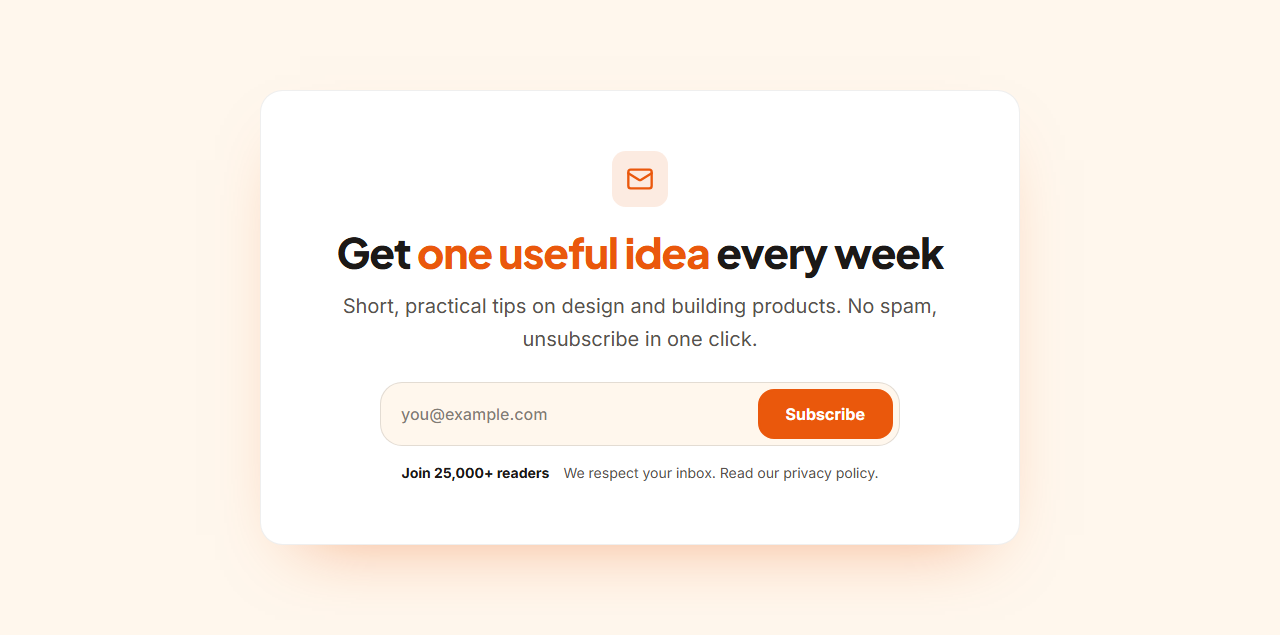
Newsletter Signup CTA
Responsive · Animated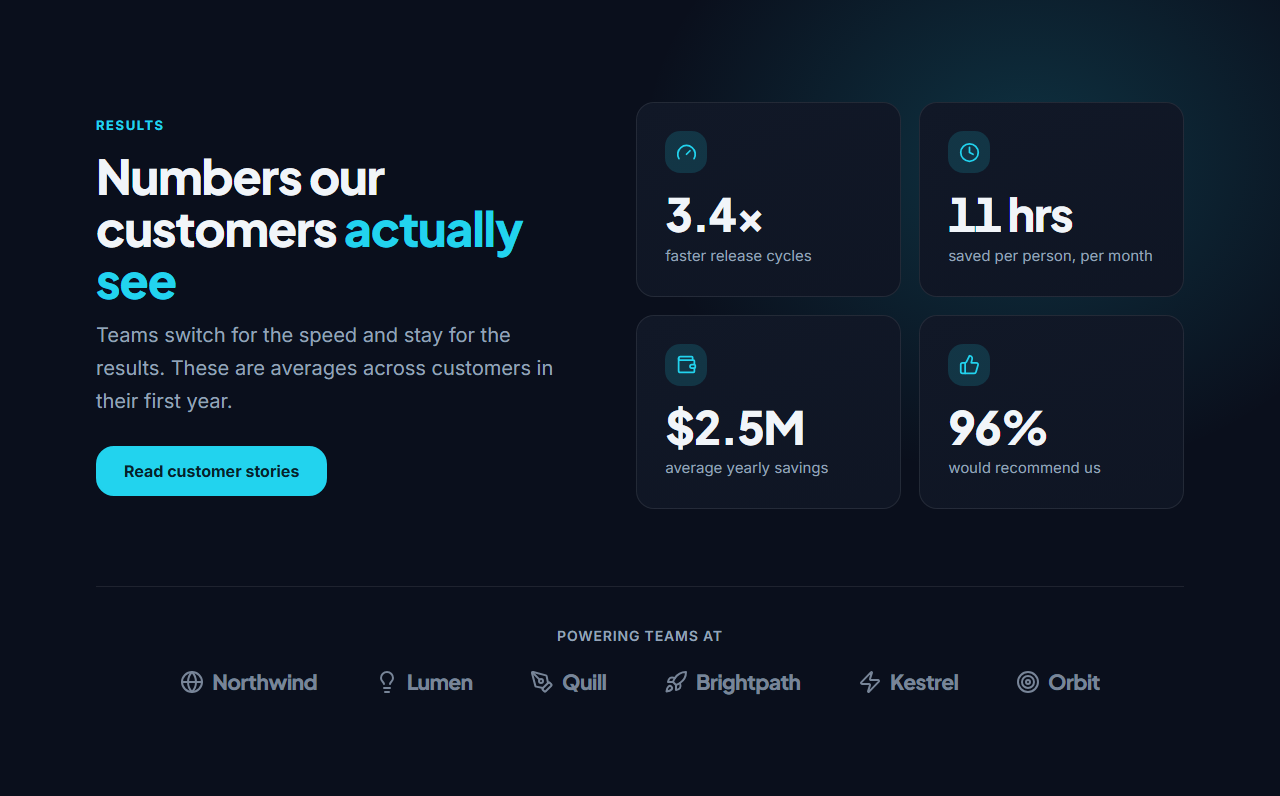
Stats With Logos (Dark)
Responsive · Animated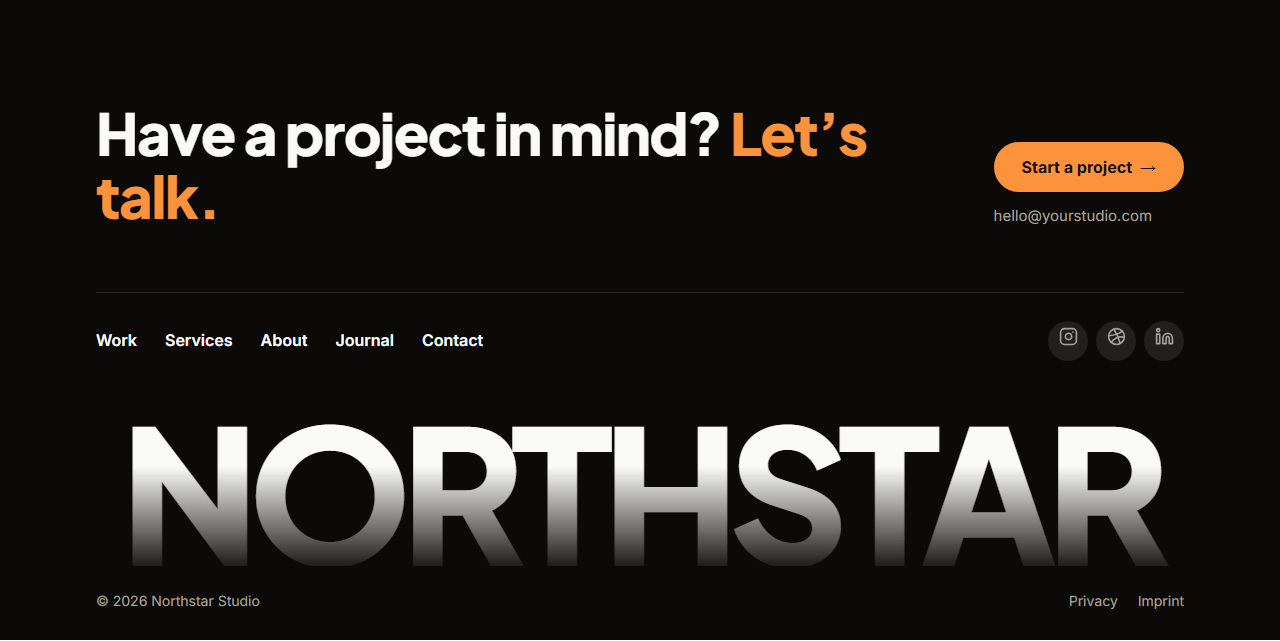
Big Wordmark Footer
Responsive · AnimatedSplit CTA With Image — Free Website Section Template
Call to action · v1.0.0 · Updated 2026-10-20 · Responsive · GSAP animation · HTML, React & Vue
What's included
Features
About this section
Split CTA With Image — Free App Download Call to Action Template
Split CTA With Image is a dark call-to-action card built for app downloads and product sign-ups. On the left: an eyebrow, a heading with a highlighted phrase, a short checklist of benefits and two buttons. On the right: a phone screen or product shot that rises from the bottom edge of the card, under a soft glow in your brand colour.
Show the product, then ask
Seeing the app right next to the download buttons makes the decision easier. Upload your own screenshot (PNGs keep their transparency) and it's resized in your browser; the drop shadow and edge-cropping work with any phone or product image.
Store-ready buttons
The two buttons default to "Download for iPhone" and "Get it on Android", so you can link them straight to your App Store and Google Play pages, or change them to "Start free" and "Book a demo" for a web product. Both buttons are magnetic on desktop.
Responsive and animated
On phones the image moves under the text and shrinks to fit. With GSAP, the heading reveals word by word, the checklist and buttons follow, and the image rises in as the card scrolls into view.
Export it
Download HTML or a ZIP with your image, copy a React or Vue component, or fork into My Code. For a hero-sized app layout, see the App Product Hero.
Why use it
Why Use the Split CTA With Image
How it’s different
How It’s Different From Other Free Section Templates
Step by step
How to Use
- 1Edit the contentFill in the heading & text, buttons and image in the panel. Wrap words in *asterisks* to colour them.
- 2Add your imagesUpload your own images (resized in your browser and kept on your device) or paste a hosted image URL.
- 3Match your brandPick a colour preset or exact colours, choose heading and body fonts from Google Fonts or your own uploaded font, set the corner radius and width, or apply your brand kit.
- 4Animate and previewChoose a GSAP entrance effect and speed, press Play animation, and check the section on desktop, tablet and mobile.
- 5Save and exportSave it to My designs, then export a single HTML file, a ZIP with your images, a React or Vue component, or fork it into My Code.
Real-world uses
Common Use Cases
Got questions?
Frequently Asked Questions
A tall PNG with a transparent background, such as a phone mockup, about 720×1440 px. The image is cropped at the bottom edge of the card, which looks natural for phones.
Yes. After exporting, replace the two buttons with Apple’s and Google’s official badge images and links, following their brand guidelines.
The card stacks: copy and buttons first, then the image, shrunk to about 70% of the width and still rising from the bottom edge.
The card uses the theme’s surface colour as its background, so choosing a light preset gives a light card; adjust the text colours in the exported CSS if needed.
It saves an editable copy of your Split CTA With Image in My Code, the UI Snippets code editor: the section markup goes in the HTML panel, its CSS (theme variables, base styles and layout) in the CSS panel, and the GSAP library is added as a CDN link, so you can keep refining the code and save your own versions.
Yes. It is free for personal and commercial websites, with no sign-up, no watermark and no attribution required. Everything runs in your browser and your edits are saved locally.