Desktop · 1280px · shown at 0% · edit the text, images and colours in the panel
Newsletter Signup CTA — Free Website Section Template
Call to action · v1.0.0 · Updated 2026-10-20 · Responsive · GSAP animation · HTML, React & Vue
What's included
Features
About this section
Newsletter Signup CTA — Free Email Subscribe Section Template
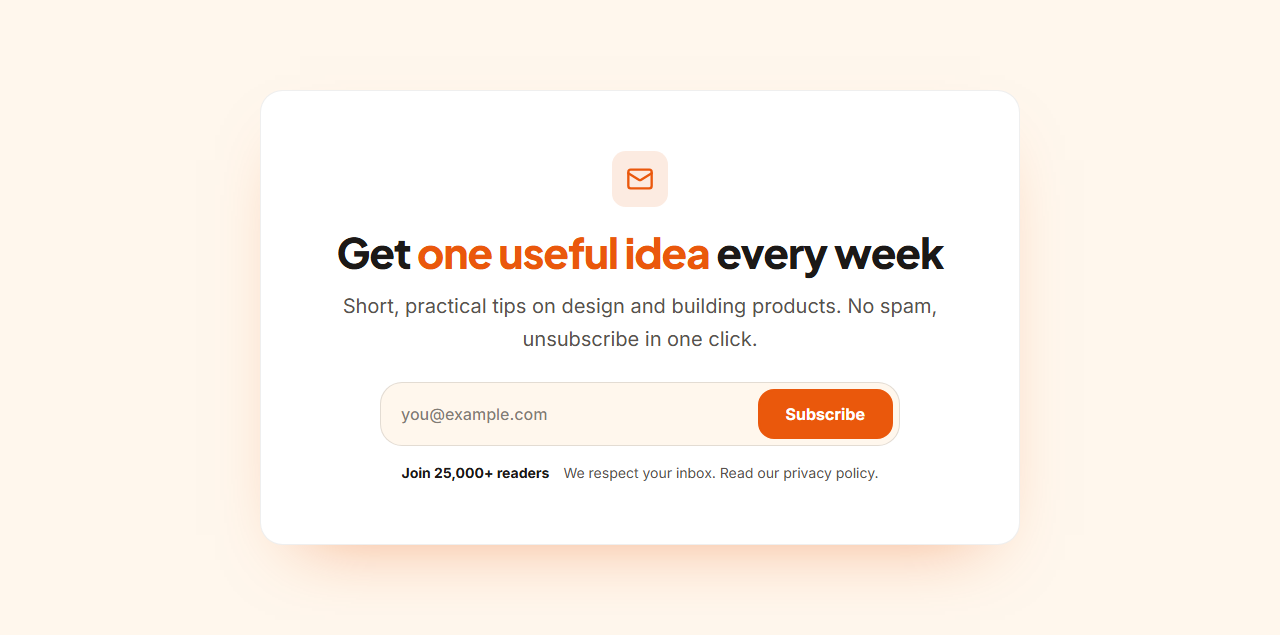
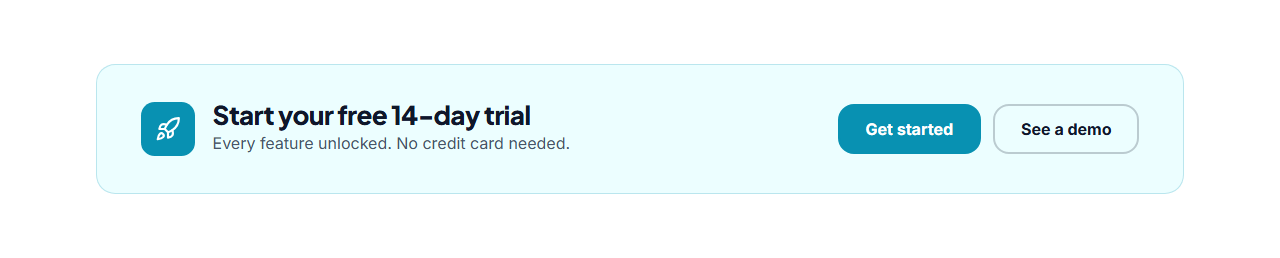
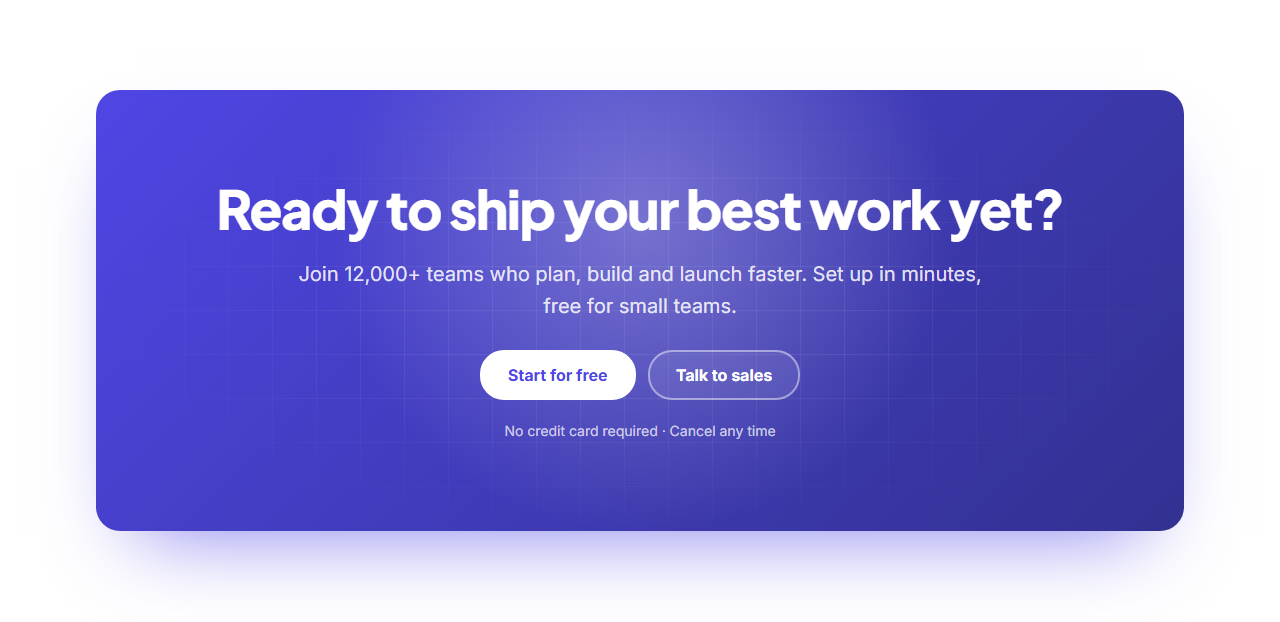
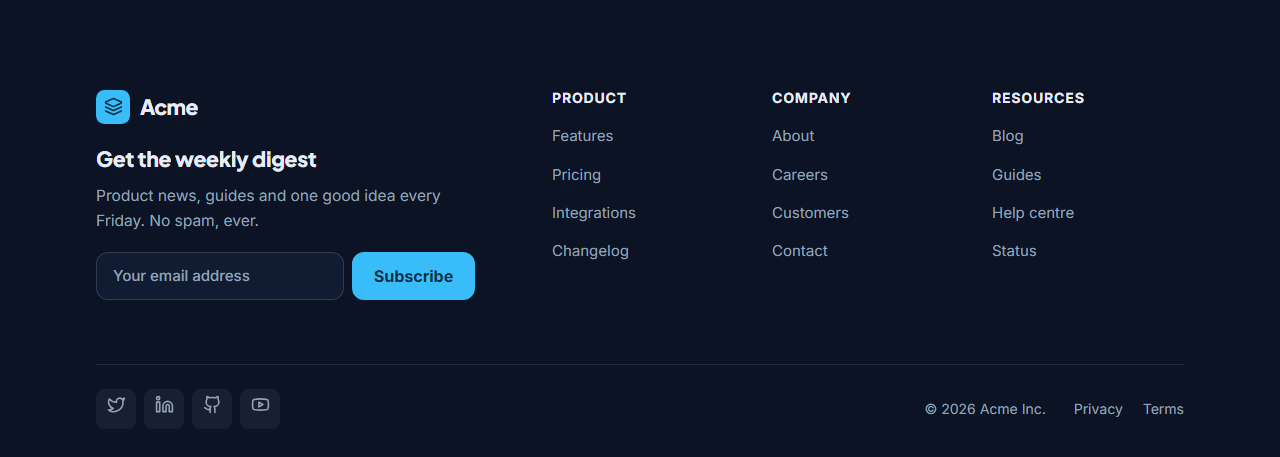
Newsletter Signup CTA turns readers into subscribers. A centred card holds an icon, a heading about what subscribers get, a short pitch, an email field and subscribe button side by side, and a line of social proof with a privacy note.
A real, working form
Unlike many templates, this isn't just a picture of a form. Paste the form action URL from your email service (Mailchimp, Kit/ConvertKit, Buttondown, Brevo or your own endpoint), set the field name it expects (for example EMAIL for Mailchimp), and the exported page posts sign-ups straight to it. The URL is checked before it's used, and the email field has proper type, autocomplete and required attributes.
Friendly on every screen
On desktop the input and button share one rounded bar that glows in your brand colour when focused. On phones they stack into a full-width field and button that are easy to tap.
Edit and animate
Change the icon, heading, pitch, placeholder, button text, subscriber count and note. The heading reveals with GSAP SplitText as the card scrolls into view. In the editor the form never submits, so you can try it safely.
Export it
Download HTML, a ZIP, React or Vue, or fork into My Code. Pair it with an email from the Email Templates library, such as the welcome email.
Why use it
Why Use the Newsletter Signup CTA
How it’s different
How It’s Different From Other Free Section Templates
Step by step
How to Use
- 1Edit the contentFill in the heading & text and form in the panel. Wrap words in *asterisks* to colour them.
- 2Add your imagesUpload your own images (resized in your browser and kept on your device) or paste a hosted image URL.
- 3Match your brandPick a colour preset or exact colours, choose heading and body fonts from Google Fonts or your own uploaded font, set the corner radius and width, or apply your brand kit.
- 4Animate and previewChoose a GSAP entrance effect and speed, press Play animation, and check the section on desktop, tablet and mobile.
- 5Save and exportSave it to My designs, then export a single HTML file, a ZIP with your images, a React or Vue component, or fork it into My Code.
Real-world uses
Common Use Cases
Got questions?
Frequently Asked Questions
In Mailchimp, open your audience’s embedded form code and copy the form’s action URL into Form URL, and set Email field name to EMAIL. Sign-ups will go straight to your audience.
Yes. Copy the action URL from the service’s HTML form embed and use the field name it expects, such as email_address for Kit or email for Buttondown.
No. In the editor preview submissions are blocked so you can try the form safely. The exported page submits normally.
The email input has a label from the placeholder (aria-label), type="email", autocomplete="email" and required, and the button is a real submit button.
It saves an editable copy of your Newsletter Signup CTA in My Code, the UI Snippets code editor: the section markup goes in the HTML panel, its CSS (theme variables, base styles and layout) in the CSS panel, and the GSAP library is added as a CDN link, so you can keep refining the code and save your own versions.
Yes. It is free for personal and commercial websites, with no sign-up, no watermark and no attribution required. Everything runs in your browser and your edits are saved locally.