Desktop · 1280px · shown at 0% · scroll inside the preview to see the effect
Scroll Zoom Image Stack (Ken Burns) — Free Website Section Template
Scroll effects · v3.0.0 · Updated 2026-10-30 · Responsive · GSAP animation · HTML, React & Vue
What's included
Features
About this section
Scroll Zoom Image Stack: Free Images That Start Small and Zoom Up on Scroll
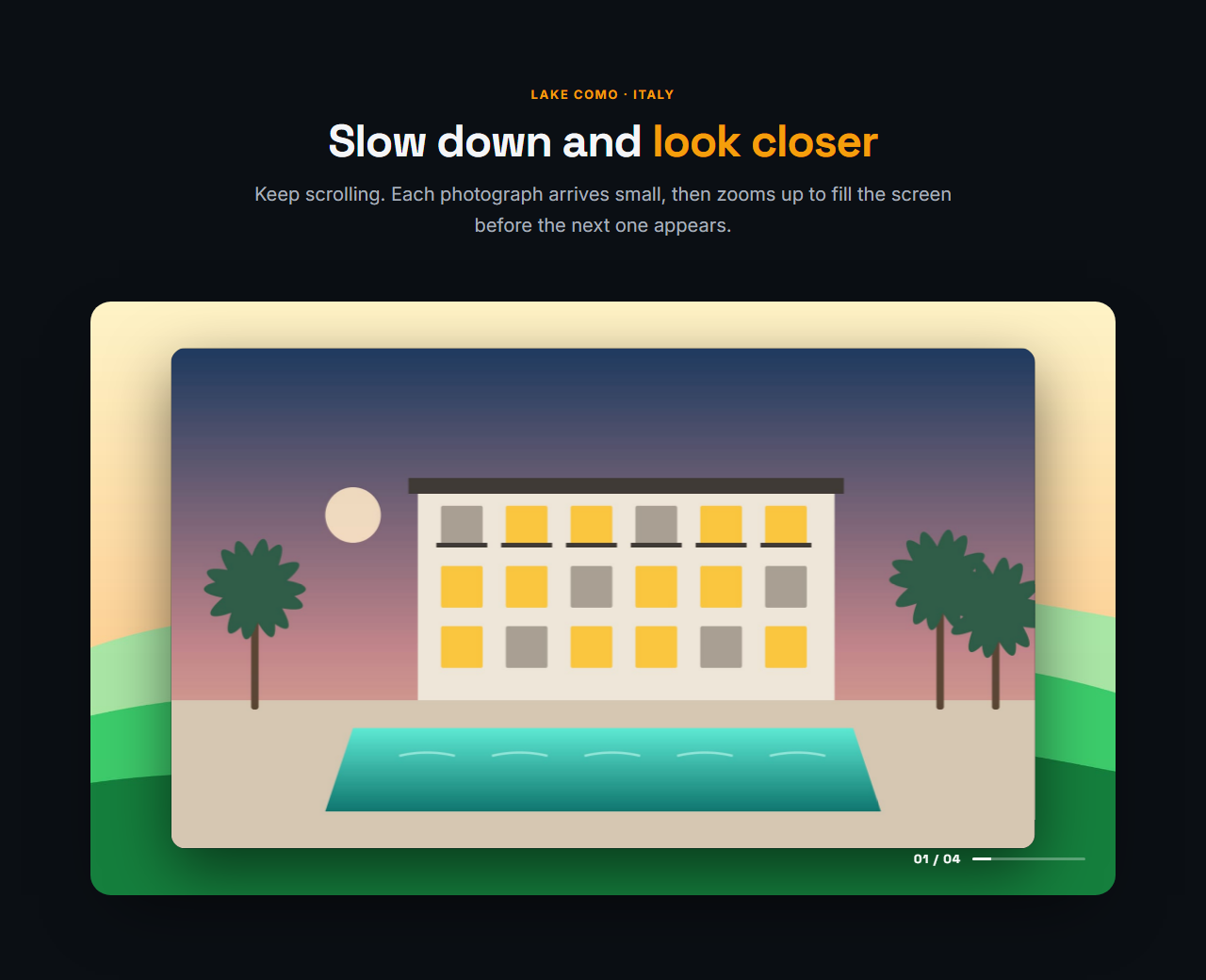
Scroll Zoom Image Stack layers several images one over the other in a pinned stage. The first image fills the stage. As the visitor scrolls, the next image first appears small, as a rounded card in the middle on top of the one before, and then zooms up until it fills the whole stage. Then the following image appears small on top of that, and so on. It is built with GSAP ScrollTrigger and one scrubbed timeline, so the effect follows the scroll exactly and plays backwards when scrolling up.
How the stack works
The stage is pinned to the screen while the page scrolls. Each new image starts at a size you choose, with rounded corners and a soft shadow so it reads as a card lying on the previous picture. Over its share of the scroll it scales up to full size while its corners square off and the shadow fades, and the picture inside settles from slightly enlarged to normal, which gives the zoom depth. Only transforms and opacity are animated, which the browser can do smoothly on the graphics card.
Settings you control
Set the zoom intensity from 5 to 100 percent: it is how small each image starts, so 45 starts it at about two thirds of the stage and 80 makes it zoom a long way. Choose the direction: zoom in, where each new image grows up over the last, or zoom out, where the image on top shrinks to a small card and goes, uncovering the next. Choose which images are affected: the zooming image only, or also the image beneath it, which drifts slowly closer for a Ken Burns feel.
Scroll range and smoothness
The scroll range per image is the share of the screen height the visitor scrolls for each zoom: 100 percent is one screen, 60 is quicker and 200 is slower. The smoothness value, in seconds, lets the zoom ease into place instead of jumping with each wheel tick. A counter and a progress bar show where the visitor is, and every image has its own title and caption, which fade so two are never shown at once.
Fallbacks and accessibility
Without GSAP, or when the visitor prefers reduced motion, the images become an ordinary column with their captions, so nothing is hidden and the page reads the same. The pin respects a sticky header by stopping just below it, and every image has its own alt text.
Customise and export
Add two to eight images, upload your own, edit titles and captions, set colours and fonts, and export HTML, a ZIP, React or Vue, or fork it into My Code. For a pinned story with steps see the Pinned Scroll Story, or for stacking cards see the Stacking Cards.
Extend with AI
Take This Section Further With AI
Ask an AI assistant to adapt the Scroll Zoom Image Stack HTML, CSS and JavaScript: zoom from a point other than the centre, add clickable dots, tie a headline to each image, or turn it into a React component with a ScrollTrigger cleanup.
Prompt to recreate it
Copy this into your AI assistant of choice to build the effect from scratch, or as a jumping-off point for your own variant:
Create a stacked image zoom on scroll with plain HTML, CSS and GSAP ScrollTrigger.

- A rounded stage with four full-size image layers stacked on top of each other (position absolute, inset 0, later images with a higher z-index), each image with object-fit cover, plus a title and caption at the bottom left of each layer.
- The first image fills the stage at the start. Hide the other layers and set each to scale 0.65 with border-radius 30px and a soft box-shadow, so it is a small card in the middle.
- One GSAP timeline with scrub and pin: pin the stage and set the scroll length to the number of transitions times the screen height. For each following image, fade the card in quickly, then scale it from 0.65 to 1 while its border-radius goes to 0, its shadow fades out and the picture inside settles from scale 1.22 to 1. At the same time let the image beneath drift to scale 1.1.
- Fade the caption of the previous image out as the next card appears and fade the new caption in near the end of the zoom, so two captions never show at once.
- Settings as data attributes: zoom intensity (how small an image starts), direction (in, or out where the top image shrinks to a card and fades), whether the image beneath also drifts, scroll range per image as a percentage of the screen height, and scrub smoothness in seconds.
- Show a counter ("01 / 04") and a thin progress bar that follow the scroll progress.
- Without GSAP or with prefers-reduced-motion, show the images as a normal column and do not pin. Pin below a sticky header and refresh ScrollTrigger on window load.
Want to tighten it up first? Run this prompt through the AI Prompt Studio to score it across 8 quality dimensions, catch anti-patterns, and tune the wording for Claude, ChatGPT, or Gemini before you paste it in.
Why use it
Why Use the Scroll Zoom Image Stack (Ken Burns)
How it’s different
How It’s Different From Other Free Section Templates
Step by step
How to Use
- 1Edit the contentFill in the heading, zoom effect and image stack in the panel. Switch the heading on or off. Wrap words in *asterisks* to colour them.
- 2Add your imagesUpload your own images (resized in your browser and kept on your device) or paste a hosted image URL.
- 3Match your brandPick a colour preset or exact colours, choose heading and body fonts from Google Fonts or your own uploaded font, set the corner radius and width, or apply your brand kit.
- 4Animate and previewThis section is driven by scrolling: scroll inside the preview to see the effect, press Refresh to restart it from the top, and check the section on desktop, tablet and mobile.
- 5Save and exportSave it to My designs, then export a single HTML file, a ZIP with your images, a React or Vue component, or fork it into My Code.
Real-world uses
Common Use Cases
In real websites
Website Templates That Use the Scroll Zoom Image Stack (Ken Burns) Section
The Scroll Zoom Image Stack (Ken Burns) section is part of 3 complete website templates in the free Website Builder, so you can see it in a full page before you use it on its own: Restaurant Website, Real Estate Agency Website, Hair & Beauty Salon Website. Open any of them in the builder to edit the whole page, or keep customising this section by itself.
Got questions?
Frequently Asked Questions
The images sit on top of one another in a pinned stage. A GSAP ScrollTrigger scrubs one timeline as you scroll: each new image appears small on top of the last and zooms up to fill the stage, and scrolling back reverses it.
Change the zoom intensity. At 45 each image starts at about two thirds of the stage, and at 80 it starts tiny and zooms a long way. Lower values give a subtle zoom close to full size.
Yes. Set the direction to zoom out and the image on top shrinks to a small card and disappears, uncovering the next image underneath, which is already full size.
It sets how far the visitor scrolls for each zoom, as a percentage of the screen height. At 100 each image takes one screen of scrolling, lower values are faster and higher values are slower.
They see the images as an ordinary column with their titles and captions. Nothing is pinned or hidden, so the content reads the same, only without the zoom.
It saves an editable copy of your Scroll Zoom Image Stack (Ken Burns) in My Code, the UI Snippets code editor: the section markup goes in the HTML panel, its CSS (theme variables, base styles and layout) in the CSS panel, and the GSAP library is added as a CDN link, so you can keep refining the code and save your own versions.
Yes. It is free for personal and commercial websites, with no sign-up, no watermark and no attribution required. Everything runs in your browser and your edits are saved locally.