Desktop · 1280px · shown at 0% · edit the text, images and colours in the panel


Interactive Team Accordion — Free Website Section Template
Team · v1.0.0 · Updated 2026-10-30 · Responsive · GSAP animation · HTML, React & Vue
What's included
Features
About this section
Interactive Team Accordion: Free Expanding Image Strips Team Section
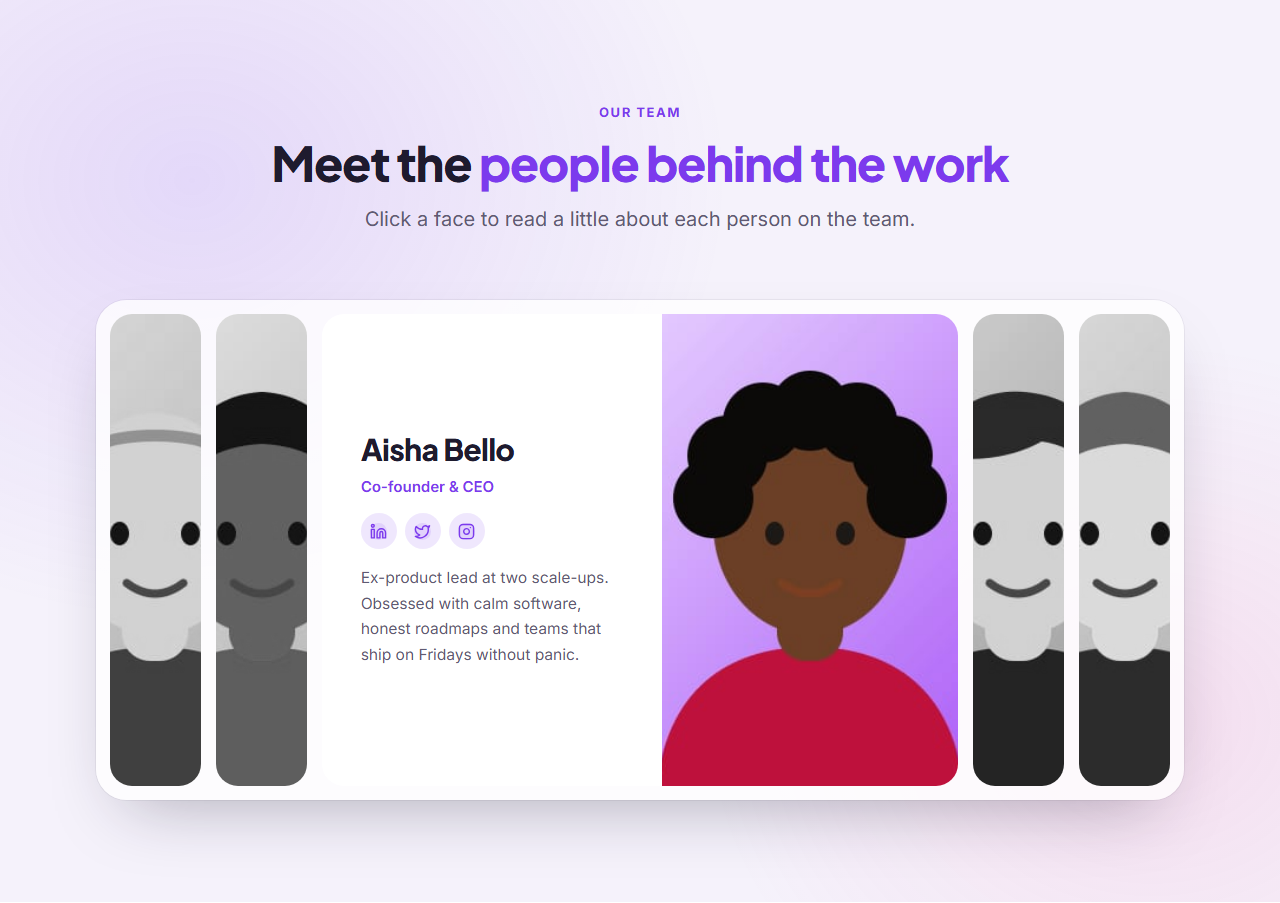
Interactive Team Accordion introduces your people as a row of tall, narrow image strips. Every photo starts in grayscale. Click a strip and it grows smoothly to reveal the person's name, job title, social icons and bio on the left, with their full-colour photo on the right, while the other strips stay slim. It is plain HTML, CSS and a few lines of JavaScript, and it takes a minute to fill in.
How the expanding strips work
Each strip is a flex item. A closed strip has flex-grow: 1 and the open one has flex-grow: 7, and a CSS transition on flex-grow makes the width change glide instead of jump. Inside the strip, the text area and the photo are two more flex items: the text area grows from zero width to about half of the strip, so the content seems to slide out of the image. The text keeps a fixed inner width, so its lines do not reflow while the strip is animating.
Grayscale until opened
Closed strips use filter: grayscale(1), and the open strip returns to full colour, so the eye goes to the person you have chosen. Switch the grayscale off in the editor if you prefer colour everywhere. Photos are cropped to fill the strip with object-fit: cover, aimed slightly above the centre so faces stay in view.
The click, the keyboard and the fallback
A small vanilla JavaScript behaviour opens the strip you click and closes the others, and exactly one strip is always open. Each strip has a real button with aria-expanded, and the arrow keys, Home and End move between strips. Closed strips hide their text from keyboard and screen-reader users. Without JavaScript the first strip is shown open, so the content never disappears, and reduced-motion preferences switch the animation off.
Stacks on phones
When the section is narrower than 760 pixels the strips stack vertically. The open strip grows downwards, with the text above the photo, and the closed strips become short bars you can tap to open.
Edit the members
Members are a repeater list: add, remove and reorder up to eight people, each with a photo, name, job title, bio and up to three social icons. Pick any icon from the library for each slot (LinkedIn, X, Instagram, Facebook, YouTube, GitHub, email, website and more) and give it a link. Choose which strip is open at the start, change the heading, set colours and fonts, and export HTML, a ZIP, React or Vue, or fork it into My Code. For a simpler layout, see the Team Grid, or for a draggable row see the Team Carousel.
Extend with AI
Take This Section Further With AI
Ask an AI assistant to adapt the Team Accordion HTML, CSS and JavaScript: open a strip on hover, add a "show more" link to full profiles, auto-open the next strip every few seconds, or turn it into a React component.
Prompt to recreate it
Copy this into your AI assistant of choice to build the effect from scratch, or as a jumping-off point for your own variant:
Create an interactive team accordion in plain HTML, CSS and vanilla JavaScript.

- A row of tall, narrow image strips (about 460px high) with rounded corners, inside a soft rounded container. Each strip is a flex item that contains a text area and a photo.
- Closed strips have flex-grow 1 and show only the photo with filter: grayscale(1). The open strip has flex-grow 7, the photo in full colour on the right, and the text area on the left with a name, job title, social icon links and a bio.
- Animate with CSS only: transition flex-grow 0.65s on the strips and on the text area (which grows from zero width), plus an opacity fade for the text. Keep a fixed inner width on the text so lines do not reflow during the animation.
- Each strip has a button with aria-expanded and the member name as aria-label. Clicking it opens that strip and closes the others, and exactly one strip is always open. Arrow keys, Home and End move focus between strips. Hide the text of closed strips from keyboard and screen readers with visibility: hidden.
- Under 760px wide, stack the strips vertically so the open strip grows downwards with the text above the photo.
- Show the first strip open without JavaScript, and turn off transitions for prefers-reduced-motion.
- Include five sample team members with illustrated portraits.
Want to tighten it up first? Run this prompt through the AI Prompt Studio to score it across 8 quality dimensions, catch anti-patterns, and tune the wording for Claude, ChatGPT, or Gemini before you paste it in.
Why use it
Why Use the Interactive Team Accordion
How it’s different
How It’s Different From Other Free Section Templates
Step by step
How to Use
- 1Edit the contentFill in the heading, strips and team members in the panel. Switch the heading on or off. Wrap words in *asterisks* to colour them.
- 2Add your imagesUpload your own images (resized in your browser and kept on your device) or paste a hosted image URL.
- 3Match your brandPick a colour preset or exact colours, choose heading and body fonts from Google Fonts or your own uploaded font, set the corner radius and width, or apply your brand kit.
- 4Animate and previewChoose a GSAP entrance effect and speed, press Play animation, and check the section on desktop, tablet and mobile.
- 5Save and exportSave it to My designs, then export a single HTML file, a ZIP with your images, a React or Vue component, or fork it into My Code.
Real-world uses
Common Use Cases
In real websites
Website Templates That Use the Interactive Team Accordion Section
The Interactive Team Accordion section is part of 3 complete website templates in the free Website Builder, so you can see it in a full page before you use it on its own: Hair & Beauty Salon Website, Law Firm Website, Podcast Website. Open any of them in the builder to edit the whole page, or keep customising this section by itself.
Got questions?
Frequently Asked Questions
Each strip is a flex item. The open one has a larger flex-grow value, and a CSS transition on flex-grow animates the change. The text area grows inside the strip while the photo stays in place.
Yes. Switch off the "Grayscale until opened" option in the editor and every strip stays in full colour, while the opened strip still grows and reveals its content.
From two to eight members. On wide screens more than eight strips become too narrow to recognise, so for larger teams use the Team Grid or show only the leadership team.
Yes. Every strip has a real button with aria-expanded and the member name as its label, arrow keys move between strips, and hidden text is not reachable while a strip is closed. Reduced motion is respected.
The strips stack vertically. The open strip grows downwards and shows the text above the photo, and the closed strips are short bars you tap to open.
It saves an editable copy of your Interactive Team Accordion in My Code, the UI Snippets code editor: the section markup goes in the HTML panel, its CSS (theme variables, base styles and layout) in the CSS panel, and the GSAP library is added as a CDN link, so you can keep refining the code and save your own versions.
Yes. It is free for personal and commercial websites, with no sign-up, no watermark and no attribution required. Everything runs in your browser and your edits are saved locally.