Desktop · 1280px · shown at 0% · edit the text, images and colours in the panel

Team Grid — Free Website Section Template
Team · v1.0.0 · Updated 2026-10-20 · Responsive · GSAP animation · HTML, React & Vue
What's included
Features
About this section
Team Grid — Free Meet the Team Section Template
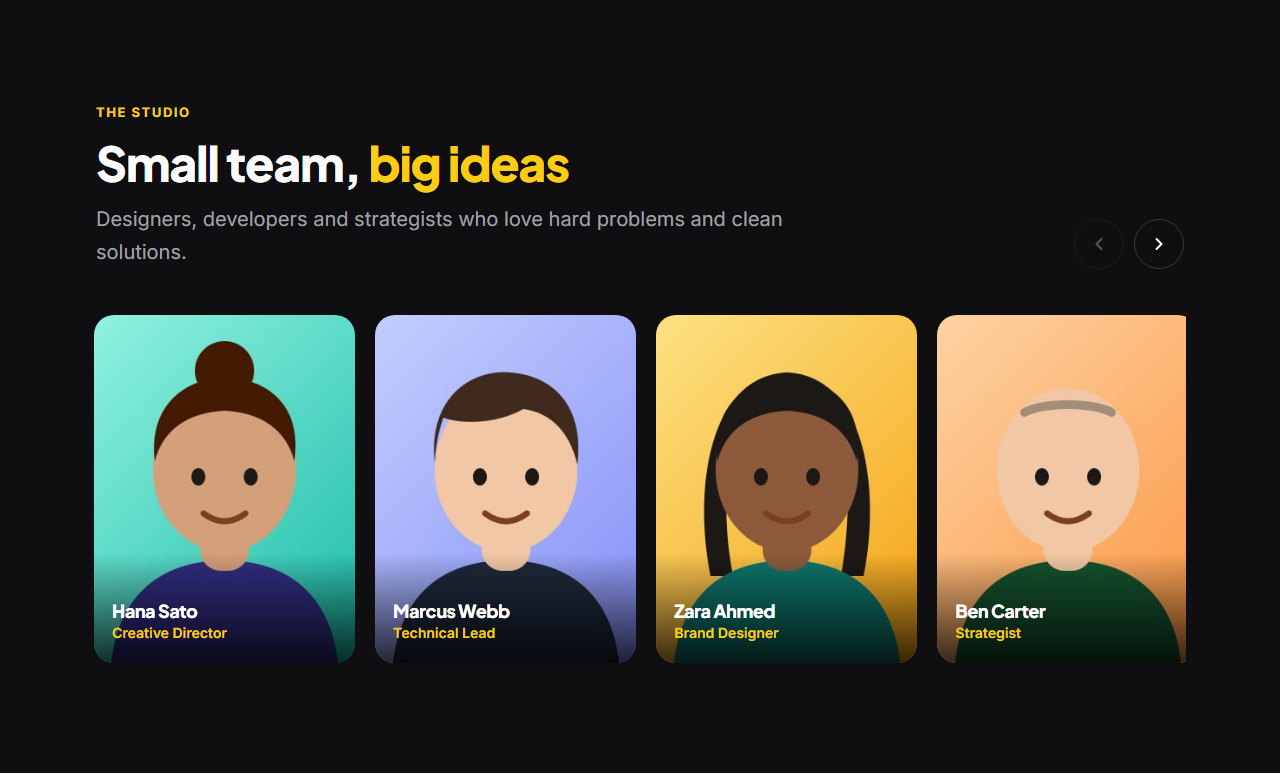
Team Grid introduces the people behind your company: a centred heading and intro, then a grid of cards with each person's photo, name, role and a one-line bio. Hover a card and its photo zooms gently while LinkedIn and X icons slide up over it; on touch screens the icons are always visible.
People as a list
Add up to twelve team members, reorder them (founders first, or alphabetical) and duplicate a card to add the next person quickly. Leave a bio or social link empty and it disappears. Upload real photos, which are resized in your browser and kept on your device, or start with the illustrated placeholders.
Responsive grid
Four columns on desktop, three on small laptops and two on phones, using container queries so the grid fits wherever you place it. Photos are cropped to neat squares with your theme's corner radius.
Animated with GSAP
The heading reveals with a SplitText effect and the cards stagger in as the section scrolls into view, with reduced-motion support.
Export it
Download HTML, a ZIP with your photos, React or Vue, or fork into My Code. For a larger team, try the Team Carousel.

Why use it
Why Use the Team Grid
How it’s different
How It’s Different From Other Free Section Templates
Step by step
How to Use
- 1Edit the contentFill in the heading and team members in the panel. Wrap words in *asterisks* to colour them.
- 2Add your imagesUpload your own images (resized in your browser and kept on your device) or paste a hosted image URL.
- 3Match your brandPick a colour preset or exact colours, choose heading and body fonts from Google Fonts or your own uploaded font, set the corner radius and width, or apply your brand kit.
- 4Animate and previewChoose a GSAP entrance effect and speed, press Play animation, and check the section on desktop, tablet and mobile.
- 5Save and exportSave it to My designs, then export a single HTML file, a ZIP with your images, a React or Vue component, or fork it into My Code.
Real-world uses
Common Use Cases
Got questions?
Frequently Asked Questions
Up to twelve. The grid shows four per row on desktop and two on phones; for larger teams, the Team Carousel holds sixteen in one scrolling row.
The cards include LinkedIn and X. After exporting you can add more links in the same style, such as GitHub or Dribbble, using any SVG icon.
Square photos of at least 400×400 px. Uploads are resized in your browser and cropped to squares automatically.
Yes. On touch screens, where hover isn’t available, the icons are always visible on the photo.
It saves an editable copy of your Team Grid in My Code, the UI Snippets code editor: the section markup goes in the HTML panel, its CSS (theme variables, base styles and layout) in the CSS panel, and the GSAP library is added as a CDN link, so you can keep refining the code and save your own versions.
Yes. It is free for personal and commercial websites, with no sign-up, no watermark and no attribution required. Everything runs in your browser and your edits are saved locally.