Stats & Logo Section Templates
3 free, editable stats & logos section templates. Social-proof numbers and customer logo strips. Change the text, images, colours and fonts in your browser, add a GSAP animation, then export HTML, React or Vue.

Stats & Logo Section Templates
3 sections · Responsive · GSAP animation · HTML, React & Vue
About these sections
Stats & Logo Section Templates
Numbers and logos are the quickest kind of social proof: "12,000+ teams" and a row of familiar company names tell visitors your product is real and widely used before they read anything else.
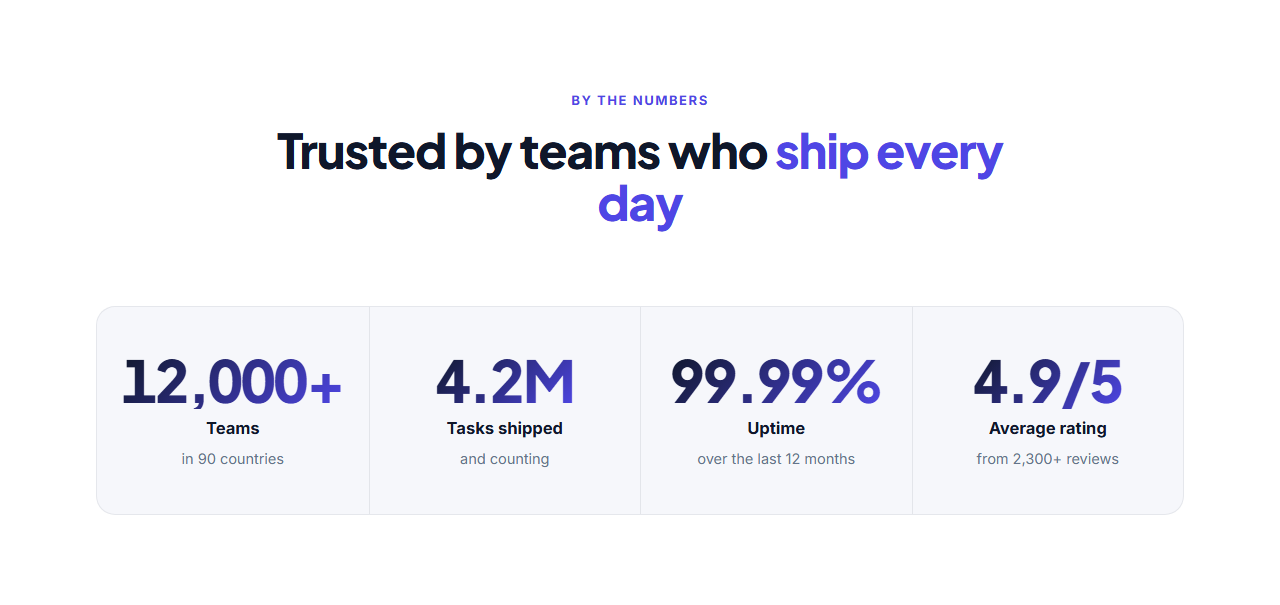
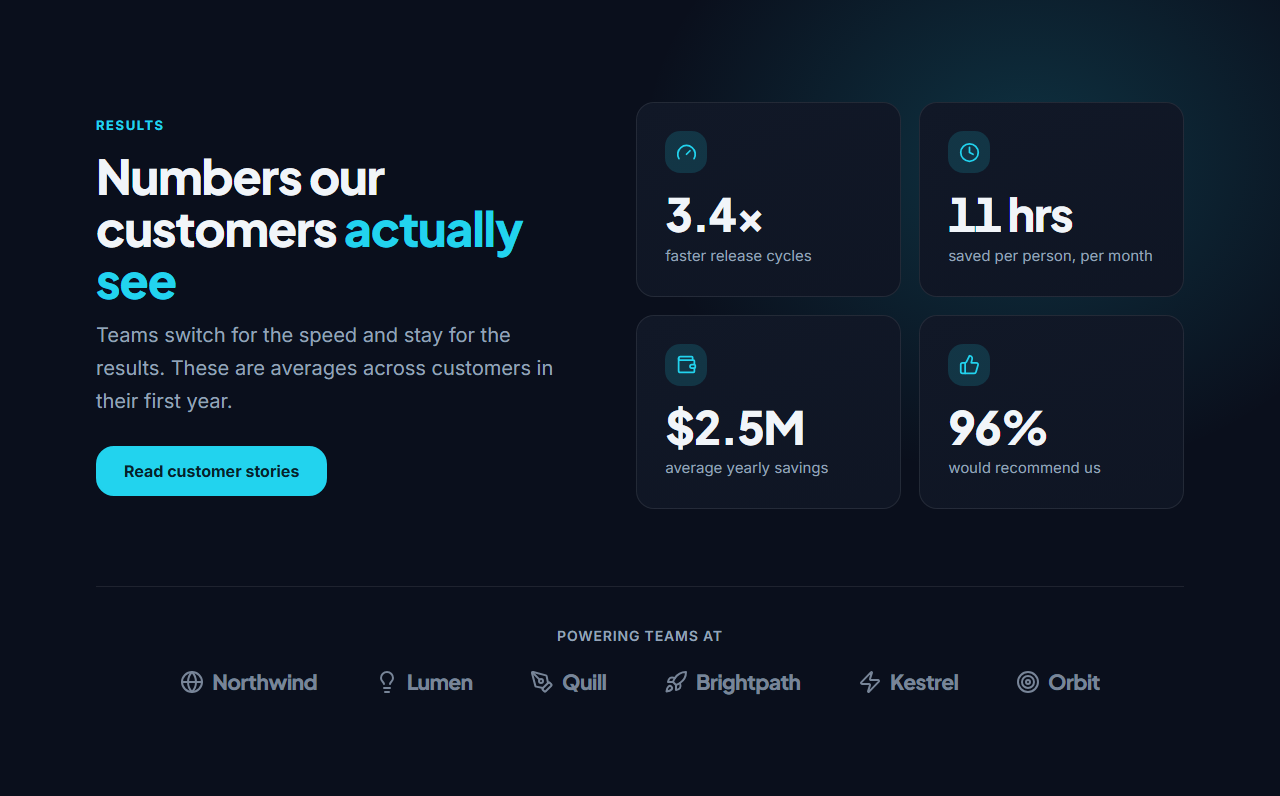
Animated Stats Counters shows up to six key figures that count up as they scroll into view. The Scrolling Logo Cloud is a slim "Trusted by" strip of customer logos that loops endlessly and pauses on hover. Stats With Logos combines both on a dark background: a heading and button, four counting stat cards with icons, and a logo row.
The counters keep any format ($2.5M, 99.9%, 4.9/5) and leave the real values in the HTML for search engines. Logos start as icon-and-name wordmarks and can be replaced with uploaded SVG or PNG files. Everything animates with GSAP, respects reduced motion and exports to HTML, React or Vue.
Animated Stats Counters: A row of key numbers that count up from zero as the section scrolls into view, under a centred heading. Each stat has a big value (prefixes, suffixes, commas and decimals all supported), a label and an optional short note, separated by thin dividers.
Scrolling Logo Cloud: A slim “Trusted by” strip: a short line of text above a row of customer logos that scrolls endlessly with soft fades at both edges and pauses on hover. Logos are grey until hovered. Upload real logos, or use the built-in icon-and-name marks until you have them.
Stats With Logos (Dark): A dark “results” section: on the left a heading, short text and a button; on the right four stat cards with icons whose numbers count up as they scroll into view; underneath, a row of customer logos. It packs proof, scale and credibility into one block.
Real-world uses
Best Uses for Stats & logos Sections
How it’s different
How These Section Templates Are Different
Step by step
How to Use
- 1Pick a sectionOpen one of the stats & logos sections above. Your edits autosave in your browser as you go.
- 2Edit the contentChange the text, buttons, links and images in the panel, and switch optional parts on or off.
- 3Add your brandPick colours, fonts, radius and width, or apply your saved brand kit; every section shares the same theme.
- 4Animate and previewChoose a GSAP entrance effect, press Play animation, and check desktop, tablet and mobile.
- 5ExportDownload HTML or a ZIP, copy a React or Vue component, or fork it into My Code.
Got questions?
Frequently Asked Questions
Directly under the hero is the most common place, because it backs up the headline immediately. Stats also work well near pricing, and logos near the final call to action.
Not these. The final numbers are in the HTML; the count-up only runs in the browser when the numbers come into view, then restores the exact text.
Usually yes. Check your customer agreements or ask before showing a company’s logo. The built-in wordmarks keep the section looking finished in the meantime.
Animated Stats Counters: A row of key numbers that count up from zero as the section scrolls into view, under a centred heading. Each stat has a big value (prefixes, suffixes, commas and decimals all supported), a label and an optional short note, separated by thin dividers. Scrolling Logo Cloud: A slim “Trusted by” strip: a short line of text above a row of customer logos that scrolls endlessly with soft fades at both edges and pauses on hover. Logos are grey until hovered. Upload real logos, or use the built-in icon-and-name marks until you have them. Stats With Logos (Dark): A dark “results” section: on the left a heading, short text and a button; on the right four stat cards with icons whose numbers count up as they scroll into view; underneath, a row of customer logos. It packs proof, scale and credibility into one block.
Yes. Every section is free for personal and commercial websites, with no account and no watermark. Everything runs in your browser and your edits are saved locally.