Gallery & Media Section Templates
3 free, editable gallery & media section templates. Photo galleries with filters and a lightbox, video sections and before-and-after sliders. Change the text, images, colours and fonts in your browser, add a GSAP animation, then export HTML, React or Vue.
Gallery & Media Section Templates
3 sections · Responsive · GSAP animation · HTML, React & Vue
About these sections
Gallery & Media Section Templates
Visual proof is often what turns a visitor into a customer: the rooms they will sleep in, the dishes they will eat, the work you did for someone like them. These sections present photos and video in ways that load quickly, work on phones and stay accessible.
Use the Filterable Image Gallery when you have many photos to organise: visitors filter by category and open each photo in a keyboard-friendly viewer. Use the Video Section With Poster for a demo, trailer or customer story that loads only when someone presses play, which keeps the page fast and private. Use the Before & After Slider for results that are easier to see than to describe, such as a renovation, a haircut or a clean.
Every section is editable in your browser: upload images, add alt text, change colours and fonts, and export HTML, a ZIP, React or Vue. For scroll-driven galleries with pinned motion, see the scroll effects sections.
Write descriptive alt text for every photo, use consistent framing and sizes, and keep the number of photos to what a visitor will actually look at. Fewer, better pictures usually beat a long, unfiltered wall.
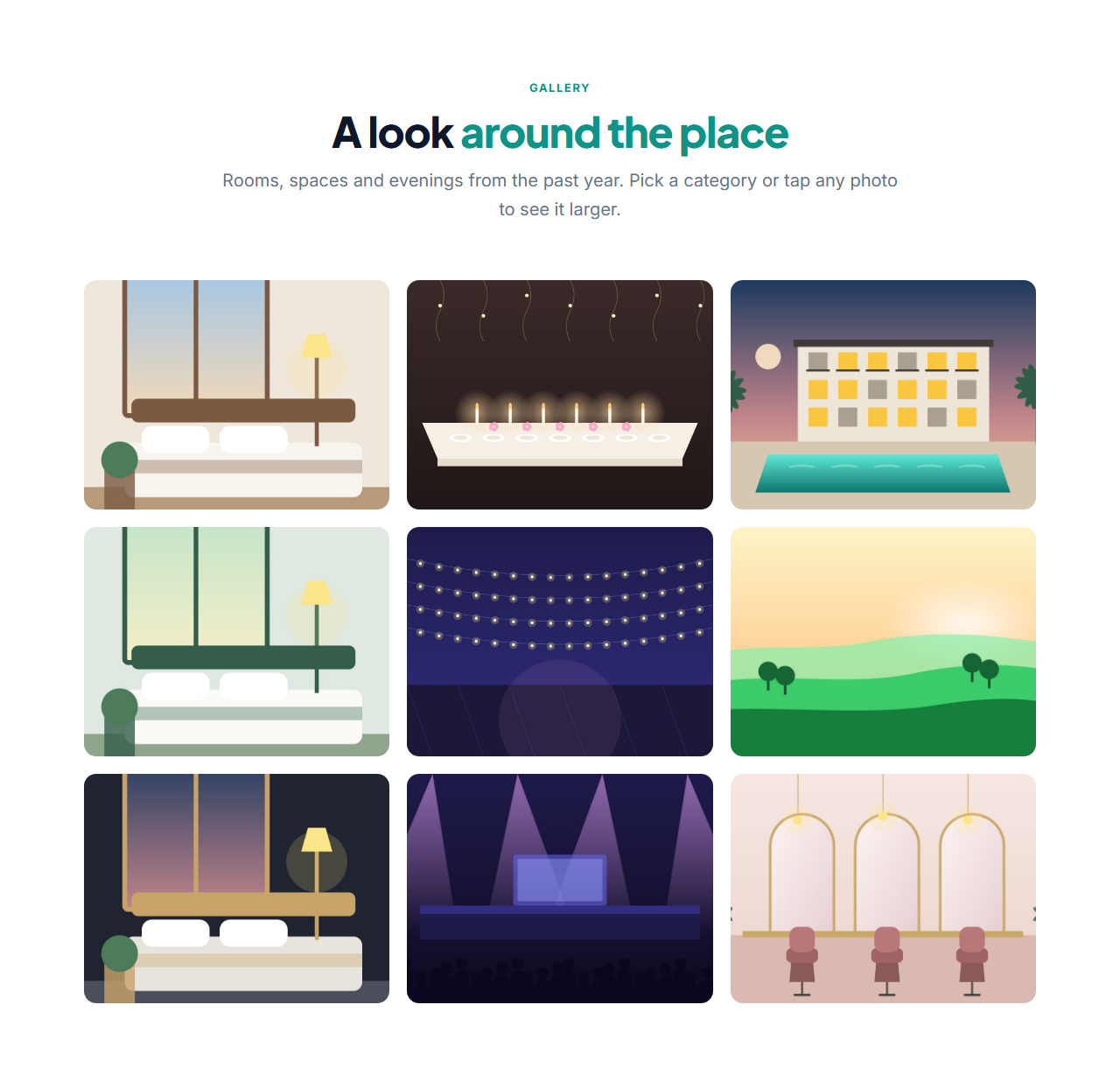
Filterable Image Gallery: A responsive photo gallery: a heading, optional filter buttons built from each photo’s tag, and a grid of uniform thumbnails that zoom gently on hover with a caption sliding up. Clicking a photo opens a full-screen viewer with next and previous buttons, a caption and a counter; Escape closes it and the arrow keys move between photos.
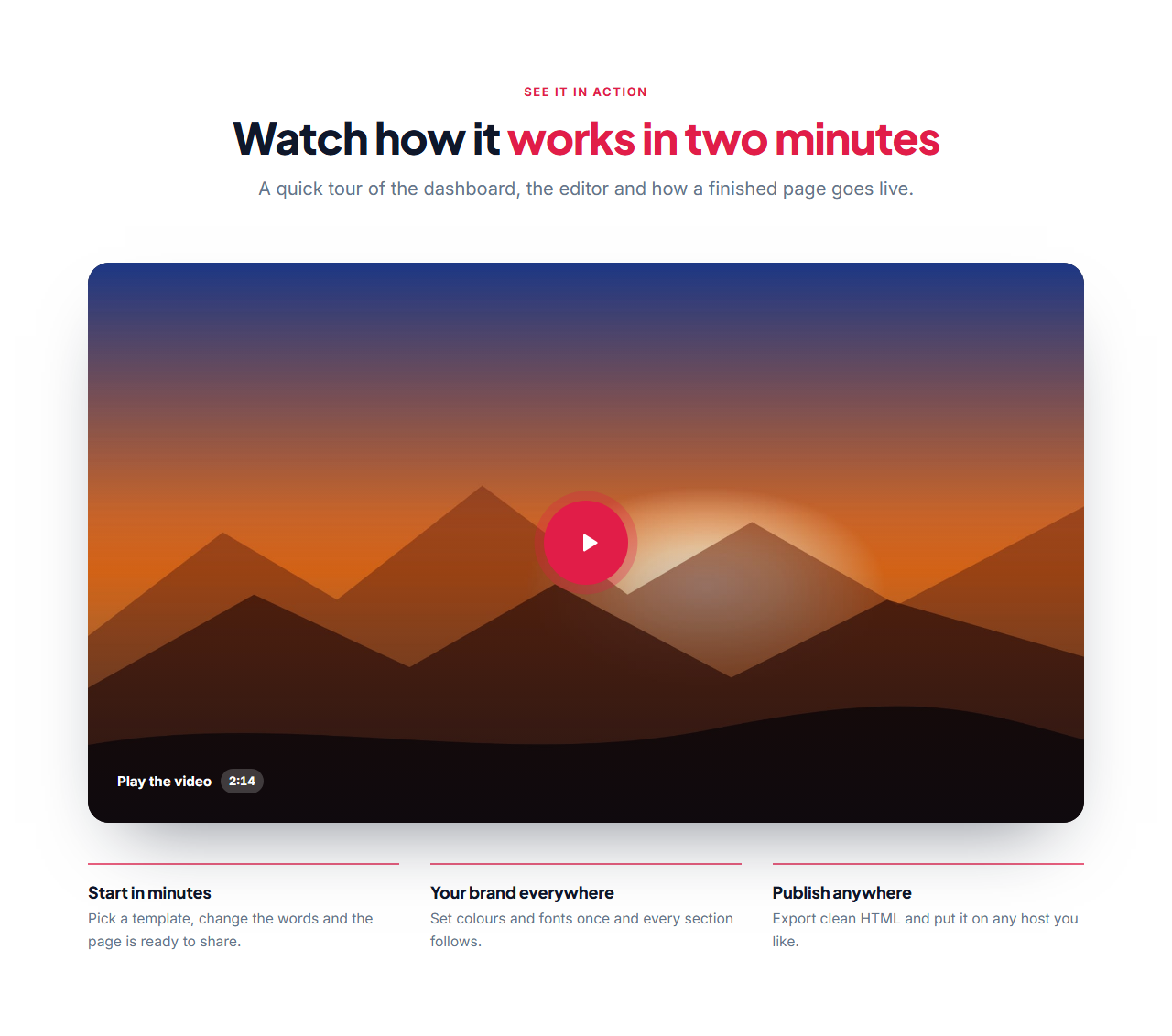
Video Section with Poster: A video section that stays fast and private: a heading, a 16:9 poster image with a large play button and optional duration, and a row of key points underneath. Nothing from YouTube or Vimeo loads until the visitor presses play; then the player replaces the poster in place. MP4 and WebM files play in the browser’s own player.
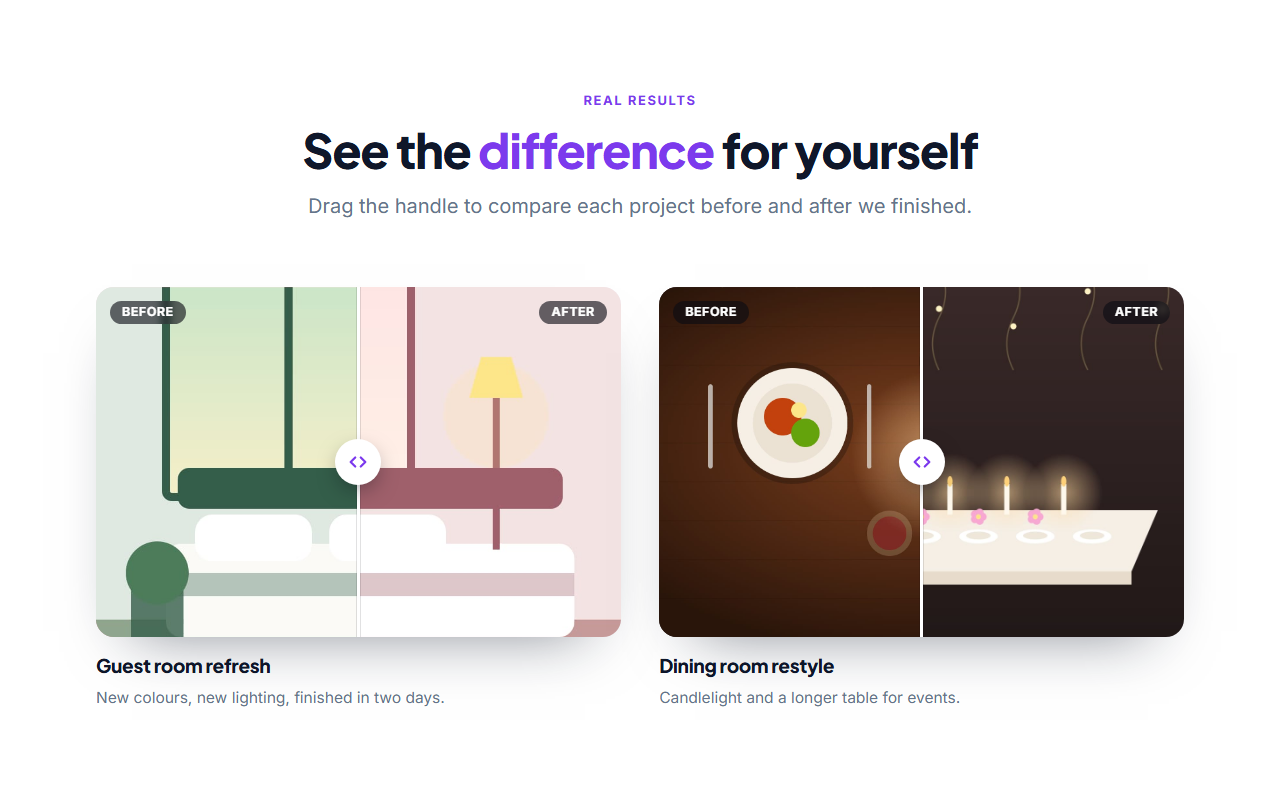
Before & After Slider: A results section built around a draggable divider: two photos sit on top of each other and the visitor slides the handle to reveal the before or the after, with Before and After labels in the corners and a caption underneath. It works with the mouse, touch and the arrow keys, and shows a fixed 50% split when JavaScript is off.
Real-world uses
Best Uses for Gallery & media Sections
How it’s different
How These Section Templates Are Different
Step by step
How to Use
- 1Pick a sectionOpen one of the gallery & media sections above. Your edits autosave in your browser as you go.
- 2Edit the contentChange the text, buttons, links and images in the panel, and switch optional parts on or off.
- 3Add your brandPick colours, fonts, radius and width, or apply your saved brand kit; every section shares the same theme.
- 4Animate and previewChoose a GSAP entrance effect, press Play animation, and check desktop, tablet and mobile.
- 5ExportDownload HTML or a ZIP, copy a React or Vue component, or fork it into My Code.
Got questions?
Frequently Asked Questions
Open the Filterable Image Gallery, upload your photos, give each a category and alt text, and export the HTML or copy it into your page. Visitors can filter by category and open every photo in a viewer.
Not this one. Only the poster image loads at first. The YouTube or Vimeo player is added when the visitor presses play, so the page stays fast and the video host does not track people who never watch.
Use the same angle, distance and lighting for both photos, so the only difference is the result. Export both at the same size, about 1200 by 800 pixels, and write alt text for each.
Yes. The gallery viewer opens with Enter and closes with Escape, the slider uses a real range input with arrow-key control, and every image has its own alt text field.
Yes. Each section exports as a React component or a Vue single-file component, with the behaviour script included, or as plain HTML.
Filterable Image Gallery: A responsive photo gallery: a heading, optional filter buttons built from each photo’s tag, and a grid of uniform thumbnails that zoom gently on hover with a caption sliding up. Clicking a photo opens a full-screen viewer with next and previous buttons, a caption and a counter; Escape closes it and the arrow keys move between photos. Video Section with Poster: A video section that stays fast and private: a heading, a 16:9 poster image with a large play button and optional duration, and a row of key points underneath. Nothing from YouTube or Vimeo loads until the visitor presses play; then the player replaces the poster in place. MP4 and WebM files play in the browser’s own player. Before & After Slider: A results section built around a draggable divider: two photos sit on top of each other and the visitor slides the handle to reveal the before or the after, with Before and After labels in the corners and a caption underneath. It works with the mouse, touch and the arrow keys, and shows a fixed 50% split when JavaScript is off.
Yes. Every section is free for personal and commercial websites, with no account and no watermark. Everything runs in your browser and your edits are saved locally.