Desktop · 1280px · shown at 0% · edit the text, images and colours in the panel
Back to Top Button — Free Website Section Template
Cursor & page effects · v1.0.0 · Updated 2026-10-30 · Responsive · GSAP animation · HTML, React & Vue
What's included
Features
About this section
Back to Top Button: Free Floating Scroll-to-Top Button With Full Settings
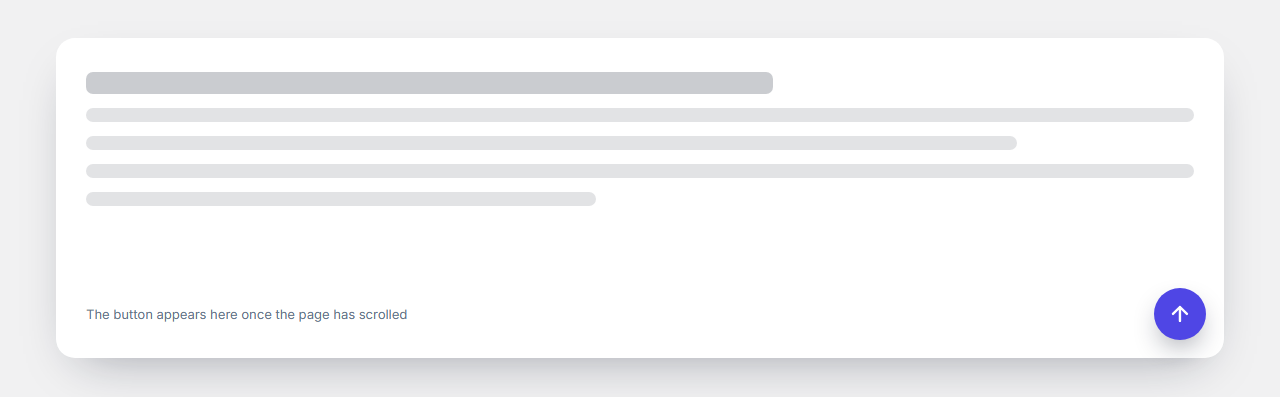
Back to Top Button is a small floating button that appears after a visitor has scrolled down a distance you choose, and glides the page back to the top when clicked. It is useful on any page taller than a few screens: long articles, documentation, landing pages and product lists. It is plain HTML, CSS and about thirty lines of JavaScript, with no library.
When it appears
Set the trigger distance in pixels, from 0 (always visible) to 5000. A scroll listener, throttled with requestAnimationFrame, toggles a single class once the page passes that point, so the cost while scrolling is almost nothing. On a short page the button simply never shows.
Position, size and shape
Place it at the bottom right or bottom left with a distance from the edge you choose. Set the size from 32 to 96 pixels and pick a shape: circle, rounded square, square or a custom corner radius. Choose from five icon styles (arrow, chevron, double chevron, triangle and rocket), set the background and icon colours with hex values (or leave them empty to use your theme), and switch the shadow on or off.
Animation and scroll speed
Choose how the button appears: fade in, slide up or zoom in. Choose the scroll duration in seconds: the page then scrolls to the top with a smooth ease-in-out animation driven by requestAnimationFrame, and stops at once if the visitor uses the wheel, a touch or a key. A duration of 0 jumps instantly, and visitors who prefer reduced motion always get an instant jump.
Phones, keyboards and printing
A switch hides the button on phones and tablets if it would cover your design. The button is a real button with a text label for screen readers and a visible focus ring, it is hidden from the tab order when invisible, and it is left out of printed pages. Turn the whole effect on or off with one switch.
Customise and export
An editor preview shows the button on a mock page, so you can judge the look before exporting. Export HTML, a ZIP, React or Vue, or fork it into My Code. To compare a snippet-only version, see the Back to Top Button snippet, and for a utility that follows the reader see the Floating Social Share Bar.
Extend with AI
Take This Section Further With AI
Ask an AI assistant to adapt the Back to Top Button HTML, CSS and JavaScript: add a circular scroll-progress ring around it, hide it near the footer, change it to a pill with text, or turn it into a React component.
Prompt to recreate it
Copy this into your AI assistant of choice to build the effect from scratch, or as a jumping-off point for your own variant:
Create a floating back to top button in plain HTML, CSS and vanilla JavaScript.

- A fixed round button (52px, 24px from the bottom right) with an arrow-up SVG icon, an accessible name and a visible focus ring. It is hidden with opacity 0, visibility hidden and pointer-events none until it gets the class is-visible.
- Toggle is-visible when window.pageYOffset passes a configurable distance (default 400px), using a passive scroll listener throttled with requestAnimationFrame.
- Clicking it scrolls to the top with an eased requestAnimationFrame animation (ease-in-out cubic) over a configurable number of seconds, using window.scrollTo with behavior instant on every frame, and stops if the user wheels, touches or presses a key. Jump instantly for prefers-reduced-motion or a duration of 0.
- Settings as data attributes or CSS variables: position (bottom right or left), size, shape (circle, square, custom radius), colours, appearance (fade, slide up or zoom) and whether to show on phones.
- Hide it when printing.
Want to tighten it up first? Run this prompt through the AI Prompt Studio to score it across 8 quality dimensions, catch anti-patterns, and tune the wording for Claude, ChatGPT, or Gemini before you paste it in.
Why use it
Why Use the Back to Top Button
How it’s different
How It’s Different From Other Free Section Templates
Step by step
How to Use
- 1Edit the contentFill in the when it appears, look and animation & speed in the panel. Wrap words in *asterisks* to colour them.
- 2Add your imagesUpload your own images (resized in your browser and kept on your device) or paste a hosted image URL.
- 3Match your brandPick a colour preset or exact colours, choose heading and body fonts from Google Fonts or your own uploaded font, set the corner radius and width, or apply your brand kit.
- 4Animate and previewChoose a GSAP entrance effect and speed, press Play animation, and check the section on desktop, tablet and mobile.
- 5Save and exportSave it to My designs, then export a single HTML file, a ZIP with your images, a React or Vue component, or fork it into My Code.
Real-world uses
Common Use Cases
In real websites
Website Templates That Use the Back to Top Button Section
The Back to Top Button section is part of 22 complete website templates in the free Website Builder, so you can see it in a full page before you use it on its own: SaaS Landing Page, Mobile App Landing Page, Creative Agency Website, Personal Portfolio Website, Photographer Website, Restaurant Website, Real Estate Agency Website, Gym & Fitness Website, Dental Clinic Website, Local Service Business Website, Online Course Website, Event & Conference Website, Nonprofit & Charity Website, Wedding Website, Boutique Hotel Website, Hair & Beauty Salon Website, Law Firm Website, Podcast Website, Product Landing Page Store, School Website, Church Website, Music Artist & Band Website. Open any of them in the builder to edit the whole page, or keep customising this section by itself.
Got questions?
Frequently Asked Questions
Set the Show after scrolling value in pixels. The button appears once the page has scrolled past that distance from the top and hides again when the visitor returns, using a single class toggle.
A short requestAnimationFrame animation moves the page to the top with an ease-in-out curve over the duration you set. It stops if the visitor scrolls, touches or presses a key, so it never fights them.
Yes. Switch off Show on phones and tablets and the button is hidden below 900 pixels wide. You can also make it smaller or move it to the left corner to avoid sticky bars.
Yes. Visitors with reduced motion turned on get an instant jump to the top instead of a smooth scroll, and the fade, slide and zoom transitions are switched off.
Yes. Pick an arrow, chevron, double chevron, triangle or rocket, set the background and icon colours with hex values, and choose a circle, rounded square, square or custom corner radius.
It saves an editable copy of your Back to Top Button in My Code, the UI Snippets code editor: the section markup goes in the HTML panel, its CSS (theme variables, base styles and layout) in the CSS panel, and the GSAP library is added as a CDN link, so you can keep refining the code and save your own versions.
Yes. It is free for personal and commercial websites, with no sign-up, no watermark and no attribution required. Everything runs in your browser and your edits are saved locally.