Desktop · 1280px · shown at 0% · edit the text, images and colours in the panel
Filterable Image Gallery — Free Website Section Template
Gallery & media · v1.0.0 · Updated 2026-10-24 · Responsive · GSAP animation · HTML, React & Vue
What's included
Features
About this section
Filterable Image Gallery — Free Photo Grid With Lightbox
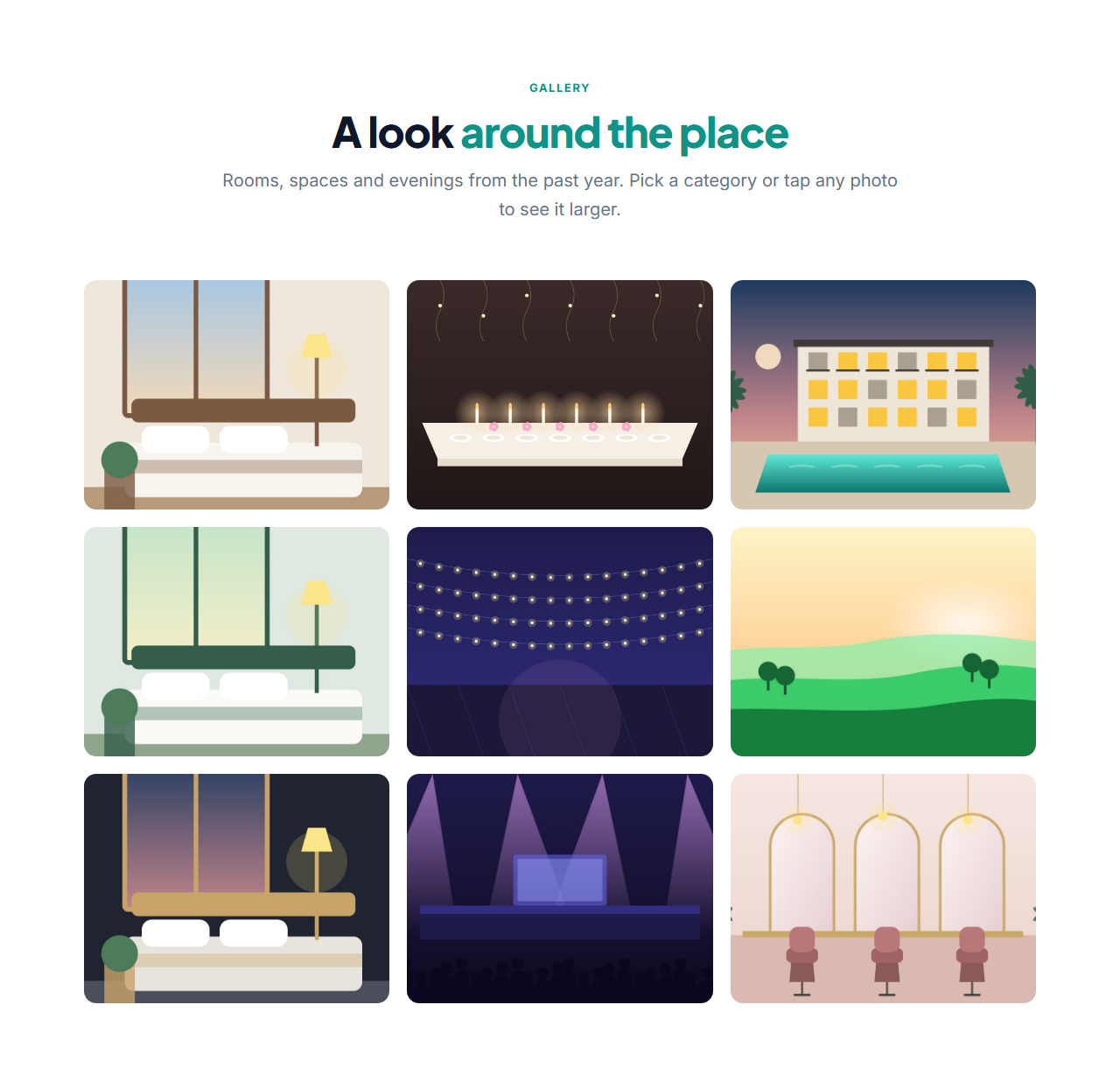
Filterable Image Gallery is a free photo gallery section for websites that need to show their work, rooms, products or events. A heading sits above a responsive grid of uniform thumbnails; each photo zooms gently on hover, a caption slides up and clicking opens a full-screen viewer. Optional filter buttons let visitors narrow the grid to one category.
Filters from your own tags
Give every photo a category and the filter buttons are built for you, with an "All" button first. The buttons appear when the page loads, so a site without JavaScript simply shows every photo. In the editor the filters stay off, so you always see the whole grid while you work, and the label of the "All" button is editable.
A viewer that works with the keyboard
Click or press Enter on a photo and it opens large, with the caption, a counter, previous and next buttons and a close button. Escape closes it, the arrow keys move between photos, focus stays inside the viewer while it is open and returns to the photo you opened. Only the photos in the current filter are in the slideshow.
Responsive and fast
The grid fills the available width with tiles at least 260 pixels wide and drops to two columns on phones. Photos are cropped to a 4:3 tile, are lazy-loaded and carry alt text you write for each one, which helps accessibility and image search. Add up to 24 photos, uploaded from your device and resized in your browser or pasted as links.
Export it
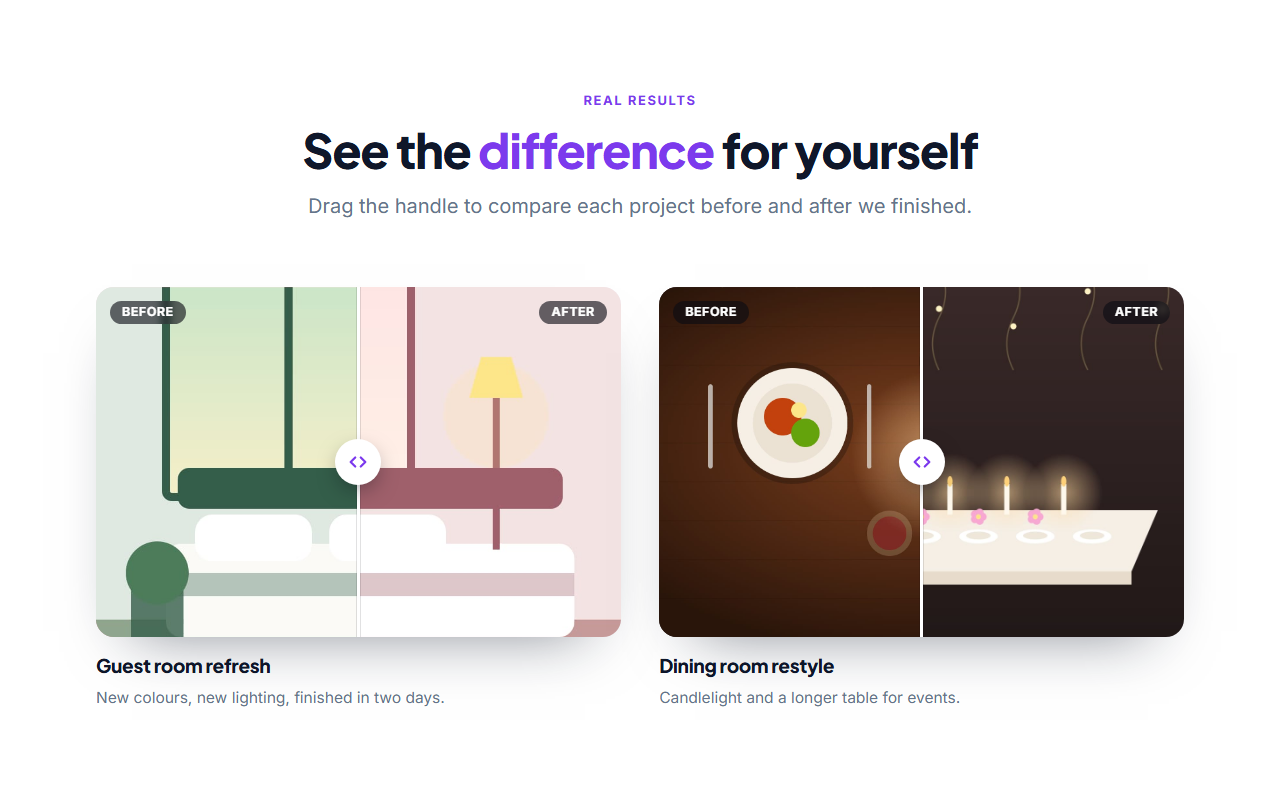
Copy one HTML file, download a ZIP with your images, copy a React or Vue component, or fork into My Code. To show a few projects with scroll motion instead, try the Horizontal Scroll Gallery, and to show results use the Before & After Slider.
Why use it
Why Use the Filterable Image Gallery
How it’s different
How It’s Different From Other Free Section Templates
Step by step
How to Use
- 1Edit the contentFill in the heading, photos and filters in the panel. Switch the heading and filters on or off. Wrap words in *asterisks* to colour them.
- 2Add your imagesUpload your own images (resized in your browser and kept on your device) or paste a hosted image URL.
- 3Match your brandPick a colour preset or exact colours, choose heading and body fonts from Google Fonts or your own uploaded font, set the corner radius and width, or apply your brand kit.
- 4Animate and previewChoose a GSAP entrance effect and speed, press Play animation, and check the section on desktop, tablet and mobile.
- 5Save and exportSave it to My designs, then export a single HTML file, a ZIP with your images, a React or Vue component, or fork it into My Code.
Real-world uses
Common Use Cases
In real websites
Website Templates That Use the Filterable Image Gallery Section
The Filterable Image Gallery section is part of 6 complete website templates in the free Website Builder, so you can see it in a full page before you use it on its own: Photographer Website, Restaurant Website, Wedding Website, Boutique Hotel Website, School Website, Church Website. Open any of them in the builder to edit the whole page, or keep customising this section by itself.
Got questions?
Frequently Asked Questions
Each photo has a category field. The buttons are created from the different categories you use and hide the photos from other categories. If JavaScript is off, all photos are visible.
Yes. Clicking a photo opens a full-screen viewer with the caption, a counter and arrows, and it can be controlled from the keyboard. In the editor, clicking a photo edits it instead.
Up to 24. For a larger archive, use the gallery for your best work and link to a full album or portfolio page.
Photos are lazy-loaded, and uploaded images are resized in your browser before export. Use photos about 1200 pixels wide for a good balance of sharpness and size.
Descriptive alt text for each photo and a clear caption give search engines context. Write alt text that describes what is in the photo rather than repeating keywords.
It saves an editable copy of your Filterable Image Gallery in My Code, the UI Snippets code editor: the section markup goes in the HTML panel, its CSS (theme variables, base styles and layout) in the CSS panel, and the GSAP library is added as a CDN link, so you can keep refining the code and save your own versions.
Yes. It is free for personal and commercial websites, with no sign-up, no watermark and no attribution required. Everything runs in your browser and your edits are saved locally.