Desktop · 1280px · shown at 0% · edit the text, images and colours in the panel

How It Works Steps — Free Website Section Template
Features · v1.0.0 · Updated 2026-10-20 · Responsive · GSAP animation · HTML, React & Vue
What's included
Features
About this section
How It Works Steps — Free Process Section Template
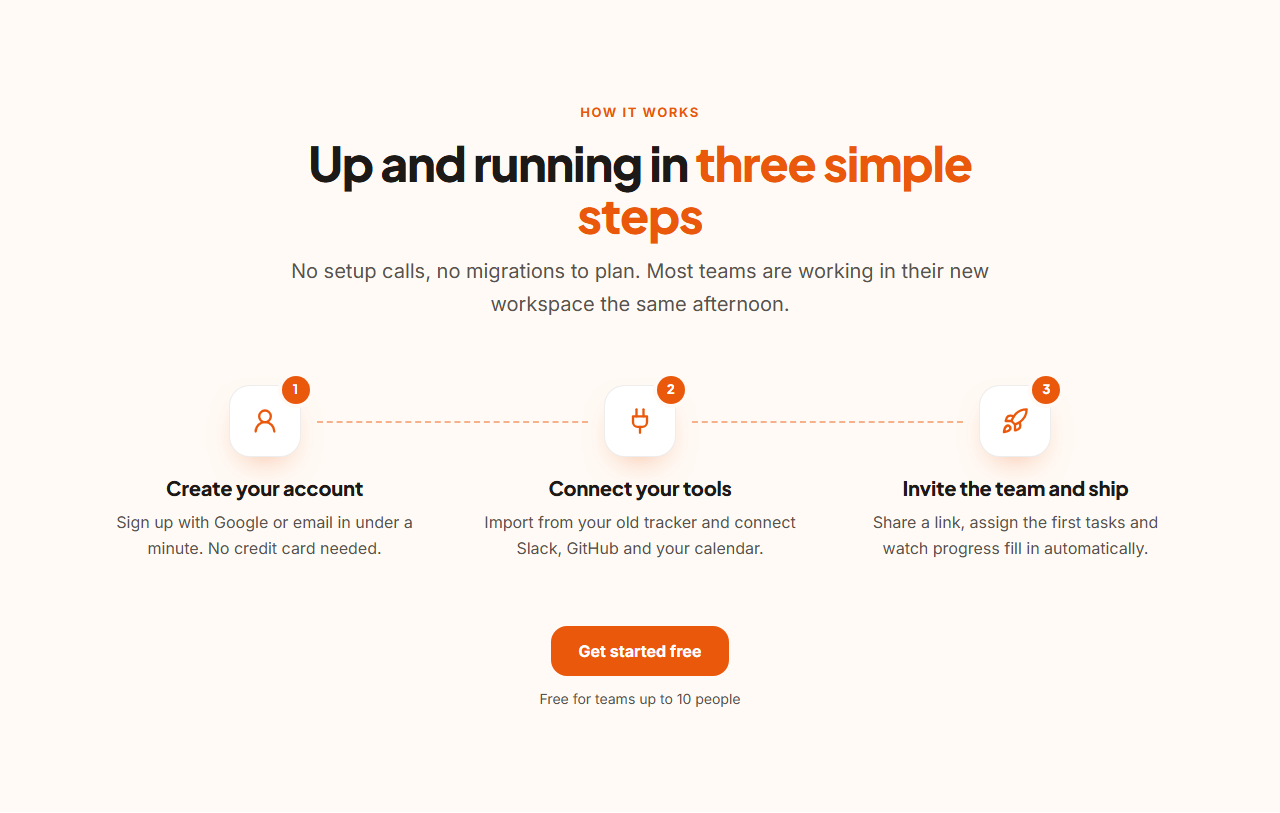
How It Works Steps explains a process in a few numbered steps, so visitors know exactly what happens after they click sign up. Each step has a number badge, an icon, a title and a short description; dashed connector lines join the steps, and a button with a reassurance note invites people to begin.
Steps that number themselves
Steps are an editable list of two to six. Add, duplicate, reorder or remove them and the numbers update automatically (they come from a CSS counter, not typed text). Choose each step's icon from 60 Lucide line icons.
Clear on every screen
On desktop the steps sit in a row with horizontal connectors; on phones they stack with short vertical connectors between them. The layout uses container queries, so it adapts to the space it's given.
Animated with GSAP
The heading reveals with a SplitText effect and the steps stagger in from left to right once the section scrolls into view, which reinforces the idea of moving through a sequence.
Ready to convert
Switch the button and note on or off, link the button to your sign-up page and use the note for reassurance like "No credit card required". Export HTML, a ZIP, React or Vue, or fork into My Code. For a broader overview, pair it with Icon Grid Features.
Why use it
Why Use the How It Works Steps
How it’s different
How It’s Different From Other Free Section Templates
Step by step
How to Use
- 1Edit the contentFill in the heading, steps and button in the panel. Switch the button on or off. Wrap words in *asterisks* to colour them.
- 2Add your imagesUpload your own images (resized in your browser and kept on your device) or paste a hosted image URL.
- 3Match your brandPick a colour preset or exact colours, choose heading and body fonts from Google Fonts or your own uploaded font, set the corner radius and width, or apply your brand kit.
- 4Animate and previewChoose a GSAP entrance effect and speed, press Play animation, and check the section on desktop, tablet and mobile.
- 5Save and exportSave it to My designs, then export a single HTML file, a ZIP with your images, a React or Vue component, or fork it into My Code.
Real-world uses
Common Use Cases
Got questions?
Frequently Asked Questions
Between two and six. Three is the most common and reads best in one row; with five or six, consider shorter text so each column stays balanced.
With a CSS counter on the ordered list, so numbers are always correct after you add, remove or reorder steps. The list is a real <ol>, which also helps screen readers.
Steps stack vertically and the dashed connector becomes a short vertical line between them, using container queries.
Yes. Switch the Button group off in the panel and the button and note disappear; leave the note empty to show the button alone.
It saves an editable copy of your How It Works Steps in My Code, the UI Snippets code editor: the section markup goes in the HTML panel, its CSS (theme variables, base styles and layout) in the CSS panel, and the GSAP library is added as a CDN link, so you can keep refining the code and save your own versions.
Yes. It is free for personal and commercial websites, with no sign-up, no watermark and no attribution required. Everything runs in your browser and your edits are saved locally.