Desktop · 1280px · shown at 0% · edit the text, images and colours in the panel

Split Features With Image — Free Website Section Template
Features · v1.0.0 · Updated 2026-10-20 · Responsive · GSAP animation · HTML, React & Vue
What's included
Features
About this section
Split Features With Image — Free Feature Section Template
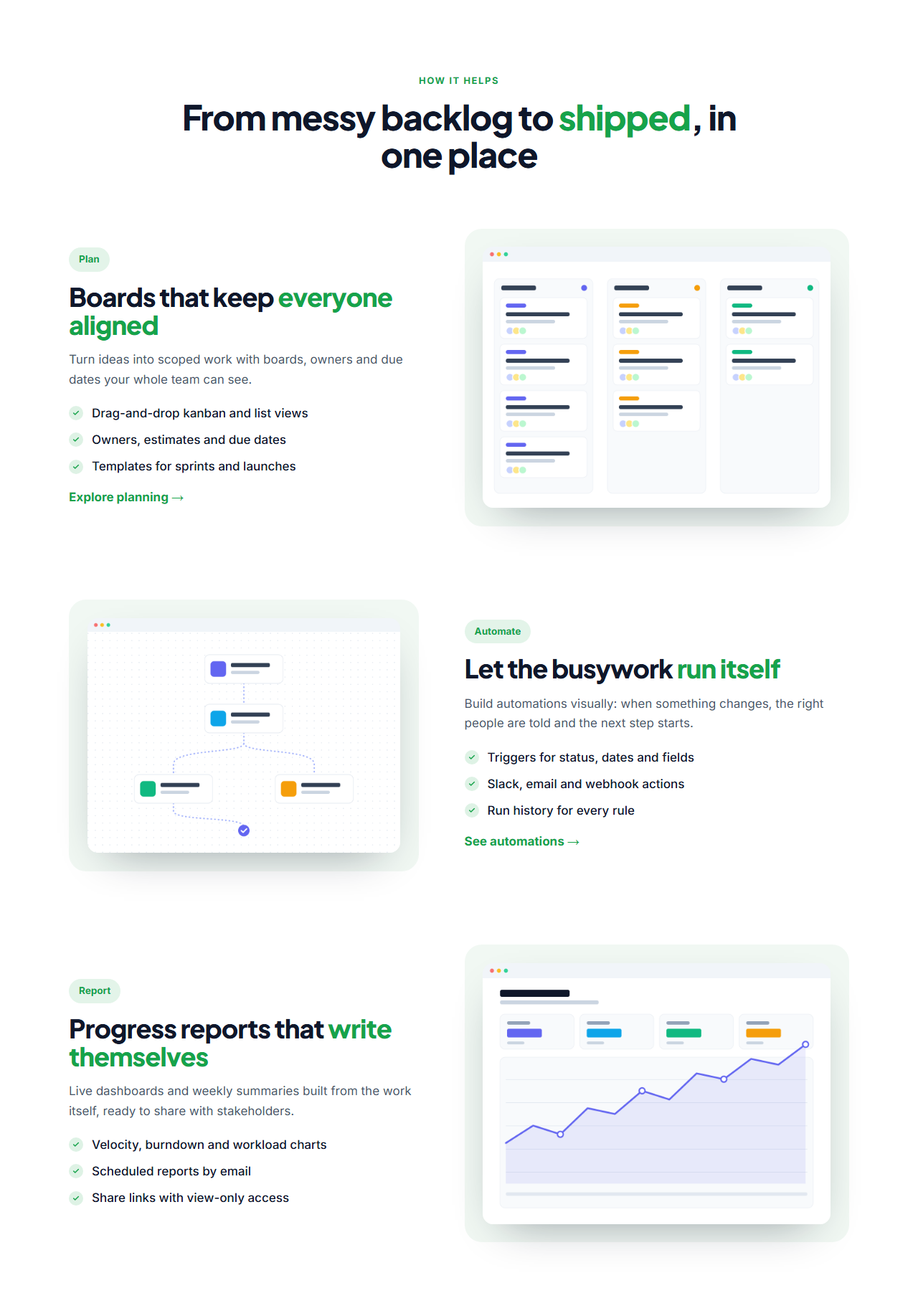
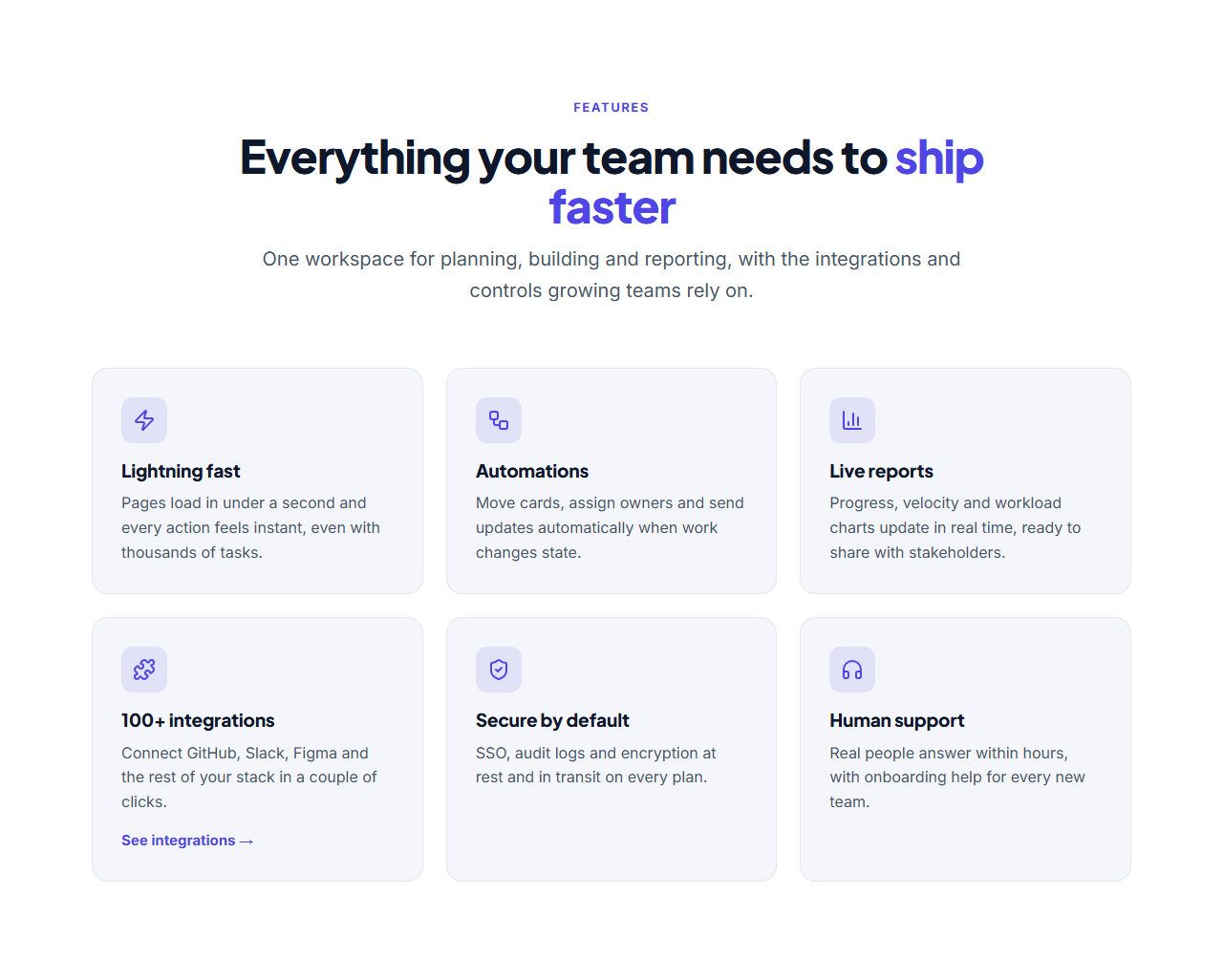
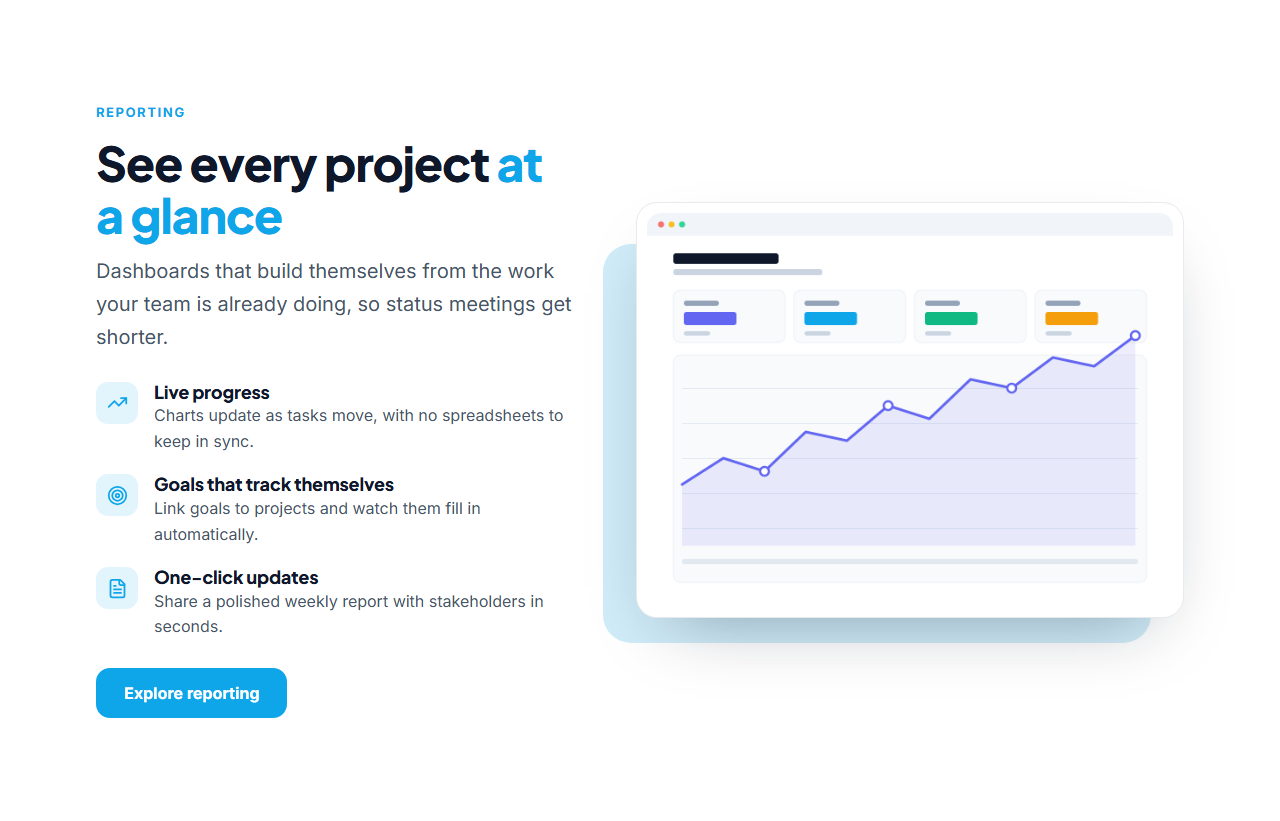
Split Features With Image explains one part of your product properly: a heading and intro, a short list of icon-led points and a button on one side, and a framed screenshot on the other. Where an icon grid gives the overview, this layout goes deep on a single topic, such as reporting, automation or security.
Points you can rearrange
The feature list is editable: up to six points, each with its own icon, title and sentence of detail. Add, duplicate, reorder or remove points, switch the button on or off, and upload your own screenshot, which is resized in your browser and never sent to a server.
Designed to stack
On wide screens the copy and image sit side by side; on tablets and phones the image moves above the text so visitors see the product first. It responds to its own width through container queries, so it also works inside narrower page layouts.
Animated with GSAP
The heading reveals with a SplitText effect, the points stagger in and the screenshot rises into place once as the section scrolls into view, with reduced-motion support built in.
Pairs with the rest of the library
The shared theme means it matches the heroes and other feature sections. Use several of them in a row, one per product area, or try the Alternating Feature Rows for a ready-made zig-zag. Export HTML, a ZIP, React or Vue, or fork into My Code.
Why use it
Why Use the Split Features With Image
How it’s different
How It’s Different From Other Free Section Templates
Step by step
How to Use
- 1Edit the contentFill in the heading, feature list, button and image in the panel. Switch the button on or off. Wrap words in *asterisks* to colour them.
- 2Add your imagesUpload your own images (resized in your browser and kept on your device) or paste a hosted image URL.
- 3Match your brandPick a colour preset or exact colours, choose heading and body fonts from Google Fonts or your own uploaded font, set the corner radius and width, or apply your brand kit.
- 4Animate and previewChoose a GSAP entrance effect and speed, press Play animation, and check the section on desktop, tablet and mobile.
- 5Save and exportSave it to My designs, then export a single HTML file, a ZIP with your images, a React or Vue component, or fork it into My Code.
Real-world uses
Common Use Cases
Got questions?
Frequently Asked Questions
In the editor the image sits on the right on desktop and on top on phones. After exporting, add order:-1 to .fs-media in the CSS to move it to the left, or use the Alternating Feature Rows section, which alternates sides for you.
About 1200×900 px. Uploads are resized in your browser to a maximum of 1600 px wide and PNG transparency is kept, so screenshots stay sharp.
Up to six. Three to four usually reads best; use the arrows to put your strongest point first.
Yes. Export a React component (JSX with its CSS) or a Vue single-file component; the GSAP animation runs after the component mounts.
It saves an editable copy of your Split Features With Image in My Code, the UI Snippets code editor: the section markup goes in the HTML panel, its CSS (theme variables, base styles and layout) in the CSS panel, and the GSAP library is added as a CDN link, so you can keep refining the code and save your own versions.
Yes. It is free for personal and commercial websites, with no sign-up, no watermark and no attribution required. Everything runs in your browser and your edits are saved locally.