
Desktop · 1280px · shown at 0% · edit the text, images and colours in the panel
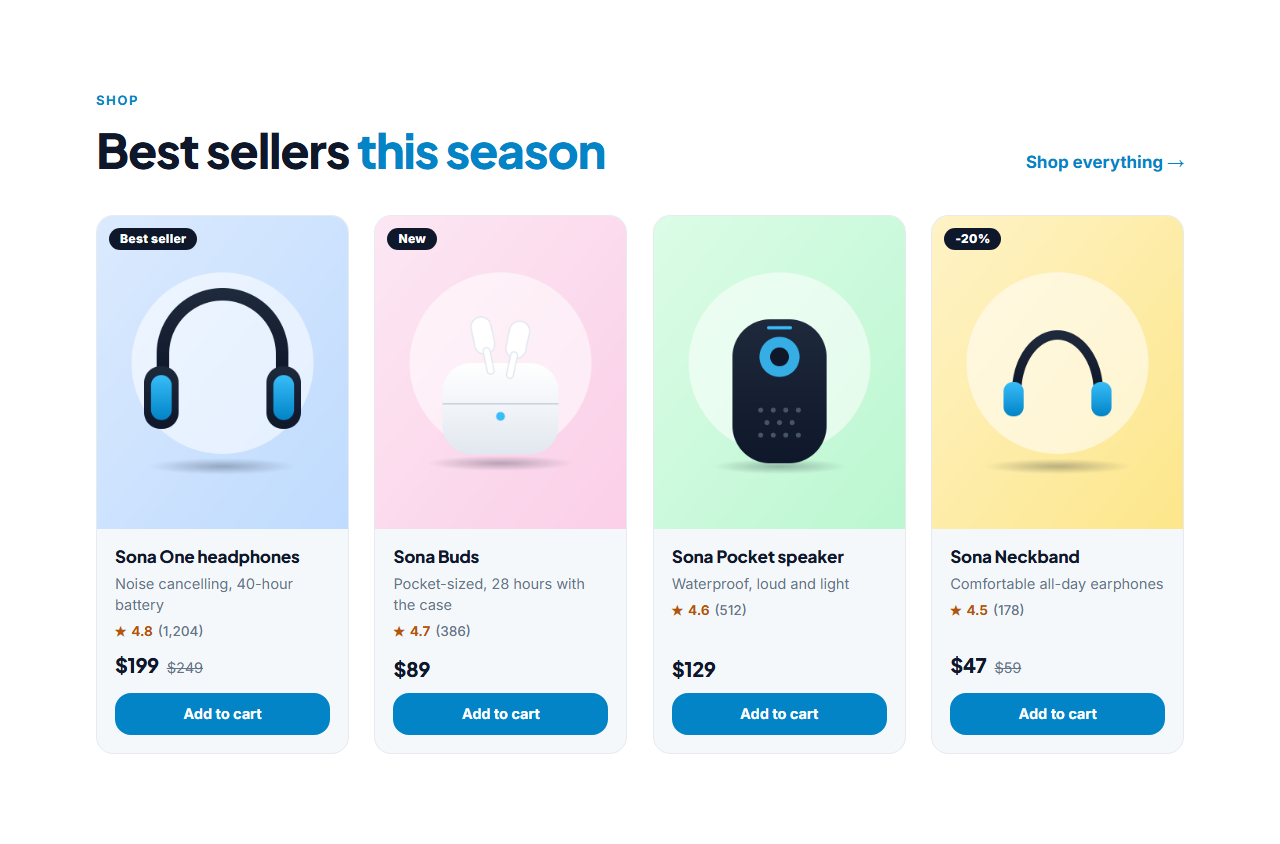
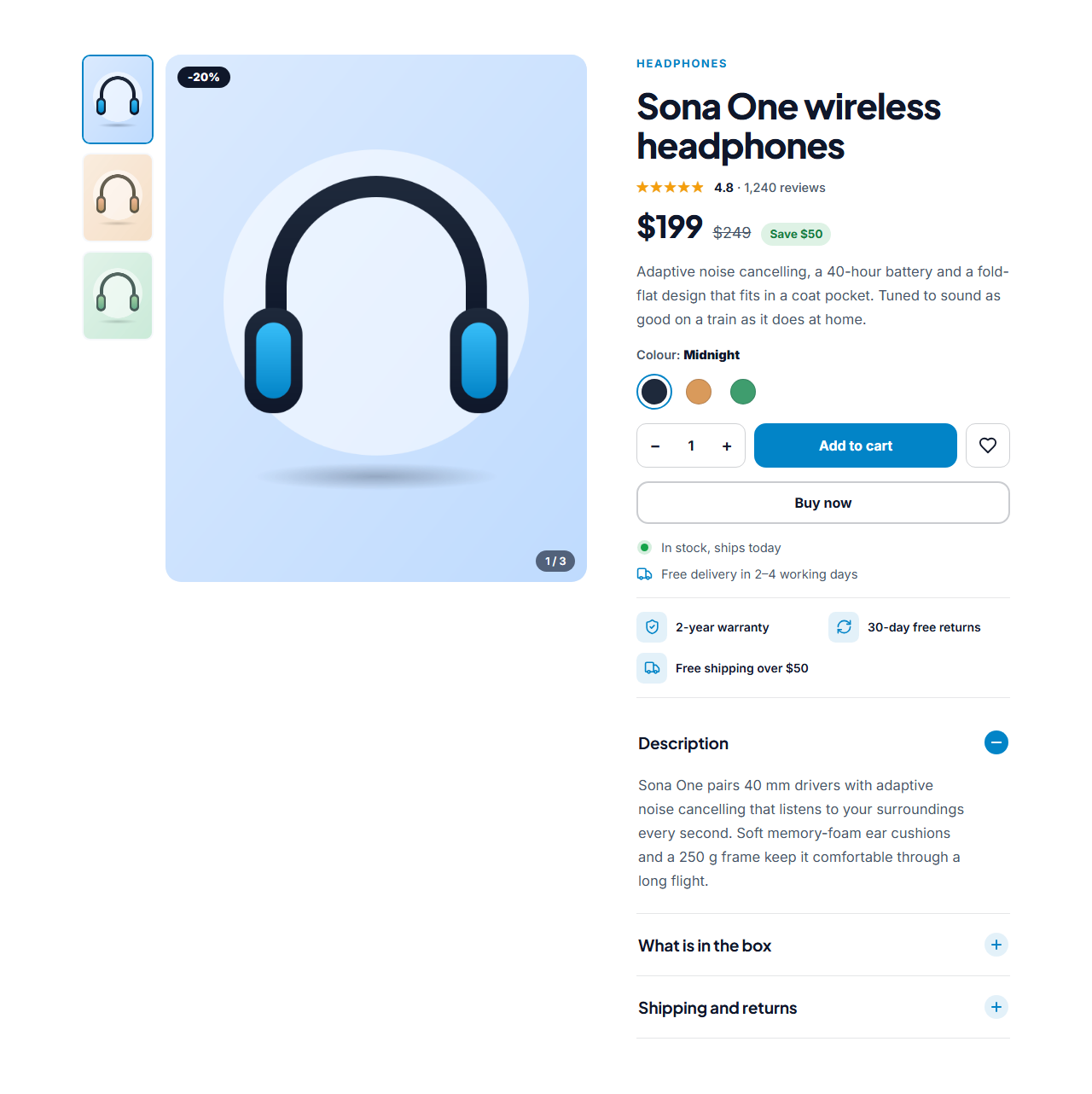
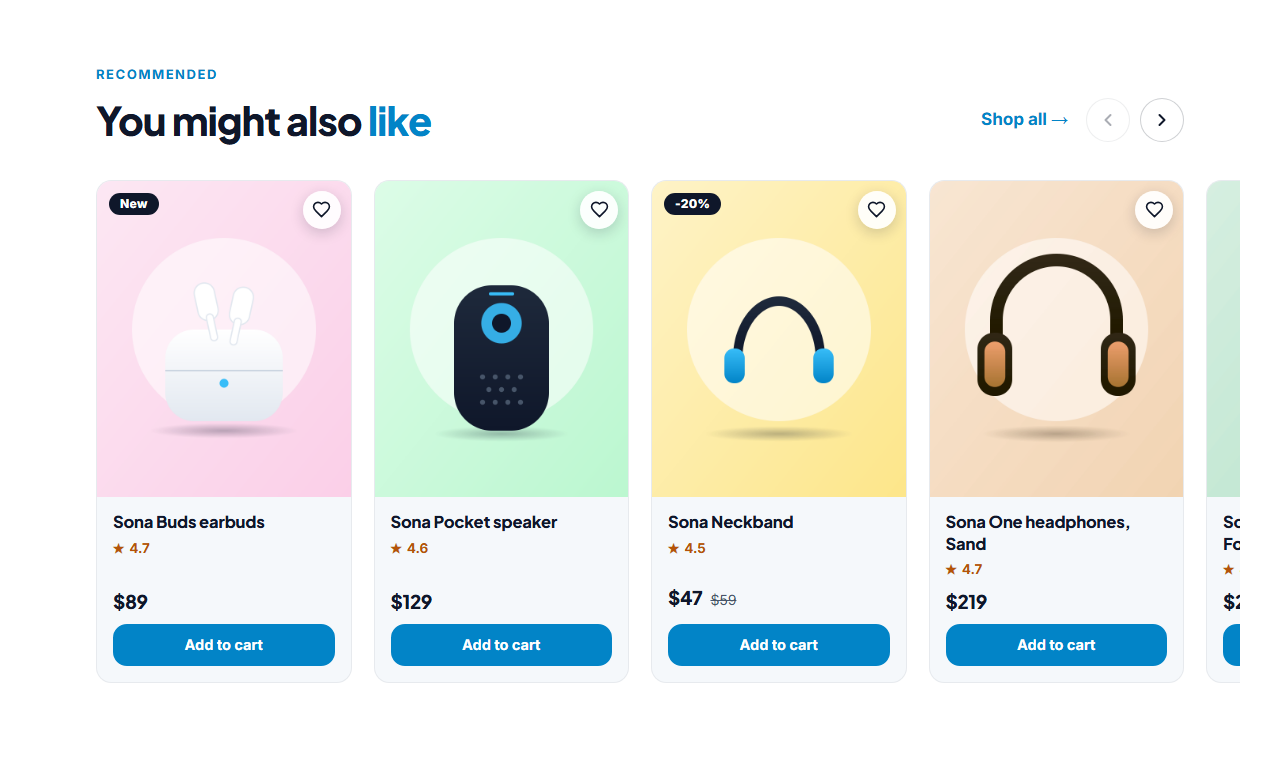

Product Listing with Filters — Free Website Section Template
Menus & listings · v1.0.0 · Updated 2026-11-14 · Responsive · GSAP animation · HTML, React & Vue
Extend with AI
Take This Section Further With AI
Ask an AI assistant to adapt the listing: add a price slider, a size filter, infinite scroll instead of Load more, or filters that come from a JSON product feed.
Prompt to recreate it
Copy this into your AI assistant of choice to build the effect from scratch, or as a jumping-off point for your own variant:
Create a responsive product listing page in plain HTML, CSS and JavaScript.

- A heading, then a bar with a search input, a "Filters" button (phones only, with an active-filter count), a live result count ("Showing 8 of 12 products") and a sort select (featured, price low to high, price high to low, newest, best rated).
- A left filter panel with a category radio list (with counts), min and max price inputs, colour chips with swatches (toggle buttons with aria-pressed), a rating select, "In stock only" and "On sale" checkboxes and a Clear all button. Build the category and colour options from the product cards.
- A 3-column grid of product cards (4:5 image, badge, category, name, rating, price with an optional old price, heart button and Add to cart). Sold-out cards are greyed out. Each card carries data attributes for category, colours, rating, date and stock.
- Filter, sort and page the cards in JavaScript by toggling [hidden] and re-ordering; show 8 first and a Load more button; show a no-results message with a Clear button.
- Write the filters to the URL (?q= &cat= &min= &max= &colour= &rating= &instock=1 &sale=1 &sort=) with history.replaceState and read them on load.
- Below 860 px show the filters as a bottom sheet with a backdrop, a close button and Esc to close.
Want to tighten it up first? Run this prompt through the AI Prompt Studio to score it across 8 quality dimensions, catch anti-patterns, and tune the wording for Claude, ChatGPT, or Gemini before you paste it in.
What's included
Features
About this section
Product Listing With Filters — Free Shop Page Template
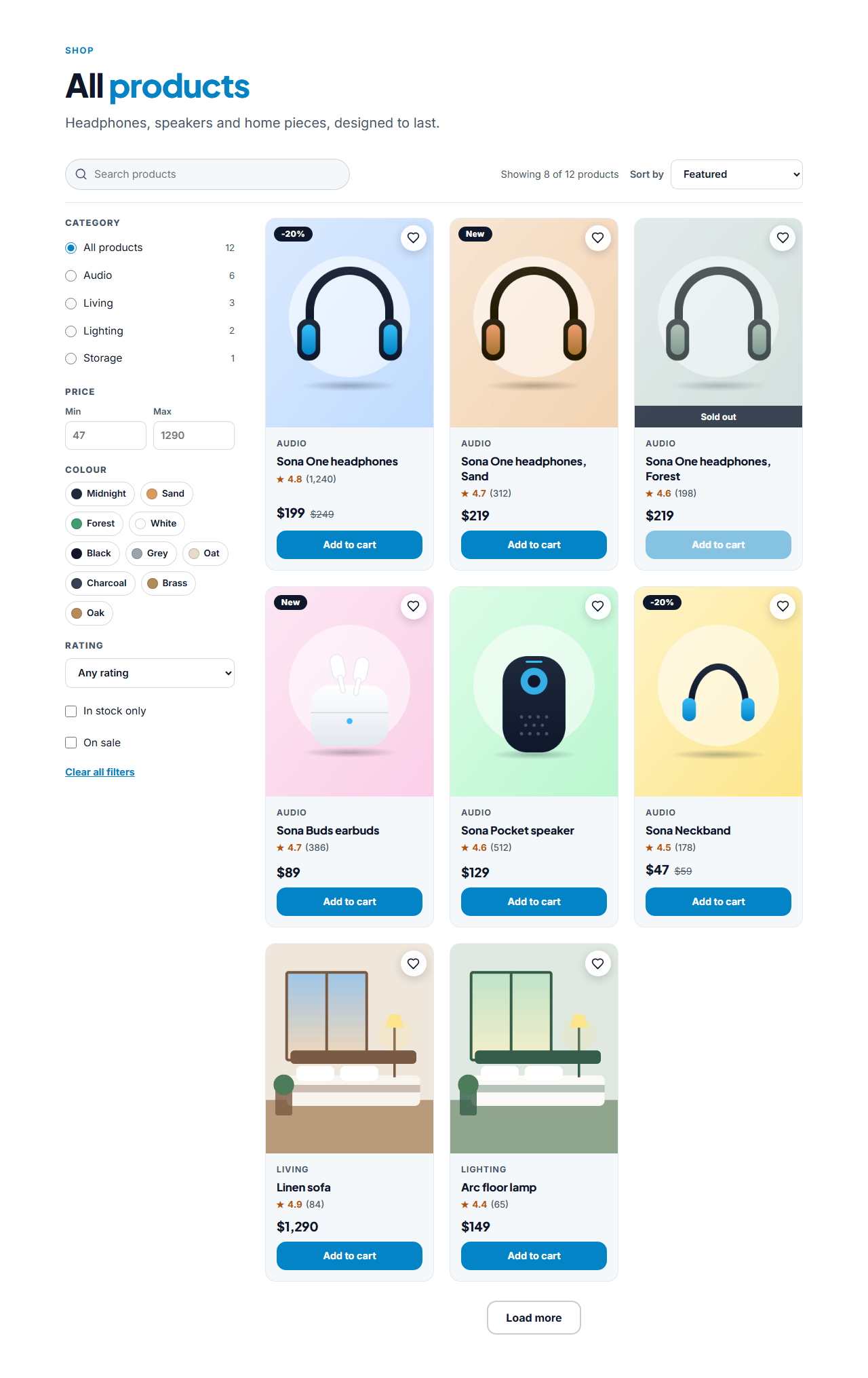
Product Listing with Filters is a free shop or collection page for online stores. A search box, a sort menu and a filter panel narrow a grid of product cards instantly: category, price range, colour, rating, in stock only and on sale. The result count updates as you filter, a friendly message appears when nothing matches, and a Load more button reveals the rest.
Filters built from your own products
You add products once. The script reads each card and builds the category list with counts, the colour chips with swatches and the price placeholders itself, so adding a product or a new category needs no extra setup. Every product is real HTML on the page, so search engines see all of them even though the filters work in the browser.
Sort, search and share
Sort by featured, price low to high, price high to low, newest or best rated. The current filters are written to the page address (for example ?cat=Audio&sort=price-asc&instock=1), so a filtered view can be bookmarked, shared or linked from a menu, and a search form in your header can send visitors to the shop with ?q=their words.
Made for phones
On a phone the filters slide up as a panel with a Filters button that shows how many are active, a backdrop, a close button and Esc. The result count is announced politely to screen readers, and Load more moves focus to the first new product.
Works with the cart
Each card has a wishlist heart and an Add to cart button for the built-in cart, which opens the Cart Drawer. Sold-out products are greyed out and cannot be added. The section writes ItemList and Product structured data. Pair it with the Product Detail Page and the Online Store website template.
Why use it
Why Use the Product Listing with Filters
How it’s different
How It’s Different From Other Free Section Templates
Step by step
How to Use
- 1Edit the contentFill in the heading, products, page size & counts, filter labels, sort labels, no results and labels (screen readers) in the panel. Wrap words in *asterisks* to colour them.
- 2Add your imagesUpload your own images (resized in your browser and kept on your device) or paste a hosted image URL.
- 3Match your brandPick a colour preset or exact colours, choose heading and body fonts from Google Fonts or your own uploaded font, set the corner radius and width, or apply your brand kit.
- 4Animate and previewChoose a GSAP entrance effect and speed, press Play animation, and check the section on desktop, tablet and mobile.
- 5Save and exportSave it to My designs, then export a single HTML file, a ZIP with your images, a React or Vue component, or fork it into My Code.
Real-world uses
Common Use Cases
Got questions?
Frequently Asked Questions
Type it in the product. Products with the same category text are grouped under one Category option, and comma-separated colours become colour chips. Nothing else needs to change.
Yes. Every product is a normal card in the page HTML, and the section also writes ItemList and Product data. The filters only hide and show cards in the browser.
The current filters are written to the page address, such as ?cat=Audio&sort=newest. Opening that address starts the page with the same filters, so links from menus and emails can point to a filtered shop.
Up to 48 in the editor. The page size is configurable, so the first view stays short and Load more reveals the rest.
It lists and filters products and links each card to its page. With the built-in cart on, Add to cart fills the browser cart; with it off the button links wherever you point it, such as a Shopify or Stripe link.
It saves an editable copy of your Product Listing with Filters in My Code, the UI Snippets code editor: the section markup goes in the HTML panel, its CSS (theme variables, base styles and layout) in the CSS panel, and the GSAP library is added as a CDN link, so you can keep refining the code and save your own versions.
Yes. Every section is free for personal and commercial work, with no account, no watermark and no attribution: export it on its own as HTML, React, Vue or Next.js from its page, or use it in a website you build and export in the Website Builder.