
Desktop · 1280px · shown at 0% · edit the text, images and colours in the panel
Ecommerce Mega Menu — Department Sidebar — Free Website Section Template
Navbar · v1.0.0 · Updated 2026-11-14 · Responsive · GSAP animation · HTML, React & Vue
Extend with AI
Take This Section Further With AI
Ask an AI assistant to adapt the department menu: add product counts to each department, a recently viewed row in the panel, or a second level of links that opens on hover.
Prompt to recreate it
Copy this into your AI assistant of choice to build the effect from scratch, or as a jumping-off point for your own variant:
Create a department mega menu for a large online store in plain HTML, CSS and JavaScript.

- A header with logo, a pill search form (GET, field q) and account, wishlist and cart icons (cart has a count badge), and under it a bar with a blue "All categories" button with a hamburger icon, then quick links Deals, New in, Gift cards and Help.
- The button opens a full-width panel with a vertical list of five departments (each with an icon and a chevron) on the left and, on the right, the active department's title, a "View all" link, three link columns and a featured image card.
- Hovering, focusing or clicking a department switches the pane; Arrow Up and Down move between departments; the first department is active when the panel opens.
- The button has aria-expanded and aria-controls. Esc closes the panel and returns focus; tabbing out or clicking elsewhere closes it.
- Below 860 px turn the departments into pill chips above the active pane inside a burger menu.
Want to tighten it up first? Run this prompt through the AI Prompt Studio to score it across 8 quality dimensions, catch anti-patterns, and tune the wording for Claude, ChatGPT, or Gemini before you paste it in.
What's included
Features
About this section
Department Mega Menu — Free All Categories Dropdown Template
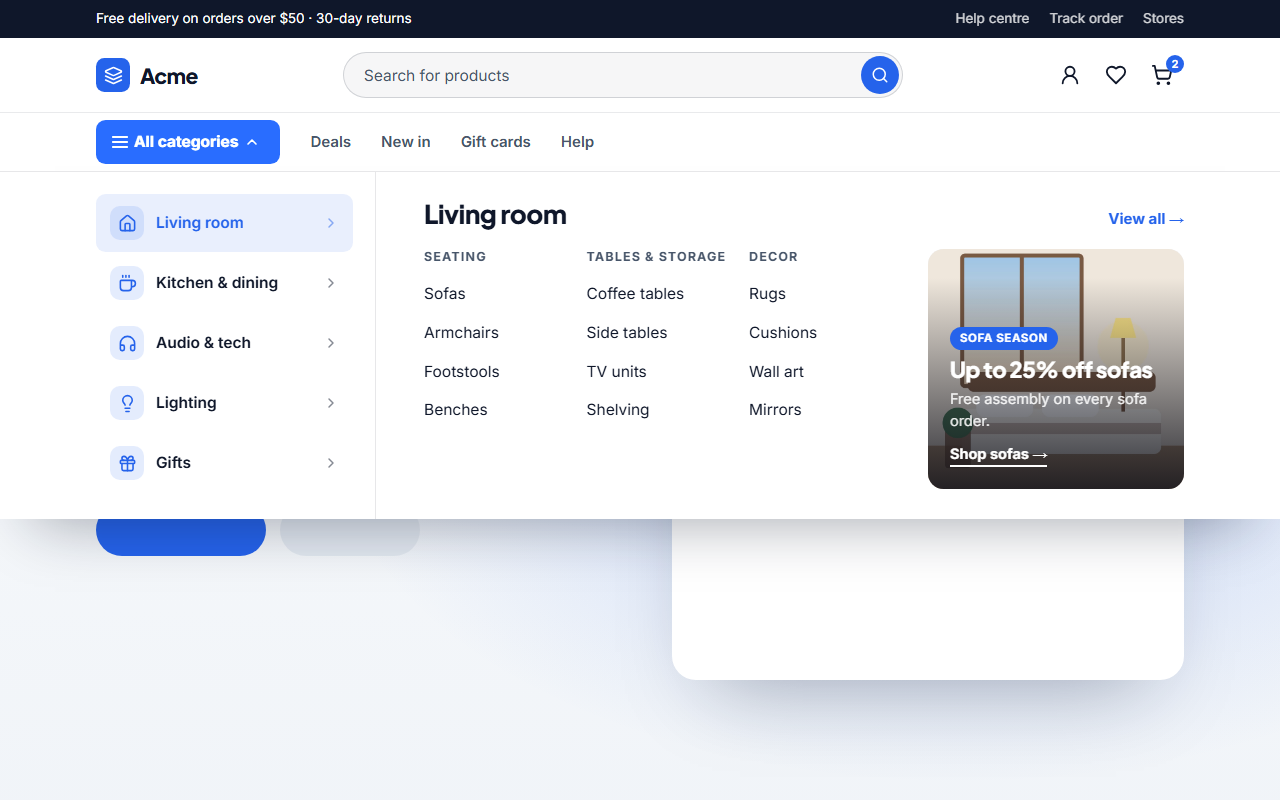
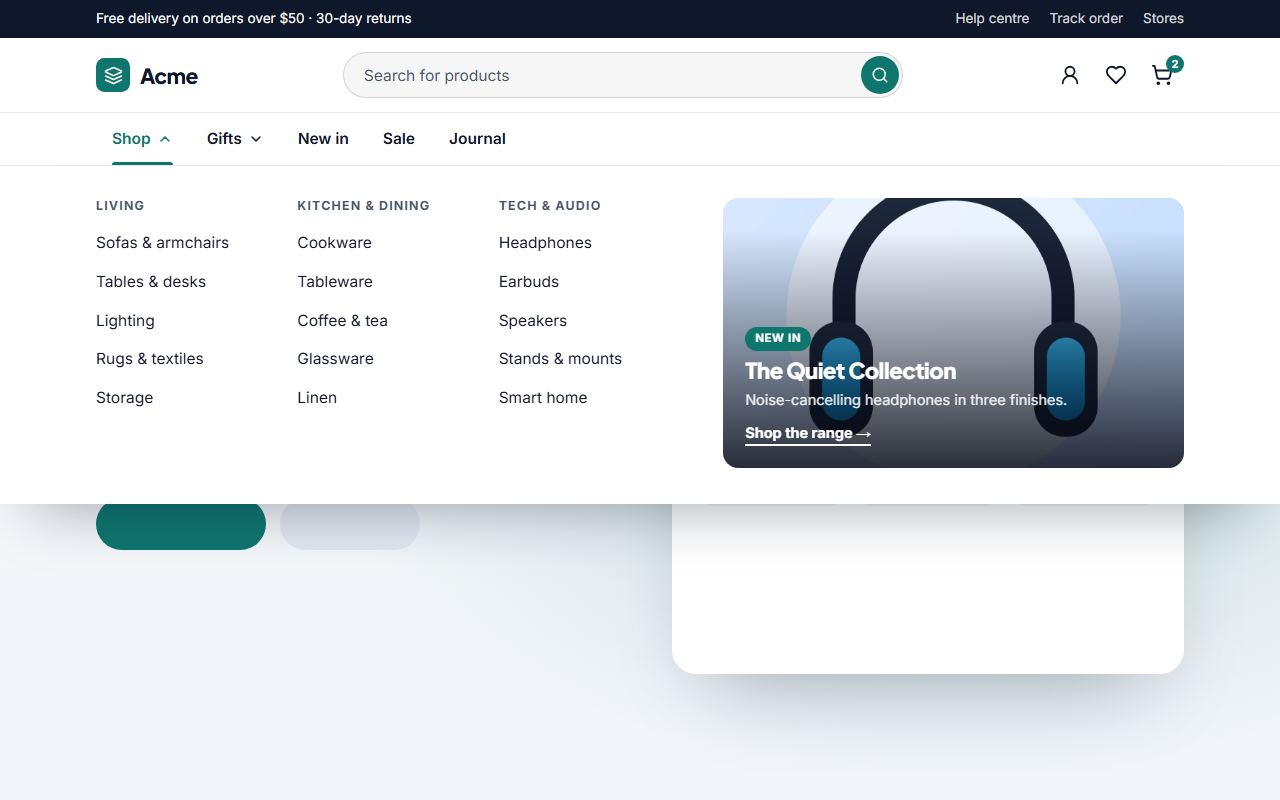
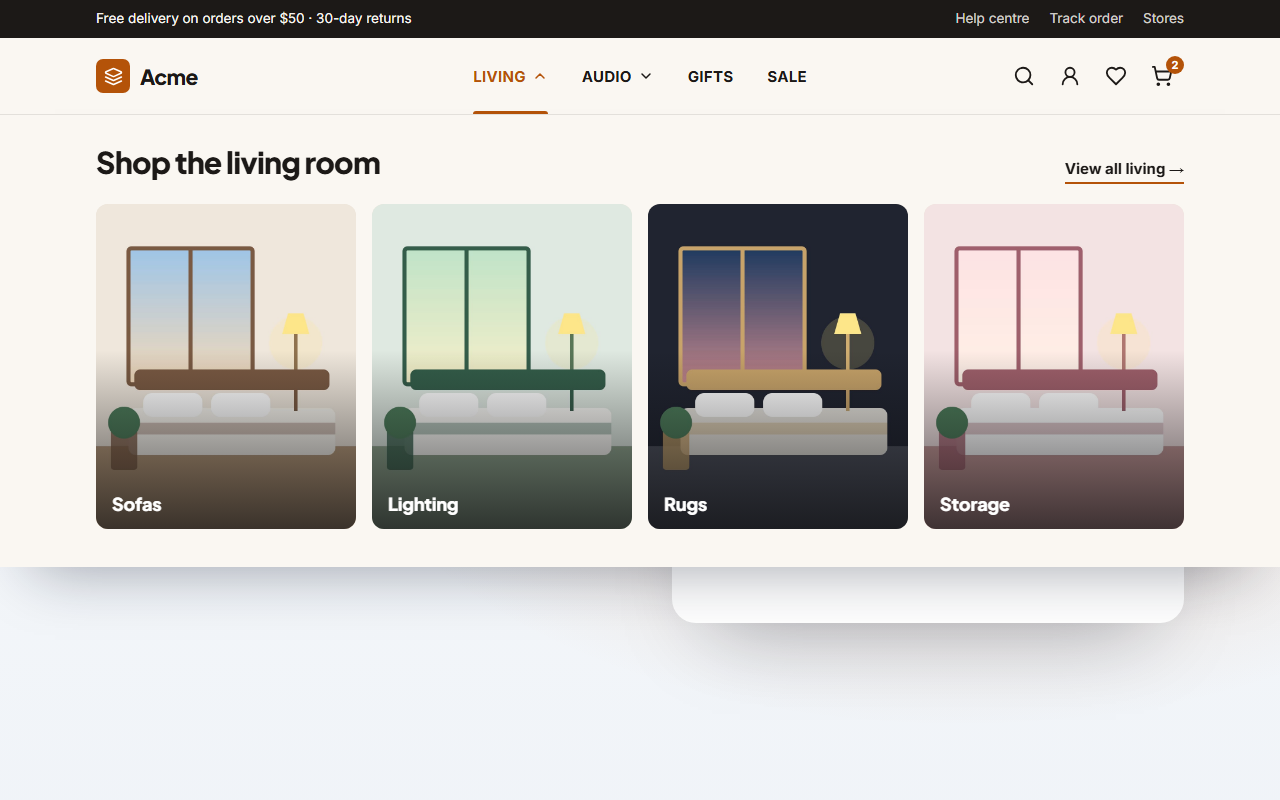
Ecommerce Mega Menu — Department Sidebar is a free navigation template for shops with big catalogues. Under a search header sits an "All categories" button; open it and one large panel appears with a list of departments on the left and, on the right, the sub-category columns and a featured card of the department you are pointing at. Quick links such as Deals, New in and Gift cards sit beside the button.
The marketplace pattern, done properly
Department stores and marketplaces have too many categories for a row of tabs. A vertical list of departments, each with an icon, scales to eight categories while the right side shows three link columns, a view-all link and a promotion for the active one. Hover, focus or click a department to switch panes; Arrow Up and Down move between them, and the first department starts active so the panel is never empty.
Search first
Most shoppers of large catalogues start with search, so the search form takes the centre of the header, with account, wishlist and cart icons and a cart count on the right. The form is a plain GET form that sends visitors to your search page with their words in the q parameter.
Responsive and accessible
The All categories control is a real button with aria-expanded and aria-controls, Esc closes the panel and returns focus, and tabbing out closes it. On phones the button becomes the first row of the burger menu and the departments turn into chips above the active department's links, so the whole catalogue stays reachable with a thumb.
Edit and export
Add up to eight departments with an icon, three link columns written as "Label | URL" lines and a featured card with a photo. Edit the quick links, the button text and the top bar, and the theme restyles everything at once. The departments are also written as SiteNavigationElement data. Export one HTML file, a ZIP with images, a React or Vue component, or fork it into My Code. See also the Link Columns Mega Menu for a row of category dropdowns.
Why use it
Why Use the Ecommerce Mega Menu — Department Sidebar
How it’s different
How It’s Different From Other Free Section Templates
Step by step
How to Use
- 1Edit the contentFill in the logo, top bar, search & icons, departments and button & quick links in the panel. Switch the top bar on or off. Wrap words in *asterisks* to colour them.
- 2Add your imagesUpload your own images (resized in your browser and kept on your device) or paste a hosted image URL.
- 3Match your brandPick a colour preset or exact colours, choose heading and body fonts from Google Fonts or your own uploaded font, set the corner radius and width, or apply your brand kit.
- 4Animate and previewChoose a GSAP entrance effect and speed, press Play animation, and check the section on desktop, tablet and mobile.
- 5Save and exportSave it to My designs, then export a single HTML file, a ZIP with your images, a React or Vue component, or fork it into My Code.
Real-world uses
Common Use Cases
Got questions?
Frequently Asked Questions
Up to eight. Each has an icon, a title, a view-all link, three link columns and an optional featured card. For fewer, bigger categories, the Image Tiles mega menu may suit better.
Hovering, focusing or clicking a department activates its pane. Arrow Up and Down move between departments. The first department is active by default, so the panel never opens empty.
The All categories button becomes the first row of the burger menu. Opening it shows the departments as chips with the active department links beneath, followed by the quick links.
Yes. Empty the quick links field to hide that row, and switch off the top bar group to remove the thin bar above the header.
It saves an editable copy of your Ecommerce Mega Menu — Department Sidebar in My Code, the UI Snippets code editor: the section markup goes in the HTML panel, its CSS (theme variables, base styles and layout) in the CSS panel, and the GSAP library is added as a CDN link, so you can keep refining the code and save your own versions.
Yes. Every section is free for personal and commercial work, with no account, no watermark and no attribution: export it on its own as HTML, React, Vue or Next.js from its page, or use it in a website you build and export in the Website Builder.