
Desktop · 1280px · shown at 0% · edit the text, images and colours in the panel




Terminal Hero — Free Website Section Template
Hero · v1.0.0 · Updated 2026-11-15 · Responsive · GSAP animation · HTML, React & Vue
Extend with AI
Take This Section Further With AI
Make the terminal personal: an AI assistant can type your latest GitHub commit as a line, rotate between several short scripts, or add a "copy email" command that copies your address.
Prompt to recreate it
Copy this into your AI assistant of choice to build the effect from scratch, or as a jumping-off point for your own variant:
Create a developer portfolio hero in HTML, CSS and JavaScript.

- Two columns on a dark page: on the left an availability badge with a pulsing dot, a large heading, a short paragraph, two buttons and three social icon links; on the right a terminal window with a title bar (three coloured dots and a title).
- The terminal shows about ten lines in a monospace font: commands start with a coloured "$" prompt and are typed one character at a time, then the next line appears after a short pause. Output lines appear at once, success lines are green and comments are grey. A blinking cursor follows the active line.
- Skip the animation and show all lines when prefers-reduced-motion is set. Stack into one column on narrow screens.
Want to tighten it up first? Run this prompt through the AI Prompt Studio to score it across 8 quality dimensions, catch anti-patterns, and tune the wording for Claude, ChatGPT, or Gemini before you paste it in.
What's included
Features
About this section
Terminal Hero — Free Developer Portfolio Hero Section
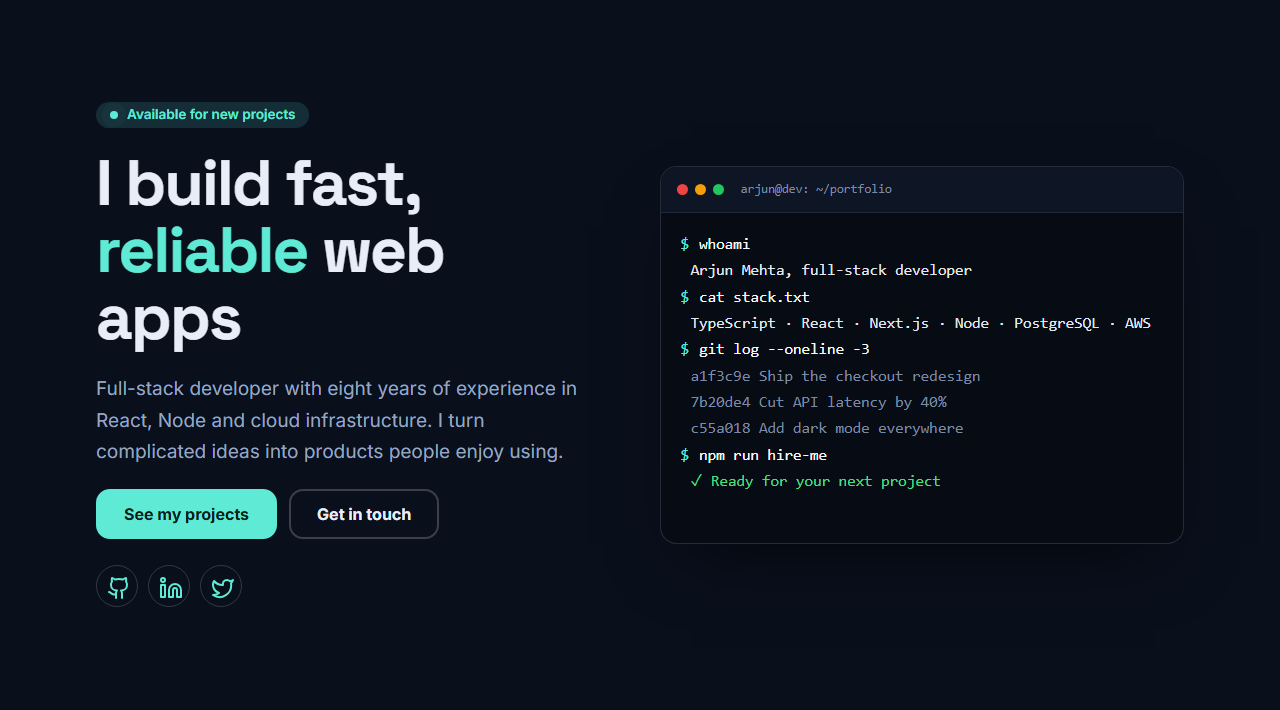
Terminal Hero is a first screen that looks like the work. On the left sit an availability badge, a large headline, a short introduction, two buttons and social icons; on the right is a terminal window whose lines type themselves out, one after another, with commands, output, success lines and comments in their own colours. It tells visitors who you are before they have scrolled.
You write every line
Each terminal line has a type and some text. Commands are typed character by character after a prompt you choose, output and comments appear at once, and a success line turns green. A short script such as "whoami", "cat stack.txt", "git log --oneline" and "npm run hire-me" says who you are, what you use and what you are working on in about ten lines.
Calm for people who want it
The typing speed is a choice of slow, normal or fast. Visitors who ask their device for reduced motion, and anyone using the editors, see the finished terminal immediately, with no animation. The window has a text description for screen readers, and the headline is the page's one main heading.
Dark by default
The section is designed for a dark theme with a single bright accent, and the terminal itself stays dark on any theme. Social icons use the same icon picker as the rest of the library, so GitHub, LinkedIn and X are one click away.
Putting it on your portfolio
The typing effect is a few lines of plain JavaScript in the export, with no libraries, so the hero loads fast on GitHub Pages or any static host. Follow it with Project Cards for your work and a Vertical Timeline for your experience, the order used in the Developer Portfolio website template.
Writing a terminal that sells you
Keep the terminal to ten lines or fewer, put the most important line first, and end on a call to action. Make the headline about what you do for other people, not about the tools you use.
Why use it
Why Use the Terminal Hero
How it’s different
How It’s Different From Other Free Section Templates
Step by step
How to Use
- 1Edit the contentFill in the heading and text, buttons, social links, terminal and terminal lines in the panel. Switch the social links on or off. Wrap words in *asterisks* to colour them.
- 2Add your imagesUpload your own images (resized in your browser and kept on your device) or paste a hosted image URL.
- 3Match your brandPick a colour preset or exact colours, choose heading and body fonts from Google Fonts or your own uploaded font, set the corner radius and width, or apply your brand kit.
- 4Animate and previewChoose a GSAP entrance effect and speed, press Play animation, and check the section on desktop, tablet and mobile.
- 5Save and exportSave it to My designs, then export a single HTML file, a ZIP with your images, a React or Vue component, or fork it into My Code.
Real-world uses
Common Use Cases
In real websites
Website Templates That Use the Terminal Hero Section
The Terminal Hero section is part of 1 complete website template in the free Website Builder, so you can see it in a full page before you use it on its own: Developer Portfolio Website (Dark). Open any of them in the builder to edit the whole page, or keep customising this section by itself.
Got questions?
Frequently Asked Questions
Yes. Every line is a field with a type and text. Commands are typed after the prompt, and output, success and comment lines appear at once in their own colours.
No. Visitors who prefer reduced motion see the finished terminal immediately, and so do people using the editors. The text is real HTML, so search engines can read it.
Yes. The terminal window stays dark on any theme, and the copy beside it follows the theme colours. It looks best with a dark page and one bright accent.
Yes. The headline is the page’s one h1, so place this section first, and use h2 headings in the sections below it.
It saves an editable copy of your Terminal Hero in My Code, the UI Snippets code editor: the section markup goes in the HTML panel, its CSS (theme variables, base styles and layout) in the CSS panel, and the GSAP library is added as a CDN link, so you can keep refining the code and save your own versions.
Yes. Every section is free for personal and commercial work, with no account, no watermark and no attribution: export it on its own as HTML, React, Vue or Next.js from its page, or use it in a website you build and export in the Website Builder.